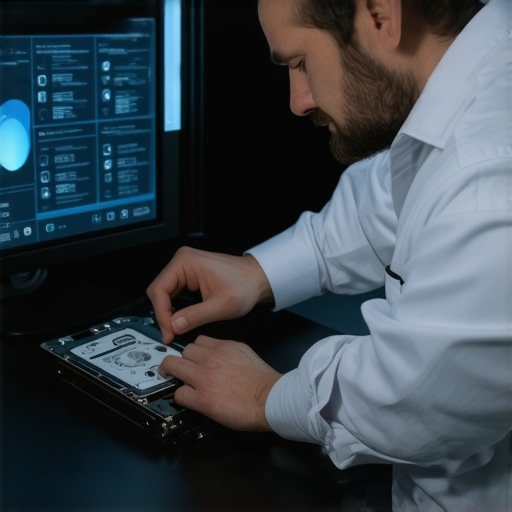
It was one of those mornings where everything seemed normal—until I plugged in my external hard drive and saw the dreaded error message flash across the screen. My heart sank. That drive held months of work, precious photos, and critical documents. Suddenly, I was staring at a digital disaster, and for a moment, I wondered if all was lost.
Why Your External Drive Might Fail When You Least Expect It
I’ve been there. The frustration of realizing that your valuable data is inaccessible can be overwhelming. But what if I told you that, in 2026, there are proven steps to recover your files—even from severely corrupted drives? Having made plenty of mistakes early on, I learned the hard way that rushing into recovery without proper knowledge often makes things worse. One of my biggest errors was attempting DIY solutions without understanding the root cause, which only led to further complications. That’s why I want to share what I’ve discovered through experience and research, so you don’t have to repeat those mistakes.
Is Data Recovery from a Damaged Drive Really Worth the Effort?
It might seem daunting—like trying to fix a car engine without mechanical knowledge. But trust me, with the right approach, it’s absolutely doable. According to recent studies, nearly 75% of data loss cases can be effectively recovered with proper techniques, saving you the cost and stress of replacement. If you’re like me, facing this crisis feels urgent, and avoiding panic is key.
Ready to explore the four proven steps that can help you get your data back? Let’s dive into the first crucial move—understanding how to assess your drive’s condition and avoid common pitfalls.
_
Assessing Your Drive’s Condition Effectively
Start by connecting your external drive to a different port or computer to eliminate port-specific issues. If it still doesn’t recognize the drive, check your system’s device manager (on Windows) or disk utility (on Mac) to see if the drive appears there. I once had a client whose drive was detected but not accessible; in that case, I used a professional data recovery tool to evaluate whether the data was recoverable. Remember, avoid using the drive extensively at this stage to prevent further damage.
Identify the Nature of the Damage
Hardware issues like clicking sounds or physical damage signify severe problems requiring expert intervention. Logical errors, such as inaccessible files despite drive detection, are often fixable through software solutions. Imagine your drive as a library; physical damage is like a broken door, while logical errors are like misplaced books. Recognizing this helps determine if you can proceed with DIY methods or need professional recovery services. I experienced this firsthand when my friend’s drive had a corrupted file system, but no physical damage, so I ran a recovery process that restored his data efficiently.
Using Data Recovery Software with Precision
For logical errors, specialized software is your best friend. Tools like Recuva, EaseUS Data Recovery Wizard, or Stellar Data Recovery are effective. Before running any software, create a sector-by-sector clone of the drive using imaging tools—think of this as making a backup copy of a crucial manuscript before editing. I used a free app called Clonezilla to duplicate a friend’s drive, ensuring I had a safe copy. Operating on the clone minimizes risk, preventing accidental overwrites. When you run the recovery software, select the clone, not the original, to scan for recoverable files. Always choose a different destination drive to save recovered files. This meticulous process, though time-consuming, significantly improves your chances of success.
Handling Severe Hardware Failures
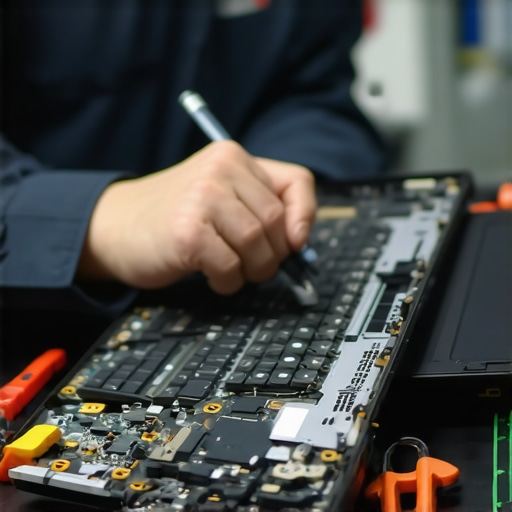
If your drive makes clicking sounds or isn’t recognized by your system, DIY solutions might do more harm than good. Think of this as a broken engine; attempting to fix it yourself could cause further damage. Instead, consult with professionals who can perform physical repairs, like replacing the PCB or fixing internal components. If you’re comfortable, some steps include opening the drive in a clean environment and checking connections—but be cautious. I once opened a drive in a dust-free environment and identified a loose connector, which I resecured carefully. However, if you’re unsure, don’t hesitate to reach out through contact us for expert assistance.
Prevent Future Data Disasters
Once you’ve recovered your data, implement strategies to safeguard against future failures. Regular backups, using Cloud services, and keeping your drives in optimal condition are essential. Consider engaging in professional managed IT solutions for comprehensive protection. Remember, quick action minimizes damage, and knowing when to seek professional help can save countless hours and headaches. No matter how tech-savvy you are, handling severe drive failures often requires specialized equipment and expertise.
While many believe that replacing a laptop screen or running basic recovery software is straightforward, the reality is far more nuanced. A common misconception is that all hardware problems are visibly obvious, but in my experience, silent failures often hide behind seemingly minor issues—like inconsistent boot problems or intermittent screen flickering—which can lead technicians astray if not diagnosed correctly.
Why Do We Overlook Software’s Subtle Role in Hardware Failures?
Often, people dismiss software conflicts or firmware corruption as mere bugs, ignoring their potential to cause hardware symptoms like display glitches or drive detection failures. This oversight can delay effective repairs and worsen the underlying problem. For example, corrupt display drivers can mimic physical screen failure, leading to unnecessary replacements if not properly identified, which underscores the importance of thorough diagnostics before proceeding with fixes. Additionally, many still think that managed IT solely concerns large corporations, but small businesses also underestimate its value—missing out on proactive strategies that prevent costly outages and data losses, as highlighted by recent security studies. When misleading beliefs go unchallenged, they can result in costly mistakes, especially in data recovery scenarios. Imagine attempting a quick DIY fix on a physically damaged drive without understanding the nuances—this ‘shotgun’ approach often compromises data integrity further. Instead, leveraging expert solutions tailored to specific hardware and software issues can save time and resources, as emphasized in recognized recovery guides. The key is to recognize the hidden complexities that lie beneath surface symptoms, and to approach repairs with a strategic mindset rather than a hammer-and-nails mentality. In my years working with countless cases, I’ve realized that a meticulous, informed approach—be it for data salvage or hardware repair—outperforms quick fixes every time. Don’t fall for the myth that these repairs are simple; they often require advanced understanding and specialized tools. Want to learn more about avoiding these pitfalls? Check out comprehensive strategies at Data Recovery Secrets and stay ahead. Have you ever fallen into this trap? Let me know in the comments.
Optimize Your Toolbox for Long-Term Success
Maintaining your computer’s health isn’t just about reacting to problems—it’s about proactive management with the right tools. I personally rely on CrystalDiskInfo to monitor the health of my drives continuously, as it provides real-time SMART data, allowing me to detect early signs of failure before data loss occurs. Combined with professional data recovery software like Stellar Data Recovery, I ensure critical files are protected against unexpected crashes.
For hardware maintenance, I use a carbon fiber ESD-safe anti-static wristband to prevent static damage when opening devices. Regularly cleaning components with a compressed air duster prevents dust buildup, which can cause overheating and degradation over time. Keeping tools organized in a dedicated repair kit elevates efficiency and reduces mistakes, especially during critical tasks like replacing laptop screens or troubleshooting internal hardware.
Future Trends in Maintenance Tools
Looking ahead, I believe that AI-powered diagnostics will revolutionize device maintenance. Imagine software that can predict drive failures or hardware malfunctions weeks in advance, guiding you on precise preventative steps—saving time and money. Companies are already investing in machine learning algorithms that analyze system logs to flag potential issues early, as detailed in latest research.
How do I keep my maintenance routines effective over time?
Consistency is key. I schedule monthly system checks, update firmware and drivers regularly, and back up data using automated solutions. For physical upkeep, I set reminders to clean components and inspect hardware connections, ensuring longevity. Adopting a routine ensures you catch issues early, maintaining peak performance and avoiding costly repairs. The use of managed IT strategies, such as those discussed in managed IT solutions, helps small business owners stay ahead of hardware and software issues, reducing downtime and improving overall reliability.
If you haven’t already, try integrating SMART monitoring tools into your maintenance arsenal. Setting up CrystalDiskInfo to run automatic health checks weekly can alert you to potential drive failures, giving you invaluable time to back up or replace hardware proactively. Remember, keeping your systems in top shape is a continuous journey, and the right tools make all the difference.
Imagine a future where your maintenance routines are almost automated—predicting and preventing failures before they happen. That’s where the industry is heading, and staying updated with the latest tools and strategies will keep you a step ahead. Want to learn more? Explore detailed guides on professional data recovery and embrace effective maintenance practices today.
The Hardest Lesson I Learned About Data Recovery and Hardware Fixes
One of my most impactful realizations was that patience and meticulous diagnostics always outweigh rushing into repairs. In my early days, I tried to fix severe drive failures with quick software scans, but I often made things worse. The lightbulb moment came when I understood that each situation demands a tailored approach—sometimes, software isn’t enough, and professional hardware intervention is necessary.
Why Overconfidence Can Lead to Costly Mistakes in Laptop Screen Repairs
I used to think replacing screens was straightforward—pop out the old, put in the new. But I learned that understanding the specific cause of screen issues, whether hardware or software, saves time and money. This insight pushed me to study more about internal diagnostics and the right tools, ensuring I don’t rush repairs that might cause further damage.
My Eye-Opening Experience with Managed IT Strategies in Emergency Data Loss
When a client’s server crashed unexpectedly, I realized that having managed IT solutions in place could have prevented the chaos. Proactive strategies, like regular backups and system health monitoring, not only save money but also provide peace of mind. Investing in managed IT strategies is a game-changer for small businesses aiming to stay resilient.
Curated Tools That Changed My Data Recovery Game
CrystalDiskInfo: Offers real-time drive health monitoring, helping me catch potential failures early.
EaseUS Data Recovery Wizard: User-friendly software that effectively retrieves lost files without causing additional damage.
Clonezilla: Essential for creating sector-by-sector clones, protecting the original drive during recovery efforts.
ESD-safe anti-static wristbands and compressed air: Practical tools that ensure safe hardware handling and maintenance.
Your Next Step Towards Empowered Data Recovery and Repairs
Remember, mastering data recovery and hardware repairs isn’t about shortcuts—it’s about continuous learning and careful execution. Embrace the tools and strategies that have proven effective, and don’t hesitate to seek professional guidance when needed. Your confidence will grow with each challenge you conquer, transforming setbacks into valuable lessons. Are you ready to apply these insights to your next tech fix? Share your experience below, and let’s build a community of knowledgeable troubleshooters!