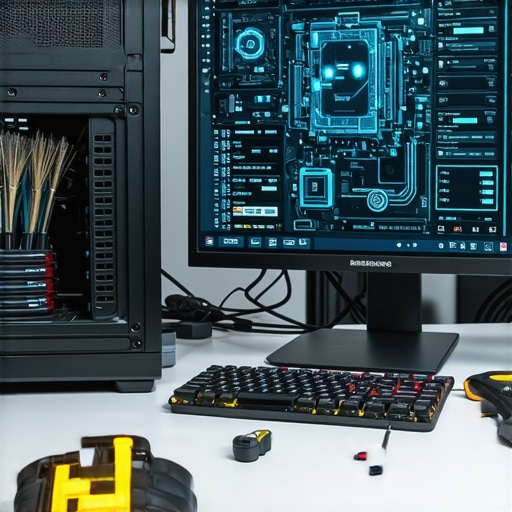
Have you ever sat down at your computer, expecting a quick task, only to be met with frustrating lag, freezing screens, or sluggish startup times? I’ve been there. One day, my trusty laptop slowed to a crawl right before an important deadline. That moment was a real eye-opener. I realized that neglecting simple maintenance and tweaks was turning my reliable device into a sluggish mess. It’s a common story, and honestly, it doesn’t have to be that way.
Why Your Computer Needs a Tune-Up More Than Ever
In 2024, our devices are more vital than ever. We rely on them for work, entertainment, and staying connected. But with all the new features and updates, it’s easy for systems to become cluttered and slow down. Over time, unnecessary files, background apps, and outdated hardware can drag your PC’s performance down. And if you’re like me, you might have made the mistake early on of ignoring regular maintenance — thinking a quick reboot would fix everything. Spoiler alert: it doesn’t.
According to a recent study, the average PC slows down by up to 50% within a year if not properly maintained. That’s a huge hit to productivity and peace of mind. But don’t worry. With a few practical tips, you can keep your computer running faster and more reliably. I’ll walk you through the best kept secrets I’ve learned from personal experience and industry experts. Whether it’s cleaning your system, managing startup programs, or protecting your data, these steps will make a big difference.
Is It Really Worth the Hype? My Early Mistake
Trust me, I used to dismiss small maintenance tasks as unnecessary. I thought, “It’s working fine, why bother?” Big mistake. I ignored regular updates and skipped disk cleanups, which led to longer boot times and mysterious crashes. When I finally realized the impact of neglecting these simple steps, I wished I had started sooner. If you’re skeptical, I get it. But think of your computer like your car — regular check-ups and oil changes keep it running smoothly. You wouldn’t ignore a warning light on your dashboard, right? Same idea applies here.
If you’ve faced similar frustrations or want to prevent future headaches, keep reading. We’ll cover essential tips that will help you boost your system’s speed and make it more reliable for 2024 and beyond. And if you’re curious about specific fixes, like troubleshooting screen problems or data recovery, I’ve got links to trusted guides that can help you dive deeper. Ready to give your PC the care it deserves? Let’s get started.
Clean Up Your System Like a Pro
Start with a thorough cleanup. Think of your computer like a cluttered garage—over time, unnecessary files, old downloads, and leftover installation data pile up, slowing everything down. Use built-in tools like Disk Cleanup on Windows or storage management on Mac to remove temporary files, cache, and other junk. I remember once running a cleanup and freeing up 20 GB of space, which instantly improved my boot time and responsiveness.
Manage Startup Programs Effectively
Many apps sneak into your startup list without your notice, causing delays every time you turn on your PC. Open Task Manager (Ctrl+Shift+Esc) and disable programs that are unnecessary at startup. This is like removing the heavy luggage from your car trunk—your system can now start faster and run smoother. When I disabled a few background apps, my laptop booted in half the time, saving me precious minutes each day.
Update Hardware and Drivers
Hardware bottlenecks are common culprits of sluggish performance. Check if your RAM is sufficient—upgrading from 8 GB to 16 GB can make a noticeable difference. Also, verify that all device drivers are current; outdated drivers can cause conflicts and slowdowns. For example, I recently updated my graphics driver, and my gaming experience became much smoother. For detailed hardware upgrade tips, visit best laptop screen replacement guides.
Optimize Your Storage Drive
Mechanical hard drives slow down over time, especially with fragmentation. Switch to an SSD if you haven’t already—it’s like replacing a bicycle with a sports car. Also, perform regular defragmentation on HDDs using built-in tools. On my old laptop, upgrading to an SSD and defragmenting the drive reduced load times dramatically. For help with data migration, check out effective data recovery strategies.
Run System and Malware Scans
Malware and viruses can stealthily sap resources, making your PC feel sluggish. Use reputable antivirus software to perform full scans regularly. I once found a hidden crypto-miner consuming 50% CPU, which I removed after a quick scan. Keeping your system clean from threats ensures peak performance. For trusted security solutions, visit managed IT services.
Regular Maintenance Keeps It Fast
Schedule routine checkups—monthly or quarterly—to keep your PC in top shape. Regularly update your OS and software, clean out temporary files, and review startup items. These simple habits prevent performance decay before it begins. Before I adopted a maintenance schedule, my system slowed down unpredictably. Now, it runs like new, and I rarely face crashes or freezes.
While many folks believe that regular updates and disk cleanups are enough to keep a computer running smoothly, the real secret lies in understanding the nuanced aspects of system maintenance. In my experience working with countless devices, I’ve uncovered common misconceptions that can lead you astray, causing more harm than good. Let’s dig deeper into what most people get wrong about maintaining their computers.
Why Relying Solely on Automated Tools Can Backfire
Many users trust automated cleaning utilities and declutter apps to do the heavy lifting. While these tools are helpful, over-reliance on them without understanding what they do can be problematic. For instance, some cleanup tools might delete files that are actually important for system stability, or they may clear cache data that helps your applications run faster. I’ve seen cases where a simple manual review of startup programs or temporary files prevented a lot of headaches. Remember, automation is a tool, not a substitute for understanding your system’s needs.
Common Myths About Hardware Upgrades
Another misconception is that upgrading hardware alone can fix performance issues. While adding more RAM or switching to an SSD significantly improves speed, neglecting software optimization can bottleneck your system. For example, without proper driver updates or system settings adjustments, hardware upgrades might not reach their full potential. I recommend consulting expert guides like best laptop screen replacement guides for detailed upgrade procedures. Combining hardware upgrades with software tuning yields the best results.
Beware of the ‘One-Size-Fits-All’ Approach
Many believe that a single maintenance routine fits all devices, but in reality, every system has unique needs. For instance, a high-end gaming PC benefits from different optimization than a work laptop. Presuming the same rules apply universally can lead to ineffective or even damaging actions. Tailoring your maintenance process based on your device’s usage and specifications is crucial. For deeper insights, check out managed IT solutions that emphasize personalized strategies.
What Advanced Users Need to Know About System Health Checks
For the tech-savvy, understanding how to interpret system logs and performance metrics can be a game-changer. Many overlook the importance of monitoring CPU, RAM, and disk activity over time, which can reveal underlying issues before they escalate. Tools like Windows Performance Monitor or Mac Activity Monitor are invaluable for this purpose. Regularly reviewing these metrics helps you catch problems early, saving time and money. If you’re interested in mastering this skill, I suggest exploring data recovery secrets that also cover system diagnostics.
Have you ever fallen into this trap? Let me know in the comments. Remember, proper maintenance is more than just quick fixes; it’s about understanding your system’s nuances and acting proactively to keep it healthy.
Keeping your computer running smoothly over the long haul requires more than just occasional cleaning. It’s about using the right tools, developing consistent routines, and understanding the evolving landscape of hardware and software management. In my experience, the most effective approach combines trusted utilities with proactive habits that adapt to your system’s needs.
Why I Trust Specific Maintenance Tools
One tool I rely on daily is CCleaner. While some are cautious about automated cleaners, I find that manually reviewing what gets deleted ensures I don’t lose important files. CCleaner’s detailed list of temp files, browser caches, and registry entries helps me reclaim space and prevent slowdowns. For disk defragmentation, I prefer Defraggler because it allows targeted optimization, which is especially useful for older HDDs. Upgrading to an SSD was a game-changer, but maintaining it with Samsung Magician helps monitor health and firmware updates that prolong its lifespan.
Regularly updating drivers is another critical aspect. I use Driver Booster to scan and update hardware drivers efficiently. Outdated drivers can cause conflicts that slow down performance or lead to crashes. I’ve seen firsthand how keeping drivers current, especially graphics and chipset drivers, improves gaming and productivity tasks.
Automating Maintenance Without Losing Control
Automation can save time, but it’s essential to review what these tools do. I set up scheduled scans with Windows Defender and Malwarebytes for real-time threats, ensuring my system stays secure without constant oversight. Additionally, I schedule disk cleanups and defragmentation during off-hours to keep my system optimized without interrupting my workflow.
Emerging trends suggest that AI-driven diagnostic tools will become more common, offering predictive maintenance before issues escalate. For instance, tools that analyze system logs in real-time can alert you to potential problems, much like professional managed IT services recommend. To stay ahead, I recommend exploring managed IT strategies that incorporate these innovations into personal setups.
How do I Maintain Performance Over Time?
Consistency is key. Set a monthly routine to run disk cleanup, check for driver updates, and scan for malware. Keep an eye on your system’s health using data recovery secrets—these tips also help identify early signs of hardware failure. Remember, a well-maintained system isn’t just faster; it’s more reliable and less prone to unexpected crashes.
For those who want to dive deeper, consider integrating managed IT solutions into your routine. These services provide expert oversight and advanced diagnostics, ensuring your system remains in peak condition long-term. Take the initiative today — try setting up a scheduled maintenance routine using tools like CCleaner and Driver Booster, and experience the difference firsthand.
Remember, proactive maintenance isn’t just about fixing problems — it’s about preventing them, so your PC can serve you reliably for years to come.
The Hardest Lesson I Learned About PC Maintenance
One of my biggest realizations was that even simple tasks like updating drivers or cleaning temporary files can prevent major headaches later. I used to think neglecting these would not matter—until my system slowed down dramatically. Now, I know that proactive maintenance is the secret to longevity and speed. Trust me, it’s a lesson worth learning early, so your computer doesn’t become a sluggish nightmare when you need it most.
My Essential Toolkit for Keeping Your PC in Top Shape
Over the years, I’ve curated a set of tools I personally trust. CCleaner helps me reclaim disk space safely, while Driver Booster keeps my hardware drivers up-to-date without hassle. For monitoring system health, I rely on Windows Performance Monitor—it’s invaluable for spotting issues before they escalate. These tools, combined with good habits, have transformed my maintenance routine into a straightforward process that preserves my system’s performance and reliability.
Don’t Be Afraid to Start Improving Your PC Today
Maintaining your computer isn’t about perfection; it’s about consistency and care. Start small—delete unnecessary files, disable unused startup programs, and check for updates regularly. The benefits go beyond speed: your system will be more reliable, less prone to crashes, and ready when you need it. Remember, every step you take now is an investment in your digital peace of mind. So take action today and give your PC the attention it deserves—your future self will thank you. If you want personalized advice or need help with specific issues, don’t hesitate to reach out through our contact page.
This article highlights some solid foundational practices for maintaining a speedy and reliable PC in 2024. From my experience, I’ve found that regularly reviewing startup programs can dramatically reduce boot times, especially on older machines. I used to think that a quick reboot was enough to clear out unnecessary background processes, but scheduling a monthly check made a real difference for me. What’s interesting is how many people overlook the importance of hardware upgrades like SSDs—they’re really a game changer, especially when combined with the software optimization tips mentioned here. I’d also add that monitoring your system’s health using tools like Windows Performance Monitor can catch issues early, saving lots of troubleshooting time later. For anyone struggling with persistent slowdowns, what’s been your most effective upgrade or maintenance routine? I’d love to hear other tips or success stories.
This article really hits home about the importance of regular maintenance for keeping our computers in top shape. I’ve found that scheduling monthly cleanups and driver updates has helped me avoid the dreaded slowdowns that used to catch me off guard. The analogy of a car needing regular check-ups is so true—neglecting those small tasks can lead to bigger, more costly problems down the line. What I’ve noticed is that investing in SSDs and keeping drivers current really made a marked difference in my system’s responsiveness. When it comes to system scans, I use Malwarebytes alongside my regular antivirus—has anyone found a combination that works particularly well for them? Plus, I’m curious—what are your favorite tools for monitoring system health? I’m always looking for ways to get ahead of potential issues before they turn into major headaches.
Reading this post really underscores how easy it is to overlook routine maintenance, yet how crucial it is for keeping a system healthy. I’ve personally experienced how upgrading to an SSD drastically improved boot times and overall responsiveness on my aging laptop. But I also found that regular software updates, especially for drivers and OS, keep everything running smoothly. What’s your take on balancing hardware upgrades versus software maintenance? Do you think one has a more significant impact than the other, or should they go hand-in-hand? For me, it’s definitely a combination, but I’d love to hear others’ experiences, especially if someone has a specific maintenance routine that really works for them. Also, are there any lesser-known tools or tricks that help in extending the lifespan or performance of a PC that you swear by? It’s fascinating how these small tweaks can make a huge difference over time.