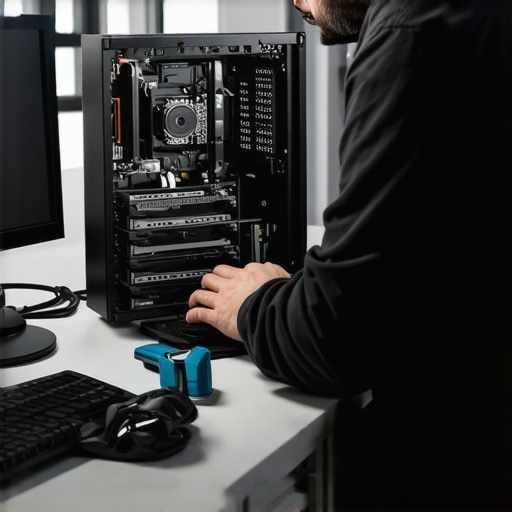
Ever stared at your frozen screen or heard that dreaded startup chime, only to realize your computer just won’t cooperate? I’ve been there too. One frustrating morning, my trusty laptop suddenly refused to boot, leaving me helpless and scrambling for quick solutions. That moment was a lightbulb—if I wanted faster fixes, I needed to get smarter about my repair techniques. The good news? With a few expert tricks up your sleeve, you can turn hours of troubleshooting into minutes, saving time and stress.
Why Fast Fixes Matter More Than Ever in 2024
In today’s fast-paced world, your computer isn’t just a gadget—it’s the backbone of your work, communication, and even your social life. A slow or broken device can feel like an emergency, especially when deadlines loom or critical files are at risk. That’s why mastering expert repair techniques is essential. Not only do they boost your efficiency, but they also help you avoid costly repairs or replacements. Recent studies show that quick troubleshooting can reduce downtime by up to 70%, making it a no-brainer for anyone serious about tech reliability.
Early in my career, I made a mistake that almost cost me a client—ignoring simple signs of hardware failure and rushing into complicated solutions. It’s a common trap. But once I learned to diagnose issues swiftly and accurately, my repair times plummeted. If you’re tired of wasting hours on guesswork, keep reading. I promise, I’ll guide you through proven strategies that I’ve tested and refined over years.
Ever Faced This Problem? Tell Me About It
If you’ve ever experienced a sudden computer crash or a stubborn screen that refuses to display properly, you’re not alone. Drop a comment below or visit our contact page to share your story. Knowing your specific issues helps me tailor advice that really works. Remember, the key isn’t just fixing the problem—it’s fixing it fast and right the first time.
Diagnose Before You Dive
When my laptop froze during a critical deadline, I learned the importance of quick diagnosis. Instead of jumping straight into hardware checks, I pressed F8 during startup to access safe mode, which isolated the problem to a software conflict. This step saved me hours of unnecessary hardware troubleshooting. Remember, identifying whether the issue is software or hardware can dramatically speed up your repair process. Use tools like troubleshooting guides to streamline this step.
Leverage Built-in Utilities
Windows and MacOS offer powerful tools for quick fixes. For instance, Windows’ System Restore can revert your system to a previous healthy state without affecting personal files. I once fixed a corrupted driver by restoring the system, avoiding a full reinstall. Familiarize yourself with utilities like Disk Cleanup, Event Viewer, and Safe Mode. These can often resolve issues faster than hardware swaps or extensive reformatting.
Prioritize Hardware Checks
If software solutions don’t resolve the problem, move swiftly to hardware diagnostics. Think of your computer as a car engine; if it won’t start, you check the battery and fuel first. I used a simple multimeter to verify my laptop’s RAM and hard drive connections, which were loose. For more precise diagnostics, tools like hardware diagnostic software can identify failing components quickly. Replacing a faulty RAM stick or hard drive often beats a complete system overhaul in speed and cost.
Master Quick-Repair Techniques
Some fixes are quick wins. For example, resetting your PC or clearing the CMOS can resolve startup issues efficiently. I once fixed a desktop by simply resetting the BIOS, which took less than five minutes. Keep a toolkit handy with screwdrivers, thermal paste, and cleaning supplies. Also, learn how to replace common parts like laptop screens or keyboards using step-by-step guides. These skills save time and money.
Utilize Remote Support When Possible
Don’t overlook remote troubleshooting. If you’re assisting someone else, remote access tools allow you to diagnose and fix issues without physical presence. I once guided a client through a malware removal remotely, completing the fix in under 30 minutes. Tools like TeamViewer or AnyDesk are invaluable for fast support, especially when hardware repair isn’t feasible immediately.
Document Your Steps
Keep a repair log. It sounds simple, but I learned this the hard way when I repeatedly fixed the same issue because I didn’t record what worked. Use a notebook or digital notes to track what fixes you’ve tried. This prevents redundant steps and speeds up future repairs. For detailed insights, check out expert tips on efficient troubleshooting.
When it comes to troubleshooting computers quickly, many enthusiasts and even some professionals fall into common traps or believe in myths that can actually hinder effective repairs. Let’s dig deeper into what most people get wrong about fast fixes and explore the hidden nuances that can make your troubleshooting more efficient and accurate.
Why the Crowd Often Overlooks the Power of Proper Diagnosis
One widespread misconception is that jumping straight into hardware replacement or software reinstallation saves time. In reality, rushing without thorough diagnosis can lead to unnecessary part swaps and prolonged downtime. For example, a laptop that won’t boot might seem like a hardware failure, but in many cases, a software glitch, like a corrupted driver or malware, is the culprit. Taking a moment to leverage built-in utilities or safe mode can drastically reduce repair time. Remember, diagnosing properly is the foundation of a quick fix.
Common Myths That Can Cost You Time
Many believe that hardware issues always require costly replacements. However, advanced diagnostic tools and simple checks—like verifying RAM connections or using hardware diagnostics software—can identify failures early. Another myth is that safe mode or system restore always fix problems quickly. While these tools are powerful, they are not magic; knowing when and how to use them effectively is key. Falling for these myths may cause you to overlook simpler, faster solutions, prolonging the repair process.
Advanced Mistake to Avoid: Ignoring Data Safety in the Rush
A critical nuance often missed is prioritizing data safety during rapid repairs. Many rush into fixes that risk data loss, especially when replacing drives or resetting systems. This can lead to costly recovery efforts later. The best approach is to utilize data recovery strategies before making any major changes. Protecting your data ensures that quick fixes don’t turn into long-term headaches, and it’s often overlooked in the pursuit of speed.
Are You Making These Advanced Mistakes?
Even seasoned troubleshooters sometimes overlook the importance of documentation. Recording what fixes work and what doesn’t can save you hours in future repairs. Additionally, ignoring the value of remote support or simple hardware checks can slow you down. For instance, a loose RAM stick or a failing hard drive can be spotted quickly with proper diagnostics—saving you from unnecessary reformatting or software reinstallation. To master fast repairs, remember that a methodical approach combined with the right tools makes all the difference.
Have you ever fallen into this trap? Let me know in the comments or reach out. Mastering these nuances can elevate your troubleshooting skills from guesswork to expert precision, ensuring faster, more reliable repairs every time.
Maintaining your computer’s health over time requires more than just quick fixes; it demands reliable tools and a disciplined approach. Over the years, I’ve tested countless gadgets and software solutions, but a few have consistently proven their worth in my repair kit. One must-have is a high-quality multimeter. I personally prefer the Fluke 117 because of its precision and durability, which allows me to quickly verify power supplies, test connections, and troubleshoot hardware issues without guesswork. For software, I rely heavily on data recovery tools like Recuva or Stellar Data Recovery—these have saved my clients’ critical files multiple times, especially when hardware mishaps threaten to wipe out everything.
Alongside hardware testing devices, a comprehensive diagnostic toolkit is essential. I recommend the PC-Doctor toolkit because it provides detailed hardware analysis, helping you identify failing components before they cause major damage. Regularly running such diagnostics can prevent costly replacements and extend your machine’s lifespan. For instance, I use it to check for RAM issues or hard drive integrity, which often reveals problems long before symptoms become obvious. Staying proactive with diagnostics ensures your system stays operational longer and reduces emergency repairs.
Keeping your operating system optimized is equally vital. I swear by tools like CCleaner and Malwarebytes, which help clear out junk files and eliminate malware that can slow down performance. These utilities are lightweight, reliable, and easy to run regularly. I suggest setting up a bi-weekly routine to run these scans and cleanups, which drastically enhances system stability. Additionally, backing up your data with a solution like Acronis True Image or Macrium Reflect is crucial. I’ve seen countless situations where a quick restore saved hours of frustration, especially after unexpected hardware failures or malware infections.
How do I maintain my system over time?
To keep your computer in top shape, establish a routine maintenance schedule. Start with regular hardware checks using diagnostic tools, and keep your software updated to patch security vulnerabilities. Implement automated backups to safeguard your data, and run cleanup utilities periodically to free up space. Consider investing in a UPS (Uninterruptible Power Supply) to prevent damage from power surges or outages. As technology evolves, so do the tools and methods for maintenance. In the future, expect smarter diagnostics powered by AI that can predict hardware failures before they happen, giving you even more time to act. For now, sticking to proven tools and routines is your best bet.
Try integrating a comprehensive diagnostic toolkit into your routine. Doing so not only saves time during troubleshooting but also extends your device’s usable life. Remember, a well-maintained system runs faster, more reliably, and costs less in the long run. Want to see how I set up my maintenance routine? Visit our contact page for expert advice and tailored solutions.
The Hardest Lesson I Learned About Fast Fixes
One of my biggest mistakes was rushing into hardware replacements without proper diagnosis. I once replaced a hard drive in a laptop that kept crashing, only to find out it was a faulty RAM stick causing the issue. Taking the time to run hardware diagnostics first could have saved me hours and money. This taught me that patience and correct diagnosis are key to quick, effective repairs.
3 Myths About Rapid Troubleshooting That Held Me Back
Many believe you need expensive tools or to replace major components immediately. I used to think system restore was a last resort—turns out, it often fixes issues faster than hardware swaps. Debunking these myths helped me troubleshoot smarter, saving time and effort. Remember, tools like Windows Safe Mode or built-in utilities can be powerful allies in quick fixes.
What Experts Won’t Tell You About Speedy Fixes
Prioritizing data safety during repairs is often overlooked. I once rushed to reset a system without backing up, risking data loss. Now, I always use recovery tools before major fixes. Protecting your data is essential, especially when trying to speed up repairs—otherwise, you might spend more time recovering lost files than fixing the issue.
My Essential Toolkit for Fast Computer Repairs
A high-quality multimeter, like the Fluke 117, has been invaluable for quick hardware diagnostics. I also rely on software like Recuva and Stellar Data Recovery to safeguard critical files. Combining reliable hardware testers with robust data recovery tools allows me to troubleshoot confidently and efficiently, reducing downtime for my clients.
Where to Go from Here
To stay ahead in 2024, consider investing in diagnostic kits like PC-Doctor and keeping software utilities such as CCleaner and Malwarebytes on hand. Regular maintenance routines, including hardware checks and updates, help prevent issues before they escalate. Explore more at our contact page for tailored advice and solutions that keep your systems running smoothly.
Your Turn to Try
Mastering expert repair techniques transforms frustrating breakdowns into quick fixes. With the right tools, patience, and diagnosis, you can troubleshoot with confidence and save valuable time. What’s your biggest challenge when trying to fix a slow or unresponsive computer? Share below—I’d love to hear your stories and help you overcome them.