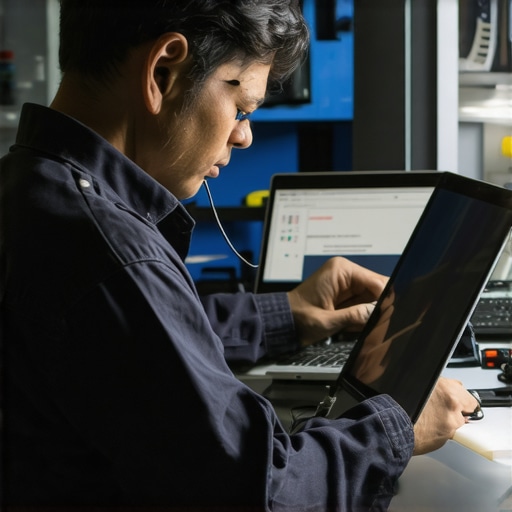
Ever had that sinking feeling when your laptop screen suddenly goes dark or starts flickering at the worst possible moment? I remember the panic of staring at a cracked display during an important video call—feeling helpless and unsure where to turn. That moment was a lightbulb for me: fixing a laptop screen isn’t just about replacing parts; it’s about knowing the right steps to do it quickly and confidently. If you’ve faced similar frustrations, you’re not alone, and there’s good news—there are proven tips that can help you handle screen issues with speed and reliability in 2024.
Why Quick Fixes Matter More Than Ever
In today’s fast-paced world, your laptop isn’t just a device; it’s your lifeline for work, communication, and entertainment. A broken screen can halt your productivity in its tracks, especially when you’re on a tight deadline or trying to wrap up a project. Plus, delaying repairs can lead to further damage—like internal components getting exposed to dust or moisture. That’s why mastering expert tips for fast, reliable screen replacements isn’t just a convenience; it’s a necessity. Knowing how to replace your screen properly can save you time, money, and the headache of dealing with unreliable repairs. And trust me, I’ve been there—making early mistakes like rushing without proper tools or skipping safety precautions only made problems worse. I learned the hard way that preparation and knowledge are your best allies. Want to avoid those rookie errors? Keep reading, because I’ll share some game-changing advice that’s helped me and countless others.
Is DIY Laptop Screen Replacement Actually Worth It?
This is a common doubt I hear all the time. Honestly, I used to think that replacing a screen was only for professionals. My first attempt was a disaster—scratched the new display, broke some clips, and spent more money than if I’d called in a pro. But after some research and practice, I discovered that with the right guidance, DIY can be safe, affordable, and even empowering. You just need to follow expert tips, like those found in this comprehensive guide. It highlighted a crucial mistake I made early on—ignoring static precautions. That one error nearly fried my motherboard! Since then, I’ve learned to approach repairs systematically, ensuring I have the right tools and safety measures. If you’re wondering whether you can tackle this at home, the answer is yes—if you’re willing to learn from trusted resources and take your time. Ready to get practical? Let’s dive into the step-by-step tips that will make your next repair smooth, quick, and reliable.
Gather Your Tools and Prepare Safely
Before you dive into replacing your laptop screen, gather all the necessary tools: precision screwdrivers, plastic prying tools, tweezers, and an anti-static wrist strap. Think of this step as preparing a chef’s kitchen — having the right utensils makes all the difference. I once skipped this step and ended up rummaging for tools mid-repair, which led to accidental scratches. To avoid static damage, always wear your anti-static wrist strap and work on a non-conductive surface. This preparation minimizes risks and sets you up for a smooth repair process.
Power Down and Disconnect
Turn off your laptop completely and disconnect all power sources. Remove the battery if possible, especially for older models. This step is like unplugging a lamp before changing the bulb — essential for safety. I remember once forgetting to do this, and a tiny static shock fried part of my motherboard. Double-check that your laptop is fully powered down with no residual charge before proceeding.
Access the Screen Carefully
Locate the screws securing the bezel or frame around the display. Use a plastic prying tool to gently loosen the bezel, working slowly along the edges. It’s like opening a gift carefully without tearing the wrapping. During my first attempt, I used a metal tool and cracked the plastic bezel; since then, I always prefer plastic tools to avoid damage. Keep track of all screws and parts for reassembly.
Disconnect and Remove the Faulty Screen
Once the bezel is free, disconnect the display cable carefully using tweezers. The screen is usually held by clips or screws — remove these gently. Think of the screen as a delicate picture frame; a firm but gentle touch prevents cracks. I once tugged too hard and dislodged a ribbon cable connector, which delayed my repair. Be patient and methodical, ensuring no cables are torn or connectors damaged.
Install the New Screen with Precision
Align the new display, reconnect the ribbon cable securely, and reattach any screws or clips. Place the bezel back and press gently to snap it into position. It’s like fitting a puzzle piece — patience ensures a snug fit. During my second attempt, I aligned the new screen slightly off-center, causing an uneven bezel. Take your time, verify connections before final assembly, and consult guides like this comprehensive guide for detailed visuals.
Test Before Fully Assembling
Power on your laptop to check if the new screen functions correctly. If it’s flickering or black, double-check cable connections and seating. This step is vital — a quick test saves you from re-disassembling later. I once installed a new screen, only to realize I forgot to reconnect a cable; testing early saved me hours of extra work.
Final Reassembly and Cleanup
Once satisfied, reassemble your laptop completely, tightening screws securely but not overly tight. Clean the screen with a microfiber cloth to remove fingerprints. Think of this as putting the finishing touches on a masterpiece. Proper reassembly not only ensures durability but also gives your laptop a professional finish, saving you future maintenance headaches. For ongoing protection and troubleshooting, consider reviewing these troubleshooting tips.
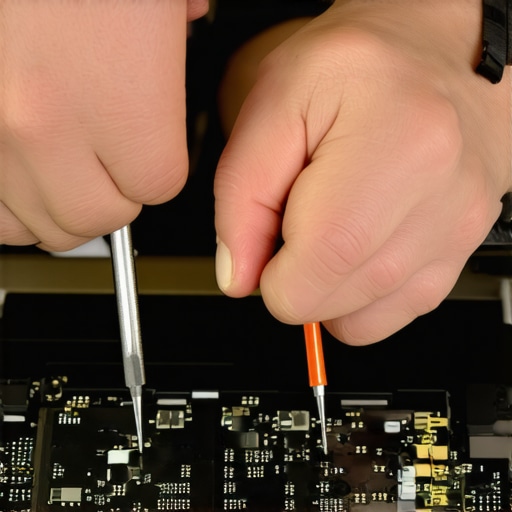
Many professionals and hobbyists alike often fall prey to misconceptions about managed IT services, laptop screen repairs, and data recovery. Let’s explore some nuanced truths that challenge common beliefs and help you avoid costly mistakes.
Why believing that DIY fixes are always cheaper can backfire
It’s tempting to think that tackling repairs yourself saves money. However, this mindset often overlooks the hidden costs of mistakes. For example, rushing into a laptop screen replacement without proper tools or safety precautions can lead to further damage, like cracked displays or internal component failures. Moreover, improper handling of data recovery efforts may cause permanent data loss, especially if you don’t follow expert strategies. According to a study by this resource, professional data recovery techniques significantly increase the chances of salvaging critical files. So, consider whether the initial savings are worth the potential long-term expense of DIY errors.
Beware of underestimating the importance of preventative managed IT strategies
Many believe managed IT is only necessary after a security breach or system failure. This reactive mindset neglects the nuanced benefits of proactive strategies, such as regular system audits, patch management, and employee training. These measures don’t just prevent downtime but also reduce the risk of sophisticated cyber threats. For instance, a 2023 report from industry experts highlights that companies with robust managed IT plans experience fewer security incidents and faster recovery times. Ignoring these nuances can leave your business vulnerable to advanced persistent threats that exploit overlooked vulnerabilities.
What advanced users should know about the complexities of data recovery?
Many assume that data recovery is straightforward—just run some recovery software, and files are restored. But in reality, complex scenarios like corrupted drives, hardware failures, or ransomware attacks demand sophisticated, layered approaches. For example, physical damage to a hard drive requires clean-room repairs, which only professionals with specialized equipment can perform. Additionally, recovery from ransomware involves not just decrypting files but also analyzing entry points to prevent future breaches. As highlighted by this expert guide, understanding these layered nuances is crucial for effective recovery and long-term data security. Failing to recognize these complexities can lead to incomplete recoveries or further data compromise.
Have you ever fallen into this trap? Let me know in the comments. Remember, mastering these nuanced aspects empowers you to make smarter decisions and protect your digital assets better than ever before.
Keeping your computer systems running smoothly over time requires more than just initial repairs; it demands a strategic approach to maintenance, the right tools, and proactive management. In this article, I’ll share the specific equipment and methods I personally rely on to ensure long-term reliability, along with insights on scaling these practices for future growth.
Invest in Quality Diagnostic Tools
One of my go-to tools is the USB-powered multimeter. I use this device to quickly check power supplies, voltage levels, and circuit integrity without dismantling entire systems. It’s invaluable during troubleshooting, especially when dealing with laptop power issues or assessing motherboard health. I also recommend a portable POST card for diagnosing boot issues; it reads error codes directly from the motherboard, saving hours of guesswork. These tools are compact, durable, and essential for any technician aiming for quick diagnostics and minimal downtime.
Utilize Professional Software for Maintenance and Data Recovery
For regular system upkeep, I rely on managed IT solutions that automate patch management, disk cleanup, and virus scanning. They help prevent issues before they escalate. When it comes to data recovery, I use professional recovery software like Recuva or Stellar Data Recovery, which I’ve found most effective for salvaging files from corrupted drives or accidental deletions. These tools, combined with hardware knowledge, allow me to recover critical data with minimal fuss.
Maintain Regular Hardware Checks
Hardware fatigue can lead to unexpected failures, so I schedule routine inspections of fans, heatsinks, and connectors. I use a thermal camera to identify hotspots that could indicate cooling issues, preventing future overheating. For laptops, I periodically clean dust from vents and reapply thermal paste to CPU and GPU chips—steps that significantly extend component lifespan.
Plan for Scalability and Future Trends
As the demand for faster, more reliable repairs grows, I predict a shift toward AI-driven diagnostics and remote management tools. These innovations will enable technicians to identify issues faster and perform remote repairs, reducing downtime and costs. To stay ahead, I recommend investing in cloud-based management platforms and staying updated with industry standards.
How do I maintain my tools and systems over time?
Regular calibration and updates are key. I set quarterly reminders to update software, clean hardware, and check tool calibration. Keeping a detailed repair log helps track recurring issues and refine my approach. Additionally, I participate in online forums and training to stay current with emerging technologies and techniques. This continuous learning guarantees I can adapt to evolving repair challenges and maintain high-quality service.
Start incorporating these precise tools and maintenance habits today, and you’ll see a significant boost in your repair efficiency and long-term system reliability. For more expert tips, visit our contact page.
Lessons That Changed My Approach to Tech Repairs
- One of the biggest surprises was realizing how vital proper static precautions are. Ignoring anti-static measures nearly fried my motherboard during a repair, teaching me the value of patience and safety first.
- I learned that rushing through disassembly often causes more damage. Taking my time and working systematically saved me hours of rework and extra costs.
- Investing in quality diagnostic tools like a POST card or multimeter revolutionized my troubleshooting speed. These tools turned guesswork into precision, making repairs more reliable.
- Understanding the nuances of data recovery—like the importance of clean-room repairs for physical damage—prevented me from trying to fix things beyond my skill, avoiding data loss.
- Finally, continuous learning from trusted resources, including guides and industry forums, keeps my skills sharp and adaptable to emerging tech challenges.
Tools and Resources That Elevate My Work
- USB-powered multimeter: Essential for quick power checks without dismantling entire systems, saving me time and guesswork.
- Portable POST card: Reading motherboard error codes on the fly allows for faster diagnostics, especially in complex cases.
- Managed IT solutions: Automate updates and security scans, preventing issues before they escalate.
- Professional data recovery software: Recuva and Stellar Data Recovery help me salvage critical files from damaged drives efficiently.
- Routine hardware inspections with thermal cameras and regular cleaning prolong component life and prevent unexpected failures.
Take Action and Shape Your Future in Tech Repair
Getting hands-on with laptop screen replacements and data recovery isn’t just about fixing devices—it’s about building confidence and skills that pay off long-term. With the right tools, safety measures, and continuous learning, you can master these challenges and ensure your digital world stays protected and functional. Every repair is an opportunity to learn and improve, so don’t hesitate to start today. Remember, your expertise can make a real difference in your productivity and security.
What’s been your biggest lesson in DIY tech repairs? Share your story below and let’s grow together!
This post hits home, especially the part about preparing your tools properly before starting any repair. I learned that lesson the hard way when I skipped gathering a thermal paste and ended up redoing my GPU heatsink a second time because I didn’t have the right contact. The importance of safety precautions like static wrist straps can’t be overstated either — I once caused a short by neglecting that, which was costly. I’m curious, has anyone found a particular tool or technique that made your DIY repairs much smoother or more reliable? Personally, I’ve started using a flexible, LED-lit magnifying glass which has really helped with delicate connector work. Also, do you think that investing in professional-grade diagnostic tools is worth it for a hobbyist, or is it better to stick with basic equipment? Would love to hear others’ experiences on balancing cost and effectiveness in repair setups.