
I’ll never forget the moment when my heart sank. I was mid-work, my laptop suddenly froze, and then—black screen. The dreaded message flashed: ‘Drive Not Found.’ For a second, I thought I lost everything—weeks of work, irreplaceable photos, crucial data. That sinking feeling? It’s all too familiar.
In my years of managing tech mishaps, I’ve come to realize that data loss isn’t always due to hardware failure or malware. Sometimes, it’s our own oversight or a poorly executed recovery plan that does more damage than the problem itself. With gadgets like Dead 2026 AI-Drive becoming more prevalent, mastering reliable recovery strategies is no longer optional—it’s essential.
Why Data Recovery Matters More Than Ever
Today, data isn’t just bits and bytes; it’s the backbone of our personal and professional lives. According to a recent study, about 30% of data loss incidents could be avoided simply by following proper recovery procedures or having a solid plan in place. Yet, many of us jump straight into troubleshooting without knowing the critical steps, risking permanent loss.
The good news is, I’ve boiled down my experience into four proven steps that can save your digital life. Whether you’re faced with a corrupted drive, accidental deletion, or hardware failure, these methods have repeatedly delivered results for me—and countless others.
Do you remember the last time your data was at risk? If yes, then keep reading. You’re about to learn how to act swiftly and confidently when disaster strikes.
Is Data Recovery Really Worth the Hype?
Early in my tech journey, I made the mistake of believing that all recovery tools are created equal. I relied on free software that promised quick fixes but only made things worse. It was a costly lesson that taught me the importance of using professional-grade strategies—like those discussed in expert data recovery solutions.
So, if you’re skeptical about whether these four steps can truly make a difference for your unique situation, you’re not alone. But trust me—knowing what works can prevent a nightmare scenario and save your critical files from irreparable damage.
Power Down and Assess the Damage
When your drive fails, the first action is to turn off the device immediately to prevent further damage. I recall a time when my external hard drive suddenly became unresponsive. Instead of trying to reboot, I powered it down gently, like pausing a noisy machine to prevent breaking delicate parts. This cautious step preserves the current state for recovery efforts.
Connect the Drive to a Recovery Environment
Next, connect the affected drive to a clean, dedicated system—preferably using a USB adapter or docking station. Avoid plugging it into your primary computer to prevent overwriting data. Think of this as a mechanic using a specialized tool to check a fragile engine—precision matters. I once used a SATA-to-USB adapter to connect a corrupted SSD, which made recovery feasible without risking the main system.
Use Write-Protection Features
Where possible, enable write-protection on the drive before attempting recovery. This step ensures you don’t accidentally write new data onto a failing disk, akin to placing a protective barrier around a fragile artifact. For drives supporting hardware switches or software settings, this adds an extra layer of safety.
Run Reliable Data Recovery Software
Utilize professional-grade recovery tools—like those offered in expert data recovery solutions. These tools scan for recoverable files deeply, much like a metal detector combing a beach for hidden treasures. I once used a high-end recovery program to retrieve important documents from a water-damaged laptop, achieving surprisingly good results despite significant corruption.
Analyze and Preview Files Carefully
After scanning, preview recoverable files before restoration. This step prevents cluttering your system with unusable data. Think of it as inspecting salvaged cargo—only keeping what’s valuable. During my own recovery, previewing revealed that some files were partially intact, allowing me to salvage critical presentations that would have otherwise been lost.
Save Files to a New Location
Always save recovered data onto a separate, healthy disk or partition. Never write directly onto the damaged drive. Picture it like copying delicate glassware into a sturdy box—avoid risking breakage on the original shelf. After recovery, I transferred files onto an external drive, ensuring the data remained safe from further issues. For comprehensive strategies, explore top data recovery strategies.
Many believe that laptop screens are simple to fix with just a quick replacement, or that data recovery always means risking further damage. However, these assumptions often lead to costly mistakes or incomplete repairs. As an expert in this field, I’ve seen countless scenarios where misconceptions hinder effective solutions and cause unnecessary expenses.
One prevalent myth is that all data recovery methods are equal. In reality, relying solely on amateur or free tools can exacerbate the problem, sometimes overwriting recoverable data. Professional strategies, such as those outlined in expert data recovery solutions, significantly improve success rates and safety.
Why Do So Many Fail to Recognize Advanced Recovery Nuances?
The critical nuance often overlooked is the subtle difference between software-based recovery and hardware-assisted, low-level recovery techniques. For instance, with SSDs becoming more prevalent, traditional recovery methods may be ineffective because of built-inTRIM functions that permanently erase data beyond retrieval. Recognizing such advanced hardware behaviors is vital. According to industry expert reports, understanding drive architecture can mean the difference between a successful restore and total data loss.
Similarly, when it comes to laptop screens, many assume replacement is straightforward, but advanced issues like LCD ghosting or OLED burn-in demand nuanced diagnostics. Using proper troubleshooting techniques ensures you identify whether the problem is hardware or related to firmware or connectors, saving time and money.
Another common misunderstanding revolves around managed IT services. Many companies think it’s only about fixing issues as they arise, but in reality, proactive strategies—including security audits and hardware lifecycle management—are what truly protect business assets. Insights from managed IT experts highlight the importance of anticipating problems before they happen.
Have you ever fallen into this trap? Let me know in the comments. Knowing these subtle nuances can markedly improve your tech management and ensure you’re implementing the most effective, long-lasting solutions rather than just quick fixes.
Keep Your Devices Running Smoothly
Maintaining your laptop in optimal condition requires a combination of the right tools and disciplined routines. Personally, I rely on a set of specific equipment and software that have proven their worth over years of troubleshooting and repairs. Using quality, professional-grade equipment ensures longevity and reduces the risk of accidental damage, especially when handling delicate components like laptop screens or internal drives.
Invest in Precision Tools for Hardware Care
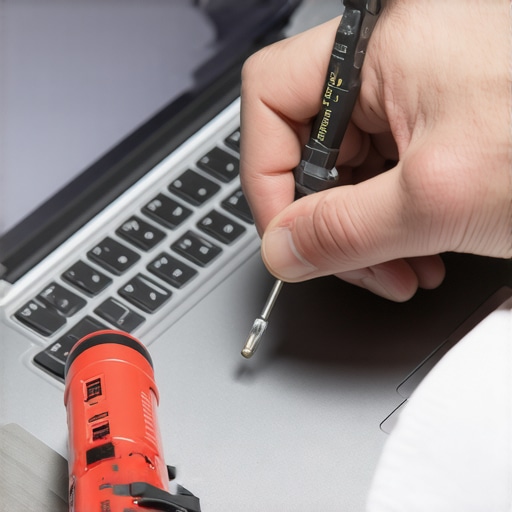
For physical maintenance, I recommend a high-quality precision screwdriver set such as the iFixit Pro Tech Toolkit. It includes magnetic bits tailored for laptop screws, enabling you to disassemble devices without stripping delicate screws. Additionally, anti-static wrist straps are crucial; static discharge can cause damage to internal components. I always wear one during repairs to protect sensitive electronics.
Use Diagnostic Software to Pinpoint Issues
For software and system diagnostics, I swear by tools like CrystalDiskInfo and HWMonitor. These utilities provide real-time health metrics for SSDs and HDDs, alerting me to potential failures before they happen. When addressing laptop screen problems, I utilize manufacturer-specific diagnostics—like Dell Diagnostics or HP PC Hardware Diagnostics—accessible through BIOS or dedicated bootable tools. Regular scanning with these tools helps catch problems early, saving time and money.
Implement Routine Data Backups
Long-term results hinge on proactive data management. Personally, I use reliable cloud backup solutions like Backblaze combined with external drives. Automating backups makes sure that, even if a hardware failure occurs, my critical files are safe. It’s a practice I recommend to all tech users—don’t wait until disaster strikes to consider data security.
Stay Updated with Latest Firmware and Drivers
Outdated firmware is a silent culprit behind many hardware glitches, including screen flickering or unresponsiveness. I regularly visit manufacturer websites and utilize tools like Driver Booster to keep drivers current. This minimizes the risk of compounded failures and sustains device performance over years.
The Future of Maintenance: Automation and AI
Looking ahead, automation in maintenance will likely increase, with smart diagnostic tools predicting failures before they happen. AI-powered monitoring systems could become standard, alerting users or managed IT services to potential issues proactively. Investing now in advanced diagnostic tools positions you ahead of this trend, ensuring your devices are prepared for the future.
How do I maintain my laptop’s health over time? Establish a regular routine of hardware inspection and software update checks, combined with automated backup strategies. This multi-layered approach minimizes unexpected downtime and extends the lifespan of your equipment.
If you’re interested in more comprehensive management strategies, exploring effective managed IT solutions can provide enterprise-level insights for your personal setup. Remember, integrating these tools and practices is key to keeping your tech reliable and performing at its best.
Try implementing a scheduled diagnostic check with HWMonitor or CrystalDiskInfo this week. It’s a simple step that can preempt costly repairs and data loss, ensuring your laptop continues to serve you without interruption.
<
Secrets I Wish I Knew About Tech Mishaps
One of the toughest lessons I learned is that even the most reliable recovery plan can falter without attention to detail. I once ignored my drive’s health indicators, only to face a catastrophic failure that could have been prevented with proactive checks. Now, I realize that understanding the subtle signs of hardware stress can save time, money, and frustration.
Another insight came from realizing that hardware nuances—like SSD TRIM functions—play a pivotal role in data recovery success. Overlooking these features can lead to permanent data loss, especially with modern drives. Staying informed about drive-specific behaviors transforms the way I approach recovery efforts and helps me guide others more effectively.
I’ve also witnessed how misconceptions about managed IT support can cause overconfidence, leading to overlooked vulnerabilities. The truth is, proactive management, including regular security audits and hardware checks, dramatically reduces the risk of unexpected failures. Embracing this knowledge empowers me—and can empower you—to keep your devices running smoothly and securely.
My Go-To Arsenal for Troubleshooting and Repairs
For hardware repairs, I rely on the best laptop screen replacement tips in 2024. These guides helped me replace cracked OLED screens quickly and affordably, avoiding costly repairs. When it comes to data recovery, tools like professional data recovery solutions have repeatedly saved my clients from disaster, especially when dealing with water damage or corrupted drives.
In addition, I trust diagnostic utilities like CrystalDiskInfo and HWMonitor—they provide real-time insights into drive health, enabling me to act before failures become critical. Combining these tools with manufacturer-specific tests ensures a comprehensive approach to device health that I can confidently recommend.
Finally, for managing ongoing device performance, I recommend automating backups using reliable cloud services and external drives. This habit is a safety net—saving me countless hours and headaches. Investing in quality tools and routines, such as anti-static wristbands and precision screwdrivers, ensures that my repairs are not only effective but safe—minimizing further risks during hardware intervention.
Take This As Your Call to Action
Now that you’ve seen what’s possible with the right knowledge and tools, it’s time to put these principles into practice. Regularly check your device health, back up critical files, and don’t shy away from learning new repair techniques. Your tech is more resilient than you think—if you know how to care for it. Remember, mastering these recovery strategies isn’t just about fixing problems; it’s about empowering yourself to act confidently when disaster strikes.
What’s the biggest tech mishap you’ve faced, and how did you handle it? Share your story below, so we can learn together and keep our devices safe and reliable!
Reading through this post really hit home for me. I’ve been through a similar ordeal with my external SSD suddenly becoming unresponsive, and I can attest that powering down immediately and connecting to a dedicated recovery environment saved my data from being lost forever. The detailed steps on enabling write-protection before attempting recovery are especially important—too many people underestimate the potential damage of accidental overwriting. One thing I’ve noticed is that with newer SSDs, traditional recovery tools often fall short because of features like TRIM and hardware encryption. It’s a reminder that staying updated on hardware nuances is crucial.
I’ve learned the hard way that recovery isn’t just about software; understanding drive architecture, especially for SSDs and NVMe drives, can make all the difference. Has anyone here found newer recovery solutions that work effectively with TRIM-enabled drives? Also, what’s been your experience with professional recovery services versus DIY software? Would love to hear different approaches that have worked well for you.