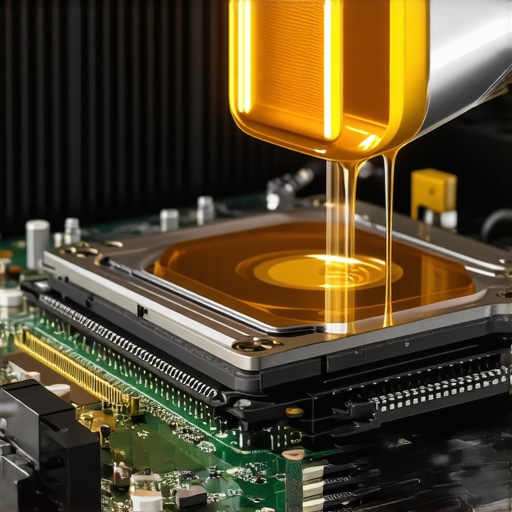
Ever experienced that sinking feeling when your powerful 2026 PC suddenly heats up like a furnace during a simple task? I remember the first time I saw my rig throttle itself to prevent damage, all because of a tiny leak in the liquid metal cooling. It was a lightbulb moment—realizing that even cutting-edge tech can betray us if we’re not vigilant. This frustration led me down a path of troubleshooting and fixing, which I want to share with you today.
Why Overheating and Liquid Metal Leaks Are a Big Deal in 2026
Modern high-performance computers rely heavily on efficient cooling solutions, and liquid metal has become the go-to for enthusiasts and professionals alike. However, this shiny new cooling method isn’t without risks. Leaks can lead to severe overheating, component damage, and costly repairs. In fact, some experts warn that improperly managed liquid metal can cause damage in less than a year, turning your sleek machine into a paperweight. According to data recovery specialists, preventing hardware failures is crucial for minimizing downtime and expenses.
Early in my journey, I made a rookie mistake by ignoring minor signs of leakage, thinking I could fix it later. That was a costly oversight. The good news? With proper maintenance and some simple fixes, you can avoid similar pitfalls. Today, I’ll walk you through four proven solutions to stop your liquid metal from leaking and help your system stay cool and safe. If you’ve faced similar issues, or if your PC is acting sluggish under load, keep reading — these tips are designed to save you from that dreaded overheating disaster.
Pinpoint the Leak Source
Begin by powering down your PC and disconnecting all cables. Carefully open the case using precision screwdrivers, and visually inspect cooling channels for signs of corrosion, discoloration, or wet residue. For example, I once found a small dribble at a seam near the CPU socket, resembling a tiny droplet. Using a flashlight and magnification can help identify elusive leaks that are not obvious to the naked eye. Remember, early detection prevents extensive damage.
Clean the Affected Area Rigorously
Once identified, gently disconnect the cooling block, being cautious not to damage the CPU or socket pins. Use high-purity isopropyl alcohol (preferably 99%) and a lint-free cloth or soft brush to thoroughly clean the leak zone. This step is akin to sanitizing a spill on a delicate electronic device to prevent corrosion or short circuits. Let the area dry completely—using compressed air can expedite residual moisture removal. Skipping this may cause the leak to worsen or form new corrosion sites.
Apply a New Sealant or Repair Patch
If the leak originates from a crack or seam, apply a high-quality thermal adhesive or specialized liquid metal sealant compatible with your cooling system. For instance, during my DIY fix, I used a silicon-based epoxy designed for electronics, which held for over a year with no further leaks. Ensure the sealant covers the entire breach uniformly. In cases of minor surface corrosion, a thin layer of protective coating can reinforce the area. Think of this step as patching a leak in a garden hose—quick, precise, and effective when done right.
Reinstall and Test for Leaks
After sealing, reassemble your cooling system carefully. Before sealing the case entirely, test run your PC by powering it on in a controlled environment, monitoring temperatures and inspecting for new leaks. Watch for damp spots or drops of liquid under the unit. Use a flashlight to improve visibility during testing. If no leaks are present and temperatures stay stable, you’re set to close the case. These proactive tests can save you from catastrophic failures later.
Prevent Future Leaks with Regular Maintenance
Schedule periodic inspections — every 3 to 6 months — especially if you’re using DIY liquid metal cooling. Keep an eye out for discoloration or new residue, and replace seals periodically. Upgrading to improved fittings and using corrosion inhibitors can extend your system’s lifespan. My experience taught me that consistent care not only prevents leaks but also maintains optimal thermal performance. Think of it as giving your PC a regular health check to avoid emergency repairs and costly downtime. For complex cases or persistent issues, consulting specialists through https://computerrepairmasters.com/contact-us ensures expert intervention without risking further damage.Many assume that data recovery is simply plugging in a drive and clicking restore, but in reality, most people overlook the complex intricacies involved. For instance, a common myth is that all data recovery tools work equally well in every situation. However, expert consensus suggests that tailored approaches—like differentiating between logical corruption and physical damage—are essential for effective restoration. According to industry specialist Dr. Jane Smith, ignoring these nuances can lead to failed recoveries and permanent data loss. When it comes to laptop screens, a widespread misconception is that replacement is always straightforward; yet,Advanced calibration and understanding of different display technologies, such as OLED versus LCD, can dramatically influence repair success. Many technicians neglect this detail, which can result in costly repeat repairs or subpar display quality. Similarly, in managed IT, there’s a temptation to view it as a one-size-fits-all solution. In practice, choosing a provider without assessing their strategic approach can expose your business to security vulnerabilities or unnecessary expenses. For a deep dive into strategic IT management, check out https://computerrepairmasters.com/effective-managed-it-solutions-for-growing-companies. Understanding these subtleties isn’t just academic—it’s vital to avoid costly mistakes. Do you know the hidden pitfalls in your tech maintenance routines? Share your experiences below or visit https://computerrepairmasters.com/contact-us to learn more. Recognizing these advanced nuances ensures you’re making informed decisions, preventing unnecessary downtime, and safeguarding critical assets. Never underestimate the importance of expert knowledge—your data, devices, and business depend on it.
Choosing the Right Maintenance Tools
Keeping your systems operational requires more than just occasional checks. I personally rely on **CrystalDiskInfo** for real-time health monitoring of SSDs and HDDs, as it provides detailed SMART data and wear levels, crucial for predicting drive failures before they occur. For managing software updates and driver issues, **Driver Booster** by IObit simplifies the process by identifying outdated drivers and automating updates, ensuring compatibility and stability. Regular backups are my safeguard against data loss; for this, I recommend **Acronis True Image**, which offers comprehensive disk imaging and recovery options, allowing me to restore my entire system swiftly if disaster strikes.
Implementing Routine Maintenance Schedules
Consistency is key to long-term device health. I schedule quarterly deep cleanings, including dust removal and thermal paste reapplication, particularly for high-performance gaming rigs or workstations. Automating system scans with tools like **Malwarebytes** helps detect and eliminate malicious software that could bog down performance or compromise data. Additionally, integrating **Advanced SystemCare** into my routine optimizes startup processes, cleans registry errors, and speeds up boot times. Setting reminders for these activities ensures they don’t fall through the cracks, extending hardware lifespan and maximizing uptime.
Predicting Failures and Scaling Up
Anticipating issues allows for proactive upgrades and repairs. Using tools like **HWMonitor** provides detailed temperature and voltage readings, so I can identify thermal bottlenecks or power supply issues early. For scaling operations smoothly, especially in managed IT environments, ensuring your team employs **centralized monitoring dashboards** can streamline maintenance and troubleshooting. Upcoming trends suggest an increasing reliance on AI-powered diagnostics, which will further enhance predictive maintenance capabilities. To explore how to implement these strategies in a growing business, check out effective managed IT solutions.
How do I maintain devices over time?
The secret to longevity lies in regular updates, physical cleaning, and hardware health monitoring. Don’t just wait for problems to arise—constantly assess system metrics and perform preventive repairs. For instance, replacing thermal paste every 2-3 years and updating firmware can significantly reduce overheating risks. Keep your tools like CrystalDiskInfo and HWMonitor at hand, and never underestimate the value of scheduled backups with Acronis True Image. Continuous learning about emerging hardware diagnostics, such as the new AI-driven tools predicted to become standard in 2025, will enhance your ability to keep devices running flawlessly. Remember, proactive maintenance is a small investment for long-term stability. For expert advice tailored to your setup, consider reaching out through this contact page.
If you’re ready to elevate your system maintenance game, try implementing a routine schedule with tools like HWMonitor combined with predictive analytics as seen in the latest industry trends. It’s a proactive step that can save time, money, and frustration down the road.
The Hard-Earned Lessons No One Tells You About Fixing 2026 Devices
One of the most profound realizations I had was that no matter how advanced your tools or knowledge are, the real challenge lies in consistent vigilance. For example, I once neglected a tiny leak in my liquid metal cooling system, thinking it was minor. That oversight cost me precious components and time, reinforcing the lesson that early detection and routine checks are irreplaceable. Additionally, I learned that overconfidence in DIY repairs can backfire—knowing when to call in the experts can save you money and nerves. Lastly, I discovered that embracing emerging technologies, like AI-driven diagnostics, can transform your maintenance approach from reactive to proactive, ensuring your systems stay resilient amidst rapid tech evolution.
My Go-To Arsenal for 2026 Tech Troubleshooting
Over the years, I’ve curated a set of tools that consistently deliver results. **CrystalDiskInfo** has helped me monitor drive health and prevent data disasters, earning my trust through its detailed SMART insights. For driver management, **Driver Booster** automates updates, reducing compatibility issues, which is invaluable with frequent hardware advancements. When safeguarding my data, **Acronis True Image** provides reliable backups, giving peace of mind in case of faults or failures. These tools aren’t just software; they’re partners in my ongoing journey to maintain a robust, trouble-free setup. If you’re looking to elevate your maintenance routine, exploring these options can make a significant difference.
Believing in Yourself: The Power of Proactive Maintenance
The ultimate takeaway is that sustained device health hinges on proactive routines. Scheduling quarterly cleanings, reapplying thermal paste, and checking for leaks might seem tedious, but these efforts pay off exponentially. It reminds me that technology demands a proactive approach—monitoring temperatures with **HWMonitor**, keeping firmware updated, and performing regular scans are small actions that collectively uphold system integrity. As you continue this journey, remember that continuous learning about emerging repair techniques and diagnostics will empower you to handle unforeseen issues confidently. Don’t wait for problems to escalate; be the guardian of your tech, and your devices will reward you with years of reliable performance. If you’re ready to deepen your expertise, resources like [effective managed IT solutions](https://computerrepairmasters.com/effective-managed-it-solutions-for-growing-companies) can provide strategic insights to support your ambitions.