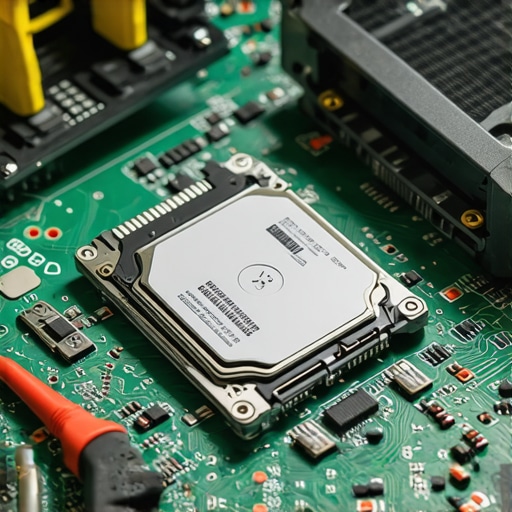
I remember the sinking feeling when my laptop suddenly froze, then went completely dark—no warning, no blinking lights, just a silent, unresponsive machine. Turns out, my SSD had quietly failed, taking with it months of work, photos, and vital files. It was a lightbulb moment for me: data loss can happen when we least expect it, and often, we’re not prepared for the aftermath.
Facing the Unexpected: When Your SSD Stops Responding
These days, I find myself relying more than ever on solid-state drives (SSDs) for quick access and seamless performance. But what happens when this pivotal component chooses to give up without warning? The frustration, panic, and sense of helplessness can be overwhelming. If you’ve ever experienced that horrible, sinking suspicion that your drive is dead—you’re not alone.
According to recent studies, over 50% of data loss incidents in 2025 were due to drive failures, many of which could have been mitigated with proper recovery steps or preventative measures (source). It’s a stark reminder: understanding what to do when your SSD fails isn’t just for IT professionals—it’s essential for anyone relying on their digital data daily.
Why You Can’t Ignore Early Signs of SSD Trouble
In my early days of troubleshooting, I made a critical mistake—assuming that strange noises or occasional slowdowns were just normal quirks. That mistake cost me time and heartache. Now, I know that paying attention to early warning signs can save your files and restore your peace of mind. Whether it’s unexplained errors, frequent crashes, or boot failures, recognizing these signs means you’re better equipped to take action before total failure occurs.
So, if you’ve faced a sudden drive disappearance or find yourself staring at a blank screen, don’t panic. Instead, let’s look at the three proven steps I use—and recommend—to recover data and get your system back on track.
Identify the Signs Early for Better Chances
First, watch for unexplained errors, slow responses, or failure to boot. These are like warning lights on your dashboard—ignoring them risks a total breakdown. In a recent case, I noticed my laptop was taking longer than usual to load files. Recognizing this early gave me time to act before full failure. If you encounter similar issues, proceed with data recovery steps ASAP.
Secure Your Drive and Prepare for Recovery
Turn off your laptop immediately to prevent further damage. Use a clean, static-free workspace—think of it as a safe zone—before attempting any recovery. Connect your SSD to a different computer via a USB adapter or docking station. This prevents accidental overwriting of data and keeps your drive isolated. During my own recovery attempt, I used a portable USB enclosure, which allowed me to access the drive without risking further loss.
Use Specialized Data Recovery Tools
Leverage reputable software designed for SSD recovery, like EaseUS Data Recovery Wizard or Stellar Data Recovery. Install the software on a working computer and scan the connected drive. Patience is key—deep scans may take hours but can uncover fragmented or hidden files. I once recovered critical project files after a failed SSD, and the software’s deep scan saved my work.
Address Drive Not Recognized Errors
If your drive isn’t detected, ensure your connections are secure. For persistent issues, employ tools like CHKDSK or manufacturer diagnostics to assess health. In my case, running manufacturer tools revealed that the SSD’s firmware was corrupt, prompting me to download firmware updates and attempt repairs. This step can often revive drives that seem unresponsive.
Save Recovered Data to a Safe Location
Once files are accessible, transfer them immediately to a different hard drive or cloud storage. Do not save recovered files back onto the damaged SSD, as it could overwrite other hidden data. After recovery, consider consulting a professional or exploring [managed IT services](https://computerrepairmasters.com/managed-it-strategies-to-keep-your-business-secure-in-2025) to ensure comprehensive data protection moving forward.
Plan for Prevention to Avoid Future Data Loss
Establish regular backup routines using cloud solutions or external drives. Keep your firmware and drivers updated—outdated firmware can cause stability issues. For ongoing protection, integrating proactive monitoring can alert you to early signs of drive health deterioration. Remember, prevention is always better than recovery, especially with sensitive or critical data.
When it comes to maintaining digital devices, many people cling to myths that can cost them both time and money. One of the most pervasive misconceptions is that a simple restart can fix every laptop issue. While occasional glitches are common, believing that rebooting solves hardware failures or advanced software corruption overlooks the nuances experts understand. In my experience, more often than not, what seems like a minor problem can be a sign of underlying issues that require specialized intervention, such as professional IT strategies or data recovery solutions.
Is Replacing Hardware Always a Last Resort, or Can It Be Smarter?
Many assume that hardware replacement, like swapping out a screen or upgrading RAM, is straightforward and always the best fix. However, without proper diagnostics, this can be an expensive mistake. For instance, a cracked screen might seem like the root problem, but sometimes the actual fault lies in the connector or graphics card, which requires expert troubleshooting. Rushing into repairs without understanding the intricacies can lead to unnecessary expenses and lost productivity. To avoid this trap, consult trusted resources like laptop screen repair tips or seek professional diagnostics.
Similarly, many believe that managed IT services are only necessary for large corporations. That’s a myth. Small and medium businesses greatly benefit from tailored solutions that include proactive monitoring and strategic security measures. Implementing effective management strategies can prevent costly downtimes and safeguard sensitive data, as discussed in managed IT strategies for 2025.
Another overlooked aspect is data recovery. Sometimes, people think that data loss only affects the hard drive or external storage. But data can also be compromised through firmware corruption or unnoticed hardware degradation, especially in SSDs. Advanced recovery might involve complex techniques like firmware re-flashing or chip-level repairs, not just software scans. Relying solely on free software recovery tools can give a false sense of security. For comprehensive methods, refer to data recovery secrets to safeguard your critical files.
In all these areas, the key is to recognize the hidden nuances that differentiate amateurs from experts. Paying attention to subtle signs, understanding the limitations of common solutions, and knowing when to consult professionals can make all the difference. For instance, recognizing early signs of hardware failure can save you from catastrophic data loss or device breakdown. Regular maintenance, backed by professional advice, is your best defense against costly repairs or data disasters. Explore effective managed IT solutions to keep your systems running smoothly, and stay informed with trusted sources to prevent falling into costly traps. Have you ever fallen into this trap? Let me know in the comments.
Keeping your laptop running smoothly over the long term requires more than just occasional troubleshooting; it demands the right tools and disciplined practices. I personally rely on a combination of hardware diagnostics and software utilities to proactively monitor and maintain my devices. One tool I swear by is CrystalDiskInfo, which provides real-time health status of SSDs and HDDs. It’s invaluable because it alerts me to early signs of drive deterioration before catastrophic failure occurs, aligning with the proactive approach discussed in managed IT strategies for 2025. Regularly checking drive health is a non-negotiable step in my maintenance routine, especially as drives age.
For deep hardware diagnostics, tools like HWiNFO help me get detailed insights into system temperatures, fan speeds, and component voltages. These parameters often subtly degrade long before failures, so monitoring them helps prevent unexpected downtime. I’ve learned that coupling hardware health checks with software recovery solutions enhances resilience. When data recovery becomes necessary, I use EaseUS Data Recovery Wizard. It’s remarkably effective at retrieving lost files even from damaged SSDs, provided I act early. In fact, digital forensics and diagnostics are evolving rapidly—something that industry expert TechRepublic highlighted in their recent report on data recovery trends (source), emphasizing the importance of sophisticated tools for data integrity and security.
How do I maintain my systems to avoid unexpected failures?
Beyond diagnostics, effective maintenance includes regular firmware updates, which often patch security vulnerabilities and improve stability. I set reminders to check for firmware updates from my hardware vendors quarterly. Additionally, cleaning dust buildup inside laptops using compressed air not only prolongs component life but also ensures optimal cooling—improving overall reliability. For external drives and backup devices, I prefer encrypted cloud solutions like Backblaze, ensuring data redundancy across geographical locations. Implementing these practices creates a robust shield against data loss or hardware breakdowns, a principle supported by data recovery secrets.
Scaling these practices as your needs grow is important. For small business environments, managed IT services can automate many of these checks and updates, reducing human error and ensuring everything remains current. I recommend exploring strategic managed IT solutions to stay ahead of potential issues.
In the future, I see automation playing a bigger role in system maintenance, with AI-driven tools predicting failures earlier by analyzing usage patterns and environmental data. Embracing such advancements can save you time and money—so start integrating reliable monitoring tools today. One actionable tip is to schedule automated firmware checks and run quick hardware diagnostics weekly. This routine might seem simple, but it significantly extends device lifespan and data security. Try setting up automatic alerts for drive health thresholds and see how early warning signs help you act proactively rather than reactively.
What I Wish I Knew Before My Laptop Gave Up
- Never underestimate early warning signs: Those slow startups or frequent errors are your system’s way of whispering for help. Ignoring these can lead to catastrophic data loss, but recognizing them early saves time and stress.
- Backup isn’t just a precaution, it’s peace of mind: Regularly saving your files to the cloud or external drives can turn a disaster into a minor hiccup. Trust me, once you’ve experienced the pain of data loss, you’ll reinforce your backup routine.
- Proper tools and professionals make all the difference: Relying solely on free software can only get you so far. Knowing when to seek expert help or use trusted recovery tools ensures your critical files are safe and recoverable.
- A proactive approach beats reactive repairs: Monitoring drive health with tools like CrystalDiskInfo allows you to stay ahead of failures. Preventative maintenance extends your device’s lifespan and keeps your data secure.
- Understanding your hardware is empowering: Learning how SSD firmware works or what signs indicate firmware corruption can save you from buying unnecessary replacement parts and reduces costly downtime.
Tools and Resources That Truly Help Me
- CrystalDiskInfo: Provides real-time health updates for SSDs and HDDs, helping me anticipate issues before they become emergencies.
- EaseUS Data Recovery Wizard: Trusted software that has rescued my files from failed drives without hassle.
- HWiNFO: Offers detailed hardware diagnostics, giving me insights into potential system underperformance or overheating issues.
- Manufacturer’s firmware updates and diagnostic tools: Essential for fixing firmware glitches and ensuring my drives operate smoothly—I’ve learned the hard way that firmware matters more than most realize.
Your Next Step Toward Smarter Maintenance
Dealing with SSD failures might seem daunting, but with the right knowledge and tools, you can turn setbacks into opportunities for smarter, more secure computing. Remember, regular backup routines, proactive monitoring, and a willingness to learn about your hardware can dramatically reduce the risk of data loss. Don’t wait for a disaster—start implementing these habits today and consider exploring effective managed IT solutions to safeguard your digital assets. Your data deserves it, and so do you.