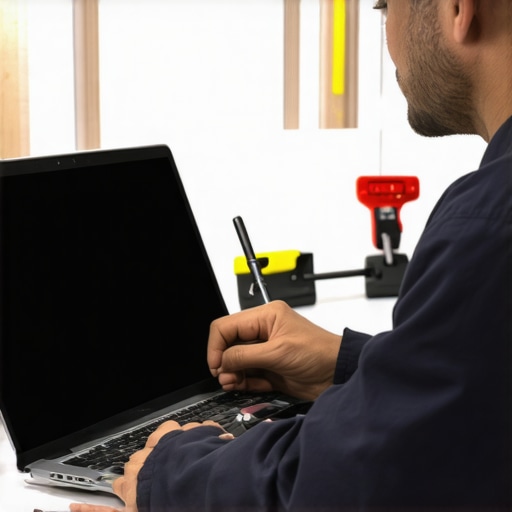
Ever had that sinking feeling when your laptop screen suddenly shatters or develops a stubborn crack? I remember the exact moment I dropped my laptop—a minor spill, but the screen was instantly a web of spiderweb cracks. Frustration hit hard. I was about to toss it out until I stumbled upon some clever, budget-friendly tips that completely changed the game. That lightbulb moment made me realize: you don’t have to spend a fortune or wait weeks to fix your laptop screen. You just need the right knowledge and tools.
Why Fixing Your Laptop Screen Fast and Cheap Should Be a Priority
In today’s world, our laptops are more than just gadgets; they’re essential tools for work, communication, and entertainment. When that screen goes out, it’s like losing a window to your digital world. But here’s the thing—professional repairs can be expensive, often costing hundreds. Plus, waiting for a repair shop can leave you in the dark—literally. I’ve learned from personal experience that a DIY fix, when done right, can save you a lot of money and get you back online quicker than you think.
Recent studies show that nearly 40% of electronic repairs are DIY attempts, saving consumers hundreds of dollars and hours of waiting. The trick is knowing what mistakes to avoid and which techniques actually work. For instance, I once tried a quick fix without proper research and ended up with more damage—trust me, that mistake cost me more time and money. That’s why I’m here to share proven tips for fast, affordable screen repairs in 2024.
Have You Faced the Frustration of a Broken Laptop Screen?
If your answer is yes, you’re not alone. I know how it feels to be helpless with a cracked display staring back at you. But don’t worry—this post will give you a clear, step-by-step plan to fix your screen without breaking the bank or wasting time. We’ll cover everything from choosing the right replacement parts to simple DIY techniques that anyone can master. Ready to bring your laptop back to life? Let’s get started!
Gather the Necessary Tools and Parts
Start by assembling all the essential tools: a small Phillips screwdriver, plastic prying tools, tweezers, and gloves. You’ll also need a compatible replacement screen, which you can find by checking your laptop model number or consulting the manufacturer’s website. I once ordered the wrong size because I didn’t double-check, which caused delays, so always verify your model details beforehand.
Power Down and Prepare Your Workspace
Turn off your laptop completely, unplug all cables, and remove the battery if possible. Clear a clean, static-free workspace. Use an anti-static wrist strap if available to prevent damaging sensitive components. I learned this the hard way when static zapped my motherboard during a hurried repair attempt.
Remove the Bezel and Old Screen Carefully
Use plastic prying tools to gently detach the bezel surrounding the screen. Work slowly to avoid cracking the plastic or damaging clips. Once the bezel is loose, unscrew the damaged screen from its mounting brackets. Remember, patience is key; rushing can break clips or connectors. I once cracked a bezel because I was too forceful, adding extra repair costs.
Disconnect the Screen and Connect the New One
Carefully disconnect the video cable from the old screen. Handle cables by their edges to avoid damage. Connect the cable to the new screen, ensuring a snug fit. Think of it like plugging in a USB port — alignment is everything. When I did this, I made sure to reconnect the cable firmly, which prevented flickering issues later.
Test Before Final Assembly
Before reattaching the bezel, power on your laptop to test the new screen. If you see a clear display, proceed to reassemble. If not, double-check connections. I always test at this stage to save time and avoid unnecessary disassembly. If issues persist, consult troubleshooting guides like these troubleshooting tips.
Reassemble and Final Check
Once testing is successful, reattach the bezel carefully, ensuring all clips click into place. Screw everything back in securely. Power on your laptop one last time to confirm everything works perfectly. I find that a methodical approach minimizes errors and speeds up the process, making DIY repairs almost as reliable as professional service.
< >
>
Many DIY enthusiasts jump into fixing their laptop screens with the belief that they have all the necessary knowledge, but there are nuanced pitfalls that even seasoned repairers often overlook. Let’s dig deeper into what most people get wrong and how to avoid costly errors that can turn a simple fix into a nightmare.
Why Your Assumptions About Replacement Parts Might Be Misleading
One of the most common misconceptions is that all replacement screens are created equal. In reality, there are subtle differences in display panel quality, connectors, and compatibility that can lead to unexpected issues if not properly verified. For example, some screens have different backlight types or connector positions, which can cause flickering or no display at all. Always double-check the exact model number and specifications—simply ordering by laptop model name can lead to mismatched parts. For advanced users, examining the part number on the original screen or consulting manufacturer datasheets can save you from this trap. For more insights on choosing the right parts, check out this comprehensive guide.
The Oops You Make When Handling Cable Connections
Many repairers underestimate the importance of proper cable handling. Connecting the video cable or inverter improperly can cause flickering, dim images, or complete lack of display. It’s not just about plugging in; you need to ensure the connector is aligned properly and secured. Rushing this step often leads to damage or poor contact. A common mistake is applying too much force, which can tear delicate pins or bend connectors. Use a gentle, even pressure, and always inspect the connection before powering on. If you encounter issues, recheck the connection or refer to troubleshooting resources like these troubleshooting tips.
Make Sure to Test Before Final Assembly
It might seem tempting to finish the repair quickly, but testing the screen before reassembling the bezel is critical. This step helps you identify whether your connections are correct and if the new screen functions properly. Ignoring this can mean you spend extra time disassembling again if something isn’t right. Advanced repairers often use external monitors or temporarily connect the screen to verify the display, saving time and preventing damage to the new parts. Remember, patience and thorough testing are your best allies in DIY repairs.
Have you ever fallen into this trap? Let me know in the comments. Mastering these nuances can dramatically improve your repair success rate and save you money in the long run. For comprehensive repair strategies, explore these expert data recovery strategies.
Maintaining your laptop repair toolkit and applying consistent maintenance routines are crucial for ensuring long-term success and efficiency. Over the years, I’ve refined my approach to tools and habits that maximize reliability and streamline the repair process. In this article, I’ll share specific tools I recommend, how I keep my equipment in top shape, and what future trends I foresee in maintenance practices.
Invest in High-Quality Precision Tools
My go-to toolkit includes a set of high-precision screwdrivers with magnetic tips, which prevent losing tiny screws during disassembly. I prefer magnetic precision screwdrivers from brands like Wiha or Wiha, as they provide durability and precision. Additionally, I always keep a set of plastic pry tools and spudgers, which are essential for avoiding damage when removing bezels or screens. For example, I rely on ESD-safe tweezers to handle delicate components without risking static discharge. Quality tools not only make repairs faster but also reduce the risk of accidental damage, saving time and money in the long run.
Regularly Calibrate and Clean Your Equipment
To keep my tools in optimal condition, I schedule monthly calibration checks and cleaning routines. For electronic tools, I use specialized cleaning brushes and isopropyl alcohol wipes to remove dust, dirt, and grease that accumulate over time. This prevents contamination and ensures that screwdrivers and tweezers maintain their grip and precision. For my soldering station, I regularly check temperature calibration using a digital thermometer, as inconsistent heat can compromise delicate repairs. Proper maintenance of tools extends their lifespan and ensures consistent performance, which is vital for professional repairs.
Utilize Software and Diagnostic Utilities
Beyond physical tools, software utilities play a crucial role in diagnostics and maintenance. I recommend keeping a set of reliable diagnostic tools like HWiNFO or Speccy to monitor hardware health regularly. These tools help identify potential issues early, such as failing capacitors or overheating components, before they turn into costly repairs. Keeping your software updated ensures compatibility and access to the latest features, which can significantly decrease troubleshooting time.
Plan for Long-Term Storage and Updates
Proper storage of spare parts and tools is essential. I store replacement screens, cables, and screws in clearly labeled containers to avoid confusion. Additionally, I keep an updated inventory list and regularly review supplier options to ensure I always have access to quality parts at competitive prices. Planning for future needs involves investing in modular storage solutions and digital catalogs, making it easier to scale your repair setup as your skills grow. As trends shift toward modular and repairable laptops, staying organized becomes even more critical.
Predicting the Future of Maintenance and Scaling
Looking ahead, I believe automation and AI-driven diagnostics will revolutionize how we maintain and troubleshoot laptops. Tools that can automatically identify issues and suggest repairs will save time and improve accuracy. To stay ahead, I recommend mastering advanced diagnostic software and investing in training on emerging repair techniques. For those looking to scale their repair business, adopting managed IT solutions like these strategies can streamline operations and enhance service quality. Remember, staying proactive with your tools and maintenance routines will keep your skills sharp and your repair shop thriving.
Try integrating a monthly calibration routine for your most-used tools and see the difference it makes in your repair quality. Regular maintenance isn’t just about tools; it’s about investing in your craft for long-term success.
The Hardest Lesson I Learned About Fixing Laptop Screens
Early in my repair journey, I assumed that ordering the most popular replacement screen was enough. It turns out, compatibility issues and subtle differences in connectors can cause big headaches. Always double-check the exact model number and specifications—trust me, this simple step saves hours of troubleshooting later.
Three Myths About DIY Laptop Screen Fixes That Held Me Back
- Myth 1: All replacement screens are the same quality.
Reality: Variations in backlight types, resolution, and connector placement can impact performance. Be selective about the parts you choose. - Myth 2: Rushing the disassembly process won’t cause damage.
Reality: Gentle, patient work with the right tools prevents cracking bezels or damaging fragile connectors. - Myth 3: Testing after final assembly is sufficient.
Reality: Always test the screen before reattaching the bezel to save time and avoid unnecessary rework.
What Experts Won’t Tell You About Handling Laptop Cables
Many overlook the importance of cable alignment and gentle connection. Connecting the video cable at an angle or applying too much force can damage pins or cause flickering. Use a steady hand, inspect connections carefully, and ensure the connector is fully seated before powering on. This simple step can prevent a lot of headaches.
The Power of Patience in Reassembly
It’s tempting to rush and finish quickly, but taking your time during reassembly ensures clips snap into place and screws align perfectly. Test the display before sealing everything up completely. This approach minimizes errors and boosts your confidence in DIY repairs.
Curated Resources for the Aspiring Laptop Repairer
- My Essential Toolkit for Laptop Repairs: High-quality precision screwdrivers like Wiha and ESD-safe tweezers. These tools make delicate tasks easier and reduce accidental damage.
- Trusted Repair Guides: The comprehensive tips at this guide have saved me countless hours. They cover everything from part selection to troubleshooting common issues.
- Diagnostic Software: Tools like HWiNFO help monitor hardware health and prevent future problems, making your repairs more durable.
Your Turn to Try
Every successful repair increases your skills and confidence. Remember, patience, attention to detail, and the right tools are your best allies. As you master these techniques, you’ll see that DIY laptop repairs can be both rewarding and cost-effective. Keep practicing and stay curious about new tools and methods to stay ahead in this craft.
What’s been your biggest challenge in fixing a laptop screen? Let me know in the comments below!
This post resonated with me as I recently tackled replacing my laptop screen after an accidental drop. I completely agree with the importance of patience and thorough testing before reassembling — rushing always seems to lead to missed connections or, worse, damage. I found that organizing all screws and parts in labeled containers really simplified the process and kept me from losing small components. One thing I’ve learned is that quality tools, especially anti-static tweezers and precision screwdrivers, make a big difference in avoiding damage. Has anyone tried using external monitors for testing the new screen before final assembly? I think it’s a great tip to catch potential issues early. I’d love to hear more about others’ experiences with different DIY techniques or troubleshooting tips, particularly for older laptops with fragile connectors. Overall, this guide gave me the confidence to give it a go myself, which I never thought I’d do a few months ago.