
Ever been in a frantic rush to fix your laptop screen, only to find yourself overwhelmed by confusing instructions or pricey repair shops? I’ve been there—frustrated, broke, and ready to give up. One day, I accidentally cracked my screen right before an important video call, and that lightbulb moment hit me: why not learn how to do this myself? Turns out, with the right knowledge, you can replace a laptop screen quickly and affordably, without sacrificing quality.
Why You Should Care About DIY Laptop Screen Fixes
Let’s be honest—laptop screens don’t last forever. Drops, pressure, and even manufacturing defects can leave you staring at a black or flickering display. The problem is, professional repairs can easily run into hundreds of dollars. But here’s the thing: most common screen issues are entirely fixable at home with some simple tools and guidance. Not only does this save you money, but it also minimizes downtime, so you’re back to work or leisure faster than you think.
What really convinced me was discovering how many quick, reliable tips are out there—like those in this guide—that demystify the process. And trust me, you don’t need to be a tech genius. With patience, the right parts, and a bit of elbow grease, you can master this skill.
Is Laptop Screen Replacement Actually Worth the Hype?
Early in my journey, I made the mistake of rushing into a repair without proper research. I bought the wrong size screen, and it took twice as long to fix. Now I know better. Proper planning and understanding what you’re doing can turn a daunting task into a satisfying DIY project. Plus, it’s essential to know how to troubleshoot before buying parts—like checking your display connections or understanding common issues, which you can learn from this troubleshooting resource.
So, if you’ve ever faced a cracked or flickering display and wondered whether a fix is within reach—you’re in the right place. I’ll walk you through the most effective, affordable, and straightforward tips to get your laptop looking new again. Ready to dive into the world of fast, budget-friendly repairs? Let’s do it!
Gather Your Tools and Parts First
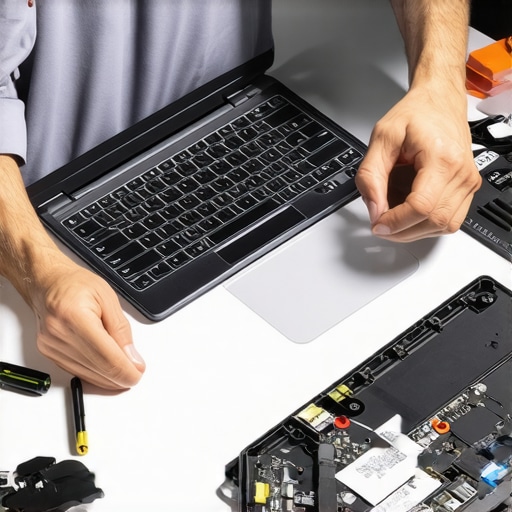
Before diving into the repair, assemble everything you need. This includes a compatible replacement screen, precision screwdrivers, plastic prying tools, and an anti-static wrist strap to prevent damaging static discharge. When I replaced my screen, I ordered a new one from a trusted supplier and laid out all tools on a clean workspace. This prep work saved me from unnecessary pauses mid-repair and made the process smoother.
Power Down and Disassemble Carefully
Turn off your laptop completely and disconnect all cables. Remove the battery if possible, especially for models with removable batteries. Use a plastic prying tool to gently loosen the bezel surrounding the screen. Think of this step like opening a jewelry box—you want to avoid scratches or cracks. I found that working slowly and applying even pressure prevented breaking the delicate plastic clips. For detailed guidance, check out this comprehensive guide.
Disconnect and Remove the Damaged Screen
Once the bezel is free, carefully disconnect the video cable and any other connectors attaching the screen to the laptop. Use a small Phillips screwdriver to remove screws securing the screen to the mounting bracket. Picture it like removing a stubborn window pane—patience and gentle movements are key. During my first attempt, I accidentally tugged a connector too hard and had to redo the step. Learning to handle connectors delicately is crucial for success.
Install the New Screen with Precision
Align the new screen carefully and reconnect all cables. Secure it with the screws you previously removed. Confirm that all connections are firm but not forced. Think of this like installing a new light bulb—screwing it in gently ensures it won’t break. When I did this part, I double-checked all connections before sealing everything back up. If you face issues, troubleshooting tips at this troubleshooting resource can help identify common problems.
Reassemble and Test Your Repair
Reattach the bezel and snap it into place. Reinstall the battery and power on your laptop. Verify the display functions correctly and that there are no flickers or black spots. If the screen remains problematic, revisit your connections or revisit this expert guide for extra tips. Remember, patience is key—rushing can lead to costly mistakes.
< >
>
Many assume that managed IT services are just about outsourcing tech support or that replacing a laptop screen is always straightforward. But let’s dig deeper into the misconceptions that can trip up even seasoned professionals. Understanding these nuances can save you time, money, and frustration, especially when it comes to critical tasks like data recovery or hardware replacements.
Why the Popular Belief That Managed IT Is Just Outsourcing Is Wrong
Contrary to the common myth that managed IT simply means handing over your tech problems to a third-party, effective managed IT strategies involve proactive planning, security layering, and continuous system optimization. Experts like those at this resource emphasize that successful managed IT is about integrating solutions that anticipate issues before they arise, rather than just fixing them after the fact. Overlooking this can leave your business vulnerable to breaches or costly downtimes.
The Oops Trap: Overlooking Data Backup Before Repair
One of the biggest mistakes I see is rushing into hardware repairs without considering data safety. Many think that repairs are always safe; however, during tasks like data recovery or hardware swaps, static discharge or mishandling can lead to data loss. Always backup your critical files or consult a professional for complex recoveries. Missing this step can turn a simple screen replacement or hardware fix into a data disaster.
Is Your Approach to Laptop Screen Repair Cost-Effective and Reliable?
Many believe that DIY screen replacements are riskier than professional repairs, but in fact, with proper guidance, they can be both affordable and reliable. The key is understanding the nuances—like choosing the right replacement parts and handling delicate connectors. Rushing or buying incompatible screens often results in longer repair times or subpar display quality. For advanced tips, check this guide. Don’t fall into the trap of thinking all DIY fixes are low quality; with the right knowledge, you can master this skill.
What About Data Recovery Techniques That Experts Use?
Many assume that data recovery is a simple process, but the reality is far more complex. The difference lies in understanding the underlying causes—whether it’s a physically damaged drive or corrupted files—and applying the right methods. For instance, some recovery techniques involve specialized hardware tools or software that can only be used by trained professionals. Relying on generic software can sometimes worsen the problem. To learn more about advanced recovery options, explore this article. Recognizing these nuances can be the difference between retrieving your files and losing them forever.
Have you ever fallen into this trap? Let me know in the comments. Mastering these hidden aspects of managed IT, repairs, and data security empowers you to make smarter decisions and avoid costly pitfalls.
How do I keep my systems running smoothly over time?
Maintaining your IT infrastructure, whether it’s a simple laptop or a complex business network, requires a combination of the right tools and disciplined practices. Personally, I rely heavily on a few key pieces of equipment and software to ensure that my repairs are durable and my data stays safe. One essential tool I recommend is a high-quality anti-static mat and wrist strap, which I always use whenever working inside a device. Static discharge can easily cause irreparable damage, so grounding yourself is crucial.
For software, I swear by Macrium Reflect for creating reliable disk images before attempting any repairs. This way, if anything goes wrong during disassembly or data recovery, I can restore the system to its previous state without hassle. It’s like having a safety net that saves hours of potential recovery work.
When it comes to data recovery, I use professional-grade tools that can handle physically damaged drives and complex file corruptions. These tools often include hardware adapters and specialized software that can recover files where typical software fails. Investing in these ensures long-term success, especially for critical business data.
To keep your systems operating efficiently, regular updates, malware scans, and hardware checks should be part of your routine. I set reminders to verify backups weekly and perform quick diagnostic tests on my hardware. This habit prevents small issues from snowballing into major failures.
What’s the future of maintenance tools and techniques?
Looking ahead, I predict a rise in AI-powered diagnostic tools that can analyze hardware and software health autonomously. These innovations will make proactive maintenance easier and more accurate, reducing downtime even further. Integrating these advanced systems into your routine now will prepare you for a smoother future, especially as technology evolves rapidly.
For those serious about keeping their tech in top shape, I encourage trying out a comprehensive backup solution combined with regular hardware diagnostics. It’s a small investment that pays off by preventing costly repairs and data loss.
Remember, the key to effective long-term maintenance is consistency and using the right tools. Start today by implementing a weekly check-in with your hardware and software, and don’t hesitate to explore new solutions as they become available. For detailed strategies on data security, check out this resource.
The Hardest Lesson I Learned About Laptop Repairs
One of my biggest realizations was how crucial patience is during a screen replacement. Rushing often leads to damaged connectors or misaligned parts. Taking my time and working gently prevented costly mistakes and taught me to respect the intricacies of laptop hardware.
3 Myths About Managed IT and Data Recovery That Held Me Back
Believing that managed IT is just outsourcing tech support was a misconception. In reality, proactive management, security layering, and strategic planning are vital. Also, I used to think data recovery was always straightforward—until I encountered physically damaged drives that required specialized tools and techniques. Recognizing these myths helped me approach repairs and security more effectively.
What Experts Won’t Tell You About Long-Term System Maintenance
Most professionals agree that routine hardware checks, regular backups, and software updates are the backbone of system longevity. Investing in quality tools like an anti-static wrist strap and disk imaging software such as Macrium Reflect made a significant difference in my ability to recover quickly from mishaps. Staying consistent with these habits ensures systems stay reliable over time.
My Essential Toolkit for Laptop Repairs and Data Security
Trustworthy replacement screens from reputable suppliers are the foundation of successful DIY repairs. Precision screwdrivers and plastic prying tools make disassembly safer and easier. For data backup, I rely on reliable backup solutions that I’ve tested over time. Combining quality parts with the right tools improves repair quality and reduces risks.
Your Turn to Try
Taking control of your tech repairs and understanding long-term system management can save you money and boost confidence. Start with small projects like screen replacements, and gradually incorporate better data safety practices. Remember, every repair is a learning opportunity—so don’t be afraid to dive in and experiment.
Have you ever struggled with the disassembly of your laptop or data recovery? Share your experiences below—I’d love to hear your story!