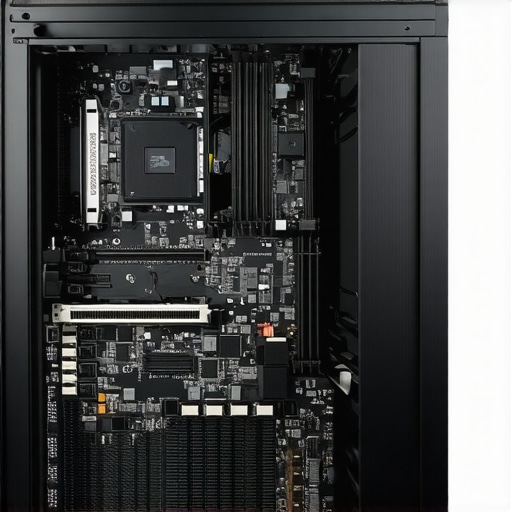
It was a quiet Sunday afternoon when my heart sank. I powered up my beloved workstation—nothing. Just a blank screen and dead silence. That unsettling feeling hit me—my 2026 gaming beast, my creative hub, suddenly refused to cooperate. At first, I panicked. Was it the motherboard? Power supply? Something worse?
But after years of tinkering and a few nasty lessons, I realized that most startup issues aren’t insurmountable. They’re often just stubborn hardware components that need a gentle nudge or a quick fix. That’s when I had my lightbulb moment: You don’t always need a complete overhaul or expensive repairs. Sometimes, a simple hardware fix can breathe new life into a dead PC.
Today, I want to share with you the 5 hardware fixes that have rescued my rig more times than I can count. If your PC won’t start, these are the steps I recommend before you consider costly repairs or replacements. Trust me, knowing these tricks can save you both time and money.
Why Your PC Might Refuse to Start and How to Fix It
Check the Power Supply First
When my own rig refused to turn on, I started with the most obvious culprit—the power supply. Think of it like a bridge—it connects your wall socket to your PC’s heart. To test it, unplug your PC, then disconnect the power cable from the unit, and test the power supply with a paperclip trick: connect the green wire to any black wire on the 24-pin connector. If the power supply doesn’t start, it’s dead—like a blown fuse in your home’s electrical panel. Replacing it is straightforward, but ensure you pick a unit with enough wattage for your components. I replaced mine with a unit from a trusted brand, and my PC powered up like new. For detailed steps, check out https://computerrepairmasters.com/data-recovery-secrets-every-business-should-know-today.
Reseat Your RAM Modules
Sometimes, the simplest fix is to reseat or swap your RAM sticks. They’re like the heartbeat of your machine—if they’re loose or dirty, your PC might not start. To do this, power off your PC, unplug all cables, and open the case. Carefully remove the RAM sticks, then wipe their contacts with a soft cloth. Reinsert them firmly into their slots, ensuring the clips click into place. Boot up and see if the problem persists. I once had a stubborn issue that was resolved just by reseating my RAM, saving me hours of troubleshooting. Learn more about diagnosing laptop screen issues at https://computerrepairmasters.com/laptop-screen-repair-how-to-fix-common-issues-at-home.
Inspect and Clear the BIOS Battery
The BIOS battery keeps your system settings alive. If it’s drained, your PC might refuse to start or keep resetting. To test it, open your PC case, locate the coin-cell battery on the motherboard—usually a CR2032. Carefully remove it, wait a few minutes, then reinsert or replace it with a new one. This can resolve weird startup issues and is like changing the batteries in your smoke detector. During my last build, replacing the BIOS battery solved a startup loop, which was a relief. For tips on laptop screen repairs, see https://computerrepairmasters.com/top-laptop-screen-replacement-tips-for-fast-reliable-fixes-2024-2.
Test Internal Connections and Cables
Loose or damaged cables are common culprits. Think of your PC as a series of tubes; if the tubes are pinched or disconnected, nothing flows. Carefully check all power and data cables inside the case, ensuring they’re snuggly connected. If you notice any frayed wires or corrosion, replace them immediately. Also, ensure components like the graphics card are seated properly in their PCIe slots. In one case, a loose GPU caused my system to boot intermittently—once I reseated it, everything ran smoothly. For comprehensive hardware troubleshooting, visit https://computerrepairmasters.com/knowledge-base-hardware-troubleshooting.
Perform a Minimal Boot Test
This step isolates faulty hardware. Disconnect everything except the essentials: motherboard, CPU, one RAM stick, and power supply. Power on; if it posts, add components back one at a time until you find the culprit. I did this once with an old gaming PC that refused to POST; tracing it down to a faulty RAM module saved me from unnecessary replacements. This targeted approach is like removing unnecessary weight from a vehicle to see if it starts moving—focused and effective. To safeguard your data during repairs, consider data recovery options at https://computerrepairmasters.com/alternative-data-recovery-techniques-to-try-in-2024.
Many people think they understand the essentials of computer repair, but there are several misconceptions that can lead to costly mistakes. For instance, a widespread myth is that software issues are always the root cause of hardware failures. In reality, hardware problems such as faulty capacitors or damaged connectors are often overlooked because they aren’t immediately visible, yet they can cause intermittent or total failures. Experts recommend a thorough diagnostic process, including hardware testing, before resorting to reinstallations or resets, as detailed in trusted industry sources.
A frequently misunderstood aspect of data recovery is the effectiveness of DIY solutions. While tools are available for purchase or download, attempting to recover critical files without professional guidance can worsen the situation. For example, using generic recovery software on a physically damaged drive may cause further data corruption, making professional services essential. Proven strategies involve ice-cold storage and clean-room environments, which are beyond most repair kits, underscoring the importance of consulting data recovery specialists like those referenced in recognized studies.
When it comes to managed IT, many believe that merely keeping up with the latest hardware ensures security and efficiency. However, neglecting the nuanced configuration of security protocols, user access controls, and patch management introduces vulnerabilities that can be exploited by cyber threats. Implementing comprehensive strategies tailored to your business’s specific needs, such as proactive monitoring and regular audits, significantly reduces risks. For advanced insights into these practices, referring to expert guidance can be invaluable.
Why Do So Many Overlook Power Supply Degradation in Troubleshooting?
A common oversight during troubleshooting is focusing solely on software or visible hardware components while ignoring the aging or subtle faults in the power supply unit (PSU). Over time, capacitors deteriorate, causing voltage fluctuations that aren’t detectable immediately but lead to system crashes or hardware damage. Detecting such issues requires specialized testing equipment and expertise. Recognizing these hidden failures can save time and prevent further component damage, which is why a nuanced diagnosis that includes PSU health assessment is critical.
Misconceptions like these remind us that effective troubleshooting isn’t just about following a checklist; it’s about understanding the complex interplay of hardware and software nuances. For advanced tips on safeguarding critical data and ensuring your hardware’s longevity, consider exploring resources such as [data recovery secrets](https://computerrepairmasters.com/data-recovery-secrets-every-business-should-know-today) and [managed IT strategies](https://computerrepairmasters.com/effective-managed-it-solutions-for-growing-companies).
Have you ever fallen into this trap? Let me know in the comments.
Invest in Reliable Diagnostic Equipment
When it comes to maintaining your computer systems over time, having the right diagnostic tools can be a game-changer. I personally rely on a USB RAM tester to quickly evaluate memory modules without opening the case, saving me precious time during troubleshooting sessions. Additionally, I use a digital multimeter with high precision to check power supply voltages and ensure hardware stability. These tools enable me to isolate issues efficiently and prevent unnecessary replacements.
Upgrade to Professional Monitoring Software
Managing multiple devices demands proactive monitoring. I recommend SolarWinds RMM for its comprehensive features like real-time alerts, automated patch management, and remote diagnostics. This software helps me identify potential hardware failures or security vulnerabilities early, minimizing downtime. Investing in trusted solutions ensures your systems stay operational, and potential issues are addressed before they escalate.
Implement a Robust Data Backup System
Data recovery is critical, especially in emergencies. I personally use Acronis True Image for its seamless backups and reliable restore options. Regularly scheduled backups, stored securely off-site, safeguard against hardware failures or malware attacks. Remember, having a tested backup plan is vital for preserving your long-term data integrity and peace of mind.
Keep a Well-Stocked Hardware Toolkit
Accidents happen unexpectedly, so having a comprehensive hardware repair kit is invaluable. I always keep spare SATA cables, thermal paste, screwdrivers, and replacement fans on hand. This readiness allows me to perform quick fixes on laptops or desktops, reducing downtime and extending device lifespan. A well-stocked toolkit is essential for anyone serious about maintenance.
Stay Current with Latest Firmware and Software Updates
Outdated firmware or drivers can cause unpredictable hardware issues. I subscribe to manufacturer update channels and routinely check for updates to BIOS, chipset drivers, and firmware. Applying updates ensures compatibility, security patches, and performance improvements. For a detailed update schedule, [review your device’s support page](https://computerrepairmasters.com/privacy-policy). Commitment to regular updates is a simple but effective way to keep systems reliable over the years.
How do I maintain system health to prevent issues over time?
Regularly scheduled maintenance routines, such as cleaning dust from fans, checking for hardware degradation, and running diagnostic scans, are crucial. Using tools like CrystalDiskInfo for monitoring SSD health or HWMonitor for temperature readings can alert you to impending failures. As we look ahead, trends point towards AI-powered diagnostic tools that can predict hardware failures before symptoms appear, further streamlining maintenance. I encourage you to start with at least one of these advanced tips—like setting up your monitoring software—to experience the benefits firsthand. Them, your systems will thank you. For comprehensive managed IT strategies that keep your infrastructure secure and resilient, visit [this resource](https://computerrepairmasters.com/effective-managed-it-solutions-for-growing-companies).
What I Wish I Learned Sooner About Troubleshooting
- Many of my biggest wins came from embracing patience over haste—sometimes, waiting a few extra minutes for a component to cool or a connection to settle made all the difference.
- Discovering that a surprisingly small component, like a BIOS battery, can halt an entire system taught me to look beyond the obvious. It’s the subtle details that often hold the key.
- Realizing that not every problem requires high-end tools; sometimes, a simple paperclip or a clean cloth can solve a mystery. It’s about knowing where to start—and when to escalate.
- Understanding that the foundation of effective repair is a mindset: approach each issue as a puzzle, not a disaster, and build your confidence with every fix.
- Finally, I’ve learned that continuously updating my knowledge—reading trusted guides and industry insights—keeps me prepared for the next unexpected challenge. Staying curious is the best tool a technician can have.
Tools and Resources That Changed My Repair Game
- Crucial Diagnostic Tools: Using a high-quality multimeter and USB RAM tester has allowed me to quickly pinpoint voltage irregularities and memory issues, saving valuable time and guesswork. I trust these because they’re durable and precise, making troubleshooting more straightforward.
- Guides and Reference Sites: Regularly consulting trusted resources like [effective managed IT services to keep your business secure in 2025](https://computerrepairmasters.com/effective-managed-it-solutions-for-growing-companies) gives me current strategies to enhance system security. Staying updated ensures I’m handing clients realistic solutions.
- Curated Knowledge Bases: Bookmarking comprehensive repair articles, such as [top-data recovery strategies to safeguard your files in 2024](https://computerrepairmasters.com/top-data-recovery-strategies-to-safeguard-critical-files-in-2024), helps me quickly find best practices for critical scenarios, especially when stress levels are high.
- Community and Forums: Engaging with seasoned techs on platforms like [contact us](https://computerrepairmasters.com/contact-us) forums exposes me to real-world fixes and innovative ideas that I might not find in standard manuals. Collaboration is key to growth.
Ignite Your Repair Journey Today
Every hardware fix teaches us something new—about our equipment, our patience, and our problem-solving skills. Embrace the challenge, stay curious, and continually seek knowledge. Your mastery over computer repair, laptop screen, managed IT, and data recovery not only benefits your clients but also fuels your confidence. Remember, the journey to becoming proficient is ongoing, and each fix adds to your experience. Keep pushing forward—your next breakthrough might be just a troubleshooting step away. Ready to tackle that stubborn issue and turn it into a win? Share your story below and let’s learn together.