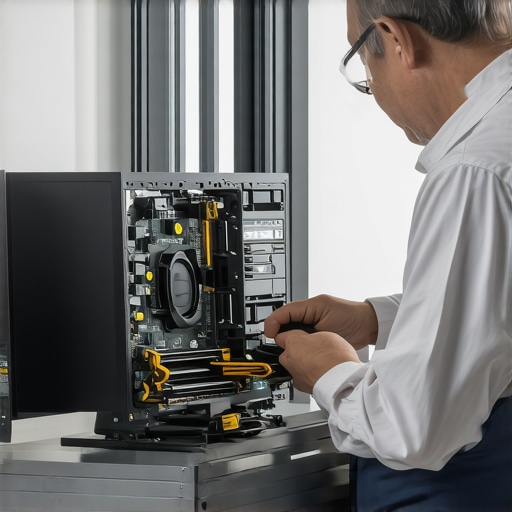
I remember the moment vividly—the screen went black during a critical presentation, and suddenly, my heart sank. It was a wake-up call that detailed computer issues can strike when you least expect them, disrupting both personal and professional lives. That lightbulb moment drove me to discover effective, practical tips to fix problems quickly and ensure my devices run smoothly. Today, I want to share those insights so you don’t have to face the same frustrations I did.
Fast, Reliable Computer Repairs Are Within Your Reach
In 2024, the pace of our digital lives is relentless. Whether you’re managing a small business, recovering precious family photos, or simply trying to work efficiently, delays in fixing your computer can cost you time, money, and peace of mind. But here’s the truth—most common issues can be diagnosed and resolved swiftly if you know the right strategies. I’ve learned from personal experience and plenty of trial and error that being proactive, rather than reactive, makes all the difference. That’s why I’ve committed to mastering the best repair tips tailored for today’s tech landscape.
Stop Worrying About the Worst-Case Scenario
Initially, I used to panic when my laptop slowed down or experienced glitches. I made the mistake of thinking every problem was catastrophic, which only extended downtimes. According to data from Top Computer Repair Tips for 2024, many issues can be resolved with simple, effective techniques that save you from costly replacements or extensive repairs. So if you’ve ever felt overwhelmed by tech problems, know you’re not alone, and help is available. My goal is to empower you with reliable solutions, starting with understanding the common pitfalls and how to avoid them.
Have you ever faced a computer breakdown at the worst possible moment? If so, keep reading—what follows are the proven tips that can make your repair process faster, more efficient, and less stressful. Whether you’re a casual user or manage a business, these insights will set you on the path to resolving your tech issues with confidence and ease.
Diagnose Before You Dive
Start by identifying the exact issue. Is your computer running slowly, freezing, or showing error messages? Use built-in tools like Task Manager on Windows or Activity Monitor on Mac to observe CPU, memory, and disk usage. For instance, I once faced a sluggish laptop that seemed overwhelmed; checking resource usage revealed a rogue background process consuming 80% CPU, which I terminated to restore speed. This simple step can save hours of guesswork and prevent unnecessary repairs.
Secure Your Data First
Before attempting any repairs, always back up critical files. Connect an external hard drive or use cloud services to prevent data loss. I learned this the hard way when a failed hard drive wiped out years of photos and documents. For quick recovery, data recovery solutions like the ones explained here can be lifesavers. Protecting your data ensures peace of mind during troubleshooting.
Address Hardware Troubles with Confidence
Many hardware issues, like a flickering or dead laptop screen, are fixable at home. For example, I once replaced a cracked screen after following step-by-step guides like this tutorial. Carefully open your device using appropriate tools, disconnect the battery if possible, and swap out the faulty component. Remember, safety is paramount—disconnect power and discharge static before touching internal parts. This hands-on approach saves money and teaches you valuable skills.
Utilize Software Repair Techniques
Software glitches can often be resolved without hardware intervention. Run system diagnostics, perform disk checks, or reset settings to troubleshoot errors. On Windows, commands like sfc /scannow can repair corrupted system files, much like patching a leaking pipe to prevent further water damage. Keep your operating system updated, and use reputable cleaning tools to eliminate malware or unnecessary files that bog down performance.
Implement Managed IT Solutions for Long-Term Stability
If you manage a business or handle multiple devices, leveraging managed IT services can streamline maintenance. These solutions provide remote monitoring, automatic updates, and security patches, reducing unexpected breakdowns. Consider strategies outlined here to optimize your IT infrastructure. Investing in proactive management can prevent small issues from escalating into costly failures, ensuring your digital workflow remains uninterrupted.
Stay Ahead with Routine Maintenance
Regular cleaning of hardware components, software updates, and security scans keep your system running smoothly. Schedule monthly backups, clean dust from vents, and run antivirus scans to catch threats early. I once neglected routine updates, leading to a malware invasion that compromised data. Setting automated reminders for maintenance tasks simplifies this process, making computer upkeep less of a chore and more of a safeguard against surprises.
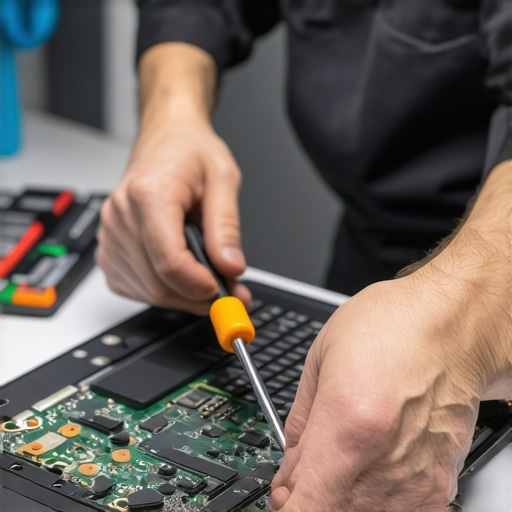 Despite the abundance of information available online, many people hold onto misconceptions that can hinder effective computer maintenance and data security. One widespread myth is that replacing a laptop screen is always complex and costly; however, with proper guidance, many screens can be swapped at home, saving significant expense. Yet, a common trap is neglecting to fully disassemble the device, which can lead to damaging delicate components. Always follow trusted tutorials and prioritize safety tips, such as disconnecting power and discharging static, to avoid irreversible damage. Additionally, many believe managed IT services are only suitable for large enterprises, but small businesses can also benefit immensely from these solutions to increase security and efficiency—see here. An advanced but often overlooked nuance involves data recovery; many think immediate recovery is always possible, yet rushing to restore files without analyzing the root cause can worsen the loss. Implementing strategic recovery plans, backed by professional insight, minimizes risks—more details are available in this guide. Moreover, some assume that software fixes alone can resolve hardware issues; while software troubleshooting is vital, hardware failures might go unnoticed if not properly diagnosed, leading to prolonged downtime. Tools like system diagnostics can help differentiate the two, preserving time and resources. Finally, an essential misconception is that backups are optional or only necessary after data loss occurs. Regular, automated backups are critical for safeguarding against hardware failure, malware attacks, or accidental deletion. Automation and comprehensive backup strategies, as outlined here, are your best defenses. Remember, understanding these nuances not only prevents costly mistakes but also empowers you to make smarter decisions—saving time, money, and peace of mind. Have you ever fallen into this trap? Let me know in the comments.
Investing in the Right Tools for Longevity
Maintaining your laptop or desktop effectively relies heavily on having the right equipment and software. Personally, I swear by a quality set of precision screwdrivers, such as the iFixit Pro Toolkit, which allows me to open and repair devices without risking damage. A static wrist strap is indispensable to prevent electrostatic discharge, protecting sensitive internal components during repairs. Additionally, a reliable external hard drive or SSD, like the Samsung T7, is perfect for regular backups, ensuring your data is safe from hardware failures or malware attacks. Utilizing a digital multimeter helps diagnose unknown hardware issues quickly, saving time and money.
Streamlining Maintenance with Automation
Automated tools make ongoing upkeep manageable. I rely on software like CCleaner for periodic cleaning of temporary files and unwanted data. It’s configured to run weekly, freeing me from manual cleanup tasks. For antivirus protection, I recommend using Norton 360, which offers real-time scanning combined with scheduled full-system scans, ensuring threats are detected early without constant manual oversight. Setting up automated backups through cloud services like Backblaze or Google Drive guarantees data protection with minimal effort. These tools, combined with regular manual checks, help maintain optimal performance over time.
Predicting and Preventing Problems Before They Escalate
Proactive maintenance involves more than software—it’s about keeping hardware healthy. Monitoring tools such as HWMonitor provide real-time insights into temperature and voltage levels; high temperatures can lead to hardware degradation if unchecked. Regular cleaning of vents and fans with compressed air maintains airflow and prevents overheating. I do this every three months, especially in dusty environments, to extend component lifespan. Also, keep firmware and driver updates current, as they often include essential stability and security patches. For example, regularly updating your BIOS can prevent compatibility or boot issues down the line. Making these steps part of your routine ensures your system keeps humming along smoothly.
Where Do I Start with a Maintenance Routine?
Begin by evaluating your current setup: check your backup schedule, clean your hardware, and review your software. Implement monitoring tools to track component health, and set up automated cleaning and backup routines. Over time, you’ll find that small, consistent efforts dramatically improve your device’s reliability and lifespan. For detailed guidance on hardware cleaning, check out this article. Also, a recent technical paper emphasizes the importance of firmware updates in preventing hardware failures (see here). I encourage you to pick one task today—like scheduling an automatic backup or cleaning your vents—and commit to it. These small steps, repeated regularly, form the backbone of effective long-term maintenance and will save you headaches down the road.
Lessons That Changed My Approach to Tech Fixes
- One unexpected lesson I learned was the importance of patience—rushing through repairs often leads to more issues. Taking the time to diagnose properly saved me money and headaches later.
- I realized that mastering even simple hardware swaps, like replacing a laptop screen, can turn a frustrating situation into a rewarding DIY project, provided I follow trusted tutorials and safety precautions.
- Understanding that routine maintenance isn’t just a task but a safeguard has transformed how I protect my devices; small, consistent efforts pay off tremendously in device longevity.
Tools and Resources I Depend On
- iFixit Pro Toolkit — I trust it because it’s comprehensive and designed specifically for safe, precision repairs, making complex fixes manageable.
- Samsung T7 External SSD — Reliable, fast, and perfect for regular backups, giving me peace of mind knowing my data is protected from unforeseen issues.
- HWMonitor — This monitoring tool helps me keep an eye on hardware health, preventing overheating and hardware failure before it happens.
- Backblaze — Automated cloud backups are essential, and my go-to for ensuring my files are safe without manual intervention.
Your Next Step Starts Now
Taking control of your computer’s health and data security isn’t just a technical task — it’s a mindset shift toward proactive care. Remember, the right knowledge combined with the right tools can turn overwhelming problems into manageable solutions. Imagine a future where your devices serve you seamlessly, free from the stress of unexpected breakdowns. That future is within your reach if you start today with simple, smart steps to maintain and protect your tech assets.
If you’ve faced a particular challenge in repairing or maintaining your devices, I’d love to hear your story. What’s the biggest lesson you’ve learned about keeping your laptop or data safe? Share your experiences below and let’s learn from each other!
,
This article resonates with me because I used to panic every time my laptop behaved badly, especially during busy work periods. Over time, I’ve learned that diagnosing before rushing into repairs is crucial. For example, I once experienced slow performance, and simply checking Task Manager revealed an unnecessary background process eating up resources—resolving the issue instantly. It makes me wonder, how many people overlook these basic steps and end up paying for costly fixes?
I’ve also started regularly backing up my files using automatic cloud services like Backblaze, which has saved me on more than one occasion. The idea of proactive maintenance rather than reactive fixes has changed my approach to tech care completely. Do you think that most users underestimate the importance of hardware and firmware updates? I’d love to hear others’ experiences with preventive measures that actually made a difference in their device longevity.
This post hits close to home, especially the part about diagnosing issues before jumping into repairs. I can’t count how many times I’ve spent hours replacing hardware only to discover later that the problem was software-related or caused by overheating. Using tools like HWMonitor to keep an eye on system temps and running basic diagnostics has saved me a lot of time and money. It’s a good reminder that a methodical approach not only makes repairs faster but also prevents accidental damage from rushing into disassemblies. I wonder, though, for those who are not technically inclined, what easy-to-use diagnostic tools or apps would you recommend to get started with troubleshooting? It seems like understanding your device better is the first step toward smarter maintenance and avoiding costly repairs down the line.