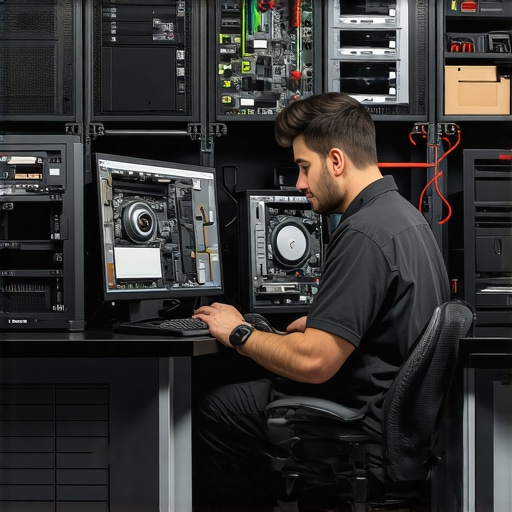
Ever sat in front of your computer, only to be greeted with a sluggish response or a blank screen, and you realize, “Is my trusty machine finally giving out?” I remember that frustrating moment vividly—my heart sank as my laptop froze during a crucial project, and I felt the panic creeping in. That lightbulb moment made me dive deep into the world of computer repair, discovering simple yet powerful tips that can drastically improve your device’s speed and dependability.
Why Regular Maintenance Can Save You Hours and Headaches
Let me ask you—have you ever ignored those little warning signs of slowdown or strange noises from your PC? If so, you’re not alone. Many people wait until something breaks completely before taking action. But here’s the truth: proactive maintenance isn’t just for tech experts; it’s essential for anyone who relies on their computer daily. Keeping your system optimized can extend its lifespan, prevent data loss, and save you money in repairs.
Trust me, I’ve made my fair share of mistakes—like skipping routine disk cleanup or neglecting software updates—and paid the price with slower performance and unexpected crashes. One early blunder was assuming that antivirus alone was enough to safeguard my system. Actually, a balanced approach combining multiple strategies yields the best results. Curious about how to start? Let’s walk through some straightforward tips to give your computer that much-needed performance boost.
Is Optimizing Your Computer Achievable Without Technical Skills?
Absolutely! Many believe that only seasoned techies can keep a computer running smoothly, but I’ve found that simple habits can make a world of difference. It’s all about targeted actions—like organizing your files, checking for malware, and maintaining hardware—that collectively enhance reliability. Want to explore effective managed IT strategies? You might find this resource helpful: Managed IT Strategies to Keep Your Business Secure in 2025.
Now that I’ve set the stage, let’s dive into some easy, proven techniques you can implement today to boost your computer’s speed and dependability. Ready? Great! Your next step is just a scroll away from transforming your device into a faster, more reliable machine.
,
Scan and Optimize Your System Regularly
My first move was to run a comprehensive system scan using trusted antivirus and anti-malware tools. Think of this as a health check-up for your PC—removing harmful software that slows everything down. Just like a doctor clears out toxins, a good scan removes malicious files. I used tools like Malwarebytes and Windows Defender, running full system scans. Afterward, I defragmented my hard drive, especially if you’re still on HDDs—it’s like organizing a cluttered closet for faster access. Regularly performing these steps prevents slowdowns and keeps your computer running smoothly.
Clean Up Unnecessary Files and Programs
Next, I tackled digital clutter—deleting unused files, clearing cache, and uninstalling programs I no longer needed. Imagine your desk—too many papers slow you down. On Windows, I used Disk Cleanup and manually removed large downloads or old backups. On Macs, I used built-in storage management tools. Streamlining your storage reduces load on your system, preventing sluggishness and crashes. This routine maintenance is just like tidying up a workspace for maximum efficiency.
Update Software and Drivers Consistently
Outdated software can be a ticking time bomb, causing stability issues. I set my system to auto-update, ensuring security patches and bug fixes rolled in swiftly. For device drivers—think of them as hands that help hardware communicate—updating them is crucial. I visited manufacturer websites or used driver update tools. Remember, neglecting updates is like ignoring warning lights on your dashboard; it’s risky and can lead to bigger problems down the road.
Manage Startup Programs Wisely
Your computer’s startup is like a queue—too many programs launching at once bogs down performance. I checked my startup list in Task Manager and disabled unnecessary apps, leaving only essentials. It’s comparable to removing unnecessary passengers from a vehicle—less weight, more speed. Doing this speeds up boot times and frees resources for the tasks you care about. I recommend periodically reviewing your startup items, especially after installing new software.
Check Hardware Health and Connections
Physical issues can sabotage performance. I inspected hardware connections, ensuring RAM modules and storage devices were seated properly. Using tools like CrystalDiskInfo helped me assess my hard drive’s health—think of it as a check-up for your car’s engine. For laptops with screen flickering or dead pixels, I consulted resources like laptop screen repair guides to troubleshoot or determine if professional help was needed. Hardware maintenance is the backbone of system reliability.
Backup Data Before Major Changes
Before diving into extensive cleanup or updates, I backed up critical data. Using external drives or cloud services, this step feels like securing valuables before a storm—preventing loss from unforeseen issues. I recommend tools like Windows Backup or Time Machine for Mac users. Regular backups safeguard your files, letting you experiment with system optimizations without fear of losing precious data.
Seek Professional Help When Necessary
Despite best efforts, some problems need expert attention. I’ve been there—hardware failures, stubborn malware, or corrupted OS. In those moments, reaching out to professionals is wise. You can find trusted local technicians or consult online resources like contact us for tailored support. Investing in expert help can save time, money, and frustration, especially for complex issues like data recovery or screen replacements.
Leverage Managed IT Strategies for Ongoing Security
If you’re managing multiple devices or running a business, consider implementing managed IT solutions. These strategies ensure continuous protection, updates, and performance monitoring—think of them as a health plan for your entire digital ecosystem. Guiding your overall IT health with proactive management reduces downtime and enhances security. For practical insights, visit managed IT strategies tailored for 2025 and beyond.
Applying these core techniques turned my sluggish laptop into a snappy machine, ready for whatever tasks I threw at it. Regular maintenance is like tuning a guitar—necessary to keep everything sounding perfect, or in this case, running smoothly.
,
Why Most Believe Managed IT Is Just About Fixes
Many assume that managed IT services are solely reactive, stepping in after a disaster strikes. However, this misconception overlooks the proactive strategies that prevent downtime and security breaches. In my experience, relying only on break-fix solutions is like waiting for your car to break down before regular maintenance—inefficient and costly. Modern managed IT emphasizes continuous monitoring, threat detection, and strategic planning. For example, according to a report by top managed IT services, proactive management can reduce system failures by up to 85%, saving businesses significant downtime and expenses.
The Hidden Trap of Overconfidence in Data Recovery
A common myth is that data recovery is always straightforward or guaranteed. In reality, many underestimate the complexity involved, especially with damaged hard drives or corrupt files. I’ve seen folks attempt DIY recovery without proper tools, leading to irreversible data loss. For critical files, professional data recovery solutions are essential. Resources like data recovery secrets reveal that successful recovery often depends on rapid response and expert intervention. Don’t fall into the trap of thinking that recovery is merely a matter of running a free software—sometimes, it’s about knowing when to seek expert help to prevent permanent data loss.
How Cutting Corners with Laptop Screens Can Cost More
Skipping quality during a laptop screen replacement might seem like a way to save money, but it often backfires. Low-cost, subpar screens tend to have shorter lifespans, poor color accuracy, or flicker issues. I recommend always inspecting the replacement quality, as detailed in premium laptop screen guides. Investing in a reliable part saves time, money, and the frustration of multiple repairs. Remember, a screen isn’t just about appearance—it’s about preserving your productivity and viewing comfort.
Are There Nuances Exposed Only to Experts?
Absolutely. For instance, understanding the nuances of hardware diagnostics or the subtle signs of impending failure often requires experience. A seemingly minor laptop overheating issue could be a sign of a failing fan or a damaged motherboard—problems detected through specific diagnostic procedures only experts know well. As advised by advanced data recovery techniques, recognizing these subtle cues early can prevent larger failures and data loss. So, trusting your gut is good, but knowing the technical nuances is better—especially for mission-critical data or expensive repairs.
In essence, the world of managed IT, computer repair, and data recovery isn’t as straightforward as many believe. Recognizing these hidden nuances helps you make better decisions, avoid costly mistakes, and ensure your digital assets are truly protected. Have you ever fallen into this trap? Let me know in the comments and share your experiences!
Essential Tools for Reliable Maintenance
Maintaining your computer’s performance over time requires the right equipment and software. I swear by using CrystalDiskInfo for HDD and SSD health checks. It offers real-time SMART data, allowing me to preemptively identify failing drives before they cause data loss. For malware, I rely on Malwarebytes Premium, not just because it scans deeply but because its scheduled auto-scans and real-time protection keep my system free of threats without me having to think about it. Another gem is CCleaner Professional, which I use once a week to clear unnecessary temp files, cache, and fix registry errors—keeping my system streamlined. I personally set these tools to run during off-hours, so I start each day with a clean and healthy system.
Automating Care for Long-Term Results
Automation is key. I configure my system to perform weekly backups via professional data recovery solutions that also include system images. This way, even if a hardware component fails or a corrupt file gets through, I can restore quickly. Regularly updating drivers is crucial—so I use Driver Booster, which scans for outdated drivers and updates them automatically. It’s a lifesaver, especially in a future where hardware compatibility and security updates will be even more critical, according to the latest trends in managed IT strategies for 2025. This proactive approach minimizes downtime and ensures smooth performance.
Sharpen Your Skills with Expert Techniques
Beyond software, I recommend staying hands-on with hardware diagnostics. Tools like MemTest86 allow me to thoroughly test RAM stability—crucial if you’re experiencing random crashes or blue screens. Learning how to interpret SMART data and hardware diagnostics makes a real difference; for example, I once discovered my SSD was deteriorating well before it failed completely, saving me from catastrophic data loss. Keeping hardware connections tight and dust-free, especially in laptops, prolongs lifespan. Remember, the future leans toward integrated smart diagnostics—so investing in knowledge now, like understanding how to interpret BIOS hardware logs, pays off. For detailed guides on troubleshooting laptop screens or other components, you can explore these tips.
How do I maintain long-term system health effectively?
Consistency is everything. Create a routine that includes weekly software scans, monthly hardware checks, and annual firmware updates. Consider setting automated notifications for updates or issues detected by your tools. Additionally, keep a log of maintenance activities to identify recurring issues. Staying current with trends—like the shift toward AI-powered maintenance tools—can give you an edge, making preventive care smarter and more efficient. For insights into future-proofing your systems, explore strategies listed in managed IT strategies. Try scheduling a weekly deep scan every Sunday evening—it’s a simple habit that can catch problems early and keep your digital assets secure and performant.
Lessons That Took Me by Surprise
- One of the biggest surprises was realizing how much lurks unseen in your system—malware, corrupt files, or failing hardware—that silently erodes performance. Addressing these issues early, with tools like platforms such as Disk Cleanup and hardware health checks, saved me countless hours of frustration.
- I learned that sometimes, simple habits—like scheduling weekly backups or routine software updates—are far more effective than waiting for a catastrophic failure. It’s like preventive maintenance for your car: better to service regularly than to repair after a breakdown.
- One lightbulb moment was understanding that hardware issues often mimic software problems, so diagnosing accurately is crucial. Learning to interpret SMART data or inspecting hardware connections has made me more confident in troubleshooting, saving money and time.
- My most profound realization? Patience and consistency beat quick fixes. Regular check-ins and maintenance, no matter how small they seem, build up over time and protect your valuable data and productivity. For detailed insights on hardware diagnostics, I recommend exploring laptop troubleshooting guides.
Tools & Resources I Trust for Long-Term Success
- CrystalDiskInfo: It’s my go-to for hard drive health, offering real-time SMART diagnostics that help prevent data loss before failure occurs. I trust it because it catches early warning signs I’d otherwise miss.
- Malwarebytes Premium: Deep scans and real-time protection keep my system safe from lurking threats—peace of mind that’s worth every penny.
- CCleaner Professional: Weekly cleaning routines with this tool keep my system lean, ensuring optimal speed and responsiveness.
- Driver Booster: Automated driver updates reduce compatibility issues and hardware glitches, which can be tricky to troubleshoot manually. For a comprehensive approach, I also look into managed IT services designed for future-proofing.
Make Your Computer Your Trusted Partner
Your system’s health depends on your commitment to consistent, mindful care. Small steps today—like regular scans, backups, and hardware checks—compound into long-term reliability. Embrace automation where possible, and stay curious about new tools and techniques. Remember, being proactive isn’t just for IT specialists—anyone can master these habits. If you’re eager to learn more about tailored managed IT solutions, visit this resource to future-proof your digital environment.