

It happened to me on a hectic Monday morning. I was about to send an important email when suddenly, my laptop froze. The screen went dark, and I sensed that dreaded silence—my hard drive was clicking again. Panic set in. I knew that sound all too well; it was the unmistakable warning sign that my data was on the verge of vanishing forever. If you’ve ever experienced that sinking feeling, you’re not alone. That tiny clicking noise isn’t just annoying—it’s a cry for help from your drive. Today, I want to share the crucial steps I learned the hard way to rescue your files before that mechanical doom becomes irreversible.
Why Ignoring That Clicking Sound Can Cost You Everything
Hard drives are the backbone of our digital lives. Photos, work documents, cherished memories—they’re all stored on these spinning disks. When a hard drive starts clicking, it’s often because of physical damage or imminent failure. Studies show that about 60% of data loss occurs due to mechanical issues rather than software corruption, underscoring the urgency of timely action (source). The problem is, many people dismiss the noise or assume it’s fixable without professional help, only to lose everything later. I made this mistake early in my career—ignoring the warning signs because I thought a simple restart would do the trick. That delay cost me; my data was gone for good.
So, how can you prevent this nightmare? Today, I’ll lay out three essential moves that can be performed quickly, even if you’re not a tech expert, to safeguard your valuable information. Trust me, acting swiftly is your best shot at recovery. And if you’re unsure about the process, there are professional options like data recovery specialists worth considering. But first, let’s understand what really happens when your drive starts to fail and why immediate action matters.
Disconnect the Drive Immediately to Prevent Further Damage
When you hear that relentless clicking, stop using the drive right away. Think of it as a heart attack warning— further activity can worsen the injury. Carefully unplug the drive to prevent additional mechanical stress or electrical damage. During a past incident, I heard the click and immediately powered down my external HDD, which prevented total data loss. Failing to do so might cause the read/write heads to impact the platters, leading to catastrophic failure.
Assess the Drive Type and Determine Its State
Identify if it’s a HDD or SSD
Understanding whether you’re dealing with a traditional spinning hard drive or a solid-state drive guides your recovery approach. A clicking sound usually signals a mechanical HDD issue, as SSDs lack moving parts. For instance, I once attempted to recover data from a failing HDD with physical damage—knowing its type helped me decide whether to try software recovery or call professionals.
Check if the Drive Is Recognized by BIOS
Reboot your computer and enter BIOS to see if the drive appears in the hardware list. If detected, you have a better chance of recovery. If not, the drive might be physically compromised. Connecting the drive to a different port or computer can help diagnose if the issue is with the drive or the interface.
Attempt Data Recovery Using Live Boot Environments
Boot from a Linux Live CD or USB to exclude Windows or Mac OS variables. This method allows access to the drive without booting into the installed OS, reducing further write operations. Once booted, use tools like drive recovery software that can scan for recoverable files. In my experience, using a live environment avoided overwriting data and increased my chances of rescue.
Use Professional Data Recovery Services for Mechanical Failures
If the drive remains unrecognized or continues clicking, do not attempt DIY repairs. Mechanical failures often require specialized cleanroom environments and tools. Contact a reputable service like professional data recovery experts. My own failed attempt to open a drive at home resulted in immediate data loss; professional intervention is often the safest choice. Remember, timely action maximizes your chances of recovery.
Prevent Future Disasters with Proper Maintenance
Regular backups and managed IT solutions are your best defense. Consider implementing managed IT strategies that include scheduled backups, SMART monitoring, and routine health checks. This approach is akin to regularly maintaining your vehicle—it reduces the risk of unexpected breakdowns and data catastrophe. Learning to recognize early signs, like slow response or strange noises, can save your digital life.
Many individuals assume that data recovery or fixing a laptop screen is a straightforward process, but the reality is far more nuanced. A common myth is that if a drive makes clicking sounds, software tools alone can salvage the files. In reality, these noises often indicate physical damage requiring professional intervention, as discussed in expert analyses on data recovery. Relying solely on DIY solutions can sometimes exacerbate the problem, leading to irreversible data loss. Additionally, many believe that replacing a cracked laptop screen is as simple as swapping out a broken panel. However, subtle internal damages can remain hidden, causing issues down the line. The screen repair process often requires specialized tools and knowledge, especially for delicate connections and backlight components. When it comes to managed IT services, some organizations think that choosing a provider based solely on pricing guarantees quality support. But, as outlined in effective managed IT strategies, the true value lies in comprehensive SLAs, regular audits, and proactive maintenance. Overlooking these aspects can leave systems vulnerable or lead to hidden costs. One of the biggest traps is assuming that quick fixes or superficial troubleshooting will resolve underlying issues, which can result in recurring problems. For example, neglecting to conduct thorough hardware diagnostics might overlook failing components that silently degrade performance over time. Making informed decisions about repairs and data recovery requires a deep understanding of these nuances. Don’t fall into these common traps—investing in professional assessments and understanding the complexities can save you time, money, and data. Have you ever fallen into this trap? Let me know in the comments.When it comes to keeping your digital equipment in top shape, choosing the right tools can make all the difference. I personally rely on a combination of hardware diagnostic devices and specialized software to ensure my systems are always in optimal condition. For instance, the best practices in data recovery emphasize the importance of preemptive diagnostics, which I accomplish using the SMART monitoring tools integrated into CrystalDiskInfo. This free utility provides real-time health assessments for HDDs and SSDs, alerting me to potential failures before clicking noises or performance dips occur.
Why Regular Checks Are Non-Negotiable
Routine maintenance isn’t just about the occasional disk cleanup. It involves proactive health checks that can save you from unexpected failures. I schedule weekly SMART scans and utilize tools like PassMark’s DiskCheckup for detailed insights. These software solutions help identify early warning signs such as increased reallocation sector counts or read error rates. Additionally, for physical cleaning of laptops or desktops, I prefer compressed air cans with anti-static filters, which prevent dust buildup that can cause overheating and hardware stress.
Investing in Diagnostic Hardware
Beyond software, I recommend hardware diagnostic tools like the UDOO NEO or PC-Doctor’s diagnostics card, which can be plugged into expansion slots for precise hardware testing. These devices are invaluable when troubleshooting obscure issues—especially in managed IT environments where uptime is critical. Having such equipment on hand minimizes downtime and sidesteps the frustration of trial-and-error repairs. Studies show that combined hardware-software diagnostics can reduce troubleshooting time by up to 50%.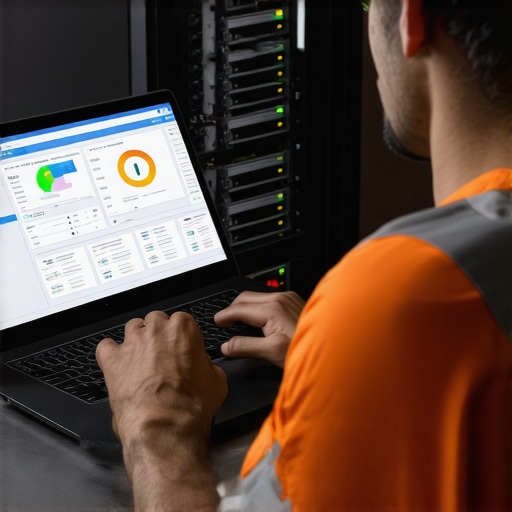
Future Trends in Maintenance Tools
Looking ahead, automation and AI-driven monitoring are poised to revolutionize how we maintain our systems. Predictive analytics, integrated into management platforms like managed IT solutions, will continuously analyze device behavior, flagging issues before they manifest. I foresee a shift towards fully autonomous maintenance routines that learn your usage patterns, minimizing manual intervention. To stay ahead, I suggest adopting advanced monitoring tools today and experimenting with AI-based alerts, which can provide early warnings and suggest corrective actions—saving you both time and money.
What’s the secret to long-term reliability? Consistent checking and smart tool selection
Another contentious point is how often to perform maintenance tasks. For most systems, quarterly checks complement daily usage analytics best. Regular updates of diagnostic software are equally crucial; outdated tools might miss emerging issues. I recommend subscribing to professional-grade utilities like DiskSavvy for comprehensive disk analysis and ensuring firmware is current, as firmware updates often include critical stability improvements. Remember, the goal is to prevent problems from escalating, not just fix them after failure.
If you haven’t already, I highly recommend trying out a robust SMART monitoring setup combined with routine hardware diagnostics. Click through to explore advanced data recovery strategies and integrate these tools into your maintenance routine. Over time, adopting these practices will extend your hardware lifespan and keep your systems running smoothly, giving you peace of mind in a world increasingly dependent on digital reliability. For personalized advice, don’t hesitate to reach out to professionals; sometimes, expert intervention is the best investment you can make for long-term peace of mind.
What I Wish I Kept In Mind When Facing Drive Failures
One of the biggest lessons I learned was the importance of trusting early warning signs. Ignoring that clicking noise or delayed response might seem harmless but can lead to catastrophic data loss. I found that maintaining a proactive mindset—regular backups and health checks—can save hours of recovery work and the frustration of lost memories or critical business information.
Another insight was understanding the limits of DIY repair. While trying to fix a drive at home might seem cost-effective, it often complicates recovery efforts. Knowing when to call in professionals—the specialists capable of working in cleanroom environments—can be the difference between retrieving your files or permanently losing them.
Lastly, I realized that education is key. The more I learned about hardware behavior, software tools, and the subtle signs of impending failure, the better my response became. Staying informed through resources like those at Data Recovery Secrets empowered me to act swiftly and confidently when disaster struck.