

It was a frustrating afternoon when I spilled water on my business laptop, and in the rush to fix it, I realized how much I relied on quick fixes rather than understanding what my machine truly needed. That moment was an eye-opener—just like many small business owners, I had blindly followed advice from my IT support, only to end up replacing hardware I didn’t really require. Have you ever experienced that? The confusion about whether to upgrade your server, buy a new desktop, or just clean up some malware can be overwhelming.
Why Falling for the Hardware Trap Can Cost You Big
Many managed IT providers have a tendency to push for hardware upgrades or replacements as a default solution—even when your current setup might be perfectly adequate. This isn’t necessarily malicious; often, it’s a profit-driven approach disguised as expert advice. But here’s the harsh truth: you might be spending money on unnecessary gear, and that impacts your bottom line.
One common mistake I made early in my tech journey was accepting the notion that my slow computer or frequent crashes signaled the need for a new device. Turns out, many issues stem from software problems, malware, or simple maintenance oversights. The difference between an unnecessary hardware purchase and a real upgrade is understanding what actually needs fixing.
Is It Really Worth Replacing Hardware That Still Works?
It’s a question I struggled with. Many organizations fall into the trap of believing that constant upgrades are the only way to stay competitive. But data recovery, for example, reveals something eye-opening: hardware often isn’t the problem—it’s how you maintain it. For more insights on protecting your digital assets, check out these data recovery secrets every business should know.
In this guide, we’re going to dive into the three key signs that your IT provider might be recommending hardware you don’t need—and how to avoid falling into that costly trap. By identifying these signals early, you can save money, reduce downtime, and make smarter decisions about your technology investments.
Watch for Signs of Genuine Hardware Problems
Start by monitoring your system’s performance and noting recurring issues. If your computer frequently crashes, freezes, or shows signs of physical damage like a cracked screen or faulty hinges, it’s time to evaluate whether hardware replacement is truly necessary. I recall a time when my laptop’s screen flickered unpredictably; instead of assuming a new device was needed, I checked the display connections and cleaned the internal cables here. The fix was simple, saving me hundreds.
Run Targeted Hardware Diagnostics
Use Built-In Tools
Leverage your operating system’s diagnostic utilities. Windows has Memory Diagnostic Tool; Mac users can run Apple Diagnostics. These scans identify hardware issues like faulty RAM or problematic storage drives. Remember, these tools aren’t foolproof but provide a solid starting point. For more advanced testing, consider professional diagnostic tools or software like HWMonitor or CrystalDiskInfo to assess component health.
Perform Physical Inspections
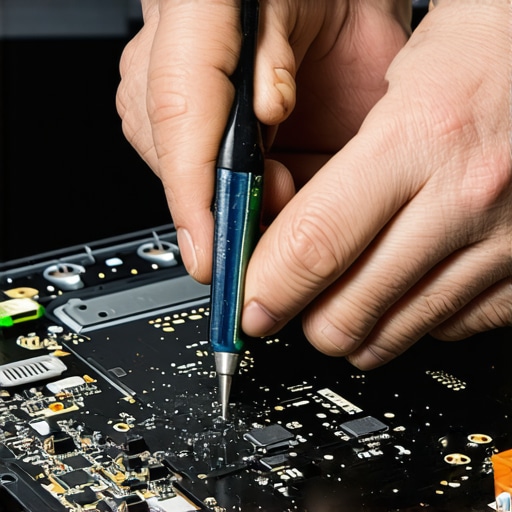
Inspect your hardware visually. Look for bulging capacitors, burnt smells, or loose components. A close-up examination of your laptop’s internal parts might reveal simple fixes. For example, I once found a loose screw causing intermittent power loss, which could have led to hardware replacement if unchecked. If you’re unsure, consulting a technician can save time and money.
Evaluate Software and Maintenance Before Upgrading
Many hardware issues stem from outdated software, malware, or poor maintenance rather than actual hardware failure. Regularly update drivers and operating systems to ensure compatibility. Clean up unnecessary files and run malware scans using reputable tools. Sometimes, a slow machine isn’t hardware but a cluttered system. For quick tips on cleaning and maintenance, check this troubleshooting guide.
Assess Cost-Effectiveness of Upgrades vs. Repairs
Before jumping into a hardware purchase, compare the cost of repair versus replacement. In some cases, replacing a mirror or screen can be more affordable and quicker than buying new equipment. For instance, replacing a cracked screen using step-by-step guides can save you hundreds and extend your device’s lifespan.
Learn When to Seek Professional Advice
When in doubt, consult with qualified technicians who can perform comprehensive diagnostics. They can quickly identify whether your hardware is salvageable or if a replacement is justified. Professionals also ensure that reinstallations or replacements are done correctly, avoiding costly mistakes that could damage your system further.
Why Surface-Level Solutions Often Fail to Address Deep Tech Issues
Many assume that hiring managed IT services automatically ensures comprehensive security and maintenance, but in reality, it’s easier to fall into the trap of complacency. Companies often rely on their provider for quick fixes, missing out on understanding the architecture of their own systems. This superficial approach can mask underlying vulnerabilities that require nuanced attention, such as configuration errors or overlooked firmware updates. As noted by experts in managed IT strategies, proactive management demands understanding the intricacies of your infrastructure, not just superficial monitoring.
Are All Data Recovery Methods Really Equally Effective?
There’s a common misconception that any data recovery software will essentially do the job, but effectiveness varies wildly. DIY tools can sometimes cause more damage, especially if used without understanding the root cause of data loss. Professional recovery often involves specialized techniques like head diagnosis or magnetic field analysis, which off-the-shelf solutions lack. For advanced insights, see data recovery secrets. Recognizing these nuances can save your critical files from permanent loss.
The Hidden Risks of DIY Laptop Screen Repairs
Many believe replacing a laptop screen is straightforward, but without proper knowledge, you risk damaging delicate components or voiding warranties. Incorrect disassembly can lead to further issues like cracked connectors or misaligned hinges. A detailed, step-by-step understanding can be found in this repair guide. Skipping these steps or rushing can turn a simple fix into an expensive repair, highlighting the importance of expertise over amateur attempts.
What Advanced Mistakes Do Tech Experts Make When Advising Clients?
Even seasoned technicians sometimes recommend unnecessary hardware upgrades due to misconceptions about performance bottlenecks. For instance, upgrading RAM without diagnosing software issues might not yield expected results. A comprehensive assessment involves checking for background processes, malware, or driver conflicts first. Staying informed with the latest research, such as in data recovery best practices, helps professionals avoid costly assumptions and provide targeted solutions.
Recognize and Avoid the Common Pitfalls
One of the most damaging myths is that hardware failures are always obvious—like a dead screen or an unresponsive device. In reality, symptoms can be subtle, including intermittent errors or slow performance, which mask deeper issues. Regular diagnostics using tools like HWMonitor or CrystalDiskInfo, combined with visual inspections, can reveal impending failures before they escalate. Remember, understanding the complexity behind each problem enables smarter, more cost-effective decisions. Do you have a story about a costly repair based on a simple misunderstanding? Share it below, and let’s discuss.
Maintaining your computer and IT infrastructure effectively requires the right tools and disciplined practices. I personally rely on a suite of diagnostic and cleaning tools that have saved me countless hours and money. For example, CrystalDiskInfo is my go-to software for monitoring storage health because it provides clear, real-time insights into drive status, helping me replace drives proactively before failure occurs. When it comes to physical maintenance, I use a precision toolkit with anti-static brushes and compressed air to safely clean hardware without damaging delicate components. Long-term, implementing scheduled maintenance routines—such as monthly disk checks and firmware updates—significantly prolongs device lifespan and reduces unexpected downtime.
Looking ahead, I believe the trend is moving toward AI-powered diagnostic tools that can detect early signs of hardware degradation more accurately and swiftly. This evolution will empower even non-technical users to maintain their systems proactively, reducing reliance on costly repairs or replacements.
How do I keep my system in top shape over time?
One effective method is to establish routine checks with reliable tools like software diagnostics and physical inspections. For example, scheduling monthly scans with HWMonitor helps track temperature spikes that could signal cooling issues before they cause hardware damage. Combining this with physical cleaning—using an anti-static brush and compressed air—keeps your devices running smoothly and quietly. Remember, regular maintenance isn’t just about preventing breakdowns but also optimizing performance for demanding tasks.
To streamline this process, I recommend setting up automatic alerts for critical health parameters through tools like advanced monitoring software. This way, you get notified early about potential issues, allowing you to take proactive measures rather than reactive fixes. Explore these steps today to keep your systems reliably working and avoid unnecessary hardware upgrades. For further insights, consult this comprehensive guide on data recovery.
The Hardest Lesson I Learned About Managed IT and Data Recovery
One profound realization came when I discovered that rushing into hardware replacements often masked deeper issues like outdated software or poor maintenance habits. Investing in diagnostics and understanding my system’s true needs saved me from unnecessary expenses and downtime.
Spotting the Hidden Signs of Failing Hardware Before It’s Too Late
Patience and regular checks with tools like HWMonitor or CrystalDiskInfo have become my best allies. Recognizing subtle performance drops or unusual noises early on can prevent catastrophic failures, saving your business from costly disruptions.
Why a Quick Fix Might Be a Costly Mistake
From my experience, many problems labeled as hardware issues are often software or malware-related. Taking the time for targeted diagnostics, and consulting trusted resources like these data recovery secrets, ensure you’re addressing the root cause rather than just symptoms.
My Gateway to Smarter IT Decisions
Building a routine of regular system maintenance, coupled with reliable tools for monitoring health, has been transformative. Implementing scheduled checkups and automatic alerts, as discussed here, empowers me to act proactively rather than reactively, preserving my equipment and peace of mind.
The Emotional Then and Now of Tech Care
I used to fear every strange noise or flicker, believing it meant imminent failure. Now, I see these as signals—call to action. Embracing continuous learning about tools like advanced data recovery tools and DIY maintenance routines has transformed my approach from stress to empowerment.
What’s Your Next Move in Tech Mastery?
Are you ready to go beyond quick fixes and truly understand your systems? Share your challenges or successes below—let’s learn from each other’s journey to smarter, safer technology management.