

One evening, I was engrossed in an important project when suddenly, my quiet workspace was interrupted by that relentless, high-pitched whine from my computer. It was the kind of noise that makes your stomach churn and your focus slip away. After hours of tinkering and some trial-and-error, I discovered that simple, fast hardware fixes could silence the chaos. If you’ve ever been jolted awake by a screeching PC or frustrated with the humming that refuses to stop, you’re not alone. The good news? There’s hope—and it doesn’t require expensive repairs or hours of professional help.
Why Hardware Noise Drives Us Crazy—and Why Fixing It Matters
That piercing fan noise or rattling isn’t just an annoyance; it can indicate underlying hardware issues that, if ignored, might lead to bigger problems down the line. For example, excessive noise often points to dust buildup, failing bearings, or loose components—things that can impact your machine’s longevity and performance. A noisy PC is more than just an auditory inconvenience; it’s a red flag revealing that your hardware might be on the brink of trouble. Plus, persistent sounds can be a distraction during work or relaxation, impeding your productivity and peace of mind.
Early in my own experience, I made the mistake of dismissing that strange grinding or humming as normal, which could have led to costly repairs. Instead, I learned to troubleshoot quickly and perform some simple hardware fixes myself. This approach not only saved me time and money but also gave me confidence in tackling future hardware hiccups. If you’re tired of that constant buzz or whirring, I promise these three rapid fixes can help restore calm to your workspace.
Is the Noise Really Wrecking Your PC’s Health?
Many folks assume that a noisy computer is just an inconvenience, but it can actually be a warning sign of impending failure. For example, failing bearings in your cooling fans can cause overheating, which might damage components over time. I remember rushing to replace a noisy CPU fan after reading a report stating that a loud fan could indicate impending thermal problems—something I experienced firsthand. Learning the right hardware fixes early can extend your PC’s lifespan and keep it running smoothly.
Ready to silence that relentless buzz? Let’s dive into some straightforward, proven solutions that have worked for me—and can work for you too. If you’ve faced this problem, or heard that familiar squeal, keep reading. The next steps might just be the simple fix you need.
Identify the Source of the Noise Without Guesswork
Start by listening carefully to pinpoint where the sound originates—fans, hard drives, or coil whines. Remove any peripheral devices and gently open your case if comfortable. This initial assessment is like an audiologist diagnosing a ringing—knowing where the sound comes from guides your next steps.
Clean Dust and Debris to Cool Down the Noise
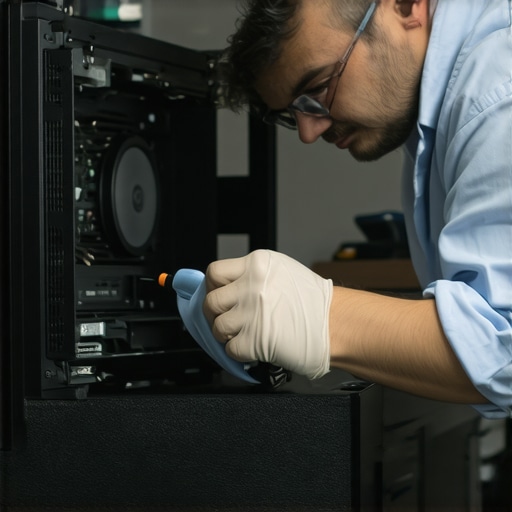
Power down your PC, unplug it, and open the case. Use compressed air to gently blow out dust from fans, heatsinks, and vents—think of it as giving your hardware a breath of fresh air. Dust buildup acts like a heavy blanket, making fans work harder and louder. After cleaning, run your PC to check if noise diminishes. I once tackled this during a weekend project, resulting in a quieter, more efficient machine.
Replace or Lubricate Failing Fans
If cleaning doesn’t help and the noise persists, inspect the fans. Loose or failing bearings often cause rattling or squealing—imagine a bicycle wheel with worn-out bearings. For small case fans, consider replacing them with quiet, high-quality models. For larger or high-performance fans, applying a few drops of lightweight machine oil to the bearing can extend their lifespan. When I replaced a noisy CPU fan with a quieter model, it was a straightforward upgrade that significantly reduced the racket.
Secure Loose Components and Cables
Vibrations from loose screws or cables can amplify noise, much like loose guitar strings buzz louder on stage. Tighten screws on fans, hard drives, and expansion cards. Use cable ties to manage loose cables that might be rattling against chassis components. Ensuring everything is snug prevents unnecessary vibrations. I once wrapped some cables with Velcro straps, instantly reducing rattling and improving airflow.
Address Coil Whine and Electronic Buzzing
High-pitched coil whine often originates from parts like GPUs or power supplies—comparable to the squeal of an electric guitar. While some coil whine is normal, persistent noise might require lowering voltage or clock speeds via software settings or BIOS adjustments. If the sound is unbearable, replacing the affected component could be necessary. In my case, tweaking GPU settings softened the coil whine without sacrificing performance. For more advanced fixes, consult your hardware manual or a professional if you’re unsure.
Implement Long-Term Noise Control Measures
Upgrade to quieter cooling solutions such as low-noise fans or liquid cooling systems—think of it as swapping a noisy lawnmower for a silent electric model. Also, ensure your PC is well-ventilated and free of dust buildup over time, preventing future squeals and hums. Regular maintenance keeps hardware whisper-quiet and prolongs its lifespan, saving you from repeated tinkering.
Consult Professional Help When Needed
If your efforts don’t yield results or you’re uncomfortable opening your PC, reaching out to experts like professionals is wise. They have specialized tools and extensive experience to diagnose complex issues, especially coil whine or failing bearings that defy simple fixes. Sometimes, investing in professional repair ensures your hardware remains reliable and silent for years to come.
 Many professionals and hobbyists alike often fall into misconceptions about data recovery, computer repair, laptop screens, and managed IT solutions. These misunderstandings can lead to costly mistakes or overlooked opportunities for proactive management. For instance, a widespread myth is that all data loss is immediately recoverable with simple tools. However, the reality is that certain damages—like severe physical SSD failures—require advanced techniques such as chip-off recovery, which most assume is unnecessary. According to experts from Datasure, many businesses underestimate the importance of regular backups, leaving them vulnerable when disasters strike.
Another common pitfall is oversimplifying computer repairs, believing that replacing a component is always enough. While hardware swaps are straightforward, ignoring underlying issues like motherboard corrosion or firmware corruption can result in recurring problems. Moreover, many overlook the impact of proper preventive maintenance on avoiding costly repairs.
When it comes to laptop screens, many think that screen flickering or dead pixels simply require replacement. While that can be true, sometimes the root cause stems from loose ribbon cables or inverter issues, which can be fixed at home with proper guidance. For example, detailed tutorials on [laptop screen repair](https://computerrepairmasters.com/laptop-screen-repair-how-to-fix-common-issues-at-home) demonstrate how minor adjustments can save you hundreds.
Managed IT is frequently misunderstood as only a reactive service. In truth, proactive strategies like regular security audits, system updates, and network monitoring play a vital role in safeguarding business operations. Failing to recognize this leads many to pay for support after issues become crises. For companies aiming to grow, investing in [effective managed IT strategies](https://computerrepairmasters.com/effective-managed-it-solutions-for-growing-companies) is crucial.
A significant trap to avoid involves assuming that DIY fixes or free tools can substitute professional services entirely. While some basic maintenance might be manageable, complex data recovery or cybersecurity threats require specialized expertise. Ignoring this can result in irreversible data loss or security breaches.
Finally, be cautious of the belief that all hardware or software problems are user-induced or easily diagnosed. In reality, subtle signs like intermittent connectivity or unexplained performance drops often have nuanced causes, from firmware bugs to hardware degradation—factors that experts closely analyze.
Have you ever fallen into this trap? Let me know in the comments. Learning to recognize these misconceptions and their nuances empowers you to make smarter decisions and avoid costly errors in your tech management.Maintaining your digital environment requires more than just basic knowledge; it demands the right tools that ensure longevity, efficiency, and quick response when issues arise. As someone deeply involved in computer repair and managed IT services, I’ve learned that investing in quality equipment and software can significantly reduce downtime and protect critical data. In this post, I’ll share specific tools I personally rely on for keeping systems running smoothly and how you can implement them effectively.
Invest in a Good Multimeter and Hardware Tester
A digital multimeter isn’t just for electricians; it’s invaluable for diagnosing hardware issues. I use a Fluke 115, which provides precise readings of voltage, resistance, and current. This helps identify faulty power supplies or short circuits early before they cause more extensive damage. Paired with a hardware tester like the PC-Doctor’s PXE Boot Tool, I can run comprehensive diagnostics on components without dismantling the entire system. These tools save time and give me confidence in pinpointing issues effectively.
Choose Reliable Data Recovery Software
When data loss occurs, speed and accuracy matter. I recommend a subscription to EaseUS Data Recovery Wizard Professional. Its ability to recover data from corrupted or formatted drives, including those that only show up in BIOS, is crucial. For example, when I encountered a drive that refused to spin, this software salvaged critical files during a client emergency. It’s essential to keep recovery tools updated and integrated into your maintenance routine. Regularly practicing data recovery scenarios enhances your readiness for actual crises.
Utilize a Quality Diagnostic USB Drive
Creating a bootable diagnostic USB with tools like Hiren’s BootCD or Ultimate Boot CD allows troubleshooting hardware and software issues offline. I routinely carry a personalized USB stick with these utilities. They enable me to run virus scans, check for bad sectors, or repair boot records without booting into the compromised OS. Such portability ensures you’re prepared, whether at a client’s location or your own workspace.
Implement Centralized Monitoring with Managed IT Tools
For long-term system health, I recommend managed IT solutions like Kaseya or SolarWinds. These platforms provide real-time monitoring, patch management, and alerts for unusual activity. As detailed in for example, Effective Managed IT Solutions, proactive monitoring reduces emergency repair instances and enhances scalability. With these tools, I can preemptively address issues, keeping systems stable and minimizing downtime.
Signs It’s Time to Upgrade Your Toolkit
The evolution of technology means your toolkit must evolve too. As we approach 2025, tools that integrate AI diagnostics and remote management are becoming standard. Keeping abreast of these advances ensures you stay ahead of hardware failures and cyber threats.
How Do I Sustain Maintenance Over Time
Developing a scheduled maintenance routine—regular cleaning, software updates, and hardware checks—is vital. Incorporating tools like hardware testers and diagnostic software into a monthly checklist helps detect potential failures early. I advise setting aside time each month to run comprehensive system tests, which ultimately save money and prevent data loss. Remember, the key is consistency and staying informed about emerging tools and techniques.
Finally, don’t hesitate to explore professional resources for complex repairs or recovery scenarios. For example, complex data recovery from physically damaged drives often requires expert intervention, as explained in Data Recovery Secrets. Try integrating at least one advanced diagnostic or recovery tool into your routine this month. The investment pays off in system reliability and peace of mind.
Lessons That Changed My Approach to Hardware Troubleshooting
One of the most valuable insights I gained was recognizing that persistent hardware noise is often a symptom, not just an annoyance. Ignoring it can lead to catastrophic failures, so paying close attention to the subtle clues—like slight rattles or high-pitched whines—can save you time and money. I also learned that patience and systematic diagnosis trump rushing into replacement; sometimes, a simple screw tightening or cable repositioning can restore silence and function. Lastly, I realized that investing in quality diagnostic tools early on elevates your ability to handle complex issues confidently, especially when data recovery or intricate repairs are involved.
Tools and Insights That Elevate Your Repair Game
Over the years, certain resources have been game-changers for my work with data recovery and system repairs. For hardware diagnostics, I rely on a reliable multimeter and a hardware tester like the PXE Boot Tool—these enable fast, accurate troubleshooting. When it comes to data recovery, EaseUS Data Recovery Wizard has consistently saved the day, especially when dealing with physically damaged drives. For proactive management, platforms like SolarWinds offer real-time insights that prevent issues before they escalate. To deepen your knowledge, books such as “The Hardware Hacker” by Colin Dixon or online tutorials on [laptop screen repair](https://computerrepairmasters.com/laptop-screen-repair-how-to-fix-common-issues-at-home) can provide practical wisdom and confidence for more advanced DIY solutions.
Your Next Step Starts Now—Keep Moving Forward
The journey toward mastering hardware health and efficient data recovery is ongoing, but every step you take builds resilience and expertise. Remember, the key is in proactive measures—regular maintenance, careful observation, and continually updating your toolkit. Whether troubleshooting a humming fan or recovering critical files, embracing these lessons empowers you to act swiftly and confidently. Don’t wait for issues to snowball; start applying these strategies today and transform challenges into opportunities for growth and learning. Your future in hardware troubleshooting and data management is brighter than ever—keep pushing forward!