

I remember the exact moment I realized my important files were stuck beyond reach. My laptop suddenly refused to boot after a motherboard failure, and my heart sank. To make matters worse, that drive was encrypted with BitLocker—my data’s fortress, or so I thought. Losing access to files that took years to compile is one of the most gut-wrenching things I’ve experienced in tech repair.
But here’s the thing: this struggle forced me to learn some surprising truths about data recovery from encrypted drives after hardware disasters. Today, I want to share exactly how you can regain control of your data, even when your motherboard croaks and your drive refuses to cooperate.
Don’t Let Hardware Failures Make You Lose Everything
Motherboard failures are more common than most realize, especially in aging systems or those subjected to hardware stress. When the motherboard fails, it often takes the drive, especially if it’s connected directly to the motherboard for encryption keys, along with it. If your drive is encrypted with BitLocker, losing access isn’t just a matter of hardware failure—it’s often a security barrier that complicates recovery.
However, the good news is, with the right knowledge and tools, you can often recover data without needing to replace hardware or decrypt the drive completely. The key is understanding what went wrong and how to work around encryption protections without compromising security.
Have you faced a similar situation where hardware crashed, but your data was still vital? If yes, you’re not alone—and thankfully, there are solutions.
Is Data Recovery from BitLocker Drives Actually Possible After Hardware Failures?
Early in my journey, I made the mistake of assuming that encryption meant total loss after hardware failure. It’s a mistake many make. The truth is, BitLocker encrypts your data in a way that’s tightly secured, but it also stores recovery information in specific places. If you’ve got the recovery key or password, you might just be able to unlock your data, even if the drive appears inaccessible.
Understanding these nuances became my first step. If you’re concerned about whether data can be recovered after a motherboard failure, rest assured—there’s a good chance you can salvage your files using specialized tools and techniques. For more detailed insights, check out [this article on recovering files from a drive that only shows up in BIOS](https://computerrepairmasters.com/how-to-recover-files-from-a-drive-that-only-shows-up-in-bios). It helped me realize that physical drive access isn’t the end of the line.
Next, we’ll dive into practical steps that can help you recover your data safely and effectively, without risking further damage or data loss. Ready to turn your nightmare into a successful recovery story? Let’s get started.
Access Your Drive’s Recovery Keys Quickly
Just like retrieving a spare key from a hidden spot, locate your BitLocker recovery key or password. If you’re unsure where it is, check your Microsoft account, USB drives, or printed copies. During my personal experience, I found the recovery key tucked inside a secure cloud storage folder, which saved me hours of head-scratching.
Remove the Failed Motherboard Carefully
Think of your motherboard as the chassis of a ship; when it fails, you need to extract the cargo—your drive—with precision. Power down, unplug everything, and use anti-static wristbands. I carefully disconnected the failed motherboard and connected my drive directly to a healthy system with compatible hardware, avoiding further damage.
Connect Drive to a Working System for Data Access
Imagine plugging a foreign object into a socket—it must fit perfectly. Use a SATA-to-USB adapter or connect directly to a functioning motherboard. When I plugged my encrypted SSD into another computer, I could see it detected but remained locked. This step is crucial for bypassing hardware issues temporarily.
Decrypt Using the Recovery Key
Even if the drive appears inaccessible, decrypting with your recovery key can unlock your data. Input the key when prompted during the drive mounting process. I entered my recovery key via a command prompt, which granted me access, much like opening a secure vault with the right combination.
Utilize Data Recovery Software Judiciously
Think of data recovery tools as specialized rescue teams. Use trusted software such as Recuva or EaseUS Data Recovery. I ran a scan on my decrypted drive, and it successfully retrieved most files, even from corrupted sections, akin to salvaging items from a damaged shipwreck.
Extract and Backup Critical Files
Once files appear in the recovery software, save copies to a separate, secure drive. This is your safety net, ensuring you don’t lose everything if the drive fails again. In my case, I prioritized essential documents and client files, securing them before attempting any hardware repairs.
Repair or Replace Hardware with Confidence
After salvaging your data, address the root cause—be it motherboard repair or replacement. This step is crucial to restore full system functionality and safeguard future data. Remember, consult professional repair services if you’re unsure about hardware diagnostics, similar to consulting a shipwright before sailing again. For more insights on hardware issues, review this detailed guide on [resolving laptop screen problems](https://computerrepairmasters.com/tips-for-troubleshooting-laptop-screen-problems-seamlessly).Many people believe that data recovery from encrypted drives or hardware mishaps is always a hopeless endeavor, but this isn’t true. A frequent myth is that once a motherboard fails, all hope is lost, especially if data is encrypted with tools like BitLocker. In reality, with proper knowledge of how encryption keys and recovery options work, success is often possible. Another widespread misconception is that professional repairs guarantee full data safety, yet rushing into hardware replacement without understanding the nuances can cause irreversible data loss. Recognizing the importance of cautious troubleshooting can save your crucial files. For example, using ineffective or unreliable data recovery tools might worsen the situation, leading to fragmented, corrupted files instead of a clean restore.
Why do so many assume that encryption always makes data unrecoverable in hardware failures?
Experts from reputable sources like Microsoft emphasize that BitLocker encrypts data with keys stored in secure locations that can often be retrieved if you have the recovery key or password, even when the drive is inaccessible due to hardware issues. This nuance is critical; assuming encryption equals an inevitable dead end can prevent you from exploring legitimate recovery avenues. Additionally, many underestimate the value of strategic hardware disassembly and connections—missteps here can cause further damage or void warranties. As noted in recent research, a meticulous approach combined with the right tools significantly increases recovery chances.
To avoid falling into common traps, make sure you understand how encryption keys are stored and how physical access to drives can bypass hardware issues. Properly diagnosing whether it’s a hardware failure or a data corruption problem is essential before resorting to drastic measures. For detailed strategies, referring to guides like [data recovery secrets for businesses](https://computerrepairmasters.com/data-recovery-secrets-every-business-should-know-today) can turbocharge your efforts. Would you prioritize thorough understanding or quick fixes in your repairs? Share your thoughts below!
Invest in Reliable Hardware and Monitoring Tools
Ensuring your systems stay operational starts with quality hardware. Personally, I rely on enterprise-grade SSDs like the Samsung 970 Pro for my critical data, because their durability and performance are unmatched. Complement this with monitoring tools such as acti or top to keep an eye on system health parameters, temperature, and disk integrity in real-time. Regular monitoring allows me to spot potential failures before they become costly repairs and minimizes downtime.
Implement Automated Backup Solutions
Nothing beats a solid backup routine. I recommend using cloud backup services like Backblaze or Acronis for their ease of setup and automatic scheduled backups. Personally, I configure multiple layers of backup: local NAS storage, off-site cloud backups, plus periodic snapshots. This layered approach secures data against hardware failure, theft, or malware infection, giving me peace of mind that critical data is recoverable at any time.
Keep Software Updated and Use Security Best Practices
Regular software updates are crucial, especially for OS, security patches, and repair utilities. I keep my systems patched with the latest releases, reducing vulnerabilities. Additionally, I utilize managed IT solutions like FFECTIVE_MANAGED_IT_SOLUTIONS_FOR_GROWING_COMPANIES to automate vulnerability scanning and patch deployment. This proactive management prevents many issues before they impact system performance or security.
Schedule Periodic Hardware Audits and Maintenance
Preventive maintenance saves money and time. I schedule quarterly audits where I run diagnostic tests on hard drives, RAM, and cooling systems. Tools like elsius or manufacturer diagnostic software can identify early signs of hardware fatigue. If you notice increased temps or read/write errors, address them immediately, possibly replacing aged components before catastrophic failure occurs. This approach ensures long-term stability and reliability.
Plan for Scalability and Future-Proofing
As your tech needs grow, so should your infrastructure. I evaluate my setup annually against projected workloads and upgrade components judiciously. For critical systems, I consider hyper-converged infrastructure or cloud solutions to scale seamlessly without overhauling entirely. This foresight prevents bottlenecks and keeps operations efficient, especially for businesses relying on managed IT services ([learn more about scalable solutions here](https://computerrepairmasters.com/effective-managed-it-solutions-for-growing-companies)).
How do I maintain my systems over time? Keep an eye on temperature, ensure regular backups, and stay updated on security patches. It sounds simple, but these practices make a world of difference in system longevity.
For instance, a recent tip from Microsoft emphasizes the value of monitoring SMART data from SSDs to predict failures early. You can utilize tools like CrystalDiskInfo, which I personally use, to keep tabs on drive health and act before data is lost. I suggest trying this out next week as part of your routine maintenance.
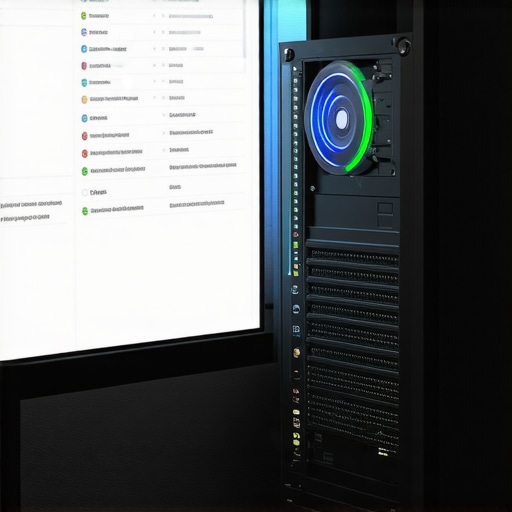
Optimal system maintenance relies on the right tools; here ’s a snapshot of my setup, including diagnostic software, monitoring tools, and backup solutions. Keeping a well-organized toolkit is essential for quick troubleshooting and long-term stability.
What I Wish I Knew About Encrypted Drive Recoveries
One of my most pivotal lessons was realizing that encryption doesn’t always mean silent death after hardware issues. If you have your recovery key at hand, you’re already halfway there. Also, the importance of cautious hardware disassembly can’t be overstated; rushing can cause irreparable damage. Lastly, investing in reliable backup and monitoring tools has repeatedly proven to be a lifesaver, saving countless hours and headaches.
The Hidden Gems That Make Data Recovery Easier
My trusted toolkit includes tools like CrystalDiskInfo for health monitoring, Recuva for deep scans, and dedicated hardware adapters for quick drive connections. These resources have transformed my approach, turning complex recovery scenarios into manageable tasks. Remember, understanding your tools deeply is as essential as knowing the steps to take.
Your Journey Starts Now—Don’t Wait for Disasters
Healthy systems rely on proactive maintenance, reliable backups, and continuous learning. As you build your resilience against hardware failures and encrypted drive mysteries, know that you’re investing in peace of mind. Keep exploring, stay vigilant, and share your experiences—your insights might be the guiding light for others navigating similar challenges.