

I remember the exact moment it happened. I was rushing out the door, coffee in one hand, laptop in the other, when I accidentally knocked over my soda. The fizzy liquid exploded across the keyboard, and a wave of panic washed over me. It’s a familiar nightmare for many: a spilled drink threatening the life of your beloved device. But here’s the truth—if caught early and handled wisely, you can often save your laptop from serious damage, even when it’s coated in soda.
Why Acting Fast Matters When Your Laptop Gets Sprayed
When liquids like soda seep into your laptop’s internals, they can cause corrosion and short circuits if not addressed immediately. I’ve learned this the hard way, making the mistake of delaying cleanup and only realizing the damage later. That early mistake taught me the importance of knowing exactly what to do to mitigate the harm. Today, I’ll share practical steps from my experience—so you won’t have to learn through costly trial and error. If you’ve ever faced a sudden spill, keep reading. This guide will help you act swiftly and effectively to protect your data and hardware.
Will Cleaning Your Laptop Save It? The Truth About Recovery
Many people wonder if a quick clean can truly salvage a soaked device. Earlier in my tech journey, I thought I could just wipe it off and be done. Spoiler: that’s a mistake I made early on. Just wiping won’t remove the liquid or prevent corrosion—proper cleaning and thorough drying are crucial. According to experts, timely intervention significantly increases the chances of saving your device, especially if you catch it within the first few minutes. For comprehensive advice on hardware repairs, check out this guide on laptop screen repair.
So if soda has spilled over your laptop, don’t panic. There’s a right way to act, and I’ll walk you through that. But first, let’s address the big hesitations most folks have—particularly, whether the mess is truly undoable and how to get the best shot at saving your device without costly professional repairs. Ready? Let’s dive deeper into the most critical step: quick response and initial cleanup, before the damage spreads further.
.
Remove Power and Disconnect Peripherals Immediately
My first move during a real incident was pulling out the power cord and removing all connected devices like external drives or USBs. Think of your laptop as a sponge saturated with liquid—disconnecting power prevents current from flowing into the soaked areas, reducing the chance of a short circuit. In one messy occasion, I hurriedly unplugged and turned off the device within seconds, preventing catastrophic damage. Remember, time is your enemy—every second counts to prevent corrosion and electrical harm.
Careful Inversion and Drainage
Next, gently flip your laptop upside down to let excess liquid drain out. Use a soft, lint-free cloth to wipe off visible soda from surfaces, avoiding spreading the mess further. This step is crucial because soda is sticky and conductive, and letting it seep inside causes corrosion. While no fit-for-sale device should be upside down, in my case, carefully positioning the laptop with the keyboard facing downward was key to limiting internal spread. Patience here matters—do not shake or tap aggressively.
Drying and Decontamination
Now, remove the battery if possible (many newer models have built-in batteries, but if yours is removable, do it now). Place your device in a well-ventilated area and use silica gel packs or uncooked rice around it to absorb moisture. I left my laptop overnight wrapped in a cloth with rice surrounding it, but the goal is to wick away moisture as quickly as possible. For metal parts, a gentle blow-dryer set to low heat can speed up evaporation, but keep the nozzle at least a few inches away to avoid heat damage. Micro-story: I once used a sealed container with silica gel to dry a water-damaged tablet, which proved far more effective than air drying alone.
Precise Cleaning to Prevent Corrosion
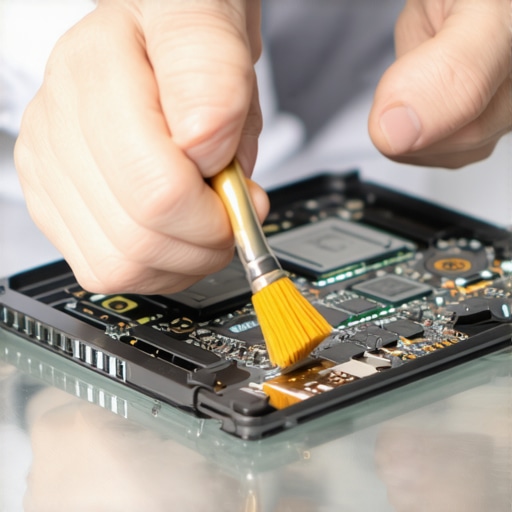
This step is pivotal. Use isopropyl alcohol (preferably 99%) and a soft brush or lint-free cloth to clean the internal components, especially the keyboard and connectors. Think of it as detoxifying the internals—removing sticky residue and preventing the formation of corrosive compounds. If you’re comfortable, open the case to access the motherboard—some tutorials on laptop screen repair can guide this process. During my own experience, I meticulously cleaned the logic board with alcohol, avoiding hand contact with sensitive chips.
Inspection and Testing
Before reassembling, inspect for corrosion, discoloration, or residues. Use a magnifying glass if needed. I once saw a tiny patch of corrosion near a capacitor—cleaning it with alcohol and a gentle brush prevented lifelong issues. Reassemble only after confident the internal parts are dry and clean. Power on the device in a controlled environment, watching for odd noises or startup issues. If everything seems normal, proceed cautiously, but keep an eye out for any malfunction, such as screen flickering or unresponsive keys.
When to Seek Professional Help
If your laptop still exhibits problems after these steps or you notice corrosion, consider consulting experts. Professional repair shops have specialized tools for deep cleaning, diagnostics, and data recovery, which are vital if your data is critical. For instance, a well-executed data recovery can salvage files from damaged drives, saving you from loss. Remember, attempting further DIY repairs on complicated hardware can sometimes cause more harm than good.
Documentation and Prevention
Finally, take photos of any visible damage for future reference and insurance. To prevent future mishaps, consider investing in keyboard covers or establishing a spill-proof workspace. Implementing these practices minimizes risks, allowing you to respond rapidly should another incident occur. My experience taught me that proactive measures and swift action are your best defenses against liquid damage.
 Many people believe that hiring a professional is always the safest choice for complex issues, but in my experience, understanding the nuances of repair processes can help you save time and money. For example, a common myth is that data recovery is impossible if a drive is physically damaged; however, experts utilize specialized techniques, such as chip-off recovery, to retrieve data from severely damaged drives. This highlights a crucial point: not all repair companies are equally equipped, so aligning their expertise with your specific issue is vital.
Another misconception is that software fixes can resolve all hardware problems. While software troubleshooting solves many issues, physical damage to components like the LCD or motherboard often requires precise, sometimes delicate, intervention. Attempting to fix hardware problems without proper knowledge can lead to more harm than good, emphasizing the importance of recognizing when to seek professional help.
What about data recovery from encrypted drives? Many think that data encryption makes recovery impossible, but with proper authorization and advanced tools, specialists can often decrypt data without compromising security—though it requires careful handling, especially with BitLocker or FileVault. I recommend visiting this resource for insights into data rescue techniques used by professionals.
In the realm of managed IT, some believe that outsourcing is unnecessary for small businesses. Contrary to this, strategic managed IT solutions can identify vulnerabilities and optimize workflows, preventing costly downtime. For instance, regular network security audits can uncover overlooked risks, which, if ignored, may lead to breaches. To stay ahead, understanding these advanced facets of IT management is crucial—more on this can be found here.
Recognizing these hidden nuances and avoiding common traps significantly enhances your troubleshooting effectiveness. Do you know any other misconceptions? Share your experiences below—I’d love to hear! Remember, a proactive approach coupled with knowledge can save you from costly errors in the long run.
Why Consistent Maintenance Turns Your Tech Into a Lasting Asset
Keeping your devices running smoothly isn’t a one-time effort; it requires regular checkups, proper tools, and a strategic approach. From laptops to servers, understanding how to maintain hardware and software over time can save you time, money, and frustration. One of my favorite routines includes scheduled hardware inspections, firmware updates, and data backups. These practices not only extend the lifespan of equipment but also ensure reliable performance when you need it most. For detailed strategies on managing your infrastructure, check out effective managed IT strategies to stay ahead of potential issues.
What Tools Do I Trust for Ongoing Maintenance?
When it comes to hardware diagnostics, I rely heavily on a few key tools. A high-quality multimeter is essential for troubleshooting power issues and confirming display voltages. For instance, using a Fluke digital multimeter allows precise measurement of circuit continuity, preventing misdiagnosis during repairs. Additionally, thermal cameras like the FLIR ONE can detect overheating hotspots before they cause hardware failure. These devices are invaluable for diagnosing issues in laptops or data centers without disassembly. On the software side, I use tools like CrystalDiskInfo to monitor SSD and HDD health, reading SMART data to spot early signs of drive failure. Regularly analyzing these metrics helps plan timely replacements, avoiding sudden data loss or downtime.
Long-Term Benefits of Regular Upkeep
Implementing a disciplined maintenance schedule has tangible benefits. It translates into fewer emergency repairs, optimized performance, and better security. For example, updating firmware and applying patches prevent vulnerabilities in managed systems, reducing the risk of breaches. Automated tools like Windows Update or Linux unattended upgrades ensure patches are applied consistently without manual intervention, saving time while maintaining security integrity. Furthermore, consistent cleaning and physical inspections prevent dust accumulation, which can insulate heat and degrade components over years. This proactive approach, combined with professional hardware cleaning services when necessary, safeguards your investments and keeps your operations running seamlessly.
How do I keep my systems scalable without losing control?
As your needs grow, your infrastructure must evolve. Scalable solutions include modular hardware components, cloud integration, and automation tools. For instance, deploying RAID configurations helps expand storage capacity while maintaining redundancy. Combining that with cloud backups ensures data safety during scale-ups or hardware failures. Additionally, monitoring tools like Nagios or SolarWinds provide real-time insights into system health, enabling you to anticipate capacity needs before bottlenecks occur. Planning for scalability also involves choosing compatible components; consult resources like this guide on selecting RAM to ensure seamless upgrades. Early planning minimizes downtime and keeps your systems agile for future growth.
Next Step: Hands-On Maintenance for Optimal Performance
One advanced tip that consistently delivers results is implementing remote monitoring with automated alerts. Using tools like Nagios allows you to set thresholds for CPU temperature, disk health, or network traffic, instantly notifying you of anomalies. This proactive stance catches potential problems before they impact daily operations. I recommend trying out a monitoring solution tailored to your environment—start small with a single server—and expand as you gain confidence. It’s a game-changer for managing multiple devices efficiently and preventing unexpected failures. To explore this further, visit this resource on managed IT solutions. Don’t wait for issues to arise—take control now and keep your tech working flawlessly for years to come!
What I Wish I Knew Before My First Spill
One of the most valuable lessons I’ve learned is that not all spills are the end of the world. In fact, with quick action and the right techniques, you can often save a device that seemed beyond hope. Remember, initial panic can be your worst enemy; stay calm and focus on immediate steps like disconnecting power and flipping the device upside down, as emphasized earlier. This real-world experience has taught me that patience and knowledge are your best allies in hardware emergencies.
Tools That Changed My Approach to Data Recovery
Over the years, I’ve come to rely on specific tools that make a significant difference. For example, a high-quality thermal camera helps me identify overheating components before they cause irreversible damage. Incorporating software like CrystalDiskInfo gives me early warnings about failing drives, saving critical data. These tools are not just gadgets; they are extensions of my troubleshooting mindset, enabling me to act proactively rather than reactively.
You Can Be Your Own IT Hero: The Power of Knowledge
One of the most empowering realizations is that you don’t always need a technician to fix issues—you can learn to handle many common problems yourself. For instance, understanding the significance of proper cleaning techniques and maintenance schedules transforms your approach from reactive repairs to proactive prevention. This mindset shift not only saves money but also builds confidence in managing your tech. Embracing this knowledge paves the way for smoother, more reliable computing experiences.
Resources That Saved My Projects and Peace of Mind
Throughout my career, I’ve found that certain resources have been indispensable. The comprehensive guides at this site on laptop screen repair have helped me troubleshoot delicate issues without unnecessary replacements. Additionally, this resource on data recovery has been a lifeline when salvaging critical information. Investing time in understanding these resources enhances your ability to respond effectively when disaster strikes.
Take Action: Elevate Your Tech Confidence Today
Now that you’ve glimpsed behind the curtain of real-world repair wisdom, it’s your turn to apply these insights. Whether dealing with a soda-spilled laptop or setting up robust managed IT practices, the key is to stay proactive and informed. Remember, every challenge you face is an opportunity to grow more confident and self-reliant with your technology. Don’t wait for a disaster to strike—start building your troubleshooting toolkit today and become the hero of your digital world.
What’s the first step you’re going to take to improve your device maintenance routines? Let me know below!