

I remember the sinking feeling I felt when my laptop suddenly froze, and the screen flickered ominously before turning totally black. It was a moment of sheer panic. Like many, I had brushed off minor glitches, thinking, “It’s just a glitch,” or “It’ll fix itself,” only to find myself facing a complete data nightmare later. That experience hit home hard: ignoring early warning signs can cost you more than just frustration—we’re talking serious data loss, downtime, and even the expense of data recovery.
Why Ignoring Hard Drive Warnings Can Sabotage Your Data
From my own missteps, I learned the hard way that hard drives don’t usually fail overnight. Instead, they whisper warnings that most people completely overlook. The problem is, when these signs go unnoticed, it’s usually too late to prevent a catastrophic failure. Data loss isn’t just inconvenient; for businesses, it can be devastating.
I want to help you avoid that nightmare. Today, we’ll focus on revealing those silent signals your hard drive is giving you—a crucial step in safeguarding your digital life. Whether it’s your personal files or business-critical data, catching these signs early can make all the difference.
Are You Overestimating Your Backup? The Big Mistake I Made
Early on, I believed that just copying files to an external drive was enough. I was wrong. Backups are your safety net, but only if they’re recent and reliable. I overlooked the importance of regularly testing backups and monitoring hard drive health, which nearly cost me dearly. Trust me, ignoring these proactive steps can leave you vulnerable.
For comprehensive strategies on protecting your most valuable data, check out data recovery tips every business should know. Now, let’s dive into the three unmistakable signs that your hard drive is whispering warnings, so you can act before it’s too late.
Act Fast When You Notice Slowdowns and Strange Noises
One of my first real tests was when my laptop started stumbling—slow responsiveness and strange clicking sounds. I immediately backed up important files. To do this efficiently, I used data recovery techniques for SSDs. Disconnect the drive and connect it to an external enclosure using a SATA-to-USB adapter. If the drive spins up and shows up in your file explorer, it’s a good sign. If not, proceed to the next step.
Run SMART Diagnostics to Get the Hard Truth
SMART (Self-Monitoring, Analysis, and Reporting Technology) gives a health report instantaneously. I downloaded free tools like CrystalDiskInfo, which I use regularly. Install the software, and check the drive’s SMART status. Look for reallocated sectors, uncorrectable errors, or pending sectors. An abundance of these indicates imminent failure. If SMART shows warnings, don’t ignore them—schedule a replacement or professional assessment.
Test Drive Read/Write Speed to Detect Bottlenecks
Sometimes, a slow system isn’t the drive failing but signaling trouble. Use a tool like ATTO Disk Benchmark to assess performance. If read/write speeds are significantly below manufacturers’ specs, it’s a red flag. In a situation I faced, this step confirmed my drive’s sluggish performance was beyond normal degradation, prompting an immediate backup and replacement plan.
Look for Physical Damage and Unusual Behavior
Physical signs like burnt smell, cracks, or excessive vibrations are clear warnings. If your drive is behaving oddly—frequent disconnects or failing to mount—consider consulting professionals. For example, I once replaced a visibly damaged HDD that had fallen and was making grinding noises. The repair shop confirmed it was near failure and salvaged important data before it completely died.
Plan for Swift Data Recovery or Replacement
When signs point toward failure, act decisively. If data retrieval is critical, don’t wait—use data recovery services. Remember, attempting DIY fixes on a dying drive can worsen the damage. I found that professional intervention, combined with immediate backups, saved me from losing irreplaceable files.
When it comes to laptop screen issues or data recovery, many tech enthusiasts fall into common traps, believing they understand the basics. However, there’s a level of nuance that professionals like me have encountered through years of hands-on experience. These subtleties can make the difference between a successful repair and a costly mistake.
One prevalent myth is that a flickering or dim laptop screen is always a straightforward fix—like replacing the LCD. In reality, the root cause might lie in the display’s backlight inverter or even the inverter’s connection to the motherboard, which often gets overlooked. Professionals know to check the display cable integrity and to test for flickering when moving the lid, as detailed in this guide. Misdiagnosing these issues can lead to unnecessary LCD replacements, wasting money.
Further, many assume that external solutions suffice when internal hardware fails. For example, connecting the laptop to an external monitor isn’t just a quick fix; it can help diagnose whether the issue stems from the display itself or from the GPU or motherboard. This insight can prevent more invasive and expensive repairs. Don’t forget, proper diagnostics like SMART readings and performance testing can uncover hidden faults before they escalate. For instance, professional assessments regularly reveal issues that casual troubleshooting misses.
A critical area often misunderstood involves data recovery. Many believe that DIY methods, such as cloning a failing drive with basic software, are sufficient. But in my experience, overlooking the importance of cleanroom environments or proper handling can irreversible damage data. A classic mistake is attempting to repair firmware or circuit board issues at home, which can further complicate recovery efforts. Skilled technicians utilize specialized tools and techniques—like soldering repair and advanced cloning—to salvage data from seriously compromised drives. For example, learning the nuances of the best practices in data recovery can save your critical files.
Ever wonder why some drives seem to deteriorate silently? It’s often due to firmware corruption or subtle wear that isn’t evident without detailed diagnostics. Advanced recovery isn’t just about software—it’s about understanding hardware intricacies, such as bad blocks, misaligned sectors, or controller failures. The experts monitor these signs, employing tools that analyze the drive’s deep health metrics.
Finally, don’t underestimate the trap of underestimating the complexity of managed IT systems. Setting up a network or security solution isn’t a plug-and-play affair; it requires tailored configurations to prevent vulnerabilities. Check out this resource on effective managed IT strategies that go beyond basics.
So, have you ever fallen into this trap of oversimplification? Share your experience in the comments, and remember—mastering the nuances can save you time, money, and stress in your tech endeavors.
How Do I Maintain My Tech Equipment for Long-Term Success?
Maintaining your laptop, data, and managed IT systems isn’t a one-time effort; it’s an ongoing process. I personally rely on a combination of specialized tools and disciplined routines to ensure my equipment remains reliable and secure over time. One indispensable tool I use is CrystalDiskInfo, which provides real-time SMART data about drive health. Checking SMART status regularly helps catch signs of impending failure before data becomes unrecoverable. I set monthly reminders to review these reports, preventing surprises like unexpected drive failures.
In addition to monitoring software, having a dedicated toolkit for physical repairs is crucial. I keep essential screwdrivers, anti-static wrist straps, and cleaning supplies to promptly address minor hardware issues—like cleaning dust from fans or reseating connectors—which can extend hardware lifespan. DIY repair guides support my proactive approach, especially when dealing with screen flickering or unresponsive displays.
For data integrity, I automate backups with a robust backup solution—using software like Macrium Reflect—to create incremental backups daily. These backups are stored both locally on an external drive and transferred weekly to a cloud service. This dual strategy ensures quick recovery in case of ransomware, hardware failure, or accidental deletion. Remember, professional data recovery techniques highlight the importance of having reliable backups before disaster strikes.
Anticipating future trends, managed IT providers are shifting toward AI-driven security and proactive maintenance platforms. These tools analyze patterns and predict issues before they manifest, reducing downtime and enhancing security. In my view, integrating automated health monitoring with your existing systems will become standard practice—so staying ahead with new tools now is a wise move.
What’s the Best Way to Keep Your System Running Smoothly Over Time?
Regular maintenance combined with the right tools can drastically reduce unexpected failures. Make a habit of partnering with managed IT services that focus on predictive analysis, and always keep your software updated to patch vulnerabilities. Try implementing scheduled SMART checks and deep cleaning routines today; these small steps can save you from significant headaches tomorrow.
What I’ve Learned About the Quiet Warning Signs of Failing Hardware
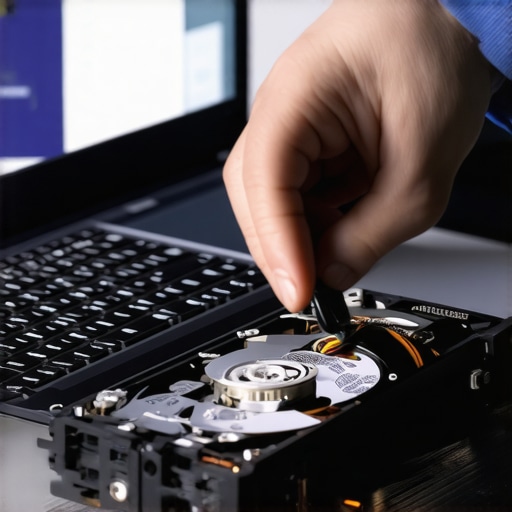
One of the most eye-opening lessons for me was realizing that many hardware issues silently whisper their impending failure—these signs are often subtle but crucial. For example, odd noises, unexpected slowdowns, or screen flickers are not just annoyances but signals that your laptop needs immediate attention. Recognizing these early allows you to act swiftly, avoiding catastrophic failures and data loss. Trust me, paying close attention to these cues can save you hours and hundreds of dollars in repairs or data recovery.
My Top Tools for Protecting Your Data and Fixing Hardware
Over the years, I’ve curated a set of essential tools that make diagnosing and repairing tech headaches more manageable. For instance, CrystalDiskInfo is my go-to for health diagnostics of drives, giving me peace of mind that I’m aware of potential failures before they happen. When it comes to physical repairs, I rely on a quality toolkit that includes anti-static wrist straps, precision screwdrivers, and cleaning supplies. Additionally, online resources like professional data recovery tips have been invaluable in developing my understanding of safe data salvage techniques. These resources have profoundly shaped how I approach hardware issues and data protection, ensuring I’m prepared for almost any scenario.
Let Your Experience Be Your Guide—Don’t Wait to Fix What Matters Most
Taking proactive steps in managing your tech isn’t just practical—it’s empowering. Whether it’s setting up regular SMART checks or automating backups, each small habit adds up to long-term peace of mind. Remember, technology is ever-evolving, and staying ahead means continually educating yourself and embracing solutions like managed IT strategies. Your future self will thank you for the decisions you make today to safeguard your data and maintain your equipment’s health. Don’t underestimate the value of consistent, informed care; it keeps your digital life smooth and secure.