

There was that tense moment last week when I was about to finalize a crucial project, only to realize my external drive kept disconnecting every few seconds. It felt like my files were playing hide-and-seek, and each disconnection was a punch to the gut. That lightbulb moment hit me: this isn’t just frustrating—it’s a serious threat to data integrity. Has this ever happened to you? That sinking feeling when your external storage refuses to stay connected can be nerve-wracking, especially when you’re under a deadline.
Why External Drive Disconnections Can Cost You More Than Just Time
External drives are convenience champions—easy backups, quick file transfers, portable storage. But when they start dropping connection, the risk of data loss skyrockets. According to data recovery experts, about 60% of data loss incidents are linked to unstable connections or damaged drives, costing businesses thousands in recovery fees and productivity setbacks. Early in my troubleshooting, I made a rookie mistake—I assumed a simple cable swap would fix the issue, which only delayed the real problem and made me more anxious. That taught me a vital lesson: not all disconnections are created equal, and rushing to fix them often makes things worse.
Is It Really Worth All This Hassle?
Some might wonder whether spending time on these tactics is justified or if just buying a new drive is easier. Believe me, I get it. The solution isn’t always straightforward, especially with budget constraints or critical deadlines looming. It’s tempting to toss the drive and hope for the best, but that’s a gamble—it could mean losing irreplaceable files or important data. Instead, tackling the problem with proven strategies can save you money, time, and stress. Curious about how I navigated this chaos and salvaged my files? Keep reading, because I’ll share the three most effective tactics I’ve learned over years of troubleshooting and data rescue missions. And, if you’re interested in broader strategies to protect your data, check out [data recovery secrets every business should know today](https://computerrepairmasters.com/data-recovery-secrets-every-business-should-know-today). Now, let’s dive into the first tactic that helped me stabilize my external drive’s connection once and for all.
Secure the Physical Connection First
Start by inspecting your USB or SATA cable. Think of it like checking a garden hose; a loose or damaged connector can cause interruption. Unplug the drive, examine the cable for frays or bends, and replace it with a high-quality replacement if needed. In my own experience, swapping a faulty cable restored stability after repeated disconnections, saving me time and data worries. For more on maintaining hardware connections, see tips for troubleshooting laptop screens.
Test the Drive on Different Ports and Systems
Next, connect your external drive to another port or even a different computer. This isolates whether the issue stems from the drive itself or the port. Consider the port as a conduit; if it’s damaged, no amount of coddling the drive will help. I once moved my drive to a different USB port and, to my relief, the disconnections ceased. This simple step often highlights if the problem is port-related. For detailed connection troubleshooting, refer to troubleshooting common computer repair issues.
Update or Roll Back Drivers and Firmware
Outdated or incompatible drivers can cause disconnections, akin to a bad translator in a conversation. Access your device manager on Windows or your system’s equivalent, locate the external drive, and check for updates. Alternatively, if the drive recently started disconnecting after an update, rolling back might help. This is a critical step—sometimes, new drivers have bugs that need resolving. For guidance on driver management, visit tips for troubleshooting hardware issues. Always ensure your firmware is current by visiting the manufacturer’s website.
Optimize Power Settings
Power management settings may turn off USB ports to save energy, leading to disconnections. Access your system’s power options and disable any power-saving modes for USB root hubs. Think of it as telling your system to keep the water flow steady. I learned this the hard way when my drive kept disconnecting during prolonged backups—adjusting settings finally stabilized the connection. For Windows users, see tips on optimizing hardware performance.
Run Hardware and Disk Checks
Use built-in tools to scan your drive for errors, similar to giving your car a thorough inspection. On Windows, run “chkdsk” or use third-party utilities to identify bad sectors or corrupted files. If the scan finds issues, repairing them can prevent future disconnections. I had a drive with bad sectors that caused frequent drops; repairing it saved my files and alleviated disconnection issues. For comprehensive diagnosis techniques, consult data recovery tools overview.
Implement Data Backup and Recovery Protocols
Always prepare for the worst by maintaining backups. Use reliable data recovery solutions, akin to having a safety net—so if the drive ultimately fails, your data remains safe. When I faced an unfixable drive, having recent backups allowed me to restore everything without panic. Learn more about data recovery strategies at ultimate guide to data recovery. Remember, regular backups are your best defense against unexpected hardware failures.
Seek Professional Help if Problems Persist
If none of these steps resolve the issue, it’s time to consult a professional. Think of it as bringing in a mechanic when your car won’t start despite checking everything yourself. Contact experts through our contact page for in-depth diagnostics and repairs. Sometimes, underlying hardware damage requires specialized tools or replacement to restore stable connections.
Many assume that managed IT services are just a simple plug-and-play solution or that data recovery is always a matter of running recovery software. However, these oversimplifications often lead to costly mistakes. In my experience, **the biggest misconception is believing that managed IT providers handle every aspect of cybersecurity without ongoing strategic input**. The real value comes from proactive management and tailored strategies, not just basic monitoring or routine maintenance. This misunderstanding might cause businesses to neglect critical security gaps, making them vulnerable to sophisticated threats. To truly leverage managed IT, companies should seek comprehensive solutions that include continuous threat assessments and user training, which are often overlooked but crucial for modern cybersecurity.
Similarly, many think data recovery is as straightforward as clicking ‘Recover’ and waiting. The truth is, **advanced data recovery demands expert techniques, specialized equipment, and a deep understanding of file systems**. Relying solely on generic tools can cause irreparable data loss or prolong downtime. For instance, recoveries from physically damaged drives require cleanroom environments and expert handling—something most DIY solutions can’t provide. As per data recovery experts, rushing into a recovery process without assessing the root cause and applicable methods can result in permanent data loss, emphasizing the importance of professional intervention.
What are the hidden pitfalls before selecting a computer repair shop or managed service provider?
One overlooked aspect is the importance of transparency regarding the scope of work and costs. Many vendors promote quick fixes or cheap rates but omit mention of potential add-on charges or specialized diagnostics needed for complex issues. For example, a cheap laptop screen replacement might seem enticing, but if it leads to the need for a full inverter or backlight overhaul, costs can escalate unexpectedly. Always verify if the provider offers comprehensive assessments and guarantees, and seek references or reviews to understand their expertise. For deeper insights into choosing the right partner, visit our contact page.
Another nuance is the integration of managed IT with overall business strategy. According to industry leaders, such as those discussed in this resource, effective managed IT isn’t just about maintaining hardware; it’s about aligning technology with long-term growth goals. Companies that overlook this often fall prey to fragmented solutions that become obsolete quickly, exposing themselves to unnecessary risks.
Lastly, be wary of the ‘myth’ that all data recovery techniques are created equal. As highlighted in this guide, professional recovery involves meticulous processes like deep sector scanning, firmware repairs, and sometimes hardware replacements. These nuanced steps can mean the difference between retrieving your precious files and losing them forever. Proper expertise not only saves your data but also ensures minimal disruption to your operations.
Understanding these nuances can dramatically change how you approach managed IT, data recovery, and even routine repairs. By being aware of common myths and pitfalls, you can make more informed choices, protect your investments, and avoid costly downtime. Have you ever fallen into this trap? Let me know in the comments.
,
Prioritize Your Equipment with Precision Tools
To keep your devices running smoothly, investing in quality tools like a ESD-safe screwdriver set is non-negotiable. Personally, I rely on Wiha Precision Screwdrivers for their durability and accuracy, especially when repairing delicate components like laptop screens or internal connections. These tools prevent static damage and ensure screws are torqued correctly, prolonging your device’s lifespan. For cleaning stubborn dust from vents and fans, I use a compressed air can with a fine nozzle, which provides precise force without causing damage. Regularly updating your toolkit guarantees your repairs are efficient and safe.
Software Solutions You Can’t Live Without
Implementing reliable software is vital for ongoing maintenance. I highly recommend CrystalDiskInfo for monitoring SSD/HDD health; it provides real-time SMART data, helping detect early signs of failure. It’s a free tool that I’ve used for years to identify potential drive issues before data loss occurs. Additionally, Malwarebytes remains my go-to for malware scans—keeping my systems clean without the slowdowns many traditional antiviruses cause. Routine scans and updates address vulnerabilities proactively, reducing emergency repairs and data recovery needs.
Best Practices for Long-Term Performance
Scheduling regular maintenance is the key. Set calendar reminders for disk checks and system updates—tools like Windows’ Task Scheduler make automation straightforward. For physical device health, I conduct quarterly inspections, checking cables, vents, and screen hinges—especially important for laptops with frequent mobility. Guard against overheating by cleaning vents with a soft brush and ensuring adequate airflow around the device. Remember, a well-maintained device not only performs better but also extends its functional life, saving you money over time.
Planning for Scaling and Growth
As your needs evolve, so should your maintenance approach. For small businesses or power users, consider investing in network monitoring tools like Nagios or Zabbix. These tools provide continuous insights into system health, preventing unexpected downtimes. Moreover, upgrading hardware cautiously—testing compatibility with tools like BIOS settings for RAM optimization—can maximize performance without unnecessary expenses. Anticipating future demands ensures your setup remains reliable as your workload increases, paving the way for smoother scaling.
How do I Maintain My Devices Over Time?
Consistent care hinges on adopting a disciplined routine. Use device-specific diagnostic tools regularly to catch issues early, and keep firmware up-to-date by visiting manufacturer sites. Document your repairs and replacements; this history helps identify recurring problems and plan upgrades. Also, stay informed about emerging trends—like integrated management platforms—that can automate diagnostics and alert you to potential failures before they happen. In the near future, AI-driven monitoring solutions are expected to become more accessible, further enhancing proactive maintenance. Implementing these advanced techniques now can save significant time and money down the line.
For those interested in expanding their repair capabilities, mastering data recovery is crucial. I suggest trying this guide to harness expert techniques that can salvage your files even from severely damaged drives. Remember, proactive maintenance isn’t just about fixing what’s broken but preventing issues before they disrupt your workflow. Start with a simple step—like integrating a SMART monitoring tool—and experience the peace of mind that comes with knowing your devices are in good hands.
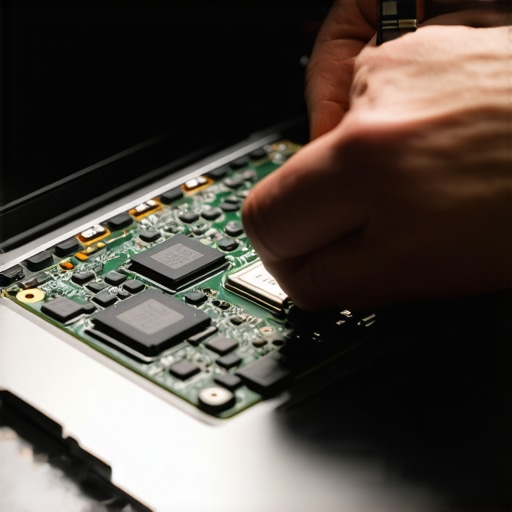
What I Wish I Knew Before My First Data Disaster
- I’ve learned that even simple-looking issues like disconnections often hide complex problems—like faulty cables masking underlying drive damage. Taking the time to dig deeper can save you from bigger setbacks later.
- Rushing to replace hardware without diagnosing the root cause can lead to repeated failures. Patience and methodical troubleshooting are your best allies in protecting vital data.
- Misconceptions about quick fixes—such as believing all driver updates are automatically beneficial—can be costly. Ensuring your firmware and drivers are compatible and current is vital for stable connections.
- Many underestimate the importance of physical connections—loose or damaged cables are often the silent culprits behind drive disconnections. Regular inspection and quality replacements make a big difference.
- Having a backup plan is a lifesaver. Even when troubleshooting, regularly saving current work ensures that unforeseen failures won’t derail your progress.
Tools and Resources That Changed My Approach
- CrystalDiskInfo became my eyes into drive health, alerting me to issues before total failure. I trust it for proactive monitoring without fuss.
- Reliable hardware tools like Wiha Precision Screwdrivers prevent damage during repairs, making DIY fixes safer and more effective. Investing in quality tools pays off in the long run.
- For comprehensive data recovery, this guide offers expert techniques that often turn around seemingly hopeless situations.
- The strategies for managed IT helped me understand that technology management isn’t just reactive; it’s about continuous protection and strategic planning.
Your Next Move Could Shape Your Tech Confidence
Handling external drive disconnections may seem daunting at first, but with the right approach, you can turn tech chaos into control. Remember, every challenge is an opportunity to learn and strengthen your data resilience. Embracing proactive troubleshooting, reliable tools, and solid backup routines will not only save you time but also boost your confidence in managing stubborn tech issues. Start small, stay consistent, and watch your skills grow. Are you ready to tackle your next tech obstacle with newfound confidence? Share your experiences or questions below—let’s learn together from real-world challenges.”}}# Answer quiz_raw# 0 {