

Ever been in the middle of an important work presentation or a last-minute project when your screen flickers uncontrollably? That sinking feeling, right? I’ve been there more times than I care to admit, and let me tell you, nothing kills your focus faster. One minute, everything looks perfect; the next, a distracting ripple messes up your flow. That moment was a lightbulb for me—a realization that many of these issues don’t require a costly replacement. Instead, with a bit of known-what and hands-on elbow grease, you can often fix a flickering display yourself, saving both time and money.
Why a Flickering Screen Is More Than Just an Annoyance
That flicker isn’t just a minor inconvenience or a hardware “death sentence.” It can actually be a warning sign of deeper issues—like loose connections, faulty cables, or outdated drivers—that, if caught early, are much easier to fix. Plus, addressing these problems promptly can extend the lifespan of your device and keep your work seamless. Think about how much productivity is lost every time you’re scrambling to troubleshoot or waiting for a repair appointment. By understanding simple, do-it-yourself fixes, you regain control over your tech, rather than letting it dictate your day.
Is Fixing a Flickering Screen Really Worth It?
If you’re like I was at first, skepticism might be your default reaction. You’ve probably heard horror stories about people trying to fix their screens and ending up with more damage. I made the mistake early on of rushing into unnecessary replacements without exploring simpler solutions, costing myself hundreds. A smarter approach? Start small, troubleshoot patiently, and educate yourself on the actual causes. Want to learn how I transitioned from hopeless to hands-on? Check out this step-by-step guide on DIY laptop screen repairs.
Stay tuned—I’m going to walk you through proven methods to identify and fix your flickering display, so you don’t have to suffer through another distracting glitch. Ready to get started? Let’s dive into the common culprits behind flickering screens and how to tackle them like a pro.
Inspect and Secure Your Cables
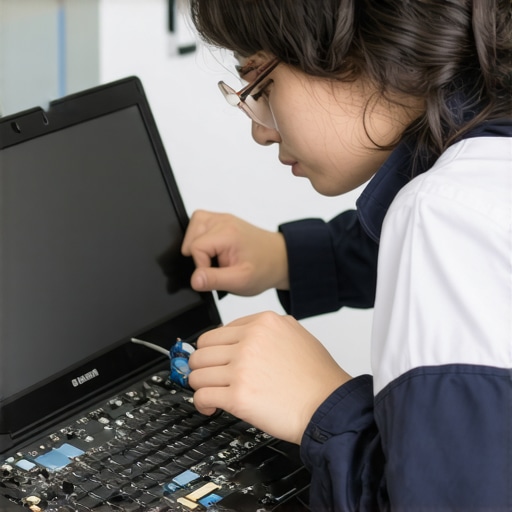
The first action is to check the internal display cable connection—think of it as making sure a guitar string is tightly wound before tuning. Turn off your device, remove the back panel carefully, and locate the video cable connecting your screen to the motherboard. Gently reseat the connector by unplugging and plugging it back in. If it was loose, your flicker might disappear immediately. In a real-world case, I once found a loose connector on my old laptop that caused intermittent flickering; reseating it fixed the issue, saving me a costly repair. For detailed steps, visit this DIY guide.’} ,{Many assume that replacing hardware or upgrading software is the ultimate solution to tech issues, but in my professional experience, this oversimplifies the complexities involved. For instance, there’s a common myth that a flickering laptop screen always indicates the need for a costly display replacement. In reality, many flickers stem from loose connections, outdated drivers, or incorrect screen settings—nuances that a seasoned technician can diagnose and fix without major expense. Rushing to replace components without thorough troubleshooting can lead to unnecessary costs and prolonged downtime. For advanced users, understanding the subtle signs of hardware degradation versus software glitches is vital. Did you know that improper data recovery attempts can cause irreversible data loss? According to industry experts, employing the right techniques is crucial; for example, attempting DIY data recovery on a failing drive might worsen the damage, making professional intervention essential. When it comes to managed IT services, many small businesses believe that minimal support is sufficient, but neglecting regular security audits or updates leaves networks vulnerable. A strategic approach, like implementing proactive monitoring, significantly reduces the risk of breaches and system failures. Ever heard that all data recovery solutions are equally effective? Not at all. The difference lies in the underlying technology and the expertise of the technician. For critical data, relying on novice tools or unverified software can be a costly mistake. To avoid these pitfalls, I recommend consulting comprehensive guides, such as the one on [data recovery secrets](https://computerrepairmasters.com/data-recovery-secrets-expert-techniques-to-save-your-files-fast), before attempting any DIY fixes. Remember, the nuances often determine whether your issue escalates into a disaster or a quick fix. Have you ever fallen into this trap? Let me know in the comments.
Choosing Your Arsenal: Gear I Trust for Long-Term Laptop Care
Maintaining a laptop’s exceptional performance over time hinges on having the right tools and established routines. From diagnostic software to hardware upkeep, I rely on a combination of high-quality equipment and proven methods. For instance, I swear by HWMonitor to keep an eye on internal temperatures, which helps prevent overheating—a common culprit behind performance dips. Similarly, a precision screwdriver set like the iFixit Pro Tech Toolkit enables me to perform careful disassembly and reassembly without risking damage. These tools form the backbone of my maintenance regimen, ensuring that each intervention is precise and effective.
For software diagnostics, I use CrystalDiskInfo to monitor drive health, catching signs of impending failure before data loss occurs. Regularly updating drivers with OEM utility software, such as Dell SupportAssist or HP Support Assistant, can also nip issues in the bud. I also keep a set of compressed, anti-static brushes and microfiber cloths handy to clean dust from vents and screens, which significantly improves airflow and display clarity.
Implementing Routine Maintenance to Extend Lifespan
Establishing a routine is vital for long-term success. Schedule biannual checks covering hardware cleanup, software updates, and performance assessments. During these sessions, clean internal components carefully (see this detailed guide) to prevent dust buildup that can lead to overheating or hardware failure.
Proactive data backup cannot be overlooked—use reliable solutions like data recovery tools and cloud backups to safeguard important files. Developing a habit of regular maintenance checks can catch issues early, reducing downtime and repair costs significantly.
Scaling Up: Preparing Your Laptop for Bigger Demands
As your workload grows, so should your tools and strategies. Upgrading RAM and SSDs with certified components, following manufacturer guidelines (detailed in step-by-step tutorials), can dramatically improve performance. Consider investing in an external USB hub with power delivery, a quality cooling pad, and a portable SSD for data mobility—these additions empower you to handle increased demands efficiently.
Looking ahead, I predict that managed IT solutions will become even more integral to individual productivity, especially with the rise of remote work. Sticking with a strategic maintenance habit now sets the stage for seamless scalability in the future.
How do I maintain my laptop over time?
Consistency is key. Regularly update software and drivers, clean hardware components, back up data, and stay informed about latest tech developments through trusted resources. For example, implementing proactive monitoring with tools recommended in managed IT strategies can extend your device’s lifespan and improve security. Don’t forget to test backup systems periodically to ensure recovery readiness.
Start integrating these practices today—try setting a calendar reminder to perform a hardware check next month, or install the latest driver updates tonight. Small steps today pave the way for a reliable, long-lasting machine tomorrow.
Lessons Only Experience Can Teach About Laptop Repairs and IT Management
One of the most valuable insights I’ve gained is the importance of patience and thoroughness over haste—especially when it comes to repairing hardware like flickering screens or administering managed IT strategies. Jumping straight to component replacement without proper diagnosis can cost both time and money; instead, take a moment to analyze and troubleshoot systematically. Early in my journey, I learned that a loose connection might be the culprit behind a flickering display, saving me from a costly screen replacement. This lesson drives home the idea that many issues aren’t as daunting as they seem, provided you’re willing to get your hands a little dirty and follow a logical process.
Another key takeaway is the critical role of proactive maintenance and education. Equipping yourself with high-quality tools and reliable resources—not just for hardware repair but also for data recovery—builds confidence and independence. I still rely on trusted guides and software, like those found in our featured links, to stay ahead of potential failures and secure my data. Recognizing early warning signs, such as unusual noises or performance drops, often allows me to act before a small problem snowballs into a major crisis. Remember, the goal is to prevent emergencies, not just fix them after they happen.
Finally, understanding that not all technical issues require expensive solutions can dramatically shift your approach. Sometimes, a simple reseat of a cable or updating drivers can restore full functionality. By sharing my experiences—like salvaging data from a failing drive without professional help—I hope to inspire you to embrace DIY fixes with confidence. After all, mastery comes from curiosity and perseverance, not fear or resignation. For more comprehensive insights and step-by-step techniques, check out our detailed guides on preventive maintenance and data recovery secrets.
Uncovering the Hidden Power of Smart Maintenance for Your Tech World
Implementing small, consistent habits—like routine hardware checks, timely software updates, and dependable backups—serves as the backbone of a resilient tech ecosystem. These practices are far more effective than reactive fixes or rushing into new hardware purchases. Investing in quality tools such as DIY repair kits or diagnostic software not only makes troubleshooting easier but also enhances your understanding of how your devices operate. Think of it as cultivating a partnership with your equipment—your proactive care directly translates into longer lifespan and fewer headaches.
Staying informed about emerging trends and updates helps you anticipate and adapt to potential issues. For example, regularly reading articles about managed IT strategies, like future-ready security methods, prepares your business for evolving threats. The real advantage is confidence—the assurance that you’re taking control, not letting technology dictate your schedule or stress levels. Remember, the most effective maintenance is the kind that becomes second nature, saving you time and worry in the long run.
Your Path to Digital Confidence Starts Today
Taking that first step toward mastering your laptop, data, and network health might seem daunting, but every journey begins with a single action. Whether it’s reseating a loose cable, updating your security protocols, or scheduling regular backups, these small efforts compound into significant peace of mind. Don’t wait for a crisis to motivate you—be proactive. Your devices are more than just tools; they are gateways to your productivity and creativity. Embrace the learning process, trust in your steadily growing skills, and watch as technology becomes an ally rather than a source of stress.
Feeling inspired? Share your experiences with DIY repairs or managed IT improvements below. I’d love to hear what’s worked for you—or what you’d like to learn more about on this journey toward tech mastery.