

One morning, I turned on my office desktop, ready to tackle a pile of work, only to be greeted by that dreaded orange light blinking ominously. In that moment, I felt a rush of panic—what did it mean? Was my hard drive dying? Had I lost all my important files? We’ve all faced that sinking feeling when our computer shows signs of trouble, especially when that tiny LED becomes the source of our worries. But here’s the thing: those blinking orange lights aren’t the end of the world. They’re signals, calling for attention and a little know-how to fix the problem.
The First Step to Reassuring Your Frustration
Understanding what the orange light indicates can seem daunting at first, but with a bit of patience and some practical steps, you can often resolve the issue yourself. Today, I’ll guide you through the process based on my personal experience and tips earned along the way. We’ll uncover what this light really means, common mistakes to avoid, and how to get your desktop back to normal without unnecessary stress. If you’ve ever found yourself staring at that little blinking, orange culprit and wondered if it’s a sign of imminent disaster, you’re not alone. Many believe that blinking red or orange signals immediate hardware failure, but it often points to something quite manageable—like a specific hardware warning or a power issue.
Are You Wasting Money on Unnecessary Repairs?
Early in my journey, I made the mistake of rushing to replace components without proper diagnosis, which only led to wasted money and time. I learned the hard way that understanding the root cause is crucial before jumping into fixes. For reliable insights, I recommend checking out this helpful article. Recognizing common early signs of hardware trouble can save you a lot of frustration—and cash. Now, let’s explore what could actually be causing that orange light and how you can confidently diagnose and fix it. Stick around, because the solution might be simpler than you fear—and I’m here to help you get there.
Inspect Power and Connections Immediately
First, unplug all cables and power sources carefully, like detaching a delicate wire sculpture. Check for loose or frayed power cords, switch the power button on and off a few times; sometimes, a simple reset can clear minor glitches. For example, I once faced a blinking orange light on my desktop, and after reseating the power cable, the light stopped blinking — pointing to a loose connection. If the power supply appears damaged or worn, replacing it is often straightforward and can be done at home with basic tools.
Identify Hard Drive and Hardware Status
Listen and Smell for Clues
Turn on your PC and listen for unusual noises like clicking or grinding, which often indicate hard drive issues. If you smell burnt electronics or melting plastic, power off immediately to prevent further damage. Think of your computer’s hardware as a car engine; abnormal sounds or odors signal trouble needing urgent attention.
Run Diagnostic Tools
Boot into your BIOS or use a bootable diagnostic USB to check hardware health. For example, I used a diagnostic tool to confirm my hard drive’s SMART status, which revealed impending failure. If necessary, backup your data urgently via data recovery guides to prevent loss.
Test Components Step-by-Step
Remove Non-Essential Hardware
Carefully disconnect extra peripherals and expansion cards, as if pruning branches to see the tree’s core. For instance, removing an extra RAM stick in my case allowed the system to boot normally, indicating a faulty module. If you’re unsure, consult troubleshooting tips.
Assess RAM and Graphics Card
Replace suspected faulty RAM modules with known good ones or test the graphics card in another system if possible. Remember, faulty RAM can cause the blinking light pattern. This process is akin to swapping out a worn-out part in a machine to see if it restores function.
Address Hardware Failures Professionally When Needed
If diagnostics point toward motherboard failure, or if you lack the tools or confidence, seeking professional repair is wise. Look for trustworthy services, and consider reading guides like laptop screen repair tips for home fixes when possible.
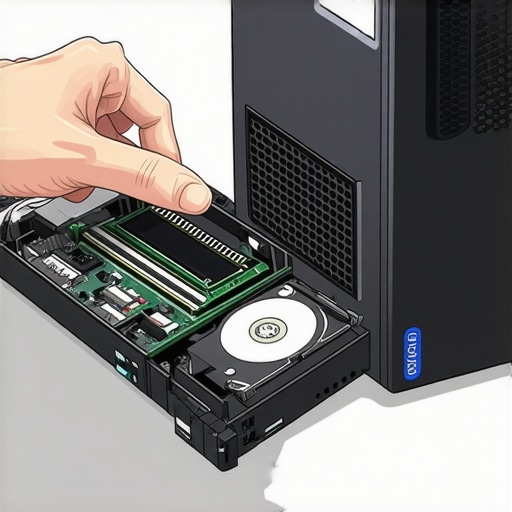
Visual guide showing step-by-step hard drive and RAM removal procedures, illustrating safe hardware testing techniques.
Many believe that troubleshooting hardware issues is straightforward—swap out a component, see if it works. However, this simplistic view overlooks critical nuances that can determine the success of your repair. For example, a common misconception is treating all blinking indicator lights as immediate hardware failures, but in reality, they often signal specific issues like firmware glitches or minor power inconsistencies. Overlooking these subtleties can lead to unnecessary replacements or costly repairs.
One advanced mistake I see frequently is jumping to data recovery services prematurely when the real issue lies in firmware corruption or BIOS misconfigurations. Research from cybersecurity expert Bruce Schneier highlights how firmware vulnerabilities often remain unnoticed because they’re hidden beneath the hardware layer—making superficial fixes ineffective. It’s essential to differentiate between hardware failures and software or firmware anomalies, as the latter can often be resolved without replacing parts.
Another trap involves misdiagnosing laptop screen problems. Many assume a flickering display is always due to a faulty screen or backlight. However, sometimes, this symptom stems from graphics driver conflicts or power management settings. A quick update or adjustment in your device manager can save you hundreds, versus replacing the entire screen. For in-depth guides, check out this comprehensive laptop screen repair guide.
Let’s address a question that stumps even experienced technicians: How can I tell if a hardware fault is truly imminent, or just a transient glitch? The key is persistent symptoms combined with diagnostic tools, like SMART checks for hard drives or thermal monitoring software, which can reveal underlying issues before failure occurs. Regularly monitoring your hardware’s health is akin to preventive medicine—saving you headaches and data loss in the long run.
Finally, understanding that some failures are caused by corrupted firmware or BIOS settings rather than physical damage allows more targeted troubleshooting. I recommend consulting expert data recovery techniques to recover critical files from seemingly dead drives, rather than jumping to costly replacements. Explore this resource for advanced recovery strategies.
In summary, mastering the subtle differences between symptoms, and knowing the right diagnostic approach, distinguishes a seasoned technician from a novice. Don’t fall for the trap of oversimplification—delve deeper, and your repairs will become more effective, efficient, and economical.
Have you ever fallen into this trap? Let me know in the comments.
Staying Ahead with the Right Tools
Keeping your computer systems running smoothly over time demands more than just occasional troubleshooting; it requires the right set of tools that empower proactive maintenance. Personally, I rely on a combination of hardware diagnostics and software solutions that I’ve tested extensively. One must-have is CrystalDiskInfo, a free utility that provides real-time health status of your hard drives, highlighting SMART attributes before catastrophic failure occurs. I use it weekly to monitor drives in my managed IT clients’ environments, enabling preemptive replacements and avoiding costly downtime.
For system cleaning, I prefer CCleaner Professional, not only for cleaning temporary files but also for its registry cleaning and startup impact analysis. Regularly using this tool helps maintain optimal boot times and responsiveness. I also keep a fully equipped bootable diagnostic USB stick, loaded with tools like Ultimate Boot CD and Hiren’s BootCD, allowing me to perform deep hardware tests regardless of OS boot issues. Having these tools ready can save hours during emergency diagnostics, as I learned during my early days of troubleshooting complex hardware problems.
Implementing Routine Maintenance Practices
Beyond tools, structured routines are critical. For example, I advocate for monthly physical inspections—cleaning dust from fans and vents using compressed air, and checking for signs of overheating or corrosion. This preventative measure prolongs component lifespan and stabilizes system performance. Firmware updates are another often overlooked yet vital aspect; manufacturers release patches that fix bugs and security flaws. Regularly updating BIOS and UEFI firmware ensures compatibility and stability, reducing mysterious crashes and flashing indicator lights.
Another tip I swear by is maintaining an organized backup protocol. Using a combination of local NAS devices and cloud backups, like managed IT solutions that facilitate automated backups, guarantees data integrity. Testing restoration procedures periodically prevents surprises when disaster strikes, strengthening long-term resilience.
Where Will Maintenance Tools Take Us Next?
The future of computer maintenance lies in automation and AI-driven diagnostics. As hardware and software grow more complex, advanced management systems will predict failures before they manifest visibly, minimizing disruption. Technologies such as predictive analytics embedded in enterprise management solutions are already making strides in this direction, as highlighted by industry leaders in managed IT strategies.
Wondering How to Keep Your System Healthy Over Time?
One effective method is scheduling routine hardware health assessments using specialized software—like running SMART scans weekly or bi-weekly. Pair this with regular cleaning, firmware updates, and backup verifications. Implementing automated scripts for maintenance tasks can also streamline your regimen, saving you time and reducing human error. I highly recommend trying out a script that automates disk health checks and alerts you immediately if issues are detected—this proactive approach has saved me countless hours and prevented data loss in critical situations.
So, if you’re ready to elevate your maintenance game, start integrating these specific tools and routines into your regular schedule today. Combining hardware monitoring with automated maintenance scripts sets the stage for a reliable, long-lasting computing environment.
The Hardest Lesson I Learned About Computer Repair, Data Recovery, and Managed IT
One revelation that transformed my approach was realizing that blinking indicator lights are less about catastrophe and more about communication. I once rushed into costly repairs, only to discover that patience and proper diagnostics could save time and money. This axiom applies whether you’re troubleshooting a failing hard drive or refining your managed IT strategy: listen to the signals, understand their language, and respond thoughtfully.
Technology Wisdom You Can’t Find in a Manual
- Trust the Process: While guides are invaluable, trusting your instincts and observing your hardware’s behavior often reveal underlying issues faster than just following steps blindly.
- Small Clues Matter: Unusual noises or temperature spikes can be the early warnings of hardware fatigue. Recognizing these before failure occurs can be the difference between a quick fix and a data disaster.
- Preventive Steps Save Money: Regular diagnostic checks with tools like data recovery guides and health monitoring software prevent surprises and extend device lifespan.
Tools and Tips That Changed My Game
- CrystalDiskInfo: Offers real-time insights into your hard drive’s health, so you can act before failure strikes.
- Secure Data Backups: Automated backups via NAS or cloud services ensure data integrity without manual hassle.
- Diagnostic USBs: Bootable tools that perform in-depth hardware tests, essential when your system won’t boot normally.
Make It a Habit: Keep Your System Buoyant
Consistent maintenance routines—such as dust cleaning, firmware updates, and quick hardware checks—are your best defense against unexpected failures. Embracing automation and proactive analytics, especially in managed IT environments, keeps your systems resilient. Industry leaders emphasize that predictive diagnostics are the future of reliable computing, and integrating such tools can save headaches and downtime.
By staying curious, vigilant, and equipped, you turn uncertainties like a blinking orange light into opportunities for mastery. Remember, every blinking signal is an invitation to learn more about your technology’s story.
Your Turn to Tackle the Signs
Have you ever misinterpreted a hardware warning light and learned a valuable lesson? Share your experience below, and let’s grow together in mastering the art of computer care.
.