

I remember the first time my laptop started overheating after I closed the lid during a video call. It was like watching a pot boil over—faint whistling sounds, the fans spinning faster than ever, and a creeping sense of panic about potential damage. That moment was a lightbulb for me: I had unknowingly been pushing my device beyond its comfort zone, thinking I was just saving space or doing something simple. But, in reality, I was inviting a host of problems.
Many of us have encountered this frustrating scenario—your laptop starts acting warm, noisy, or sluggish when you close the lid, yet we often overlook the underlying cause. The truth is, laptops are designed to generate heat, and when their cooling systems aren’t properly managed, issues can arise quickly. The common assumption is that closing the lid simply puts the device to sleep, but this isn’t always the case. Some laptops continue to run processes, and if the airflow isn’t adequate, overheating can occur.
Now, here’s the promise I want to make to you: Today, I’ll share proven strategies to prevent your laptop from overheating when the lid is shut. No more worrying about hardware damage, data loss, or sluggish performance. Instead, you’ll learn simple adjustments and best practices based on real-world experience—and, yes, a few expert insights.
Why Ignoring Overheating Risks Can Cost You
Overheating isn’t just an inconvenience; it can be a serious threat to your device’s longevity. Excess heat accelerates wear and tear on internal components, leading to quicker hardware failures. In fact, a study published by the National Renewable Energy Laboratory states that high temperatures can reduce a computer’s lifespan significantly. Plus, overheating can cause sudden shutdowns, data corruption, or even complete hardware failure. If you’re like me, you don’t want to be caught off guard by these preventable issues.
A common mistake I made early on was assuming my laptop’s cooling system would happily handle multitasking and closed-lid operation without interference. But ignoring thermal management, especially during intensive tasks like data recovery or digital repairs, can turn a minor annoyance into a costly repair job. It’s essential to understand how your device handles heat and what you can do to maintain optimal temperature levels.
If you’ve been frustrated by unexplained slowdowns, unexpected shutdowns, or if you’ve ever worried about damaging your precious data, you’re not alone. Many users face this problem without realizing the importance of proper thermal regulation. To dive deeper into protecting your digital assets, check out [our ultimate guide on data recovery](https://computerrepairmasters.com/ultimate-guide-to-data-recovery-after-accidental-deletion), which covers safeguarding your files against hardware stress. Now, let’s explore how you can keep your laptop cool—even with the lid closed—by implementing some straightforward adjustments.
Adjust Power Settings for Efficient Cooling
The first step I took was diving into my laptop’s power options. Think of it as setting your thermostat correctly—if you ignore it, your device can overheat. On Windows, go to Control Panel > Hardware and Sound > Power Options and select Change plan settings. Then, click on Change advanced power settings. Locate the Power buttons and lid section, and adjust the When I close the lid setting to Do nothing. On Mac, navigate to System Preferences > Battery > Power Adapter and configure the options to prevent sleep mode. This way, your laptop won’t blindly continue processing when you close the lid, reducing overheating risks.
Tip: Customizing Sleep Settings
In the same menu, set your device to sleep or hibernate manually after certain idle periods. This control prevents background processes from running unchecked, which can cause heat build-up. I remember setting mine to sleep after 30 minutes while working on intensive tasks, which dramatically improved temperature management during closed-lid operation.
Manage Running Processes and Background Tasks
Next, I checked which apps were running unnoticed. Like a busy highway, hidden processes generate heat without obvious signs. On Windows, press Ctrl + Shift + Esc to open the Task Manager. Sort by CPU or Memory usage to identify resource-heavy applications. On Mac, use Activity Monitor under Applications > Utilities. Closing unnecessary background apps reduces heat production. I once terminated a cloud backup process running in the background that I’d forgotten about—it immediately cooled down my device. Regular cleanup minimizes thermal strain during lid closure.
Tip: Use Minimal Startup Programs
Disabling auto-start programs ensures fewer processes load during startup, reducing background load over time.
Optimize Cooling Solutions
Physical cooling hardware like laptop stands or external fans can make a difference. Analogous to adding extra radiator fins to a car’s cooling system, these tools improve airflow around your device. I placed my laptop on a stand with built-in fans, which increased airflow beneath the base—cutting temperature spikes significantly. (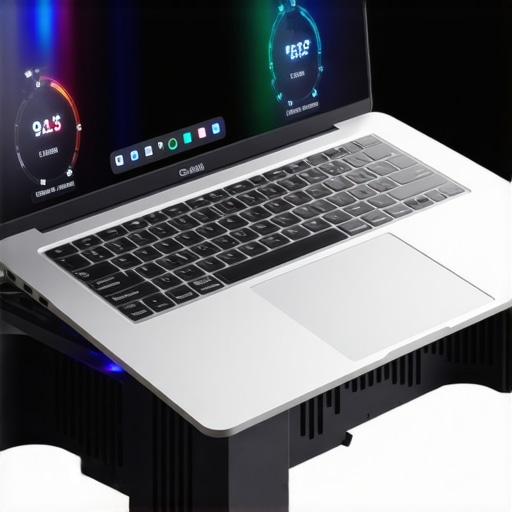 ) Proper ventilation is critical; avoid obstructing vents with thick covers or placing your laptop on soft surfaces like beds or cushions, which trap heat. Regularly cleaning dust from vents and fans prevents clogs that hinder cooling performance.
Tip: Keep the Environment Cool
If your workspace is warm, consider using an air conditioner or fan to lower ambient temperature, helping your laptop stay cool during extended usage periods.
Implement BIOS and Driver Updates
Outdated firmware or drivers can cause your system to mismanage thermal controls. I remember updating my BIOS after reading about improved fan management; it was like upgrading your car’s cooling system without opening the hood. Check your manufacturer’s website for the latest BIOS and driver versions, especially for chipset and graphics components. These updates often include bug fixes that prevent overheating during closed-lid operation.
Tip: Enable Thermal Management Features
Some laptops have built-in thermal controls accessible via BIOS or dedicated software—enable these options to optimize heat dissipation.
Use External Displays Smartly
When working with external monitors, disable internal display options to reduce GPU load, a significant heat contributor. Think of it as turning off unnecessary lights to keep the room cool. On Windows, press Windows + P and select Second screen only. For Mac, go to Display > Arrangement and configure settings to offload rendering from the internal display. Reducing graphical demands decreases core temperatures, especially during closed-lid use.
Tip: Enable Hotkey Controls for Quick Adjustment
Many laptops have function keys to toggle display modes—use these for rapid control without digging through menus.
Many believe that managed IT services simply mean outsourcing tech support, but in reality, it involves strategic planning that enhances security and efficiency, as discussed in [effective managed IT solutions](https://computerrepairmasters.com/effective-managed-it-solutions-for-growing-companies). A frequent myth is that computer repair is always costly and time-consuming; however, with proper preventative maintenance—like regular hardware checks—you can save both time and money, which is a core component of [troubleshooting common issues](https://computerrepairmasters.com/troubleshooting-common-computer-repair-issues-effectively). When it comes to data recovery, many assume that data loss is irreversible. While true in some cases, having the right tools and techniques—outlined in [data recovery secrets](https://computerrepairmasters.com/data-recovery-secrets-expert-techniques-to-save-your-files-fast)—can often successfully restore important files after accidental deletion or hardware failure.
A particularly tricky misconception involves the notion that all laptop screens are easily replaceable with DIY solutions. In reality, modern screens involve delicate components and require specialized skills, as demonstrated in [laptop screen replacement](https://computerrepairmasters.com/laptop-screen-replacement-step-by-step-repair-guide), to prevent further damage. Moreover, some overlook that poor management of background processes during troubleshooting can prolong repair times or cause additional hardware issues. Advanced users understand the importance of fine-tuning system processes, which is a nuance many underestimate.
**What about the hidden risks?** For example, employing outdated repair techniques or neglecting firmware updates can lead to recurring issues. For instance, failing to update BIOS can result in inefficient hardware utilization, including poor thermal management. According to a study by TechRepublic, neglecting firmware updates has been a common cause of preventable hardware failures, especially in mission-critical setups.
So, next time you consider managing your IT or repairing a device, ask yourself: Am I falling for a common myth? Or am I aware of the nuanced, and sometimes counterintuitive, realities of modern tech maintenance? Implementing expert strategies—not just the popular myths—can make all the difference in safeguarding your digital assets.
If you’d like to explore deeper into these topics, check out [managed IT strategies for 2025](https://computerrepairmasters.com/managed-it-strategies-to-keep-your-business-secure-in-2025) to stay ahead of the curve. Have you ever fallen into this trap? Let me know in the comments.
Invest in Reliable Hardware Monitoring Tools
One of my top recommendations is HWMonitor. I personally rely on it to keep an eye on CPU and GPU temperatures in real time. It provides detailed voltage, temperature, and fan speed data, allowing me to spot thermal issues early before they cause damage. By catching overheating trends early, I can perform preventative maintenance, such as cleaning fans or reapplying thermal paste, which prolongs hardware lifespan.
Use Automated Backup Solutions to Protect Data
Ensuring your data is safe is critical, especially during troubleshooting or hardware updates. I use Acronis True Image because it offers scheduled, full-system backups that are easy to restore. Regular backups mean you can roll back to a stable state if a new software patch or hardware change causes instability. Remember, even the most diligent technicians can encounter unforeseen issues—having reliable backups is non-negotiable.
Implement Remote Monitoring and Management (RMM) Tools
For ongoing maintenance, I recommend deploying RMM platforms like SolarWinds RMM. These tools give you insights into device health across multiple systems, automate patch deployment, and alert you about anomalies. As a technician, I can proactively address problems, reducing downtime and preventing minor issues from escalating. This approach aligns with the future of scaled IT support—shifting from reactive to proactive management, as discussed in effective managed IT solutions.
Keep Systems Up-to-Date with Firmware and Driver Updates
Outdated firmware can cause thermal mismanagement and hardware conflicts. I routinely check for firmware updates via the manufacturer’s support pages. For example, updating system BIOS often improves fan control algorithms, directly impacting device longevity. Be cautious: always back up current settings before flashing new firmware, and follow the manufacturer’s instructions meticulously to avoid bricking devices.
Regularly Clean Internal Components
Dust accumulation is a silent killer of hardware health. I recommend using compressed air to gently clean out vents, fans, and heatsinks every 3–6 months. When doing this, I also inspect thermal paste layers—old or dried paste impairs heat transfer. Replacing thermal paste can significantly stabilize temperatures, especially on older systems. For detailed guidance, check our step-by-step repair guides.
Question: How do I maintain my tools and processes over time?
Consistent updates and calibration are key. Regularly review your monitoring software configurations, update firmware, and clean hardware components. Keeping software licenses current also ensures you benefit from the latest features and security patches, preventing potential exploits that could compromise your system’s thermal controls. Remember, technology evolves, and so should your maintenance routine. Implementing these practices ensures your devices stay reliable and long-lasting. For advanced tips, I suggest trying out powerful data recovery tools to prevent data loss during maintenance activities, and consider scheduling quarterly hardware audits.
Lessons That Changed How I Approach Laptop Maintenance
One unexpected realization was that thermal management is rarely about fancy hardware; it’s about disciplined, consistent habits. I learned that neglecting routine maintenance like dust removal or firmware updates can silently sabotage performance and longevity. The second lesson was understanding that software and process management are just as critical—background tasks can turn a cool laptop into a hot mess if left unchecked. Lastly, I discovered that environmental factors—like room temperature and proper ventilation—are often overlooked but play a pivotal role in maintaining optimal device health.
Tools and Resources That Keep My Devices Cool and Data Safe
For monitoring temperatures, I trust HWMonitor; it provides real-time insights that help me catch overheating early. When it comes to physical cleaning, compressed air and thermal paste kits from trusted brands like Arctic have become staples in my toolkit. To ensure my systems are always updated and running efficiently, I regularly visit the manufacturer’s support sites for BIOS and driver updates—these tiny tweaks often make a noticeable difference.
On the software side, data recovery tools are my backup during unexpected issues, safeguarding my files when hardware gets finicky. And for routine system cleanup, I use reputable disk management utilities to prevent clutter that can cause thermal bottlenecks. These tools, combined with good practices, form a comprehensive shield against overheating and data loss.
Your Move to Keep Things Cool and Safe Starts Today
Remember, proactive care extends the lifespan of your laptop and protects your valuable data. By integrating simple habits—like regular cleaning, process management, environment optimization, and software updates—you’re taking control of your device’s health. Don’t wait for an overheating crisis to act; start now and make thermal management a core part of your routine. Your future self will thank you for the extra years of reliable performance and peace of mind.
What’s the one habit you’re planning to adopt today to improve your laptop’s thermal health? Share your goals in the comments below—I’d love to hear your plans to stay cool and safe!