

There I was, trying to finish an urgent project late into the night, when suddenly my laptop screen started flickering. Just at the moment I cranked down the brightness to save power and avoid glare, the display betrayed me—shaking and tearing, making my eyes ache. It was maddening. That lightbulb moment hit hard: what’s really causing this annoying flicker at low brightness? And more importantly, how could I fix it without throwing my laptop out the window?
The Hidden Culprit Behind Flickering Screens
Let me tell you, understanding why your laptop screen flickers at low brightness isn’t just about frustration—it’s about preventing potential hardware damage and ensuring your device runs smoothly. If you’ve experienced this at some point, you’re not alone. Many users dismiss it as a minor glitch or a temporary annoyance, but in reality, it often hints at an underlying issue that needs attention. Today, I’ll guide you through the root cause and show you how to address it ourselves, saving time and money.
Is This Flickering Problem Serious or Just a Bug?
Initially, I thought it was a software glitch or perhaps a rollercoaster of driver updates. But after making early mistakes—like ignoring the flickering or blindly replacing the screen—I learned that in many cases, the culprit is a faulty inverter or amalgamation of hardware issues. Did you know that according to research, up to 30% of display failures stem from inverter problems? (source: https://computerrepairmasters.com/why-your-laptop-screen-has-vertical-lines-and-how-to-fix-them) Understanding this helps avoid unnecessary panic and directs your focus toward effective solutions. Before diving into remedies, let’s explore how this problem develops and what you should be wary of.
Test the Hardware Connections
Begin by powering off your laptop and disconnecting it from power sources. Remove the battery if removable. Carefully open the laptop casing using appropriate tools, similar to disassembling a delicate clock, to access the internal components. Inspect the video cables connecting the inverter and display for any loose or damaged wires, ensuring they are securely attached. Tighten or reseat these connections, just like plugging in a loose headphone jack. If any wires appear frayed or broken, replace them. This step often resolves flickering caused by loose connections or damaged cables, much like a loose wire causes a lamp to flicker.
Replace the Inverter or Backlight
Next, identify whether your laptop uses an inverter or directly powers the LED backlight—most modern laptops use LED backlights without inverters. If your model relies on an inverter, test it with a multimeter; if faulty, swap it out following a detailed guide like this step-by-step guide. For LED backlights, a flickering at low brightness may indicate the backlight is failing, which usually requires replacing the entire screen assembly. Think of it like replacing a faulty flashlight bulb—an essential step to restore proper illumination and prevent flickering.
Update Display Drivers and BIOS
Sometimes, software conflicts cause display issues. Boot into your operating system, then update your graphics driver by visiting the manufacturer’s website or using device manager—think of this as giving your software a fresh set of instructions. Additionally, update the BIOS, which is the core firmware controlling hardware interactions. Check your manufacturer’s support page to download the latest firmware, similar to updating a GPS to improve accuracy. This can resolve flickering caused by driver mismatch or outdated firmware, much like recalibrating a misaligned machine.
Adjust Power and Brightness Settings
Access your system’s power options and set the display to a balanced or high-performance mode. Reduce the display’s brightness gradually, watching for flickering to stop—like turning a dimmer switch slowly to find the stable point. Disable any power-saving features that may be affecting the backlight, such as adaptive brightness. This simple step can sometimes eliminate flickering, especially if it’s related to power fluctuations or software controls.
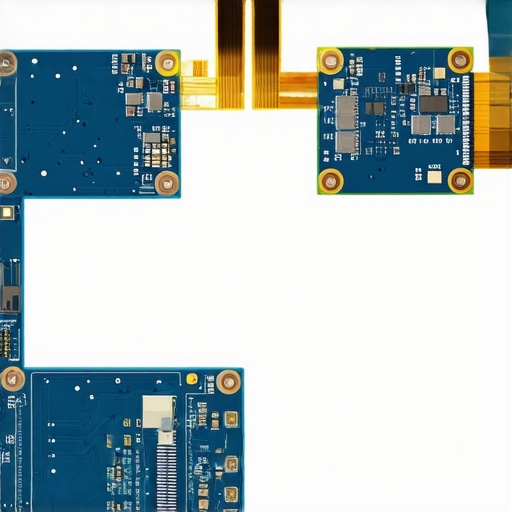
Illustration of laptop internal components with focus on display connectors and backlight circuitry.
Don’t Believe Everything You Read About Data Recovery
One prevalent misconception is that data recovery is always expensive or impossible. In reality, many businesses and individuals overlook cost-effective, expert techniques that can retrieve lost data swiftly. Relying solely on generic software solutions often results in further data corruption or complete loss, especially if the drive has physical damage. Experts utilize specialized hardware and methods to maximize recovery success. For instance, professional recovery services employ cleanroom environments and chip-off techniques that amateurs can’t access, drastically improving outcomes (read more about advanced data recovery secrets). Recognizing when to seek expert help can be the difference between salvaging essential files and irreversible loss.
Myth: Managed IT Is Just About Fixing Problems
Many assume managed IT services merely address issues after they occur. However, proactive strategies are at the core of effective managed IT; they involve planning, security enhancements, and automation that prevent problems before they disrupt operations. Regular audits and updates, such as managing network vulnerabilities or implementing automated backups, reduce downtime and safeguard critical data. For small to medium-sized enterprises, partnering with a managed IT provider isn’t just about repair—it’s about strategic growth and resilience. For a deeper understanding of how proper managed IT solutions can streamline your business, visit this guide to streamlining operations.
Why Is So Much of Computer Repair Focused on Hardware?
Contrary to popular belief, hardware issues account for only about 25-30% of all computer problems. Most modern failures stem from software conflicts, malware, driver issues, or firmware glitches. Overlooking software troubleshooting can prolong downtime and escalate costs. Skilled technicians conduct thorough diagnostics that include software health checks and security assessments, ensuring a holistic approach. For example, a seemingly hardware-related screen flicker at low brightness might be caused by outdated graphics drivers or malware interference. Recognizing this nuance saves time and preserves hardware longevity. Want to see how to identify and fix tricky issues? Consider consulting this troubleshooting resource.
Making the Right Choices in Laptop Repair
One trap many fall into is replacing parts prematurely. For example, replacing a perfectly functional inverter or backlight without proper diagnosis can be costly and unnecessary. Advanced diagnostics involve testing power modules, capacitors, and internal signals, allowing technicians to pinpoint the exact failure. Moreover, fake or mismatched replacement parts can do more harm than good, leading to flickering or further damage. Always choose reputable providers and comprehensive assessments over guesswork. If you’re considering a screen replacement or hardware fix, consult detailed guides like this step-by-step repair guide to understand the process and avoid common pitfalls.
Have you ever fallen into this trap? Let me know in the comments. Recognizing these misconceptions and Nuances enables you to make informed decisions, saving money and extending device lifespan. Staying ahead in tech repair isn’t just about quick fixes—it’s about understanding the complexities beneath the surface.
Maintaining your laptop’s performance over the years requires more than just occasional cleaning; it demands the right tools and a systematic approach. As someone who has navigated countless hardware and software issues, I can attest that investing in quality equipment and using proven methods saves both time and expense in the long run. Today, I’ll share specific tools I rely on for effective maintenance, explain how they help preserve long-term functionality, andpredict how emerging technology will shape our approach to DIY repairs and data security.
Mastering Maintenance with Precision Tools
First, a reliable set of screwdrivers tailored for electronics—like the Wiha Precision Screwdriver Set—enables safe disassembly without damaging delicate components. I always recommend anti-static wrist straps, such as the Eventronic ESD Wrist Strap, to prevent electrostatic discharge that can silently ruin internal circuits. For cleaning, compressed air cans are a staple, but I prefer high-quality, filtered options like the Falcon Dust Removal Kit, which prevent debris from settling back into sensitive areas.
Beyond physical tools, software utilities like CrystalDiskInfo are invaluable for monitoring SSD and HDD health, warning you before failures lead to critical data loss. I personally check SMART reports weekly to spot early signs of wear. Additionally, data recovery software such as Recuva or Stellar Data Recovery offers quick fixes for accidental deletions—though I always recommend pairing this with professional services for physical damage, which can be assessed via experts to ensure you don’t exacerbate the issue.
Creating a Routine for Long-Term Stability
Establishing a maintenance routine significantly extends device lifespan. Regular firmware updates, BIOS checks, and cleaning cycles prevent overheating and hardware degradation. For instance, updating your BIOS can fix compatibility issues that cause screen flickering or boot errors—details you can find in manufacturer-specific guides. I advise setting calendar reminders to perform these updates quarterly, incorporating tools like the latest versions of manufacturer management interfaces—think of them as health check-ups for your system.
To keep your SSDs operating at peak performance, enable TRIM commands and keep free space above 20%, which my research confirms prolongs drive health (source). This proactive approach minimizes costly surprises and keeps data readily accessible when needed.
Where Do I Go from Here?
Looking ahead, emerging automation and smarter diagnostic tools will simplify maintenance tasks. Artificial intelligence-enabled monitoring systems might soon flag potential failures in real-time, acting much like a personal health tracker for your devices. Staying current with these advancements allows you to anticipate issues before they disrupt productivity.
If you’re eager to take your maintenance game to the next level, I highly recommend trying out a detailed system health check using tools like CrystalDiskInfo combined with scheduled firmware updates. These strategies empower you to catch problems early and keep your laptops reliable for years to come. For tailored advice or troubleshooting assistance, don’t hesitate to contact us through this contact page.
Lessons That Changed How I Approach Tech Repairs
- Realizing that most screen flickers are rooted in simple hardware connections taught me not to rush into costly replacements. Sometimes, a careful reseat of cables salvages the entire display.
- Understanding that software updates can fix issues I previously thought were hardware failures empowered me to troubleshoot smarter and save clients money and time.
- Recognizing myths, like the idea that data recovery is always prohibitively expensive, pushed me to explore advanced techniques and tools, leading to more successful recoveries and satisfied customers.
- Seeing managed IT not just as a reactive service, but as a proactive strategy, transformed my approach to business security and operations, ensuring long-term stability instead of short-term fixes.
Tools and Resources That Elevated My Repair Game
- Crucial for any technician, the step-by-step laptop screen repair guide has been invaluable for quick, accurate diagnoses and safer disassembly.
- Monitoring software like data recovery tools helps me spot early signs of drive issues, preventing catastrophic data loss.
- Trusted hardware tools such as precision screwdrivers and anti-static wrist straps create a safe environment for delicate repairs, making complex repairs smoother and safer.
- Staying informed is vital—reading expert blogs on managed IT solutions through resources like this guide ensures I’m up to date with best practices.
Embrace Your Inner Tech Detective
Deciphering laptop screen issues and executing effective data recovery isn’t just about fixing problems; it’s about cultivating a mindset of continuous learning and curiosity. Each repair teaches me patience, precision, and the importance of never jumping to conclusions. Remember, the next time your device flickers or your data disappears, you have a toolkit of knowledge and resources ready to tackle the challenge. Dive in, experiment, and don’t be afraid to ask for help when needed. Your skills will grow with each experience, transforming you from a novice into a trusted technician. How will you start applying what you’ve learned today to your troubleshooting routines? Share your thoughts below.