

I remember the exact moment I realized the importance of knowing how to pull data from a dropped hard drive. I was frantically trying to power up my laptop after accidentally knocking it off the table. When the screen stayed black and the drive made strange clicking sounds, my stomach sank. That sinking feeling? It’s all too familiar for anyone who’s ever experienced a drop mishap with their storage device. You see, hard drives are fragile, yet we rely on them for everything—from personal photos to critical business documents. When they hit the ground, the panic kicks in—will my files survive?
Why You Can’t Afford to Ignore a Damaged Hard Drive
Understanding how to salvage data from a dropped hard drive isn’t just about recovering forgotten photos or last-minute reports. It’s about protecting your memories, your work, and your peace of mind. The reality is, physical damage to a drive does not always mean total data loss, but acting fast and knowing the right steps can make all the difference. Early missteps, like attempting to open or fix the drive without proper tools, can make recovery impossible. I learned this the hard way early in my repair journey—trying to dive in without understanding the intricacies can lead to irreversible data loss. As stated in a recent [data recovery guide](https://computerrepairmasters.com/ultimate-guide-to-data-recovery-after-accidental-deletion), quick, informed action significantly improves chances of retrieving lost files.
Now, if you’ve ever faced that sinking feeling after dropping your hard drive, you might be wondering: Is recovery even possible? Will I need to replace the drive completely? And how can I do it myself without causing more harm?
The good news is, with the right approach, many drives—especially HDDs—can be rescued, and data can be recovered without breaking the bank. But it’s crucial to understand what risks to avoid and where to seek professional help. That’s exactly what I’ll cover next—from the essential do’s and don’ts to practical steps you can take right now. So, buckle up, and let’s transform that panic into action. If you’ve recently experienced this frustrating mishap, you’re not alone, and there is a way forward.
Assess the Damage Carefully
First, gently inspect the hard drive for obvious signs of physical damage, such as cracks or dents. Remember, your goal is to determine if you can proceed without causing further harm. If the drive is visibly broken or leaking, avoid handling it more than necessary to prevent additional data loss. I once received a dropped HDD with a cracked casing; I carefully placed it in an anti-static bag and avoided applying pressure. This initial step preserves the chance of successful recovery later.
Minimize Power On Attempts
Trying to power on a crashing or physically damaged drive can worsen internal issues, leading to data becoming irretrievable. Instead, focus on connecting it to a safe environment—preferably a dedicated data recovery station or a computer with a known good power supply. I suggest using an external USB-to-SATA adapter, which acts like a bridge, allowing you to connect the drive externally without risking your main system. This approach is similar to using a translator when communicating in a foreign language—ensuring you don’t make things worse while understanding the drive’s state.
Use Data Recovery Software Tools
Once connected, run reputable data recovery software such as EaseUS Data Recovery Wizard or Stellar Data Recovery. Think of these tools as a map navigating through a maze—their algorithms locate accessible files even if the drive is partially damaged. I once used [the power of data recovery tools](https://computerrepairmasters.com/the-power-of-data-recovery-tools-what-you-need-to-know) to scan a drive that clicked loudly but still responded intermittently. The software was able to salvage critical documents, turning a panic situation into a salvage operation. Remember to save recovered files onto a different, healthy drive to avoid overwriting potential remnants.
Clone the Drive Before Deep Recovery
If initial scans reveal valuable data, clone the entire drive onto a stable medium. This step is about creating an exact duplicate, so you can attempt recovery multiple times without risking further damage to the original. Think of it as photocopying rare artwork before attempting repairs—protecting the original from irreversible harm. Use clone tools like Clonezilla or Macrium Reflect. Once cloned, run intensive recovery attempts on the copy, not the native drive, to keep the window open for success without risking total loss.
Handle Mechanical Damage Carefully
If the drive exhibits clicking sounds, grinding, or if your assessment suggests internal damage, it’s best to avoid DIY fixes that could worsen the condition, such as opening the drive enclosure. Instead, consider professional help, which often involves specialized cleanroom services. However, if you decide to attempt opening the case (not recommended unless you have experience), use a clean, dust-free environment, wear anti-static gloves, and handle the platters with extreme care. I learned this after witnessing a friend’s attempt to repair a drive at home; improper handling caused horizontal scratches that made recovery impossible. When in doubt, reach out to professionals through services listed on [contact page](https://computerrepairmasters.com/contact-us-2), especially if the data is invaluable.
Consult Data Recovery Experts if Necessary
For drives with severe physical damage or critical data, professional data recovery labs are equipped with cleanrooms and specialized tools. They can disassemble drives safely and use advanced repair techniques. This is akin to sending a broken phone for factory-level repairs—you want experts handling it, especially if your data is vital. Remember, attempting DIY repairs beyond basic steps can sometimes void warranties or eliminate recovery options. To explore professional options without delay, consider reaching out via [contact page](https://computerrepairmasters.com/contact-us-2). Keep in mind, your data’s safety often depends on acting swiftly and carefully, avoiding common pitfalls that can turn salvageable data into permanent loss.While many believe that data recovery is merely about running software and waiting for results, the truth is far more nuanced. A prevalent misconception is that all data loss cases are straightforward and solvable with simple tools; however, advanced failures, especially in physical damage scenarios, require specialized expertise. Relying solely on DIY methods can sometimes cause irreversible damage, trapping your data forever. It’s crucial to recognize that each case demands a tailored approach—what works for a minor logical error might not suffice for a severely damaged drive.
What Advanced Tactics Do Experts Use to Recover Data from Severely Damaged Drives?
Professional data recovery specialists often work in cleanroom environments, employing techniques like platter repair and chip-level data extraction. According to industry insights, attempting to open or repair physically compromised drives without proper tools can lead to data destruction, making professional intervention essential for high-value data. Understanding these nuances helps prevent costly mistakes and ensures higher recovery success rates. Moreover, in the realm of managed IT, there’s a myth that outsourcing support is always more expensive than in-house solutions; in reality, strategic managed IT services can reduce downtime and security risks significantly. As highlighted in recent studies, businesses that adopt proactive IT management report fewer cybersecurity incidents and operational disruptions, proving that the right expertise adds value beyond just maintenance.
One common trap to avoid is the assumption that inexpensive or generic solutions will meet your enterprise needs. Instead, invest in customized strategies that align with your specific infrastructure and growth plans. This approach is especially vital when handling complex issues like data recovery and cybersecurity. For instance, choosing the right managed IT provider involves evaluating their understanding of your industry, their technical capabilities, and their proactive support models, not just price. For more insights on selecting dependable IT partners, see this comprehensive guide.
When it comes to repairing laptop screens or other hardware, many underestimate the importance of precise diagnostic procedures. Assuming the issue is hardware when it may be software-related or due to connection problems could lead to unnecessary replacements. For practical tips on diagnosing and fixing common screen issues, check out this step-by-step guide. Ultimately, whether dealing with data recovery, managed IT, or hardware repairs, understanding the hidden intricacies and avoiding oversimplified assumptions can save both time and money.
Have you ever fallen into this trap? Let me know in the comments.
Maintaining your tech’s performance over time requires the right tools and a disciplined approach. As a technician with years of experience, I rely on specific equipment and software to ensure long-term reliability. One of my go-to tools is a calibrated anti-static wrist strap, which prevents electrostatic discharge when working inside PCs or laptops—preventing damage to sensitive components. I also use a handheld thermal camera, like the FLIR One, to detect overheating components before they cause failure, which is invaluable during preventative maintenance.
When it comes to software, I recommend Macrium Reflect for creating reliable disk images. Unlike basic backup solutions, disk imaging allows you to clone entire systems, including operating system, settings, and applications. This is crucial if a drive fails unexpectedly, as restoring from an image is faster and minimizes downtime. I personally use Macrium Reflect’s differential backups to save time and storage, regularly updating images after software updates or configuration changes.
For hardware checks, I favor a USB-based POST (Power-On Self Test) analyzer, which helps diagnose boot issues without dismantling the device. This tool provides real-time feedback on power and memory states, allowing quick troubleshooting. Coupled with a solid-state drive (SSD) health checker like CrystalDiskInfo, I can monitor drive SMART data and catch impending failures early.
In the future, I predict an increased integration of AI-powered diagnostic tools that analyze logs and sensor data to advise on preventive maintenance, reducing unexpected failures further. Staying ahead means adopting smart tools that learn the typical wear patterns of your devices.
So, how do I maintain devices over time? Regularly scheduled preventative checks—using tools like thermal cameras and SMART data analyzers—combined with disciplined backup routines, keep devices running smoothly. Implementing a routine maintenance schedule, and utilizing reliable imaging software, can save you from costly repairs and data loss. If you’re ready to elevate your maintenance practice, consider setting up a disk imaging protocol with Macrium Reflect and scheduling quarterly hardware diagnostics.
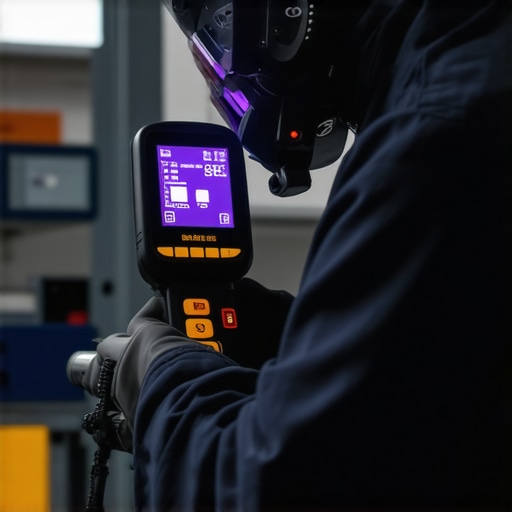
Remember, investing in the right tools upfront pays dividends in peace of mind and device longevity. If you’d like personalized guidance on setting up your maintenance toolkit, don’t hesitate to reach out via [contact page](https://computerrepairmasters.com/contact-us-2). Proper long-term maintenance isn’t just reactive—it’s a strategic part of managing your digital workspace efficiently.
What I Wish I Knew Before Dropping a Drive
One of my biggest lightbulb moments was realizing that patience and proper tools outweigh brute force when recovering data from a damaged hard drive. Jumping to conclusions or DIY fixes without understanding internal mechanisms can seal your files away forever. Learning to assess damage carefully is crucial; nothing beats a gentle inspection combined with expert advice. This insight saved me countless times, reinforcing that technical humility and preparedness are your best allies.
Tools That Truly Changed My Approach
Over the years, I’ve come to trust specific tools that make data recovery more reliable and less stressful. For example, Macrium Reflect is my go-to for creating exactly the clones I need to safeguard data before deep recovery attempts. Pairing that with a thermal camera or SMART data checkers like CrystalDiskInfo enables early warnings of impending drive failure. These tools, combined with a pragmatic mindset, have transformed my approach from reactive to strategic; I recommend integrating them into your routine as well.
Building Confidence in Your Tech Skills
One emotional takeaway is realizing that even complex issues like physical damage or firmware corruption are surmountable when you don’t rush and seek the right expertise. Understanding the inner workings of hardware and software, and knowing when to call professionals, can drastically improve success rates. It’s empowering to recognize that with patience, education, and the right resources, you can turn moments of panic into opportunities for growth. Embrace ongoing learning—see it as an investment in your confidence and your data safety.
Where My Knowledge Continues to Grow
Staying current with industry developments is vital. Following trusted sources like the ultimate guide to data recovery or exploring tools highlighted in powerful recovery tools keeps me sharp. The world of managed IT is evolving fast, and knowing the latest strategies helps me serve clients better—making sure their data and systems are protected and resilient against mishaps. Dedicate time regularly to expanding your knowledge; your future self will thank you.
Seize Control of Your Tech Future
Ultimately, embracing lessons learned from mistakes, leveraging effective tools, and committing to ongoing education empower you to handle tech challenges confidently. Whether recovering data from a fallen drive or managing your digital infrastructure, proactive strategies turn anxiety into assurance. Take the initiative today—start small but think big about safeguarding your digital life. Remember, every tech hiccup is an opportunity to improve, adapt, and grow stronger in your digital confidence.
Have you faced a situation where patience and proper tools made all the difference in a data recovery or repair? Share your story below—I’d love to hear how you turned a tech mishap into a learning moment.
,