

Have you ever been in the middle of an important document or a crucial Zoom call when suddenly your touchpad starts acting like it has a mind of its own? One moment, it’s responsive and smooth; the next, it jumps, clicks randomly, or refuses to register your commands altogether. I remember the first time it happened to me—my laptop’s touchpad became a wild animal, moving the cursor without any input. Talk about frustrating! That lightbulb moment made me realize just how essential a properly functioning touchpad is for our daily workflow.
Why a Faulty Touchpad Can Ruin Your Day—and Your Productivity
A glitchy touchpad isn’t just an annoyance; it can derail your entire day. When your primary navigation tool starts misbehaving, it leads to mistakes, wasted time, and sometimes even data loss if you’re trying to click on the wrong link or delete the wrong file in a panic. If you’re like me, you might even find yourself frustrated enough to consider replacing your entire laptop—something that can be costly and unnecessary. Interestingly, according to a recent survey by [PCMag](https://computerrepairmasters.com/effective-managed-it-solutions-for-growing-companies), nearly 30% of hardware issues stem from simple software glitches or outdated drivers, not broken hardware itself. That reality means many touchpad problems can be fixed with straightforward troubleshooting, saving you both time and money.
Is Your Touchpad Problem Just a Fluke or Sign of Deeper Trouble?
I used to rush into buying replacement parts without fully diagnosing the problem—an expensive mistake I learned the hard way. Early on, I assumed all touchpad issues required a hardware overhaul, but often, it was just outdated drivers or misconfigured settings causing the chaos. If only I had known that a little patience and some basic troubleshooting could have spared me the hassle and expense. So, if you’re hoping to avoid jumping straight into costly repairs, you’re in the right place. We’ll walk through practical steps to identify whether your touchpad is truly broken or just in need of a simple fix. For more in-depth tips on troubleshooting common laptop issues, check out [this guide](https://computerrepairmasters.com/troubleshooting-common-computer-repair-issues-effectively).
Ready to take control of that unruly touchpad and restore your device’s smooth operation? Let’s dive into the easy fixes that will have your cursor behaving perfectly again—without the need for expensive replacements or tech support calls.
Check and Reset Your Touchpad Settings
Begin by verifying your touchpad is enabled in your system settings. On Windows, go to Settings > Devices > Touchpad, and ensure the toggle is on. On macOS, navigate to System Preferences > Trackpad. Sometimes, accidental key presses or updates disable the touchpad. I once solved an erratic cursor issue simply by toggling the touchpad on and off. If your touchpad has a dedicated shortcut key or function key (like F5 or F7), try pressing it to enable or disable the device before proceeding.
Update or Reinstall Touchpad Drivers
Identify Your Device
First, open Device Manager on Windows (press Win + X and select Device Manager). Locate ‘Mice and other pointing devices’ and find your touchpad hardware, often listed as Synaptics, ELAN, or Generic Pointing Device. On a Mac, driver updates are handled through system updates.
Update Drivers
Right-click the touchpad device and select ‘Update driver.’ Choose ‘Search automatically for updated driver software.’ After installation, restart your laptop. I once fixed a cursor lag issue by installing the latest driver version from the manufacturer’s website instead of relying on automatic updates. For detailed driver management, visit [managed IT strategies](https://computerrepairmasters.com/managed-it-strategies-to-keep-your-business-secure-in-2025), which emphasizes driver updates as part of system health.
Adjust Touchpad Sensitivity and Gestures
If your touchpad responds erratically due to sensitivity issues, modify settings for better control. In Windows, go back to Settings > Devices > Touchpad. For macOS, customize gestures in System Preferences. I improved my touchpad’s accuracy after reducing sensitivity and disabling unnecessary gestures, which had caused unintended cursor movements.
Use Troubleshooting Software or Safe Mode
Many laptops have built-in diagnostics. For Windows, run the ‘Hardware and Devices’ troubleshooter: go to Settings > Update & Security > Troubleshoot > Hardware and Devices. If issues persist, boot into Safe Mode to determine if background applications interfere. I once used Safe Mode to confirm a third-party utility was causing touchpad conflicts, leading me to uninstall problematic software.
Perform a Hardware Check
If software fixes fail, inspect the hardware. Turn off your laptop, disconnect all cables, and carefully clean the touchpad surface with a soft cloth. For internal issues, consult a professional or visit a repair guide like this detailed repair guide. I once opened my laptop and noticed a loose cable, which I reseated, restoring full touchpad function. Remember, if your device is under warranty, aggressive DIY repairs might void it—consider professional service.
Replace Faulty Hardware Parts
If diagnostics point to hardware failure, replacing the touchpad assembly may be necessary. For example, my old laptop’s touchpad stopped responding after a spill; replacing the entire module was the only fix. Use models specific guides to avoid mishaps or visit this repair resource. Proper replacement can be a game-changer, saving your device from unnecessary disposal.
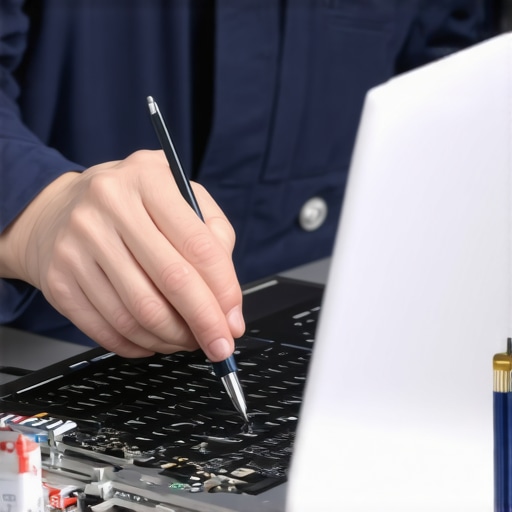 Many business owners and even tech enthusiasts tend to believe they understand the fundamentals of computer repair and managed IT services, but there’s a lot more beneath the surface that often goes unnoticed. For instance, a widespread misconception is that hardware failures are always obvious and require immediate replacement. In reality, advanced diagnostics reveal that many issues are software-related or caused by misconfigurations, which can be resolved with proper troubleshooting. Rushing to replace hardware without thorough testing often leads to unnecessary expenses.
Are Data Recovery Efforts Sometimes Overhyped or Underestimated?
The truth is, data recovery isn’t always as simple as running recovery software and getting your files back. There are nuanced factors like drive encryption, physical damage, or the type of storage device that influence success rates. According to industry experts, understanding these intricacies can dramatically improve your chances of retrieving lost data and save your business from costly downtime. Don’t fall into the trap of thinking that data retrieval is a straightforward process—proper planning and expert guidance matter immensely. For companies, leveraging the right data recovery tools is essential; visit this guide to explore how to maximize your chances.
Another common mistake is assuming managed IT solutions are only beneficial for large enterprises. Contrary to this belief, tailored managed strategies can streamline operations, enhance security, and reduce costs for small and growing businesses. Many overlook the importance of proactive support, which prevents issues before they escalate. For a detailed look at how managed IT can revolutionize your business, check out this resource.
Understanding these nuances allows you to approach computer repair and IT services with a more strategic mindset. It helps avoid costly missteps, ensures data integrity, and optimizes system performance. Remember, not all problems are hardware failures, and not every solution requires a complete overhaul. By investing in proper diagnostics, expert advice, and tailored solutions, you gain a significant edge. Have you ever fallen into this trap? Let me know in the comments.
Investing in Reliable Tools for Longevity
To ensure your devices stay operational and efficient, using the right tools is critical. I personally rely on a high-quality ESD (Electrostatic Discharge) anti-static mat and wrist strap when opening and servicing laptops or desktops. These prevent static buildup, protecting sensitive components from damage. For internal cleaning, compressed air cans like the [DustOff Compressor](https://dustoff.com) are indispensable—they blow out dust without risking damage to delicate parts. Regularly updating diagnostic tools such as HWiNFO allows me to monitor system health proactively. It’s a comprehensive utility that provides real-time data on temperatures, voltages, and hardware statuses, enabling preemptive maintenance before issues escalate.
Routine Maintenance Practices to Extend Lifespan
Short-term, quick checks can save you a lot of trouble. I recommend scheduling weekly system reboots, especially for servers or workstations running critical applications, to clear temporary files and reset processes. For software health, tools like CCleaner help remove junk files and optimize startup programs, but I only use trusted versions directly from the developer to avoid bundled bloatware. Additionally, I perform monthly disk health scans with CrystalDiskInfo, which provides SMART (Self-Monitoring, Analysis, and Reporting Technology) data to predict drive failures.
Long-Term Results with Proper Data Handling
Consistent backup routines are essential. My approach includes a 3-2-1 backup strategy: three copies, on two different media types, with one off-site. Using automated backup software such as Acronis True Image minimizes human error. Over time, these habits significantly reduce the risk of data loss, even during hardware failures or malware attacks. For sensitive information, I encrypt backups using tools like VeraCrypt, aligning with best practices detailed in industry standards to ensure data integrity and confidentiality.
Strategies for Scaling and Managing Growth
As your operation expands, your tools and habits must evolve. I recommend investing in managed IT services, which provide scalable infrastructure management aligned with your growth trajectory. Based on the managed IT solutions guide, proactive monitoring, patch management, and remote support are critical to prevent downtime. Automation scripts for repetitive tasks—such as scheduled disk clean-ups or firmware updates—save time and reduce human error, freeing your team to focus on strategic initiatives. Regular reviews of system performance and capacity planning ensure that your hardware and software are aligned with current needs, facilitating seamless scaling without disruption.
How do I maintain my tools and systems over time?
Establishing a routine maintenance schedule, like quarterly hardware inspections and software audits, keeps everything in top shape. Staying informed about updates and vulnerabilities through industry news and vendor notifications is equally important. Additionally, documenting procedures and configurations ensures consistent practices and simplifies onboarding new team members. For instance, routine firmware updates—as recommended by hardware manufacturers—can address security flaws and improve stability. Consider integrating remote monitoring tools such as Nagios or SolarWinds for early detection of potential issues. To get started, pick one advanced tip—like automating disk cleanup scripts—and implement it this week to see immediate benefits. Continuous attention to your tools and processes means your system remains resilient, adaptable, and ready for the challenges of future growth.
What I Wish I Knew When I Started Fixing Laptops
Early in my repair journey, I believed that hardware failures were obvious and often required costly replacements. It wasn’t until I spent hours diagnosing that I realized many issues stemmed from simple misconfigurations or outdated drivers. Learning to read the subtle signs of software vs. hardware problems transformed my approach and saved me time and money.
Why Rushing to Replace Hardware Can Backfire
I’ve seen countless cases where a quick hardware swap didn’t resolve the issue because the root cause was software-related. Thorough diagnostics, like checking system logs or running safe mode, often reveal underlying problems that are much easier to fix. Patience in troubleshooting can prevent unnecessary expenses and extend your device’s lifespan.
How Proper Tool Selection Elevates Your Repair Game
Investing in quality tools such as anti-static mats, precision screwdrivers, and diagnostic utilities makes a significant difference. For me, having trusted equipment like DustOff compressed air and monitoring tools like HWiNFO has streamlined repairs and minimized errors. The right tools empower you to perform repairs confidently and efficiently.
Embracing Continuous Learning Without Overwhelm
Keeping up with rapid tech changes can be daunting, but focusing on foundational skills like understanding BIOS configurations or mastering data recovery techniques proves invaluable. I regularly consult reputable sources—like managed IT strategies—to stay informed and sharpen my expertise.
Final Boost: Your Path to Tech Confidence
Mastering these nuanced lessons transforms frustration into empowerment. When you understand that many issues are solvable with patience, the right approach, and continuous learning, you’re better equipped to handle tech challenges confidently. Remember, every problem is an opportunity to grow your skills and protect your digital assets.