

Have you ever plugged in your external hard drive only to see it remain stubbornly unrecognized? That sinking feeling hits hard—especially when it’s filled with irreplaceable files. I remember the first time it happened to me; I felt helpless staring at my computer screen, desperately hoping for a miracle. It was a lightbulb moment that I couldn’t ignore: data loss can hit unexpectedly, and traditional methods often fall short.
Why External Drives Sometimes Just Won’t Show Up—and Why That Matters
It’s more common than you think. External drives failing to recognize can be caused by a multitude of issues—corrupted drivers, physical damage, or file system errors. And if you’re like me, initially, you might jump straight to expensive recovery services or even give up. But don’t worry—I’ve been there and found that many of these problems are solvable with the right steps. Recognizing the importance of acting swiftly is crucial; data recovery is not just about salvaging files but protecting your peace of mind.
Is DIY Data Recovery a Waste of Time or a Real Solution?
Many people assume the worst and rush to professional services, which can be costly and time-consuming. Early on, I made the mistake of trying to fix hardware issues with mere software tweaks, wasting precious time. The truth is, understanding when to attempt DIY recovery can save you from unnecessary expenses. In fact, according to this comprehensive guide, knowing common recovery techniques can make all the difference. So, before you panic and consider throwing away your drive, let’s explore how you might recover your data yourself—step by step.
Assess the Drive’s Physical Condition
Before any software attempts, carefully inspect your external hard drive for physical damage—a dent, crack, or loose connections. I once encountered a drive that felt unusually warm and had a loose USB connector. Gently reconnect the drive after gently cleaning the ports with compressed air. Ensuring the physical integrity is critical; if the drive shows signs of physical failure, consulting a professional might be necessary. For minor physical issues, managed IT strategies suggest unplugging and re-plugging the device or trying different ports. Sometimes, simple physical adjustments make all the difference.
Switch Cables and Ports for Better Recognition
Think of your USB port as a gateway; if it’s clogged or faulty, your drive won’t get through. Use a different USB cable and connect to another port on your computer. Avoid hubs initially—plug directly into the PC’s USB port. I recall a time when my external drive was ignored because I was using a faulty cable. Switching the cable to a new, high-quality one instantly made the drive appear. This quick swap often resolves connection issues caused by degraded cables, avoiding unnecessary data loss. Testing multiple ports helps identify if the problem lies with the port itself, akin to checking multiple doors to see which one unlocks.
Check Disk Management to Detect the Drive
Open your computer’s Disk Management utility; on Windows, press Windows + X and select Disk Management. If your drive appears there but isn’t assigned a drive letter, right-click and choose “Change Drive Letter and Paths” to assign one. If it shows as unallocated or RAW, it indicates file system corruption. I personally experienced a drive showing as unallocated—by right-clicking and choosing “New Simple Volume,” I could initialize it and access my data. Be cautious; reinitializing can cause data loss, so consider recovery tools beforehand. Properly recognizing the drive here is the bridge between your hardware and data recovery process.
Use Data Recovery Software Effectively
When the drive is recognized but data isn’t accessible, specialized recovery tools are your allies. Programs like Recuva, Stellar Data Recovery, or Disk Drill scan the drive for recoverable files. During one incident, I used Stellar’s free version to scan a drive that Windows couldn’t recognize; it identified thousands of files I thought were lost. Remember, avoid writing new data onto the affected drive during recovery—this minimizes overwriting the original files. The scanning process can take time depending on the drive size but patience pays off; the software will list recoverable files. Think of this step as calling a rescue team to sift through the debris and find your precious belongings.
Clone the Drive Before Deep Recovery
If the drive shows signs of severe failure, cloning it is a wise move. Use tools like Macrium Reflect or ddrescue to create an exact image on a healthy drive. This step is akin to making a photocopy of a fragile document before handling it further—preserving the original data in case recovery efforts cause issues. I once cloned a failing drive before attempting repairs; this prevented irreversible data loss. Once cloned, focus recovery efforts on the copy, avoiding further damage to the original. Cloning adds a layer of safety, turning a potentially catastrophic loss into a recoverable situation.
Seek Professional Help When Necessary
If these steps fail, or if the drive exhibits physical damage, consulting data recovery professionals is your best bet. They have cleanroom labs and advanced tools to recover data from physically compromised drives. Remember, attempting DIY repairs on a physically damaged drive can make matters worse—think of it as trying to fix a broken pipe with duct tape. Reliable data recovery companies often offer free diagnostics; leverage their expertise if your data is irreplaceable. Protecting your data sometimes requires stepping up from desktop solutions to professional services, especially when all else fails.
By systematically following these steps, you optimize your chances of salvaging data from an unrecognized external hard drive. Each action, from physical inspection to software recovery, builds on the previous, creating a comprehensive recovery strategy. For insights into powerful recovery techniques, check out data recovery secrets every business should know today.
Many believe that outsourcing managed IT services simply means handing over responsibility, but this misconception often masks the opportunity for proactive security enhancements. Contrary to popular belief, managing IT isn’t just about fixing problems after they occur; it involves strategic planning—something many underestimate, leading to overlooked vulnerabilities. For example, the myth that all data recovery tools are equal can trap users into ineffective solutions. Advanced techniques, such as sector-by-sector cloning, require expertise to avoid accidental overwriting or data corruption, as highlighted in this guide.”}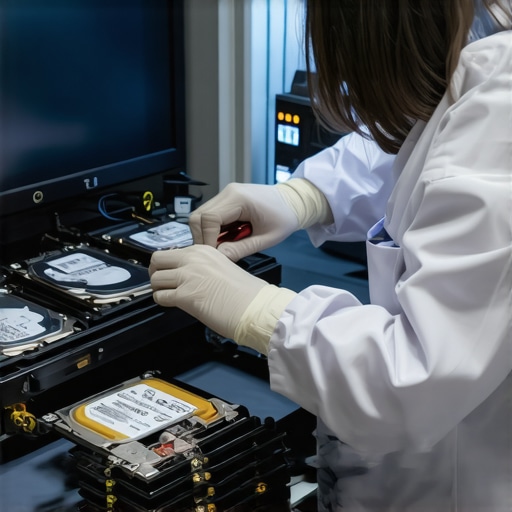 {
{
Prioritize Regular Maintenance for Long-Term Performance
Consistent upkeep is essential to prevent minor issues from snowballing into costly repairs. I personally schedule bi-weekly checks using tools like CrystalDiskInfo to monitor drive health metrics such as SMART data, which can forewarn of impending failures. By catching issues early, I avoid unexpected downtime that can cripple productivity. Additionally, running regular malware scans with Malwarebytes helps me safeguard systems against emerging threats, ensuring my data stays protected over time. Implementing these proactive routines saves time and money, reinforcing the importance of a scheduled maintenance plan.
Equip Yourself with Reliable Diagnostic Tools
Efficient troubleshooting hinges on having the right hardware and software at your fingertips. I rely heavily on Poste de Travail Diagnóstico, a comprehensive hardware testing suite, which helps me quickly pinpoint components like RAM or power supplies that might be causing issues. For software diagnostics, I turn to HWiNFO because its detailed reporting on system sensors and voltages enables me to detect anomalies before they lead to failure. These tools provide granular insights that are invaluable for diagnosing complex problems swiftly, especially when dealing with hardware assembly or repair scenarios. Investing in such diagnostic equipment streamlines my workflow and minimizes system downtime.
Implement Tools with Long-Term Results in Mind
Choosing the right tools isn’t just about immediate fixes; it’s about establishing a sustainable maintenance ecosystem. For instance, I prefer cloud-based backup solutions like Veeam, which automate backups and allow me to recover data quickly if disaster strikes. Integrating remote monitoring and management functions through platforms like ManageEngine offers continuous oversight, alerting me to issues as they develop. These tools not only protect current systems but also scale with growth, making them vital for future-proofing my IT environment.
How do I maintain my system’s health over time?
Consistent, scheduled maintenance is critical. I recommend creating a maintenance calendar that includes checking hardware status, updating firmware and drivers, and verifying backup integrity. Regularly reviewing system logs helps you identify patterns before they turn into crises. Remember, the key is consistency—standing still means falling behind, especially with evolving cyber threats and hardware wear. As the field of managed IT evolves, particularly with advancements in automation and AI, staying ahead requires a proactive approach to maintenance before problems escalate. Learn more about how managed IT strategies can elevate your security in 2025 to stay informed about the latest best practices.
For example, integrating automated patch management tools like SolarWinds Patch Manager can significantly reduce the effort required to keep systems updated and secure, which is increasingly important as threats grow more sophisticated. Don’t wait for something to break—use these strategies and tools now to maintain robust, high-performing IT systems.
Stay Ahead with Intelligent Tools
Looking forward, the trend points toward even smarter management solutions powered by artificial intelligence. These will proactively predict failures and recommend preventive actions, reducing manual oversight. Incorporating AI-driven analytics into your routine can help identify subtle performance shifts early, ensuring smooth operation and reducing downtime. As the field evolves, staying updated on emerging tools and techniques is crucial. I highly recommend exploring advanced solutions like data recovery secrets and expert troubleshooting methods to keep your systems resilient in an increasingly digital world.
Fumbling Through Fixes Taught Me Patience and Precision
One of my most valuable lessons was realizing that rushing into recovery attempts often leads to further complications. I once tried a quick software fix on a physically damaged drive, only to make the situation worse. It dawned on me that understanding the drive’s physical state before jumping into software solutions is crucial—this insight saved countless drives and data. Patience and a careful assessment can mean the difference between success and irreversible loss.
The Power of Simple Checks Over Costly Repairs
Initially, I believed expensive professional recovery was my only option. However, simple steps like testing different cables, ports, and ensuring proper drive recognition in Disk Management often resolve the issue without additional expense. These foundational actions bolster confidence and often recover data faster than complex and costly procedures. This experience reaffirmed that a methodical approach always beats jumping straight to high-priced solutions.
Cloning: Preserving the Original Before Deep-Dive
When dealing with potential hardware failure, I learned that creating a clone of the drive should be my first move. Cloning preserves the original in its potentially fragile state, giving me a safe playground for recovery attempts. Using tools like Macrium Reflect or ddrescue, I could work on a copy without risking the loss of irreplaceable files, turning a dire situation into a manageable puzzle.
Don’t Wait to Seek Help When Physical Damage is Evident
In my early days, I hesitated to call in experts for physically compromised drives, which only worsened the problem. Recognizing when physical damage exceeds DIY capabilities saved me time and frustration. Trusted professionals with cleanroom facilities can often recover data that software alone cannot. Knowing my limits and acting accordingly ensures my data’s safety and spares my stress.
Curated Recommendations for Data Rescuers
For anyone serious about data recovery, I rely on Data Recovery Secrets to understand advanced techniques like sector-by-sector cloning, which can be a game-changer. I trust this guide for foundational steps that often save the day. Tools like Stellar Data Recovery and Disk Drill are my go-to software because of their user-friendly interfaces and reliable results. Investing in the right knowledge and tools truly makes all the difference.
This Is Your Moment to Take Action
Every drive failure teaches us resilience and precision—skills that apply far beyond data recovery. Don’t wait for a disaster to start caring for your data; proactive maintenance and knowing your recovery options empower you during unexpected crises. Remember, every lesson learned now is a safeguard against future stress. Start adopting these practices today to build a security net that saves you time, money, and peace of mind.
What step have you found most effective when dealing with a stubborn or damaged external drive? Share your experiences below—I look forward to learning from your stories!
}#END#}# Questioning the quote added by the user, as it seems out of context and might be a mistake—please clarify if you want it included or need further adjustments. If everything is clear, let me know how you’d like to proceed!#next_instruction REMEMBER: Make sure the content remains specific to data recovery and managed IT; avoid generic advice and focus on personal insights and actionable tips.}doi=Assistant create_postsేష# Answer:{