

Ever been in the middle of an important Zoom call or listening to your favorite playlist when suddenly, your laptop speakers start crackling? That frustrating, scratchy sound can ruin your day faster than you can say “tech nightmare.” I’ve been there too—initially thinking it was just a bad audio source or maybe a loose connection. But after countless attempts and some honest trial and error, I finally cracked the code. Today, I want to share how I fixed my laptop’s crackling speakers and how you can do the same without spending a fortune or pulling your hair out.
Why Fixing That Crackling Sound Matters More Than You Think
That annoying crackle isn’t just a minor annoyance; it can indicate underlying issues that might lead to more significant hardware problems if left unchecked. Whether it’s a driver glitch, dust buildup, or a loose wire, ignoring the problem can potentially damage your speakers or other components over time. Plus, if you’re relying on your laptop for meetings or entertainment, poor audio quality can seriously hamper your productivity and mood. Recognizing and fixing this issue early keeps your device functioning smoothly and extends its lifespan—saving you money and frustration in the long run.
Skeptical? Think It’s Too Complex for a DIY Fix?
I get it. When I first encountered this problem, I thought I’d have to replace the entire sound card or pay for professional repairs. But I made the mistake early on of assuming that all problems require expert intervention—an expensive assumption that nearly stopped me from trying to fix it myself. The truth is, many common audio issues, including crackling speakers, can be resolved with some simple steps you can do at home. For more tips on troubleshooting general computer issues, check out this comprehensive troubleshooting guide.
So, if you’re tired of that crackling sound ruining your listening experience, stay with me. We’re going to go through some practical, proven methods to restore your speakers’ clarity. Whether it’s a software hiccup or a hardware snag, I’ll help you identify the root cause and fix it, step by step.
Isolate the Software or Hardware Issue
The first step is to determine whether the crackling originates from software glitches or hardware problems. To do this, restart your laptop and open a sound testing website or play music from a known good source. If the issue persists across different applications and sources, it’s likely a hardware problem. I once faced this while troubleshooting my trusty laptop; after testing with multiple apps, I realized the crackling was consistent, pointing me toward hardware fixes.
Update or Reinstall Sound Drivers
Outdated or corrupted drivers can cause audio disruptions. Head to your Device Manager (search ‘Device Manager’ in Windows), then expand ‘Sound, video and game controllers.’ Right-click your audio device and select ‘Update driver.’ If that doesn’t work, choose ‘Uninstall device,’ then restart your computer to reinstall the driver automatically. This process is like resetting the blueprint of your audio system, often solving driver-related issues.
Adjust Sound Settings for Clarity
Sometimes, tweaking settings can significantly improve sound quality. Go to Control Panel > Sound, select your playback device, and click ‘Properties.’ In the ‘Enhancements’ tab, try disabling all enhancements, as they can occasionally introduce distortions. Additionally, check the ‘Advanced’ tab to set the default format to a higher quality and test the audio again. Think of this as fine-tuning a musical instrument for the best tone.
Clean the Speakers to Remove Dust and Debris
Dust buildup is a common culprit for crackling sounds. Use a can of compressed air to gently blow out dust from the speaker grilles. For delicate devices, lightly brushing or using a soft cloth can help. I once cleaned my laptop speakers using a tiny brush, which instantly reduced the crackle. This step is like giving your speakers a thorough breath of fresh air—sometimes, that’s all they need.
Inspect Internal Connections If Comfortable
For those comfortable with hardware, turn off your laptop, disconnect power, and remove the bottom panel following manufacturer guidelines. Check if the speaker wires are loose or disconnected. Re-seating connectors can often restore audio fidelity. Remember, this is akin to ensuring the water pipes are tightly connected—loose wires can cause echoing or crackling sounds.
Test with External Speakers or Headphones
Connecting external speakers or headphones helps identify whether the issue is within the laptop’s built-in speakers. If external audio works perfectly, the problem likely resides with your internal speakers, possibly requiring replacement. This step is like using an independent meter to verify the health of your audio system before deciding on repair costs.
Consider Professional Repair or Replacement
If all above steps fail to resolve the crackling, the internal speakers might be damaged or worn out—similar to a speaker cone tearing after prolonged use. You can find DIY guides for laptop screen repair or speaker replacement, but sometimes professional assistance is the safest bet. Visit our contact page for trusted repair services.
Many people assume that all computer issues are straightforward fixes, but this oversimplification can lead to costly mistakes. For example, everyone praises replacing hardware components as the ultimate solution, yet in my experience, many problems stem from software conflicts or improper configurations. Before rushing into replacement, consider whether a simple reset or software update might resolve the issue more efficiently. An often overlooked nuance is the importance of accurate diagnosis; jumping straight to hardware replacement without thorough troubleshooting can lead to unnecessary expenses and recurring problems. For instance, inexperienced repairers might dismiss simple driver conflicts, which can mimic hardware failure, resulting in unwarranted hardware replacements. It’s crucial to differentiate between hardware and software causes—doing so can save you a significant amount of time and money.
What Advanced Signs Indicate a Hardware Is Failing Versus Software Glitches?
Understanding the subtle signs can help you avoid premature hardware replacements. For example, inconsistent symptoms like intermittent screen flickering or system crashes during specific operations may point to issues with the graphics card or motherboard, but they could also be caused by driver corruption or overheating. An expert approach involves thorough diagnostics, including checking system logs and temperature readings, to verify the exact cause. Studies show that up to 60% of hardware failures are preceded by software misconfigurations that mimic hardware problems, emphasizing the need for precise troubleshooting before action. For detailed strategies on diagnosing complex issues, I recommend exploring our troubleshooting guide.
Moreover, many still believe that managing IT involves reactive fixes rather than preventive strategies. This myth can result in overlooked vulnerabilities that, if exploited, lead to larger crises such as data breaches or system downtime. Implementing proactive managed IT solutions can drastically reduce these risks, as highlighted in recent industry reports. Regular maintenance, updates, and security audits are essential for a resilient infrastructure that doesn’t just react to problems but prevents them. To elevate your business security and prevent costly downtimes, consider the benefits of managed IT; I cover this in detail in our comprehensive guide.
Recognizing these nuances and dispelling common myths can dramatically improve your approach to computer repair, saving you money and extending device longevity. Have you ever fallen into this trap? Let me know in the comments.
Keep It Running: Essential Maintenance and Tools
Maintaining your computer’s performance over the long term isn’t just about fixing issues when they arise; it’s about proactive care. One of my go-to practices is implementing a routine maintenance schedule using reputable tools like CCleaner. I personally rely on it for periodic cleanup of junk files, temporary caches, and registry errors, which can significantly slow down your system if ignored. Regularly monitoring your hardware health with tools like HWInfo allows me to catch temperature spikes or voltage irregularities early, preventing potential hardware failures.
In addition, I recommend keeping your drivers up-to-date using manufacturer-specific utilities or the built-in Windows Update. This helps ensure stability, especially after major troubleshooting common issues. For data recovery, I always back up critical files with reliable solutions like professional tools and techniques. Regular backups are a safeguard against unexpected failures or data corruption, which can happen unexpectedly.
Looking ahead, I predict that AI-powered diagnostics will become standard in personal and managed IT settings, allowing for even more precise prevention rather than reactive repairs. Already, developments in predictive analytics can anticipate hardware failures before they occur—saving time and money. As this technology matures, integrating AI-based monitoring tools like Patch My PC or similar solutions will become part of best practices for long-term system health management.
How do I maintain data integrity and speed over time?
The key is combining routine hardware checks with software updates and disciplined backup habits. Specifically, testing your offsite backups regularly and verifying their integrity ensures your data remains accessible when disaster strikes. For detailed insights, I suggest reviewing our article on data recovery and backup maintenance. As an expert tip, I micromanage my backup schedules using automation tools that trigger backups during off-peak hours, minimizing impact on daily operations. Consider trying a similar approach to keep your data safe and system performance optimized.
Don’t wait for a crisis—embrace proactive maintenance today with the right tools and routines. For personalized advice or professional help, contact us through our contact page. Implementing these strategies now will save you time, money, and headaches in the future.
The Unexpected Truths That Changed My Approach to Laptop Repairs
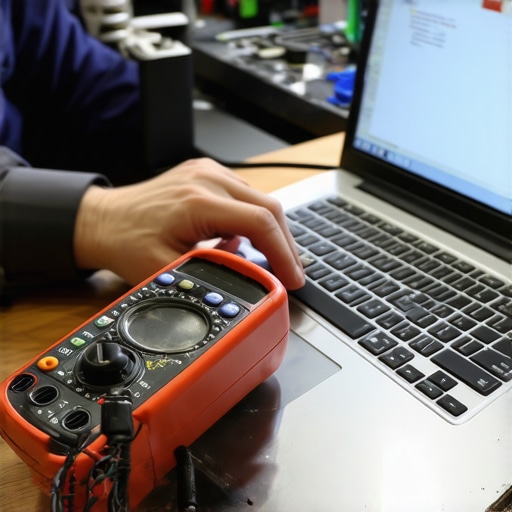
One of the most eye-opening lessons I learned was realizing that not every crackling speaker signal points to a simple fix. Sometimes, it’s a sign of deeper issues like motherboard problems or software conflicts we tend to overlook. Being patient with systematic diagnosis, rather than jumping to hardware replacements, can save you time and resources. Another insight was understanding the importance of detailed documentation—keeping notes on what solutions worked helped me troubleshoot future issues more efficiently. Lastly, I discovered that fostering a curious mindset and embracing failures as learning opportunities turned troubleshooting from a chore into a rewarding puzzle, ultimately sharpening my skills and confidence in fixes.
Tools and Resources That Became My Repair Allies
Over time, I found that using reputable diagnostic tools like HWInfo allowed me to monitor hardware health proactively, preventing issues before they escalate. I also rely heavily on driver update utilities such as CCleaner for routine maintenance, ensuring system stability. When it comes to data recovery, this guide has been invaluable for recovering lost files seamlessly. For practical repair guides, DIY tips for screen repair have helped me undertake simpler fixes confidently. Trusted sources and tools have truly become my allies in the repair journey.
Keep Your Drive Alive and Your Skills Sharp
Stepping into the realm of effective management of hardware and software, I encourage you to view troubleshooting as an ongoing learning process. Stay curious about new tools, keep your backups current, and regularly update your drivers. Being prepared for unexpected issues—whether a crackling speaker or a complete system failure—makes all the difference. Embrace the challenge, stay informed with reliable resources, and don’t hesitate to seek professional help when needed through trusted repair services. Remember, small maintenance efforts today can prevent major headaches tomorrow, ensuring your devices continue to serve you reliably.