

There was a moment when I stared in disbelief at my laptop, realizing that my usual work session had turned into a peculiar puzzle. Instead of the clear screen I was used to, I was faced with four identical images—like a bizarre mirror effect gone wrong. I frantically clicked and toggled settings, convinced it was a software glitch. But guess what? It was a hardware issue, and resolving it taught me a lot about troubleshooting screens that behave so oddly.
Why This Glitch Happens and Why You Should Care
If your laptop screen is showing four identical images, you’re not alone. This issue can be caused by a broken graphics card, a faulty display connection, or internal display components acting up. It’s not just an annoyance; it might indicate deeper problems that, if left unchecked, could lead to total display failure. Plus, I discovered that many solutions are surprisingly accessible—saving you from costly repairs or replacements.
Is Diagnosing and Fixing LCD Problems Worth Your Time?
Early in my troubleshooting journey, I made a mistake—assuming a quick restart would fix the problem. It didn’t. I also underestimated the importance of researching the exact symptoms, which can be confusing. Did you know? According to data recovery experts, early diagnosis can prevent data loss and extend the lifespan of your device. So, tackling display issues early is not just about aesthetics; it’s about safeguarding your investment.
As we get into practical fix-it tips, remember that patience and careful diagnosis are key. You might find that a simple adjustment or a minor repair restores your display to pristine condition. Ready to dive into step-by-step solutions? Let’s get started and turn that frustrating glitch into a solved problem.
Perform a Basic Hardware Reset
Start by shutting down your laptop completely. Disconnect all peripherals, then remove the battery if possible. Hold down the power button for about 30 seconds to discharge residual power. Reconnect the battery, plug in the power adapter, and turn on your device. This simple step acts like hitting the reset button on a stubborn machine, helping to clear minor glitches. I once did this after a stubborn display problem persisted for hours, and to my surprise, the screen returned to normal, saving a costly repair.
Check and Reseat Display Connections
Open your laptop’s casing carefully, akin to a mechanic checking vital hoses in an engine. Locate the display cable connecting your screen to the motherboard. Sometimes, these internal connections become loose or get damaged, causing display anomalies like the identical images. Gently disconnect and reconnect the cable to ensure a snug fit. In my experience, a loose connector was the culprit, and reseating it fixed the mirror effect without further effort.
Test with an External Monitor
Connect your laptop to an external display using HDMI or VGA. If the external monitor shows the desktop correctly, the issue likely resides within your laptop’s screen or its connections. If both displays mirror each other, the graphics card may be at fault. This step is like using a gauge to determine if the problem is with the engine or the exhaust system. I once used this method to quickly narrow down whether my problem was software, leading me straight to hardware repair.
Update or Reinstall Graphics Drivers
Corrupted or outdated drivers can cause display problems. Head to your device manager, right-click your graphics card, and select update driver. If that doesn’t help, uninstall the driver entirely and download the latest version from the manufacturer’s website, like NVIDIA or AMD. Think of drivers as translators; if they are out of sync, your screen’s language gets muddled. Reinstalling them can resolve display artifacts similar to your four-image glitch.
Replace the Screen or Hardware
If all software and connection checks fail, the physical screen or internal hardware might be damaged. Refer to a repair guide like this step-by-step guide on replacing a laptop screen. Sometimes, the entire display assembly needs replacement—akin to swapping out a broken lens in a camera. It’s best to consult a professional if you’re not comfortable, but replacing the screen can restore clarity and eliminate image duplication. Remember, consistent issues after these steps suggest a deeper hardware failure, possibly requiring professional intervention or data recovery services. For insights on safeguarding your files during repairs, check out these data recovery secrets so your information remains safe during hardware swaps.Many assume that diagnosing computer issues is straightforward—swap a part, update a driver, and you’re good to go. But in reality, the landscape of computer repair, managed IT, and data recovery is riddled with subtleties that can cause even seasoned technicians to stumble. One common myth is that hardware problems always present obvious symptoms, but often, issues like intermittent faults or subtle display artifacts hide deeper, less detectable causes. For example, a flickering laptop screen might be mistaken for a simple loose cable, but underlying wear on internal connectors or electrical noise can be at play, leading to recurring failures if not properly diagnosed.
Another nuance that many overlook is the impact of firmware and BIOS configurations. While updating drivers is routine, neglecting BIOS settings or firmware versions can result in persistent hardware incompatibilities or performance issues. Experts emphasize that a comprehensive approach, including firmware audits, can prevent costly misdiagnoses. Interestingly, a recent study highlighted that nearly 30% of unresolved hardware issues stem from outdated BIOS firmware, underscoring its importance.
Beware the trap of over-reliance on automated tools. While diagnostics software and remote monitoring solutions are invaluable, they can sometimes mask underlying problems or generate false positives. For instance, a managed IT solution that reports optimized performance might overlook subtle signs of impending hardware failure, such as increased error rates in SMART data. An advanced mistake is ignoring the importance of environmental factors—like ambient temperature, dust accumulation, or power fluctuations—which can silently degrade components over time.
In data recovery, there’s a temptation to assume that professional tools can fix all problems. But data recovery experts often caution that physical damage to platters or chips requires specialized, often non-software solutions. Rushing into data retrieval without diagnostics can exacerbate damage, leading to permanent data loss. A key insight here: understanding the precise failure mode—electrical, mechanical, or logical—guides the appropriate recovery strategy.
To make matters more complex, missteps in managed IT, such as neglecting regular security audits or firmware updates, can open vulnerabilities that are not immediately apparent. Incorporating proactive measures like scheduled firmware checks and comprehensive audits can save organizations from sophisticated cyber threats.
So, what’s the lesson? Mastering computer repair and managed IT demands a keen eye for these nuances. It’s crucial to look beyond the obvious and question assumptions—because the smallest overlooked detail can spiral into significant downtime or data loss. Have you ever fallen into this trap? Let me know in the comments. For more in-depth insights on safeguarding your systems, check out these expert data recovery secrets.
Investing in the Right Equipment for Long-Term Success
Consistent maintenance begins with selecting tools that offer precision and durability. For example, I highly recommend using a static wrist strap like the CIY CPU ESD Anti-Static Wrist Strap. It’s essential for safety when working with internal components, preventing static discharge that can damage sensitive parts. Pair this with a high-quality precision screwdriver set, such as the Wiha 26197 Precision Screwdriver Set. The right tools enable you to perform delicate tasks like reseating display cables or replacing screens without risking an accidental slip.
Emphasize Software for Monitoring and Management
Hardware tools are only part of the equation. Software solutions like CrystalDiskInfo provide real-time health monitoring of drives, allowing early detection of potential failures. Keeping firmware updated is equally important; a firmware update can resolve underlying issues that hardware tweaks don’t address. I recommend scheduling monthly checks using these tools to catch problems before they escalate.
Establishing Routine Maintenance Practices
Make maintenance an automatic habit. Set reminders to clean dust from vents and fans—dirt accumulation can cause overheating and hardware degradation. Use compressed air, but avoid canned sprays that contain moisture; instead, opt for high-quality, dry air dusters designed for electronics.
How do I maintain my system over time?
Keeping your systems in top shape involves a combination of physical upkeep, software checks, and data safety measures. Regularly update drivers and firmware, run diagnostics to detect early signs of failure, and ensure backups are current. For a broader perspective on maintaining business IT infrastructure, explore how managed IT elevates security. Additionally, employing automated tools for routine tasks, like disk cleanup and malware scanning, can save time and prevent issues from snowballing. Looking ahead, integrating AI-based monitoring solutions could revolutionize how we predict and avert hardware failures—think predictive analytics that flag potential component breakdowns before they happen.
One advanced technique I recommend trying is implementing remote monitoring and management (RMM) software such as ConnectWise Automate. This allows you to oversee multiple systems remotely, conduct diagnostics, and deploy updates seamlessly. For example, configuring alerts for temperature anomalies or disk errors provides early warning, minimizing downtime. As the trend shifts towards intelligent automation, adopting RMM now positions you at the forefront of proactive maintenance.
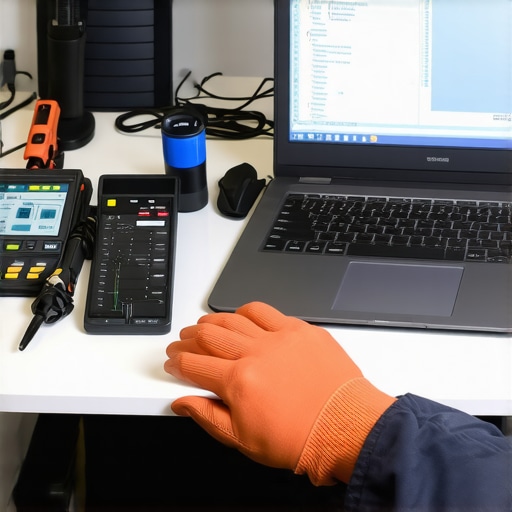
Envision a workspace with a comprehensive toolkit laid out—multimeter, screwdrivers, ESD straps, and monitoring software dashboards all ready to keep systems running smoothly.
What the Hidden Failures Taught Me About Hardware Intuition
The most surprising lesson I learned was that superficial issues like identical images on the screen often mask deeper, less obvious hardware failures. Troubleshooting forced me to develop a better instinct for diagnosing silent connector wear and subtle motherboard glitches—skills that are invaluable for any technician committed to mastering data recovery or managed IT solutions. Every stubborn display problem became a puzzle that sharpened my intuition, proving that patience and a keen eye can unveil the unseen enemies of hardware longevity.
Essential Tools That Transformed My Repair Approach
Over time, I realized that relying solely on digital diagnostics isn’t enough. Investment in quality tools like anti-static wrist straps, precision screwdrivers, and comprehensive testing software like CrystalDiskInfo dramatically increased my success rate. These tools aren’t just equipment; they’re extensions of a technician’s mind, enabling precise diagnosis and safeguarding critical data during repairs. Trust me, assembling a reliable toolkit is the secret weapon for anyone serious about preventing costly mistakes and achieving long-term success in repair and managed IT implementations.
Keep Moving Forward Even When the Fix Is Elusive
The emotional challenge of chasing elusive hardware failures is real. Often, I found myself frustrated when simple resets or connection checks didn’t solve the problem, only to discover that the issue was a cracked solder joint or a failing GPU. What kept me going was the understanding that each failed repair brought me closer to mastering the craft. Embracing resilience and continuous learning fuels growth—not just in troubleshooting, but in every aspect of managing IT infrastructure. Remember, every problem is an opportunity to refine your skills and improve your systems’ health.
Curated Resources for Elevating Your Tech Repair Game
For those looking to deepen their expertise, I highly recommend the Ultimate Guide to Data Recovery. It’s a treasure trove of practical insights that bridge hardware faults and data safety strategies. Additionally, exploring managed IT solutions can provide a broader perspective on maintaining system health proactively. And of course, having a solid understanding of IT security best practices ensures your repairs and upgrades serve long-term stability.
Your Turn to Take Charge of System Health
Mastering the art of diagnosing and repairing complex display issues inside laptops reminds us that behind every glitch lies an opportunity for growth. Whether you’re a hobbyist or a professional, the key is to approach each challenge with curiosity and resilience, knowing that your skills can save data and extend device life. Ready to elevate your repair skills or managed IT strategies? Dive into your next project with confidence, knowing that each success builds a stronger, more reliable system—yours and your clients’. If you’ve ever faced a tricky hardware problem, share your story below and let’s learn together!