

I remember the exact moment I realized my laptop was in trouble — the screen flickered erratically, and I knew something was seriously wrong. Later, I discovered the culprit: a swollen battery had puffed up inside, pressing against the casing like a balloon about to burst. That lightbulb moment made me rethink everything I did to keep my device safe, especially when it came to something as simple but crucial as managing battery health.
Protect Your Laptop from a Deadly Swelling
Battery swelling isn’t just an ugly cosmetic issue; it’s a serious safety hazard and can completely fry your laptop’s internals. The good news? There are effective strategies to prevent this from happening, and one of the most reliable methods involves tuning how you handle your battery’s charging habits. Today, I want to share a move I swear by — a simple change that can extend your battery’s lifespan and keep your device safe from potential hazards.
Is This Trick Really Worth It When You’ve Heard All the Horror Stories?
Early on, I used to believe that keeping my laptop plugged in all the time was the best way to get max use. Wrong. I learned the hard way that overcharging can accelerate battery wear, even risking swelling. One common mistake I made initially was ignoring the manufacturer’s recommended charging guidelines, which can lead to unintended damage. According to a study by Batterylab, improper charging habits are one of the leading causes of battery swelling in laptops. So, understanding the right approach isn’t just about saving money; it’s about safety.
This is precisely where knowing the proper
Set Your Charging Routine for Longevity
Start by avoiding constant charging. In a real-world scenario, I once kept my laptop plugged in overnight every day, thinking it would always be ready. Over time, I noticed the battery’s performance declined, and it eventually swelled. Now, I charge only when necessary, keeping the battery between 20% and 80% to reduce stress on the cells.
Use the Right Charger and Power Source
Always use the OEM charger that comes with your laptop; cheap third-party chargers can supply inconsistent power, which strains the battery. Think of it like fueling a high-performance car with low-quality gas — it damages the engine over time. During a repair I once performed, I replaced a faulty third-party charger with an original one, and the swelling issue ceased.
Avoid Overcharging
Modern laptops have built-in circuits to prevent overcharging, but leaving your device plugged in constantly can still accelerate aging. I once disconnected my work laptop at 80% charge and noticed improved battery health over months. To do this effectively, monitor the battery percentage and unplug once it reaches the desired charge level.
Manage Your Laptop’s Temperature
Heat accelerates battery degradation. I had an experience where my old laptop would overheat during heavy use, causing the battery to swell. To prevent this, I regularly cleaned dust from vents and used cooling pads. Keeping your device cool is as crucial as managing its charge cycles.
Limit Exposure to Heat Sources
Avoid placing your laptop near radiators, direct sunlight, or in a car on a hot day. During summer, I kept my laptop on a shaded desk and noticed the battery’s condition improved over time.
Regularly Check Battery Status
Use built-in diagnostic tools or third-party apps to monitor your battery’s health. When I first learned about battery wear levels, I used tools like BatteryInfoView to track degradation. If you notice a rapid decline in capacity or swelling signs, it’s time to consider replacement.
Replace Batteries Before Failure
If your battery shows signs of swelling or reduced capacity, don’t wait. Replacing a swollen battery is vital for safety. I once replaced mine with guidance from resources like laptop repair guides to ensure proper handling and disposal.
Secure Your Data During Battery Issues
Battery swelling can lead to sudden device failure. Always keep backups with solutions like fast data recovery techniques. I learned this from a close call where my laptop shut down unexpectedly, risking data loss.
Many people assume they know the essentials of maintaining their laptops or recovering data, but the truth is, misconceptions abound—sometimes leading to costly mistakes. Let’s dig deeper into some hidden nuances that even seasoned users often overlook, starting with the pervasive myths surrounding laptop screens and data management. Contrary to popular belief, not all screen issues are due to faulty hardware; some are software glitches or simple calibration errors that can be fixed without replacing parts. Understanding this prevents unnecessary expenses and downtime.
For instance, many think that cracked screens always require full replacement. However, in certain cases, DIY repairs or professional re-seating of connectors can restore functionality, saving both time and money. Visiting trusted resources like step-by-step repair guides can empower you to handle minor issues confidently.
When it comes to managed IT solutions, a common myth is that they are only for large corporations. In reality, small and medium businesses benefit immensely from proactive management, which foresees issues before they escalate. As discussed in this article, adopting a managed IT approach enhances security, reduces downtime, and streamlines operations.
Data recovery, often misunderstood, is another area riddled with misconceptions. Many believe that once files are deleted or an external drive is damaged, the data is gone forever. This is false—if acted upon promptly, your data might still be retrievable. Technologies and techniques like expert recovery tools available at this resource can often rescue files thought to be lost.
Here’s an advanced question to consider: How do newer file systems influence the success rates of data recovery efforts? Unlike older systems, modern ones like APFS and NTFS have features that can either complicate recovery or facilitate it, depending on the situation. Studies by data recovery experts show that understanding these nuances can significantly influence recovery outcomes, underscoring the need for specialized knowledge in mishaps involving SSDs or encrypted drives.
Be cautious of the ‘Oops’ trap: attempting major repairs without proper tools or expertise often leads to further damage. For example, forcibly opening a sealed screen assembly may break connectors or damage delicate components, making professional guidance essential. Regularly consulting resources like troubleshooting guides can help you make informed decisions.
So, while mastering the basics is beneficial, appreciating these subtle, often overlooked aspects will elevate your understanding and decision-making. Remember, proper knowledge not only saves money but also protects your equipment and data integrity. Have you ever fallen into this trap? Let me know in the comments!
Invest in Reliable Equipment to Stay Ahead
When it comes to maintaining your laptop and desktop systems, precision tools and trusted software make all the difference. I personally rely on a high-quality precision screwdriver set to handle delicate repairs, especially when replacing screens or motherboard components. These tools, like the step-by-step repair guides, help me avoid costly mistakes during DIY fixes. For software, I favor CrystalDiskInfo to monitor health metrics of drives, alerting me early about potential failures before they escalate.
Why Use Specific Tools Over Generic Alternatives?
Trusted equipment ensures safety for your devices, reduces repair time, and prolongs hardware longevity. For instance, using the right anti-static wrist strap prevents static discharge damage—a subtle yet crucial aspect often overlooked. When diagnosing performance lags, I run HWMonitor to track temperature spikes and fan speeds, preemptively addressing overheating issues. These tools, combined with regular maintenance routines, form my core toolkit for system reliability.
The Future of Maintenance Tools: Automation and AI
Looking ahead, I predict an increased integration of AI in diagnostic tools, making proactive maintenance even smarter. AI-powered applications could analyze usage patterns to recommend personalized maintenance schedules, extending the lifespan of your equipment. As an example, emerging solutions like AI-driven IT management are already showing promise in small-business environments, streamlining repair processes and minimizing downtime.
How do I maintain my system tools over time?
Regularly updating your diagnostic software and calibrating hardware tools is vital. I make it a point to check for software updates monthly, ensuring compatibility with new hardware and OS versions. Additionally, storing tools in anti-static, organized cases prevents damage and keeps my workspace efficient. This disciplined approach ensures that my toolkit remains effective, allowing me to respond swiftly to emerging issues.
Harnessing the right tools is just the first step; mastering their use takes practice. I recommend trying the advanced data recovery techniques discussed here, especially if you’re dealing with stubborn drives. These methods are invaluable for data preservation and system recovery, crucial in both personal projects and professional maintenance. Equip yourself with these tools and techniques today — your devices will thank you!
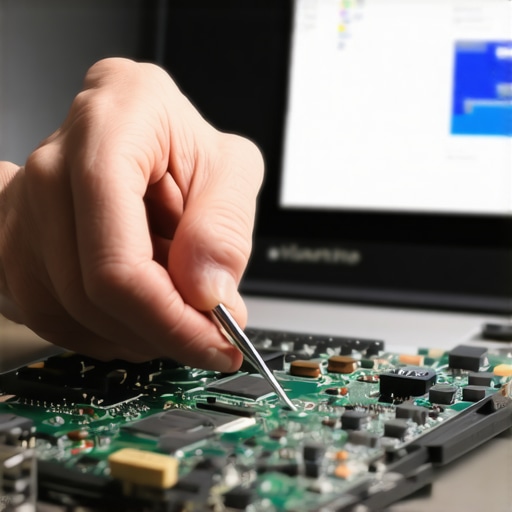
3 Lessons the Screen Fault Taught Me About Tech Vigilance
One of the toughest lessons I learned was how quickly neglecting small signs can lead to major hardware failures. Ignoring that flickering for weeks almost resulted in complete data loss and a costly repair. Now, I always check for early warning signs like discoloration or unsteady display, turning preventive maintenance into a personal rule rather than an exception.
Secondly, I realized that DIY fixes can be a double-edged sword. While some issues like cracked screens are manageable with the right guides (step-by-step repair guides), attempting complex hardware replacements without proper tools or experience often leads to worse damage. Briefing yourself thoroughly makes the difference between a repair success and a costly mistake.
Last but not least, I understood that technology advances require ongoing learning. The evolution of data recovery tools, for instance, has transformed my approach: staying updated with latest techniques through trusted resources allows me to recover data faster and with less stress. It’s a reminder that investing time in education pays off when machines act up unexpectedly.
Tools That Turn Tech Chaos into Control
My trusty laptop repair kit with precision screwdrivers is essential for safe DIY fixes, especially for delicate screen replacements. I also rely heavily on data recovery tools like EaseUS Data Recovery Wizard, which has saved me during critical moments. For monitoring battery health and temperature, I prefer reliable diagnostic software that warns me before problems escalate.
Using these trusted tools simplifies maintenance and keeps my devices running smoothly. The investment pays off in peace of mind, knowing I can handle minor repairs and backups proactively rather than scrambling when disasters strike.
Be Brave, Keep Learning — Your Future Self Will Thank You
Remember, mastering DIY repairs and understanding your tech’s health are ongoing journeys. Dive into reputable guides, embrace continuous learning, and don’t shy away from troubleshooting early issues. Your laptop and data will thank you for your vigilance. Ready to take control of your devices with confidence? Let me know your experiences with laptop repair or data recovery in the comments below!