

I remember the sinking feeling when my laptop suddenly froze and wouldn’t wake up. The panic, the frantic attempts to shut it down, and then the cold realization—my precious data might be lost forever. That moment was my lightbulb moment. I realized how fragile our digital lives really are and how crucial it is to spot early signs of impending failure.
Today, I want to share with you five telltale signs that your hard drive might be about to give up the ghost. Because honestly, catching these signals early can save you days—or even weeks—of recovery headache, and protect your important files from vanishing into thin air. Trust me, I’ve been there, and I know how devastating data loss can be.
Why Recognizing Early Warning Signs Matters
Your hard drive is the backbone of your computer, storing everything from adorable family photos to critical work documents. Yet, many of us ignore the subtle alarms that precede total failure. Delaying action can lead to corrupted files, system crashes, or even hardware destruction. Early detection isn’t just about avoiding inconvenience—it can be a lifesaver for your data and your peace of mind.
Research shows that most hard drives tend to start showing issues long before they completely fail. According to a study by Backblaze, a cloud backup company, physical drive failures often begin with warning signs that, if recognized early, can be addressed or at least drastically minimized. Failing to heed these warnings is a common mistake I made early on, believing my drive was suddenly dead when, in fact, it was crying for help.
Is Hard Drive Failure Overhyped or Overlooked?
I used to think that if my computer didn’t give me an explicit warning, everything was fine. But I learned the hard way that silent symptoms can be lurking, and ignoring them can lead to catastrophic data loss. Have you ever experienced a hard drive that suddenly stopped working without warning? Or a sluggish system that seemed normal but was actually a sign of trouble? Share your stories—I’d love to hear if you’ve faced a similar scare.
If you’ve ever scrambled to recover files after a sudden crash, you know how stressful and costly it can be. That’s why paying attention to these early signs can be a game-changer. Want to know exactly what to look out for? Stay tuned, because next, I’ll walk you through the top 5 warning signs that your hard drive might be on its last legs, and what immediate steps you should take. For more in-depth tips on data recovery, check out this comprehensive guide to data recovery. Now, let’s get started with the first, most telling sign of impending drive doom.
Run Comprehensive Disk Diagnostics
Start by using reliable diagnostic tools like CrystalDiskInfo or HDD Sentinel. These programs scan your drive’s smart data and report health status. I once ran CrystalDiskInfo on my aging external drive after noticing slow reads. To my relief, it flagged pending sectors before any data loss occurred. Download a trusted tool, connect your drive, and interpret the SMART data to identify warnings such as reallocated sectors or unexpected errors.
Monitor Unusual System Behavior
Pay attention to system symptoms such as frequent crashes, freezes, or unusual noises—like clicking or grinding sounds—which can indicate mechanical issues. A friend ignored these signs, leading to complete drive failure. Keep a log of odd behaviors and correlate them with other signs.
Check for Read/Write Errors
This involves running file system checks with built-in utilities like CHKDSK on Windows or Disk Utility on Mac. When I noticed permission errors and corrupted files, I scheduled a CHKDSK scan, which revealed bad sectors. To perform this, open a command prompt and type ‘chkdsk /r /f X:’ (replace X with your drive letter). Be aware that running these tests may temporarily slow your system but can identify deep issues.
Listen for Physical Clues
Hard drives emit specific sounds when failing. A faint clicking or grinding noise often signals mechanical problems. I once used a screwdriver to gently listen near my computer’s case; hearing irregular noises prompted me to back up data immediately. If physical symptoms appear, consider consulting a professional ASAP.
Test Drive Performance Under Load
Copy large files or run stress tests to see if data transfer rates drop unexpectedly. A noticeable slowdown during data-intensive tasks, like video editing, can hint at failing sectors. Remember, a consistent decrease in speed despite no other system issues suggests a drive in distress. Use tools like HD Tune orbuilt-in file copy operations to monitor performance.
Back Up Before It’s Too Late
If signs point to impending failure, prioritize data recovery. Create a clone of your drive using tools like Clonezilla or Macrium Reflect, which clone sector-by-sector images, ensuring no data is left behind. I once cloned my drive before a suspected imminent crash, saving months of work. Regular backups are your safety net if diagnostics indicate bad health.
Address Detected Problems Promptly
Once diagnostics reveal issues, decide whether to replace the drive or attempt repairs. If you’re unsure about hardware troubleshooting, consult reliable guides like this laptop screen repair DIY tips or seek professional help. Don’t delay, as continued use risks complete data loss or hardware damage.
In my experience, combining multiple diagnostic methods gives the clearest picture of drive health, allowing you to act proactively rather than reactively. Early detection is your best defense against unexpected data disasters, so integrate these steps into your regular maintenance routine.

While many believe that data recovery and computer repairs are straightforward processes, there’s a subtlety that often escapes even seasoned professionals. The common myth is that if a drive shows errors or a PC crashes, a simple reset or software fix will suffice. However, in my experience, the true challenge lies in understanding the intricate signs that precede hardware failure or data loss. Overlooking these nuances can lead to irreversible damage, making recovery more complex and costly. For instance, many assume that regular disk checks are enough, but advanced diagnostics reveal deeper issues like firmware corruption or impending motor failure, which aren’t detectable through basic tests.
What Advanced Diagnostics Should You Use to Predict Hardware Failures?
Experts recommend tools that analyze SMART data beyond superficial readouts, scrutinizing attributes like reallocated sectors, temperature thresholds, and error rates. According to a study by TechRepublic, relying solely on manufacturer’s health reports can be misleading; instead, combining multiple diagnostic methods provides a clearer picture.
Additionally, technicians often underestimate the importance of physical signs, such as subtle vibrations or unusual heat patterns—symptoms that indicate mechanical stress or bearing issues. For example, a drive emitting faint clicking sounds might seem minor, but it often signals imminent spindle failure, a problem that software can’t detect.
One common trap is dismissing minor errors as temporary glitches. The danger here is that these ‘small’ signs can cascade into catastrophic failures if ignored. For instance, an unexplained slow down in file transfers could be an early indicator of sector corruption—early enough to clone and replace the drive, preventing data loss.
Furthermore, many believe that professional repairs are always expensive and unnecessary, leading to DIY fixes that sometimes worsen the problem. This ‘oops’ factor becomes critical when dealing with complex issues like firmware corruption or circuit board damage—areas where one wrong move can permanently brick the device. To avoid this, consult detailed repair guides or trusted professionals, especially for delicate components like laptop screens, which require precise handling.
Speaking of screens, the myth that all DIY repairs are equally effective can be dangerous. A cracked LCD, for example, might look simple to fix, but without proper tools and knowledge, you risk further damage. For step-by-step guidance on such repairs, check out this comprehensive guide.
In conclusion, awareness of these nuanced signs and pitfalls elevates your ability to manage hardware health proactively rather than reactively. Remember, early detection is your best defense against data loss and costly repairs. Don’t fall into the trap of superficial fixes—dig deeper, analyze thoroughly, and when in doubt, seek expert advice. Have you ever fallen into this trap? Let me know in the comments.
Invest in Reliable Monitoring and Diagnostic Tools
To ensure your computer remains healthy over time, I rely heavily on advanced diagnostic tools like HDD Sentinel and CrystalDiskInfo. These programs provide real-time SMART data analysis, allowing me to catch early signs of drive deterioration before it leads to data loss. I personally use HDD Sentinel because of its detailed failure prediction algorithms and easy-to-understand interface, making it ideal for both beginners and seasoned technicians.
Regularly running these diagnostics forms the backbone of my maintenance routine, enabling proactive interventions like replacing failing drives or scheduling timely backups. Over time, I’ve found that combining SMART data analysis with physical inspections—listening for unusual noises or vibrations—gives a comprehensive view of hardware health. Looking ahead, I believe the integration of AI-powered diagnostic tools will further enhance predictive maintenance, reducing costly downtimes and data recovery efforts.
How do I maintain these tools over time?
Consistently updating your diagnostic software ensures compatibility with new hard drive models and firmware updates. Automation is key; I schedule weekly scans to stay on top of my systems without manual intervention. Additionally, maintaining a clean and organized data backup routine ensures that when these tools flag issues, I can act swiftly, minimizing impact. For detailed strategies on backups, check out this comprehensive guide to data recovery. Implement these practices, and you’ll significantly boost your chances of preventing catastrophic failures.
Tools for Long-Term Data Security
Beyond diagnostics, investing in hardware like NAS (Network-Attached Storage) devices or off-site backup solutions extends your data protection resilience. I personally use a Synology NAS because of its robust RAID configurations and user-friendly management interface. Automating backups to such devices or cloud services like Backblaze ensures data redundancy, which is crucial if physical drives fail unexpectedly. Remember, the goal is to minimize downtime and data loss, so combining multiple layers of security and backup strategies is essential.
Predictions for the Future of Maintenance Tools
Looking ahead, I expect AI-driven monitoring solutions to become the industry standard, offering predictive analytics that can preempt failures even more accurately. These tools will analyze vast datasets, identify subtle patterns, and recommend specific actions tailored to your hardware. As a result, routine maintenance will require less manual input, and data recovery efforts will become faster and more precise.
Expert Tip: Use S.M.A.R.T. Data as Your Early Warning System
One of my favorite maintenance strategies is regularly checking S.M.A.R.T. attributes directly via command-line utilities or supported diagnostic software. For Windows, tools like Diskpart can reveal detailed drive status. This proactive approach allows you to schedule repairs or replacements before your drive turns into a crisis. So, try configuring automated S.M.A.R.T. checks today and see how early warning signs can save your data and time.
Remember, maintaining your tools and staying vigilant isn’t just about fixing issues after they happen—it’s about preventing them from happening in the first place. The consistent use of advanced diagnostics and backup strategies keeps your data recovery processes efficient and your systems running smoothly. Want to dive deeper? Explore our managed IT solutions designed for small and growing enterprises.
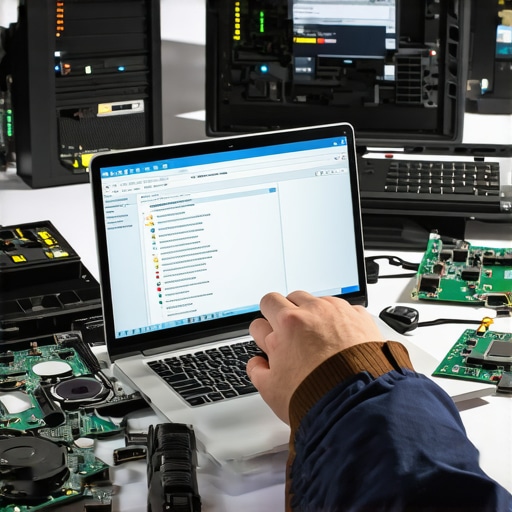
What I Wish I Knew Before the First Hard Drive Crash
The biggest lesson I learned early in my journey was the importance of patience and thorough diagnostics. Jumping to conclusions or rushing to replace a drive without proper analysis only delayed actual fixes and risked further data loss. Accepting that sometimes, data recovery is a game of careful steps, not quick fixes, saved me countless headaches.
Another insight was recognizing subtle signs that most overlook—like slight sluggishness or unfamiliar noises—that signal impending failure. Training myself to read these signals turned frustration into proactive protection, often saving critical files before disaster struck.
I also learned the hard way that trusting unreliable tools can be costly. Investing in reputable diagnostic software such as HDD Sentinel transformed my approach to maintenance, making early warnings more apparent and actionable.
Finally, collaborating with experienced professionals and continually updating my knowledge kept me ahead. Whether it was DIY repairs from resources like step-by-step guides or consulting expert advice, I realized that growth stems from humble curiosity and a willingness to learn.
A Toolkit for Staying One Step Ahead of Hardware Failures
My essential tools include CrystalDiskInfo for real-time SMART data analysis, which provides early warnings about drive health. Combining this with HDD Sentinel enhances my ability to detect issues before they escalate.
For backups, I rely on cloning solutions like Clonezilla and off-site services such as Backblaze. These safeguard my data against unexpected failures and malware attacks, giving me peace of mind that recovery is always within reach.
Educational resources, including trusted blogs and official manuals, keep me updated on the latest hardware and software developments. For comprehensive repairs and maintenance guides, I suggest exploring managed IT strategies that complement technical expertise with strategic planning, making tech resilience a core part of my workflow.
Rise Up and Take Control of Your Digital Safety
Remember, proactive care isn’t just about fixing problems—it’s about preventing them from ever becoming crises. Equip yourself with the right tools, stay vigilant to subtle signals, and keep your data protected. Each step you take today fortifies your digital future, transforming challenges into opportunities for mastery.
Have you ever caught an early warning sign and avoided a major setback? Share your story below—I’d love to hear how you took control before disaster struck.