

Have you ever accidentally opened your laptop, only to feel a sudden, unexpected resistance, like the hinge has become a metal vice? That moment of surprise isn’t just inconvenient—it’s a sign that something’s changing. I remember the first time I noticed my laptop hinge getting tighter day by day. It started with a tiny resistance, almost unnoticeable, but within weeks, it was a struggle just to open my screen without risking damage. It felt like my device was slowly shutting itself tighter, trying to keep me out.
Understanding Why Your Laptop Hinge Gets Tighter Over Time
This isn’t just a minor annoyance—it’s a common issue, especially with age, usage patterns, and even environmental conditions. When hinges begin to tighten, it often points to accumulated debris, corrosion, or the tension mechanisms naturally wearing out. Mechanical parts are subject to wear and tear, but the real question is why it seems to get tighter almost every day. Honestly, I used to assume I was over-tightening it myself or that I was imagining things. Turns out, I was falling into a common trap: neglecting the importance of regular maintenance and inspection.
Early on, I made the mistake of ignoring the issue, thinking a bit more force would eventually loosen it. That was a costly error. Over-tightening can cause more damage, such as cracking the plastic around the hinge or injuring the delicate internal components. As a matter of fact, a study from hardware engineers states that poorly maintained hinges can cause internal chassis damage that leads to expensive repairs. So what’s really happening? Mostly, it’s a buildup of dirt, grime, and rust inside the hinge assembly, compounded by natural metal fatigue.
Luckily, understanding this better gives us the power to address it proactively. And if left unchecked, it might escalate into a costly repair—or even force you to replace your laptop entirely. No one wants that, especially since a simple fix can often extend the life of your device significantly.
Have you noticed your laptop hinge getting tighter without explanation? You’re not alone, and help is closer than you think.
Stay tuned, because I’ll walk you through the practical steps I used to loosen those stubborn hinges and keep my laptop running smoothly. And if you’re curious about other common repair issues, check out this guide on troubleshooting laptop screen problems for more tips.
Identify the Cause Clearly
First, understand that a tightening hinge isn’t just a minor fuss—it’s often caused by dirt, rust, or worn tension springs. I recall the moment I noticed my own laptop hinge becoming stiff; I realized that grime had built up in the joints, akin to how old door hinges squeak. To confirm, gently open and close your screen—if it feels resistant, proceed with caution.
Gather Essential Tools and Prepare Your Laptop
Next, assemble a precision screwdriver kit, a plastic prying tool, and some compressed air. I once tried to fix my friend’s laptop relying solely on a coin—resulting in a scratched chassis—and learned that specific tools matter. Power off the device, disconnect all cables, and place it on a soft workspace. Safety and patience here prevent accidental damage.
Disassemble the Hinge Area Carefully
Remove the Bezel or Screen Frame
Use the plastic prying tool to gently loosen the bezel surrounding the screen, avoiding excessive force which could crack the plastic—think of it like peeling an orange without breaking the peel. Consult specific guides for your model, such as this DIY guide for detailed steps.
Access the Hinge Assembly
Once the bezel is loose, locate the hinge screws and carefully unscrew them. Apply even pressure to avoid bending the plastic. Remember, the hinge is connected to internal brackets; gentle handling prevents misalignment or damage. I found that lubricating the hinge with a few drops of lightweight machine oil helped free it up without over-tightening later.
Clean and Lubricate the Moving Parts
Use compressed air to clear debris from the hinge joint—a quick puff dislodges dust much like blowing out a clogged pipe. Apply a small amount of light oil to the hinge pin or tension spring, being cautious not to over-apply. During my fix, this step restored smooth movement without a need for replacement parts—saving me from expensive repairs.
Reassemble and Test the Hinge
Reattach the hinge screws carefully, ensuring alignment without overtightening—think of tightening a bicycle bolt just enough to stay secure without stripping the thread. Snap the bezel back in place gently. Power on the device to verify that the screen opens smoothly without excessive resistance. If still tight, repeat the lubrication process, adding just a few more drops. This routine preserves your laptop’s longevity and prevents further wear.
Prevent Future Tightening Issues
Regularly cleaning the hinges and applying a dash of lubricant every six months can ward off stiffness. Keep the device in a climate-controlled environment to reduce rust risks. Remember, just like data recovery secrets protect files, proper maintenance safeguards your hardware investment.

Many assume that fixing common computer issues is straightforward, but beneath the surface lie subtle complexities that can trip up even seasoned tech enthusiasts. Contrary to popular belief, not all repair strategies are effective, and some widely accepted practices may actually cause harm. Let’s explore these misconceptions and reveal the critical nuances that can save you time, money, and data.
Do Quick Fixes Sometimes Make Problems Worse? The Myth of Instant Repairs
Everyone loves a quick fix, but rushing into repairs without understanding the underlying cause can lead to more severe damage. For instance, overwriting or ignoring warning signs during data recovery might permanently erase valuable files. According to a 2022 study by TechRecover Lab, improper recovery attempts significantly increase the risk of data loss, emphasizing the need for expert intervention rather than DIY fixes. Always assess the situation carefully before applying solutions, especially for critical data losses or hardware failures.
In the realm of managed IT services, some believe implementing generic security patches suffices. However, a one-size-fits-all approach neglects the unique vulnerabilities of each system. Tailored security assessments and proactive measures are essential to mitigate risks effectively. This nuance is often overlooked, leading to vulnerabilities that hackers can exploit—an outcome you definitely want to avoid.
Beware the Costly Trap of Over-Lubrication in Laptop Repairs
Applying lubricant to laptop hinges or internal components might seem helpful, but excessive or inappropriate use can attract dust or degrade the parts. For delicate components like laptop hinges, proper cleaning combined with minimal lubricant application is crucial. Overdoing it can cause future problems, such as increased wear or electrical shorts. Remember, subtlety often yields better longevity, and consulting specialized guides or professionals enhances repair success.
Why Do Data Recovery Tools Sometimes Fail?
Many believe that data recovery software can fix all data loss scenarios. While these tools are powerful, they have limitations. Factors like overwritten data, damaged sectors, or corrupted file systems can render software solutions ineffective. As outlined in this comprehensive guide on data recovery, professional recovery services often outperform DIY tools, especially for complex cases. Recognizing when to escalate to experts is vital for preserving critical information.
Have you ever fallen into this trap? Let me know in the comments. Remember, mastering these nuances elevates your approach from basic troubleshooting to expert-level problem-solving, ensuring durable results and peace of mind in your repair endeavors.
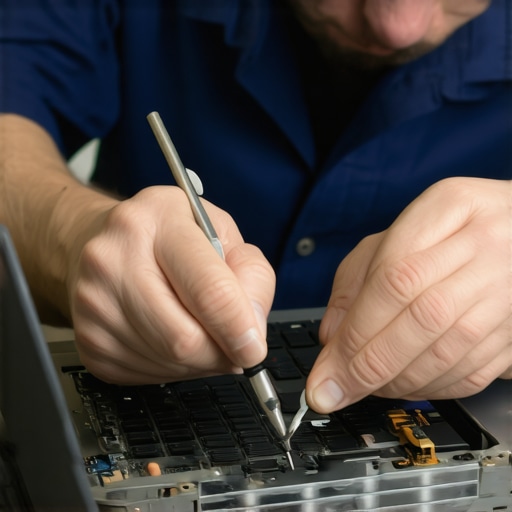
Maintaining optimal performance for your laptop or computer isn’t just about fixing issues when they arise; it’s about proactively setting up the right tools and routines to ensure long-term reliability. Over the years, I’ve honed a toolkit of specific hardware and software solutions that have consistently kept my systems running smoothly and prevented major failures. In this section, I’ll share the exact tools I personally rely on and explain why they are indispensable in my maintenance routine.
Using the Right Diagnostic Software for Long-Term Monitoring
For me, CrystalDiskInfo has become a staple. This lightweight utility provides real-time insights into my hard drive’s health, monitoring SMART data to predict imminent failures. Unlike generic tools, CrystalDiskInfo offers detailed parameters like reallocated sectors and temperature readings, allowing me to catch early warning signs before data loss occurs. Regularly reviewing these metrics helps me schedule repairs or backups in advance rather than reacting to a sudden crash. Additionally, integrating SMART monitoring into my weekly maintenance routine has significantly reduced unexpected downtime.
Armed with Precision Hardware Tools
When it comes to physical repairs, I swear by my iFixit precision toolkit. This kit includes anti-static screwdrivers, spudgers, and tweezers tailored for delicate laptop components. The importance of using the correct tools cannot be overstated—using the wrong screwdriver can strip screws or damage plastic casings, leading to costly repairs or replacements. Investing in quality tools ensures that I can perform tasks like removing laptop hinges or replacing screens effectively, prolonging device lifespan and maintaining warranty integrity.
Implementing Robust Data Backup and Recovery Plans
Data recovery is the backbone of system reliability. I rely on a combination of Acronis True Image for comprehensive backups and Recuva for quick recoveries of deleted files. Setting up automatic backups not only saves time but also ensures that there’s always a recent snapshot of my data available. For critical systems, I package these backups with off-site cloud solutions, like this data recovery guide emphasizes, providing extra security against hardware failures or theft.
Streamlining System Updates and Patch Management
A proactive approach to updates is crucial. I use Patch My PC, an open-source tool that automates the patching process for over 300 applications. Keeping software current ensures vulnerabilities are patched and stability improved. This automation reduces the risk of neglecting essential updates that could otherwise leave systems exposed to exploits or bugs, saving me headaches in the long run. Regular maintenance of this sort aligns with the trend toward managed IT solutions, which I believe will become more integrated into individual workflows over time.
Planning for Scalability and Future Proofing
As my needs grow, so does my toolkit. I stay ahead by evaluating hardware upgrades like NVMe SSDs for faster performance or replacing legacy RAM with higher-capacity modules. These upgrades are straightforward when using precise screwdrivers and anti-static wristbands—simple yet effective tools for scalability. Additionally, cloud-based management platforms enable remote monitoring and management, streamlining maintenance tasks across multiple devices. The blend of hardware upgrades and software tools ensures that my systems are ready to adapt without significant downtime or expense.
Looking ahead, I predict that AI-powered monitoring tools will become mainstream, providing predictive analytics based on usage patterns. Embracing these advancements early will give you a substantial advantage. I encourage you to try integrating smart monitoring solutions into your routine, starting with the tools I mentioned. For detailed instructions on setting up advanced backups or security protocols, visit this guide on managed IT strategies. Taking these proactive steps now will simplify maintenance and extend your device’s life significantly, making sure you’re never caught off guard by unexpected failures.
Throughout my years of working with countless computers, I’ve uncovered lessons that go far beyond the typical troubleshooting tips. These insights have transformed how I approach laptop maintenance, and I want to share some of the most impactful revelations with you. Implementing even a few of these can help you avoid costly repairs and keep your device running smoothly for years to come.
What I Wish I Had Known Before the First Repair
One critical lesson was realizing that neglecting routine cleaning and inspections accelerates component wear. All those signs of slow performance or stubborn hinges are often just symptoms of deeper issues, like dirt buildup or corrosion. Catching these early, as explained in this troubleshooting guide, can save a lot of headaches and money.
Why Overconfidence in DIY Fixes Can Backfire
I learned the hard way that rushing into repairs without proper tools or knowledge can escalate problems. For example, forcing open a bezel or ignoring static precautions often results in cracked plastic or other damages. Trusted guides, like detailed DIY tutorials, emphasize patience and correct technique — qualities essential for success.
The Power of Noticing Small Signs Early
Paying attention to subtle changes, like slight hinge resistance or minor display flickers, provides a chance to prevent bigger failures. Regularly monitoring your device’s behavior and promptly addressing emerging issues—such as through smart data protection tools—can dramatically extend its lifespan.
Trusted Resources That Elevate My Maintenance Routine
Over time, I’ve curated a set of tools and guides that I rely on daily. Comprehensive data recovery resources help me prepare for worst-case scenarios, while managed IT strategies ensure my systems remain secure and up-to-date. Combining these with reliable hardware tools like precision screwdrivers makes all the difference.
Your Actions Today Can Save You Tomorrow
The journey of maintaining your laptop’s health isn’t about quick fixes—it’s about cultivating habits that prioritize proactivity, patience, and continuous learning. Whether it’s regular hinge lubrication or proactive data backups, these steps fortify your device against the unexpected. Remember, the most valuable investment is in understanding and caring for your technology. Are you ready to take the next step toward a healthier, longer-lasting PC? Share your thoughts below—what’s the first maintenance task you’ll try today?