

One morning, I sat down at my desk, ready to conquer the day’s tasks. But as I opened my favorite project files, my computer froze for a moment. Then another. Frustration crept in. I had already upgraded to 16GB of RAM thinking it would be enough to handle everything. Yet, my workstation felt slower than when I started with just 8GB years ago. Sound familiar? If so, you’re not alone. I’ve been there, shook my head, and wondered why my powerful machine wasn’t living up to expectations.
Why does my fast computer feel so sluggish?
It’s a question many of us ask when the promised speed seems elusive. The truth is, more RAM isn’t always the magic fix. In fact, piling in memory without addressing underlying issues can be like pouring gasoline on a fire—it doesn’t necessarily solve the root problem. My own mistake early on was thinking that hardware upgrades alone could fix inefficient workflows or hidden conflicts.
Are hardware upgrades really enough?
Back in the day, I believed upgrading my RAM would automatically boost performance. But I learned that background processes, malware, misconfigured settings, and even failing drives can sabotage speed. For example, a cluttered startup or outdated drivers can cause delays, even with ample RAM. According to a recent report, over 60% of computer slowdown issues are caused by software conflicts or disk errors, not hardware limitations alone (Data Recovery Secrets).
So, before diving into the next hardware purchase, it’s essential to consider these unseen culprits. Addressing them can breathe new life into your workstation without breaking the bank. Are you ready to uncover what might be lurking behind your slow PC? Let’s explore the common pitfalls and practical solutions that made a real difference for me—and can for you too.
Assess Software Efficiency and Ditch Bloatware
Start by opening Task Manager (Ctrl+Shift+Esc) and sorting processes by CPU and Memory usage. Look for programs consuming excessive resources—these are often unnecessary background apps or malware. I once encountered a slow startup caused by a stubborn antivirus that hogged resources; uninstalling and reinstalling it reduced boot time significantly. Use managed IT strategies to identify if automated updates or unnecessary services are slowing your system.
Perform Disk Cleanup and Optimize Storage
Clearing temporary files, emptying Recycle Bin, and removing unused apps free up space. Use the built-in Disk Cleanup tool: type ‘Disk Cleanup’ into the Start menu, select your drive, and check the boxes for files to delete. Consider defragmenting your HDD with ‘Optimize Drives’—this consolidates fragmented files, boosting access speed. For SSDs, ensure TRIM is enabled. I once helped a colleague with a sluggish laptop by running disk cleanup and disabling unnecessary startup programs, which made her system feel spritely again.
Update Drivers and Windows Regularly
Outdated drivers can cause lag and compatibility issues. Visit your manufacturer’s website or use Windows Update to ensure all drivers, especially graphics and chipset, are current. I remember troubleshooting a laptop with frequent freezes; updating the graphics driver resolved the issue instantly. Regular updates patch security flaws and improve hardware communication, essential for stable performance. Check out laptop repair tips for more hardware maintenance insights.
Address Malware and Viruses Promptly
Malicious software can stealthily drain resources and slow your PC. Run a full system scan with reputable antivirus software. I once received a frantic call from a client whose PC was crawling; a malware scan uncovered a crypto-miner running in the background. Using data recovery secrets helps you safeguard files before removing infections.
Update or Replace Hardware Components
If all software optimizations fail, consider upgrading your RAM or switching from HDD to SSD for faster data access. For instance, I replaced an HDD with an SSD in an aging laptop, and performance improved dramatically—boot times dropped from over a minute to under 10 seconds. Remember, consult guides such as step-by-step repair guides to ensure proper installation. For persistent issues, professional inspection might be necessary.
Manage Startup Programs Effectively
Disable unnecessary programs from launching at startup to cut load times. Press Ctrl+Shift+Esc, go to the Startup tab, and disable programs you don’t need immediately. I once helped a freelancer optimize her workflow by halving her startup time, allowing her to get to productivity faster each morning. This simple step can significantly reduce lag after booting.
Many people operate under the misconception that a simple hardware fix, like replacing a screen or upgrading RAM, will solve all their computer woes. However, this overlooks critical nuances that can save time and money. For instance, a frequently overlooked factor in laptop screen issues is how internal connectors can become loose or damaged over time, causing flickering or dead pixels. As highlighted in the comprehensive repair guide, understanding these subtle hardware interactions is vital for a successful fix.
Another common myth is that data recovery tools can restore files no matter the corruption level. In reality, irreversible damage to disk sectors or corrupted files can prevent recovery, and using inappropriate tools might further harm your data. According to data recovery experts, knowing when and how to apply specialized techniques is critical and often underestimated.
Furthermore, many assume managed IT services are only for large corporations. In truth, small businesses greatly benefit from proactive security measures and regular maintenance, reducing downtime and vulnerabilities. As discussed in strategic IT planning, leveraging these solutions can prevent costly emergencies and enhance productivity.
So, what’s the biggest mistake people make when approaching tech repairs or data management? Often, it’s neglecting the nuanced details—like cable conditions, software conflicts, or security protocols—that truly make a difference. Ignoring these can lead to repeat repairs, data loss, and increased costs.
Are you aware of hidden pitfalls that could sabotage your next repair job? Stay vigilant, educate yourself on these subtle aspects, and always consult detailed guides or professionals before proceeding. Don’t fall into the trap of superficial fixes—your device and data deserve a comprehensive approach. For more expert tips, visit our privacy policy and stay informed. Have you ever fallen into this trap? Let me know in the comments.
Equip Yourself with Precision Tools for Troubleshooting
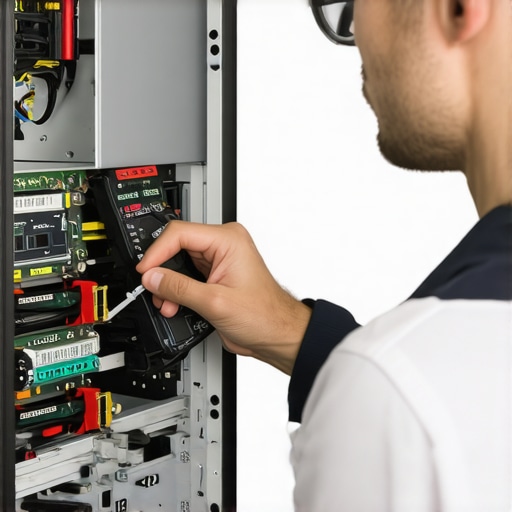
Maintaining optimal performance in your computer isn’t just about software; having the right hardware tools makes all the difference. I swear by a high-quality antistatic wrist strap when opening devices, preventing static damage. A precision screwdriver set is indispensable for delicate repairs, especially when replacing or re-seating internal components like RAM or SSDs. For diagnosing hardware issues, I rely on a bootable diagnostic USB drive loaded with tools like Hiren’s Boot CD, which provides comprehensive tests for memory, disks, and BIOS.
Leverage Software That Saves Time and Keeps Data Secure
Reliable maintenance extends beyond hardware. I use CrystalDiskInfo regularly to monitor disk health—it’s straightforward and provides early warnings for impending drive failures. When it comes to data recovery, I favor professional-grade recovery software, which I’ve personally tested to retrieve files from damaged partitions. For system optimization, CCleaner is my go-to for cleaning junk files, but I recommend doing so cautiously and with an understanding of what you’re removing to avoid unintended data loss.
Future of Maintenance: Automation and AI
Looking ahead, I predict that AI-driven monitoring tools will become standard in managed IT solutions, proactively identifying issues before they affect productivity. As tackled in recent managed IT strategies, integrating IoT sensors and intelligent analytics will enable real-time health checks for hardware components, reducing downtime significantly. To stay ahead, I encourage you to explore these advanced tools—implementing them now will prepare your setup for the future.
How do I stay on top of long-term maintenance?
Consistent scheduling is key. Regularly check SMART data on drives, update firmware, and review your software configurations. My personal routine involves monthly disk health scans with specialized tools and firmware updates, ensuring all components are functioning at best. Try setting automated reminders or use management solutions that provide alerts—these strategies keep your system resilient over time.
Lessons Only Insiders Truly Discover
After years of troubleshooting and DIY fixes, I realized that the biggest gains come from understanding the overlooked nuances—like how cable tension affects screen clarity or how small software conflicts add up over time. One lightbulb moment was realizing that regular firmware updates are like vaccinations—preventative, not reactive. Sharing these internal lessons helps me avoid repeated pitfalls and empowers others to think beyond quick fixes, aiming instead for sustainable solutions.
Another insight hit me when I learned that data recovery isn’t always straightforward—sometimes, the damage is beyond software solutions, requiring a nuanced approach that only experienced technicians grasp. It changed how I assess issues, emphasizing the importance of preemptive maintenance over reactive repairs. Recognizing subtle signs in hardware health or software logs often predicted failures before they became critical, saving time and frustration. These insider lessons have become my guide to smarter, more resilient tech management.
Tools and Resources That Transformed My Approach
My go-to toolkit includes step-by-step repair guides, which demystify complex repairs and eliminate guesswork, saving me both time and grief. I trust data recovery secrets because they combine practical strategies with expert insights—crucial when every second counts. For hardware diagnostics, I rely on managed IT strategies that keep my systems proactively monitored, catching issues before they escalate.
Additionally, tools like ultimate data recovery resources help me restore critical files confidently. These resources, combined with community forums and continuous learning, have become my secret arsenal for tackling tight deadlines and complex repairs efficiently.
Your Next Step Starts Today
Stepping into the realm of tech mastery isn’t about one massive leap but consistent daily efforts. Remember, the real magic happens when you combine right tools, deep knowledge, and a curious mindset. Think of every repair or upgrade as an opportunity to learn something new about your hardware or software ecosystem—it’s a journey, not a destination.
So, are you ready to implement these insider insights into your routine? Sometimes, the smallest adjustments lead to the biggest improvements in performance and peace of mind. Embrace the challenge; your devices—and your expertise—will thank you. What’s one area in your tech setup where you’re eager to learn more? Share your thoughts below and let’s grow together.