

It hit me one evening—my laptop screen flickering uncontrollably just as I was about to save an important report. I panicked, thinking I’d lost everything. That moment made me realize how vulnerable our work data can be, especially when working remotely. I’d been relying on simplistic security measures, unaware that some could intrude on my privacy more than I was comfortable with. It was a lightbulb moment, and I knew I wasn’t alone in this.
The Challenge of Protecting Without Overstepping
Many small business owners and remote employees face a tricky dilemma: how do you ensure your home office is secure against cyber threats without turning it into a digital police state? We want robust security, but not at the expense of our privacy.
This concern isn’t just theoretical. According to a recent survey, 68% of remote workers worry that employer monitoring crosses personal boundaries, making privacy a top concern in home office setup.
Is Monitoring Your Home Office Worth the Risk?
I made the mistake early on of assuming that more monitoring equals better security. I installed invasive tools, thinking I was protecting my data—but what I got was a sense of being constantly watched, which definitely isn’t sustainable or healthy. That experience taught me a valuable lesson: effective security doesn’t mean invading privacy. Instead, it’s about smart, balanced solutions that respect personal space while keeping your business safe.
If you’re unsure where to start, don’t worry. I’ll guide you through a practical checklist designed to strike this perfect balance. Ready to dive into making your home office both secure and private? Let’s get started.
Detect the Root Cause of Laptop Screen Problems
When your laptop screen shows flickering or strange lines, think of it like a car engine misfiring—diagnosing the issue requires a systematic approach. Start by confirming if the problem persists across different applications or external displays. If it does, the likely culprit is your internal display components. If it only happens on your laptop screen, consider inspecting the connection cable or the backlight.
Test with an External Monitor
Connect your laptop to an external monitor using HDMI or DisplayPort. If the external display works flawlessly, your issue lies with the internal screen or its connection. If both screens flicker or display issues persist, the problem might be deeper—possibly with the graphics card or motherboard.
Replace or Repair the Laptop Screen Step-by-Step
If you’ve confirmed the screen is at fault, replacing it can restore clarity and color accuracy. Follow a step-by-step guide like this diy tutorial and gather the necessary tools: screwdrivers, spudgers, and a replacement screen. Remember, handling delicate parts requires patience—working under a well-lit area and anti-static precautions safeguard your components.
Remove the Old Screen Carefully
Disassemble the bezel around the screen, disconnect the video cable, and gently detach the damaged display. Use a plastic prying tool to avoid cracking the panel further. Taking pictures during disassembly can help during reassembly, preventing misplaced screws or disconnected cables.
Manage Data Recovery Before Fixing Your Laptop
If your laptop isn’t booting or shows a black screen, recovering your data should be your priority. Think of data recovery like rescuing valuables from a damaged safe—timely action is crucial. Use specialized software or hardware methods to extract files without powering on the device, especially if there’s physical damage involved. For detailed techniques, consult this comprehensive guide.
Utilize Data Recovery Tools Effectively
Connect your compromised drive to a working computer using a SATA-to-USB adapter. Run recovery software to scan the drive for lost files. In some cases, you’d need to clone the drive using imaging tools before attempting recovery to prevent further data loss. Don’t rush—perform thorough scans to maximize recovery chances, and avoid overwriting existing data.
Optimize Managed IT Solutions for Ongoing Security
Once your hardware is repaired or data recovered, enhancing security is essential. Managed IT services act like a digital security guard—monitoring, updating, and protecting your systems proactively. This is especially vital for remote setups where traditional safeguards might be weaker. Consider an managed IT plan tailored for your business size and needs.
Implement Regular Maintenance and Updates
Schedule routine checkups, software updates, and security patches. Think of this as changing the oil in your car—preventive care keeps everything running smoothly. Automated backup solutions ensure data safety in case of unexpected failures, and network security measures prevent breaches. For more on how managed IT can protect your assets, see this insightful article.
Many people assume that data recovery is a straightforward process, believing that simply running recovery software will always retrieve lost files. However, in my experience, this oversimplification often leads to failed recoveries or further data loss. The truth is, successful recovery hinges on understanding the intricacies of the storage medium, physical damage, and the proper techniques—something that many overlook. For instance, using generic recovery tools without assessing whether your drive has physical damage can be a costly mistake. According to experts at Data Recovery Secrets, knowing when to use software versus hardware solutions is essential for salvaging your files effectively.
Keep It Running: Tools I Recommend for Reliable Computer Maintenance
Maintaining your computer’s optimal performance requires more than just routine clicks—it demands specific tools and disciplined practices. One of my personal favorites is CrystalDiskInfo; I use it regularly to monitor my hard drives’ health, catching early signs of impending failure. Its SMART data insights allow me to replace drives before disaster strikes, saving data and time. For data recovery tasks, I rely on Recuva because its deep scan capabilities uncover files many generic tools miss—trust me, it’s a lifesaver when recovering accidentally deleted documents. When troubleshooting software conflicts, I prefer Process Explorer; its detailed process tree visualization helps identify resource hogs or malicious processes swiftly.
For remote management and long-term system upkeep, Microsoft Endpoint Manager streamlines updates, security patches, and device inventories, ensuring devices stay compliant and protected. It’s especially useful as organizations scale, providing centralized control without the need for physical access.
Looking ahead, the trend is moving toward AI-driven diagnostics and fully automated maintenance routines. Tools are becoming smarter at predicting failures before they happen, which can dramatically reduce downtime. I predict that integrating AI-based monitoring into daily routines will become standard practice, making proactive care accessible even for small setups.
How do I maintain my tools over time?
Consistent updates and regular calibration are key. For example, I schedule weekly checks with CrystalDiskInfo and ensure my data recovery software is always using the latest signatures. Maintaining a dedicated toolkit — including screwdrivers, anti-static mats, and specialized cleaning brushes—also prevents physical damage. Certainly, having a systematic approach with a maintenance checklist helps keep software and hardware in top shape.
If you’re interested in elevating your management game, explore managed IT solutions that incorporate predictive analytics and automated workflows which are shaping the future. For those ready to take a deep dive, I recommend trying Process Explorer for your next troubleshooting session—its detailed insights will surprise you.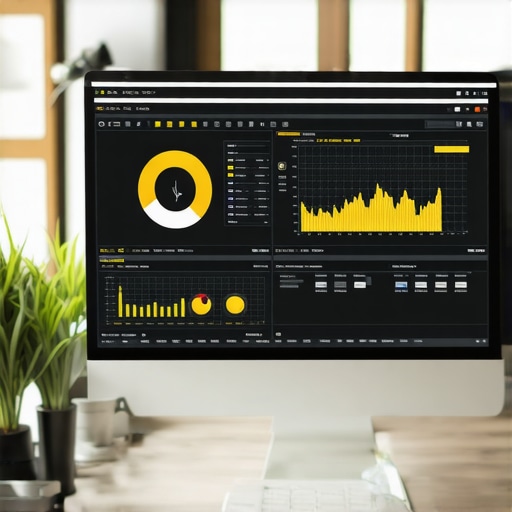
Imagine a dashboard showing real-time drive health stats and active processes—this is what effective maintenance looks like, and it’s easier to reach than you think when equipped with the right tools.
In my journey through the intricacies of data recovery, laptop screen repairs, and managed IT solutions, I’ve uncovered vital lessons that go beyond standard troubleshooting. These insights have reshaped how I approach technology challenges, emphasizing the importance of a proactive, balanced, and informed perspective.
Lessons That Changed My Approach to Tech Challenges
- Patience is key in recovery attempts: Rushing to fix or recover can lead to irreversible damage. Taking time to diagnose thoroughly prevents costly mistakes.
- Not all tools are created equal: Trusting the right software and hardware solutions, like expert-recommended recovery tools, makes all the difference in salvaging critical data.
- Balance security with privacy: Over-monitoring might protect assets but erodes trust. Strategic, privacy-respecting security measures foster a healthier digital environment.
- Continuous learning is essential: Technology evolves rapidly. Staying updated with best practices and new tools, such as latest recovery guides, keeps your skills sharp.
Tools and Resources I Rely On Daily
- CrystalDiskInfo: Monitors hard drive health proactively, preventing surprises that can ruin your day.
- Recuva: An invaluable tool for recovering files after accidental deletion or quick data exchanges.
- Process Explorer: Offers deep insights during troubleshooting, revealing hidden processes that might compromise performance.
- Managed IT services like these smart solutions: Keep my infrastructure secure and agile, even as my needs grow.
Embrace the Future of Your Tech Landscape
Taking action today—whether by refining your data recovery skills, repairing your laptop screen effectively, or integrating robust managed IT strategies—sets the stage for a more resilient digital environment. Remember, each step you take toward understanding your technology deepens your confidence and control. Never hesitate to explore new tools or revisit your security protocols; growth comes from continuous effort.
What’s the biggest challenge you’ve faced in maintaining your device’s performance or security? Share your experiences below—let’s learn from each other’s journeys!