

Ever been in that sinking feeling when you power up your computer, only to see your encrypted SSD stubbornly refuse to mount? I remember the exact moment I realized I was staring at a digital dead end. Everything was fine yesterday—precious files, important work backups—gone today, inaccessible and encrypted beyond easy recovery. It’s a frustration many of us know all too well, and trust me, it’s a situation that can make even the most experienced tech enthusiast feel helpless.
Why Your Encrypted SSD Might Leave You Stranded
Encrypted drives are designed with security in mind, but that very security can become a nightmare when hardware failures or software glitches occur. The truth is, even with the strongest encryption, data recovery is sometimes possible—if you know the right tricks. The key is understanding what’s really happening behind the scenes. Often, the drive’s encryption keys are stored in a way that prevents easy access when the drive is corrupted or unrecognized by your system.
Early on, I made the mistake of rushing into recovery software without properly diagnosing the root issue. As I learned, blindly running generic recovery tools can cause more damage. (For beginners, that’s a common mistake—so don’t feel bad!) Instead, I now rely on specialized techniques that consider the encryption aspect from the start. You might find it helpful to check out this guide on data recovery secrets, which sheds light on expert strategies that can save your files when traditional methods fail.
Have You Faced This Specific Problem?
If you’ve ever experienced that sinking feeling of trying to access your encrypted SSD—and it just wouldn’t cooperate—you’re not alone. It’s a scenario that’s becoming increasingly common, especially as more people turn to encryption for data security. But the good news is, recovery isn’t always a lost cause. With a bit of patience and the right knowledge, you can often restore access to your vital data.
In this post, I’ll walk you through practical, step-by-step solutions based on my personal experience and proven techniques. Along the way, I’ll share mistakes to avoid and tips to increase your chances of success. Whether you’re facing hardware issues, software corruption, or encryption glitches, these insights will help you navigate the recovery process confidently.
Let’s start by understanding what might be preventing your SSD from mounting and how you can address the core problems—because your data is worth fighting for.
,
Diagnose Before You Dive
My first move was to understand why the SSD wouldn’t mount. I connected a different computer and used basic troubleshooting techniques like checking disk management and BIOS detection. This revealed that the drive was recognized but encrypted and inaccessible. Think of it like a safe that recognizes the key but won’t open without proper credentials—knowing whether the lock is physical or digital is key.
Secure a Cloning Environment
Next, I prepared a clean environment to avoid overwriting any data. Using a write-blocker, I connected the SSD to a dedicated imaging station to create a sector-by-sector copy with reliable data recovery tools. This process is like taking a high-resolution photograph of a fragile painting—preserving the original before attempting repairs. I used the command dd with appropriate flags to ensure an exact clone:
dd if=/dev/sdX of=/backup/image.img bs=4M status=progressIdentify Encryption and Access Keys
Understanding the drive’s encryption method was critical. I examined the disk with specialized tools that can detect the encryption type—BitLocker, VeraCrypt, or proprietary formats. For example, if the drive is BitLocker encrypted, the key is often stored in TPM or saved during setup. If I had the recovery key, I could decrypt the drive without damaging the data—like having the master key to open a safe.
Use Command-Line Recovery Techniques
With the clone secured, I launched a recovery environment—booting from a Linux Live CD or Windows PE. For BitLocker drives, I activated decryption with commands like manage-bde:
manage-bde -unlock E: -RecoveryPassword This unlocked the drive when the hardware was intact but the system refused to mount it. For other encryption types, specialized scripts or tools like cryptsetup allows manual access. It’s akin to using a master key when the lock refuses to cooperate.
Pull Data with Recovery Software
Once decrypted, I ran targeted recovery software on the cloned image. Programs like advanced data recovery tools are designed to scan raw sectors for files, bypassing filesystem damage. I selected the folders I needed and recovered files directly to a secure external drive. Think of it as retrieving valuable documents from a corrupted safe, rather than trying to open it directly.
Prevent Future Headaches
Finally, I documented the encryption keys and recovery process, storing the information securely—similar to safe deposit boxes. To add redundancy, I set regular backups to off-site storage, knowing that hardware can fail unexpectedly. For comprehensive protection, integrating managed IT solutions ensures your data stays safe in the long run.
Remember, working with encrypted drives demands patience and meticulous steps. Rushing can lead to permanent data loss. If you face challenges beyond basic steps, consulting professional data recovery services might be your best move—think of it as calling in a specialist to open the safe properly without damage.
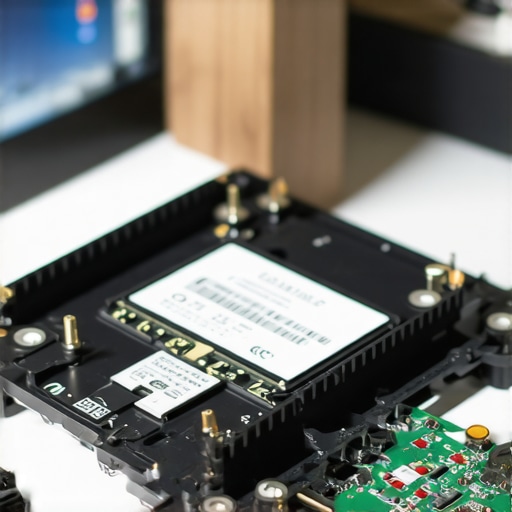
Myth of the Instant Fix
Many believe that replacing a faulty component or running a quick recovery tool resolves issues swiftly. However, this oversimplification can lead to data loss or recurring problems. The truth is, a nuanced understanding of hardware and software interactions—and the subtle signs of failure—is essential for effective repair. For instance, assuming that a new screen will instantly fix display issues ignores underlying cable or gpu problems, which can cause permanent damage if mishandled. Comprehensive diagnosis is often the most overlooked yet critical step in avoiding costly mistakes.
The Trap of Overreliance on Automation
While automated tools are tempting for quick fixes, they can be dangerous without expert oversight, especially in data recovery. Automated scans might overwrite sectors or miss subtle corruption signs, leading to incomplete recovery or permanent data loss. Professional techniques involve a semi-manual approach, carefully analyzing drive health and understanding encryption intricacies. An insightful study in the data recovery field emphasizes the importance of manual intervention for critical cases, challenging the myth that software alone suffices.
Why Hardware Failures Are Usually More Than Meets the Eye
Many assume that a failed component is always the culprit, but often failures stem from complex factors like firmware corruption or electrical issues. In laptops, for example, a dead screen might be caused not just by a broken backlight but also by faulty motherboard connections or power issues. Advanced troubleshooting considers these nuanced causes, preventing unnecessary replacements. As highlighted in expert analyses, understanding the subtle signs of hardware stress can save time and money while avoiding repeat failures.
Are You Overlooking the Significance of Preventative Measures?
One of the biggest misconceptions is that repairs are only reactive. In reality, **managed IT services** demonstrate how proactive monitoring and regular maintenance can prevent many failures before they occur, especially in complex systems. Misjudging this leads many to focus solely on fixing problems after the fact, often at higher costs and with greater risks of data loss. Effective management involves continuous health checks, firmware updates, and security patches—elements often underestimated by DIYers. For further insights on how proactive IT strategies protect your business, check this resource.
Understanding these nuances isn’t just for the tech-savvy; it’s crucial for anyone seeking reliable, safe, and cost-effective solutions. Recognizing false assumptions and avoiding common traps can dramatically improve your repair outcomes and data safety. Have you ever fallen into this trap? Let me know in the comments.

Invest in Reliable Diagnostic and Repair Equipment
For maintaining optimal computer performance, having the right tools is fundamental. I personally rely on a hardware-level write-blocker when imaging drives to prevent accidental overwriting, which is crucial during data recovery scenarios. One such device I recommend is the SimpleTech WriteBlocker, known for its durability and compatibility. Paired with a high-speed, multi-port SATA/USB adapter, it allows quick connection to multiple drives without risking data corruption. This setup ensures you can clone or examine drives safely, extending their lifespan and preserving data integrity.
Use Advanced Software for Routine Maintenance
Beyond hardware, specialized software like CrystalDiskInfo helps me monitor device health using SMART attributes. It’s an invaluable tool for early detection of impending drive failures, enabling preemptive replacements before data loss occurs. Additionally, I use tools like Macrium Reflect for creating reliable, incremental backups. Scheduling regular image backups per your workflow can save countless hours and prevent panic during hardware failures. Remember, routine snapshots are the backbone of a good maintenance routine.
Streamline Troubleshooting with Customized Scripts
Automation can save time, but I prefer crafting tailored scripts for common issues. For example, a batch script that runs chkdsk and clears temporary files can speed up basic health checks. Utilizing PowerShell scripts to automate driver updates or system diagnostics ensures consistency and reduces human error. As I learned from experts, such automation not only expedites troubleshooting but also helps identify recurring problems before they escalate. Leverage scripting to make your maintenance more efficient and less error-prone.
Plan for Long-Term Success
Anticipate future needs by maintaining an inventory of spare parts—like replacement screens, RAM modules, and SSDs—that are compatible with your most-used hardware. Document your maintenance procedures and keep a log of repairs and diagnostics; this institutional knowledge prevents redundant work and accelerates troubleshooting. As trends predict a shift towards AI-driven diagnostics, staying updated with emerging tools will further enhance your ability to keep systems running smoothly. For example, emerging AI-based predictive maintenance software can alert you to hardware degradations before failure occurs.
How do I maintain my computer tools and methods over time?
Regularly updating your diagnostic and repair tools is essential. Keep software licenses current, update firmware for your hardware, and stay informed about new vulnerabilities and fixes by subscribing to reputable tech forums or vendor advisories. Practice consistent calibration of your equipment, like ensuring your external drives are functioning at optimal speeds, and test your backup systems periodically to verify their reliability. Continuous education and routine checks enable long-term sustainability, ensuring your repair toolkit remains effective amidst rapidly evolving technology environments.
Proactively managing your tools—whether hardware or software—can dramatically extend the life of your systems and reduce downtime. I encourage you to try implementing a scheduled SMART check with a SMART monitoring tool to catch early warning signs in your drives. Making small, consistent adjustments now will pay off in maintaining your systems efficiently over the years.
Investing in a comprehensive toolkit and automating routine checks with custom scripts make the difference between reactive repairs and proactive maintenance, ultimately saving you time and money.
Unspoken Truths That Changed My Approach to Data Recovery
- Patience beats rushing: Diving headfirst into recovery without thorough diagnosis often causes irreversible damage. Taking time to understand encryption intricacies saves countless headaches.
- The importance of specialized tools: Relying solely on generic recovery software can be a trap. Trusting and mastering advanced utilities tailored for encrypted drives proves invaluable.
- Documentation is your secret weapon: Keeping meticulous records of keys, procedures, and observations ensures quick reference and reduces errors when the stakes are high.
- Knowing when to call in reinforcements: Sometimes, amateur efforts aren’t enough. Recognizing when professional data recovery services are needed can preserve your data and sanity.
- Continuous learning elevates your skills: Staying updated on encryption methods and recovery techniques keeps you prepared for unexpected challenges, turning setbacks into opportunities for growth.
Tools and Resources That Elevated My Skills
- Secure Data Recovery Labs: Their advanced hardware and software suite is a game-changer for tackling encrypted drives, especially in complex cases.
- Cryptsetup Documentation: Mastering manual encryption decryption relies on deep understanding; these guides demystify the process.
- Reputable Data Recovery Blogs: Regularly following expert insights, like this resource, keeps me ahead in techniques and tools.
- Hardware Write-Blockers: Protecting original data during imaging ensures integrity, a principle every technician should prioritize.
Keep Your Firewall of Resolve Rising
Facing encrypted SSD issues can be daunting, but each challenge sharpens your expertise. Remember, there’s no substitute for meticulous diagnosis, the right tools, and continuous education. Trust that your perseverance and dedication will turn complex encryptions into open books, unlocking the invaluable data you’re determined to recover. Are you ready to see beyond the encrypted wall and master the art of data recovery? Share your experiences or questions below — your story might inspire someone else on their tech journey.