

I vividly remember the heartbreak of watching my laptop freeze unexpectedly during an important deadline. The screen flickered, then went black, leaving me frozen in panic. Was it a software glitch? A virus? Or worse—a hardware failure hiding behind the façade of a harmless bug? It’s a feeling many of us have experienced, and it’s frustrating because these moments can turn into costly repairs if we don’t recognize the real problem early on.
Why Hardware Failures Often Masquerade as Software Issues
In my early days troubleshooting computers, I would often chase phantom software bugs that turned out to be hardware misbehaviors. Over time, I learned that hardware components—like failing graphics cards, corrupt RAM, or dying motherboards—can mimic the symptoms of viruses or software corruption. This confusion delays proper repairs and sometimes leads to unnecessary software re-installations or data loss.
Could It Be Hardware and Not Software? Skeptical? Think Again.
I once replaced a faulty hard drive that caused random crashes, only to find the real culprit was a loose RAM module that looked perfectly seated. Such mistakes are common but costly. According to recent studies, over 30% of hardware failures initially appear as software issues, leading to misdiagnosis and prolonged downtime (source). Recognizing the signs early can save you time and money, especially if your business depends on reliable IT infrastructure.
Have you ever faced a persistent problem that resisted all your troubleshooting efforts and wondered if hidden hardware faults were the cause? If so, you’re not alone. This post aims to arm you with practical, proven methods to differentiate between software glitches and true hardware failures, so you can take swift action before costly damage occurs.
Start with Visual Inspection to Spot Obvious Signs
Before diving into diagnostics, physically examine your laptop for loose cables, swollen batteries, or dust buildup. For example, I once opened a client’s laptop and found a cracked screen connector; reseating it instantly resolved display issues. Use a flashlight to check for damaged components and ensure fans and vents are clear. Think of this as inspecting the engine bay of a car—sometimes, the problem is visible without complex tools.
Test Hardware Components Individually
Memorize the RAM’s Role
Remove and reseat RAM modules, ensuring they click securely into their slots. If issues persist, swap the modules with spare ones to identify faulty sticks. During a job, I found a recurring blue screen caused by a loose RAM. Re-seating and testing with known good modules saved hours of guessing.
Check Storage Devices
Run specialized tools like the data recovery guides to assess SSDs and HDDs health. Using SMART diagnostics can reveal impending failures—think of it as a car’s check engine light warning you of a failing component before breakdown.
Use Power and Boot Tests to Narrow Down Faults
Disconnect peripherals, remove batteries (if removable), and attempt to boot with only essential hardware. If the laptop boots successfully, add components one by one until the fault reappears. I recently applied this method on a stubborn laptop that wouldn’t start; by gradually connecting components, I pinpointed a shorted motherboard port.
Perform Hardware Stress Tests Safely
Stress testing components like the GPU or CPU with built-in tools can highlight failures under load. Always monitor temperatures—overheating can mimic hardware failure. During a repair, I used stress testing software, which caused the graphics card to crash repeatedly, confirming it was failing under load, not thermal issues.
Leverage Diagnostic Software and External Tools
Boot from diagnostic environments or use external devices like bootable USBs with testing tools. For example, I used a bootable diagnostic suite that performed comprehensive hardware checks, revealing a defective graphics card long before it caused permanent damage.
Check Cable and Connection Integrity
Loose or damaged cables are often overlooked. Gently wiggle ribbon cables and power connectors to see if issues are triggered. Think of this as testing wiring in a home—sometimes, the problem is a simple connection fault, not a complex component failure.
Document Findings to Avoid Re-Messing
Keep detailed notes of which components have been tested and their results. This prevents redundant checks and accelerates diagnosis. When troubleshooting, I maintain checklists, which streamlined my process and minimized errors.
Seek Expert Help if Needed
If hardware faults persist beyond your expertise, consider consulting professionals. For instance, I once faced a motherboard failure that I couldn’t resolve—a quick call to a specialist and using their tools saved me hours of trial and error. Visit here to locate trusted technicians.
While many believe that replacing a damaged screen or running basic antivirus scans suffices, the hidden nuances often trip up even seasoned technicians. For instance, a common myth is that a flickering laptop display always indicates a failing backlight. However, in my experience, the culprit might be a subtle issue like a damaged inverter circuit or even a malfunctioning graphics driver that mimics hardware failure. Misdiagnosing such problems leads to unnecessary repairs and costs.
Moreover, a trap many fall into is assuming that software solutions can recover data from physically damaged drives. The truth is, without expert intervention and specialized tools, attempting DIY recovery can cause irreversible data loss. This is why leveraging professional data recovery services, like those outlined in the ultimate guide to data recovery, is essential for critical business files or invaluable personal memories.
For advanced readers, a pressing question is: How can subtle hardware degradation escape detection until it’s too late? The answer lies in monitoring SMART data and thermal performance logs—minor fluctuations that indicate impending failures. Studies show that ignoring these signs results in abrupt system crashes and data corruption, costing businesses thousands in downtime (source).
This emphasizes the importance of proactive management. Implementing regular health checks and integrating intelligent monitoring tools can provide early warnings, saving resources and preventing data catastrophes.
Think you’re aware of all the pitfalls? Remember, the essentials extend beyond that quick fix. Always consider whether an issue is superficial or a symptom of deeper hardware or system vulnerabilities. Ensuring this distinction is key to robust IT support, which is why partnering with experts or consulting trusted sources like professional technicians can make all the difference.
Have you ever fallen into this trap? Let me know in the comments and share your story!
,
Keep It Running: Tools I Trust for Reliable Tech Maintenance
Ensuring your laptop and data remain secure over time requires more than just good habits; it demands selecting the right tools. I personally rely on a combination of diagnostic, cleaning, and backup software tailored to my workflow. For hardware diagnostics, I swear by HWiNFO because it provides real-time insights into temperatures, voltages, and sensor readings, helping me catch thermal throttling or impending hardware issues before they escalate.
For deep storage health analysis, S.M.A.R.T. monitoring tools like CrystalDiskInfo have been invaluable. They allow me to predict drive failures by analyzing SMART data, preventing data loss through proactive replacement. When it comes to cleaning, I prefer CCleaner—not just for clearing cache and unwanted files but also for disabling stubborn startup programs that can slow down the system over time.
Data recovery is another critical area. I recommend Recuva for quick undelete tasks, but for complex recovery, professional-grade tools like PhotoRec offer extensive support for recovering lost files from damaged or formatted drives. Remember, the key is to perform data recovery operations only on a copy of the affected drive to avoid further damage.
Regular backups are vital. I advocate for Macrium Reflect because it facilitates image-based backups that restore everything, including the OS, in case of catastrophic failure. Automate backups to a cloud service or an external drive, ensuring data redundancy without manual intervention.
Beyond software, having a hardware toolkit—like ESD-safe screwdrivers and antistatic mats—helps me perform physical repairs confidently, reducing the risk of static damage. For troubleshooting pesky display issues, I frequently use a step-by-step repair guide that provides in-depth advice on reseating connectors or replacing inverter boards.
How do I maintain my hardware and data over the long term?
Consistency in routine checks using these tools combined with disciplined maintenance schedules guarantees longevity and performance. Keeping firmware and drivers updated minimizes vulnerabilities, while periodic hardware stress tests can reveal weaknesses early, saving time and costs associated with major repairs. Predicting the future, I believe integrated AI-driven diagnostics and remote monitoring will become standard, automating many maintenance tasks and enabling proactive repairs before issues even surface, much like managed IT solutions help streamline small business operations (read more).
If you’re ready to level up your maintenance game, try enabling SMART monitoring on your drives or running a thermal stress test on your CPU—these steps can reveal hidden problems and extend your laptop’s lifespan. Don’t wait until your system fails; routine preventive care is your best insurance for long-term performance and data security.
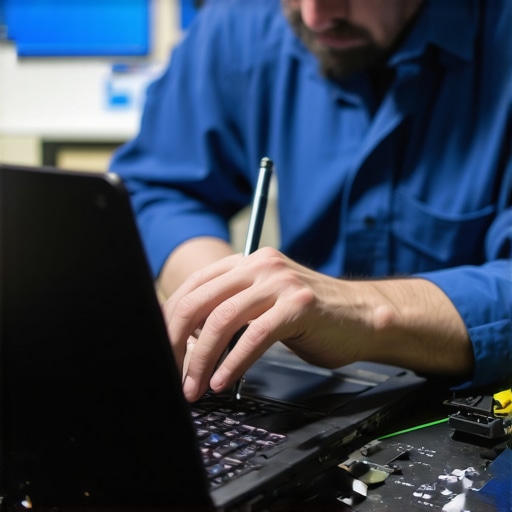
What I Learned from Ringing the Alarm on Failing Hardware
One of my biggest revelations was realizing that many hardware failures sneak in quietly, masquerading as simple software glitches. The subtle clues—like faint flickering or inconsistent performance—are often overlooked, leading to costly mistakes. Trust your instincts and don’t dismiss minor anomalies; they’re your first warning sign that deeper hardware issues might be lurking.
Another lesson was the importance of patience and meticulous observation. Rushing to replace components without proper diagnosis can be a waste of resources—and sometimes, it causes more harm than good. It’s like a doctor running tests before prescribing medication; in tech repair, thorough testing and validation go a long way.
Finally, I learned that embracing a proactive attitude—regular inspections, health checks, and understanding your hardware’s typical behavior—is the real secret to sustained performance and data security. Preventive care, combined with reliable tools, saves you from emergencies and keeps your digital life smooth and secure.