

I was sitting in my favorite worn-out armchair last Tuesday, nursing a lukewarm coffee and frantically typing away at a report due by midnight. Suddenly, my laptop screen just… gave up. It didn’t turn off, exactly. It just became so incredibly dim that I had to squint like I was looking at a solar eclipse without glasses. My heart hit my stomach. I thought for sure I was looking at a three-hundred-dollar repair bill or, worse, a trip to the electronics graveyard. It is a terrifying moment, especially when your whole life is on that machine. [image placeholder]
That Sinking Feeling When Your Display Goes Dark
Believe me, I have been there. In my early days of tinkering, I actually made the massive mistake of ordering a whole new LCD panel for an old Dell because I assumed the hardware had fried. Turns out, it was just a tiny magnetic sensor that thought the lid was closed. I felt like a total amateur. But that is the thing about laptop screen repair; sometimes the scariest symptoms have the simplest cures. Today, we are going to look past the panic and figure out if your backlight is actually dead or if your software is just throwing a temper tantrum. Have you ever had your screen go dark right when you needed it most? It is enough to make anyone want to throw their laptop out the window.
Is My Laptop Screen Actually Toast?
This is the big worry, isn’t it? You are probably thinking that if the screen is this dark, the hardware must be physically broken. It is a valid fear. According to research from Consumer Reports, display issues are among the most common hardware headaches users face, but ‘dark’ does not always mean ‘dead.’ Most of the time, your computer is just confused about how much power to send to the pixels. We are going to walk through some tips for troubleshooting laptop screen problems seamlessly before you even think about reaching for your wallet.
Why Your Backlight Might Be Playing Hide and Seek
Before we get into the heavy lifting, we need to talk about the ‘faint image’ phenomenon. If you can still see the ghostly outline of your icons when you hold a flashlight up to the glass, your laptop screen brightness is not just low—your backlight has likely lost its way. It could be a driver update that went sideways or a power setting that is being way too aggressive about saving energy. Sometimes, it is even related to why a laptop screen has a faint white glow around the edges, indicating that the voltage is not being distributed correctly. We are going to start with the easiest, non-invasive fixes first. We are not opening any screws just yet. We are going to look at the ‘stupid’ stuff first—because in my experience, the ‘stupid’ stuff is usually the culprit.
Let’s stop guessing and start testing. The first thing you need to do is determine if the brain of your computer (the motherboard and GPU) still knows how to talk to a screen. I once spent forty-five minutes sweating over a client’s laptop that stayed dark, only to realize I hadn’t checked the most basic output path. It was a humbling lesson in why we always start with the external check.
Rule out a Total System Meltdown
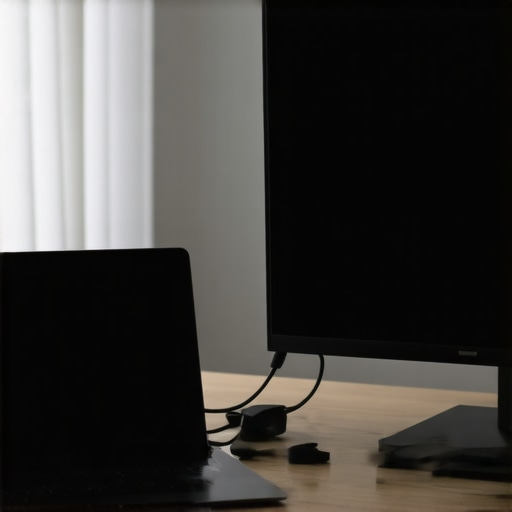
Before you assume the screen is a paperweight, grab an HDMI cable and hook your laptop up to a TV or a desktop monitor. If the image pops up perfectly on the big screen, you have just narrowed your problem down significantly. This tells you that your graphics card is alive and kicking, and the issue is physically located within the laptop lid or the cable connecting it to the base. This is exactly why your laptop screen stays white on startup but works on external monitors or, in your case, stays dark. If the external monitor is also black, you aren’t looking at a screen repair; you are likely looking at a deeper motherboard or GPU failure.
Try the Power Reset Trick
Electronic components can sometimes get ‘stuck’ in a bad power state. Shutdown your laptop, unplug the power adapter, and if your battery is removable, pop it out. Hold the power button down for a full sixty seconds. I know, it feels like an eternity when you are staring at a dead machine, but this drains the residual electricity from the capacitors. Plug it back in (without the battery first, if possible) and see if the backlight wakes up. This simple move is a cornerstone of computer repair for beginners to avoid costly mistakes.
Fix the Software Before the Hardware
Sometimes the hardware is fine, but the instructions it is receiving are total nonsense. I remember a specific Windows 10 update about two years ago that practically nuked the brightness controls on half the HP laptops in my neighborhood. People thought their screens were dying, but it was just a bad handshake between the OS and the hardware.
Roll Back Those Pesky Drivers
If your screen went dark right after an update, the display driver is the prime suspect. You can often boot into ‘Safe Mode’ (where the screen might actually work because it uses basic drivers) and roll back the update. Knowing why your computer is slowing down after a recent windows update often leads you to the same culprit: the display adapter. Right-click your Start button, go to Device Manager, find ‘Display Adapters,’ right-click your integrated graphics, and select ‘Properties.’ If the ‘Roll Back Driver’ button isn’t greyed out, click it and pray. This is a common fix for how to fix a blurry laptop screen after a driver update that also applies to backlight failures.
Peek Into the BIOS
Restart your computer and mash the F2, F10, or Del key (depending on your brand) to enter the BIOS or UEFI settings. If the screen is bright and easy to read here, but goes dark the moment Windows starts loading, you 100% have a software or driver issue. If it is still dim in the BIOS, the problem is physical. This is the most reliable way to how to spot a hardware failure masquerading as a software bug. It strips away the complexity of the operating system and lets you see the hardware in its rawest state.
Most people assume that if the backlight is out, the LED strip inside the glass has simply burned out. But here is the contrarian truth: it is much more likely to be a failed eDP cable or a blown fuse on the logic board. I have seen countless people waste money on a full display assembly when they really just needed a ten-dollar cable. If you have ever had to wiggle your screen to get the picture back, you are likely dealing with a laptop screen that only works at specific angles. This is a classic symptom of a fraying ribbon cable, not a dead panel. One of the most dangerous traps is the ‘live-swap’ mistake. I once watched a buddy of mine try to reconnect a screen while the battery was still plugged in. A tiny spark, a smell of ozone, and suddenly he wasn’t just looking for a screen—he needed a whole new motherboard because he blew the backlight circuit. This is a vital part of computer repair for beginners to avoid costly mistakes. 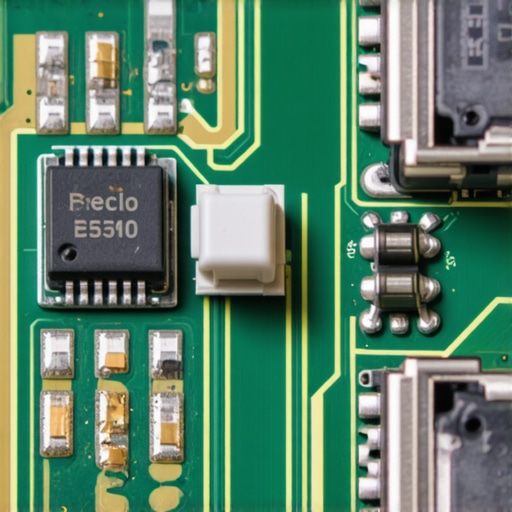
Why does my replacement screen look washed out compared to the original?
This is a sophisticated frustration. Not all panels are created equal, and many people fall for the truth about cheap screen replacement kits from overseas. If you replaced an IPS panel with a cheap TN version, your viewing angles and color accuracy will plummet. According to experts at the IEEE Consumer Electronics Society, the lack of proper EMI shielding on third-party cables can also cause significant laptop screen brightness flickering that looks like a hardware failure but is actually just signal interference. Before you buy, you need to know how to choose between an IPS and an OLED laptop screen replacement to ensure you aren’t downgrading your experience. Have you ever fallen into this trap of buying the cheapest part only to regret it later? Let me know in the comments below.
Get the Right Tools Before You Crack the Case
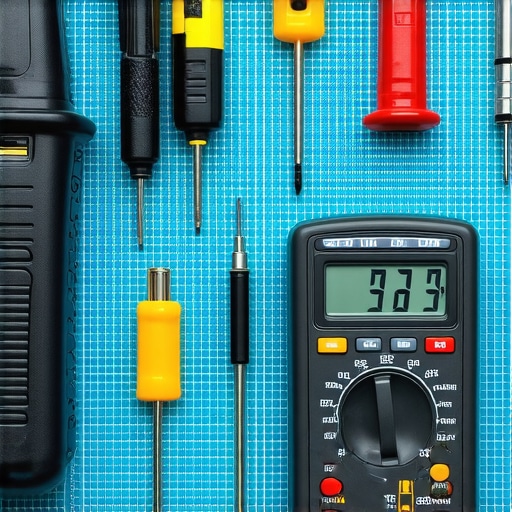
I learned the hard way that a butter knife and a prayer won’t get you far with modern tech. If you are serious about fixing this and keeping it fixed, you need a precision toolkit. I personally use an iFixit Pro Tech Toolkit every single day because the bits are hardened steel and won’t strip your screws—which is a nightmare you don’t want to deal with when working on a thin bezel. Beyond the screwdriver, a pair of anti-static tweezers and a plastic spudger are non-negotiable for safe laptop screen repair. If you aren’t using ESD-safe tools, you are essentially playing Russian roulette with your motherboard’s backlight fuse. I also recommend keeping a digital multimeter handy; it is the only way to verify if power is actually reaching the eDP connector. Knowing computer repair for beginners to avoid costly mistakes often comes down to having the right gear before the first screw comes out.
Stop Your Screen From Dying Twice
Once you get that display back to life, the goal is to make sure you never have to do it again. Heat is the number one silent killer of display electronics. I’ve seen dozens of screens fail because the internal GPU was running so hot it literally melted the adhesive on the display ribbon cable. This is why you must check how to tell if your laptop fan is actually broken or just dusty. If your cooling system is clogged, your screen is the one that pays the price. For my business clients, I treat hardware longevity the same way I treat data; it requires a plan. This mirrors the logic behind managed IT strategies to keep your business secure in 2025, where preventing a failure is ten times cheaper than reacting to one. Routine maintenance, like cleaning out your vents with compressed air and updating your BIOS, can easily add three years to the life of your display.
The Future of Laptop Displays is Modular
I’m seeing a massive shift in the industry toward the ‘Right to Repair’ movement, and it is changing how screens are designed. According to technical documentation from VESA (Video Electronics Standards Association) regarding the eDP 1.5 standard, newer protocols are focusing heavily on ‘Panel Self Refresh’ (PSR). This technology is great for battery life, but it adds another layer of software complexity that can make a screen look ‘dead’ when it’s just stuck in a low-power state. In the next few years, I expect to see laptop screens become almost as easy to swap as a battery. Until then, you need to stay ahead of the curve by understanding the real reason your laptop keeps throttling its performance, which often correlates with display stability. If you can keep the internal temperatures low and the drivers updated, your screen will likely outlast the rest of the machine. If you’re feeling brave, I want you to try this one advanced tip: open your device manager and disable ‘Power Management’ for your Generic PnP Monitor. It prevents the OS from ‘sleeping’ the backlight circuit too aggressively, which is a common cause of that annoying flickering. Give it a shot and see if it stabilizes your brightness!
The Hardest Lesson I Learned While Chasing a Black Screen
If there is one thing a decade of fixing computers has taught me, it is that the loudest problems often have the quietest solutions. I once spent three hours tearing down a premium ultrabook only to realize the user had a privacy app that glitched and killed the backlight output. It taught me to always check the software first. Another lightbulb moment came when I realized that computer repair for beginners to avoid costly mistakes starts with patience, not parts. Most people rush to buy a new panel when a simple ten-dollar ribbon cable is the real ghost in the machine. Also, never underestimate the flashlight test—it is the quickest way to separate a dead motherboard from a dead backlight.
Gear That Makes These DIY Fixes Actually Possible
You do not need a laboratory to fix your screen, but you do need the right stuff. I swear by my hardened steel precision bits because they handle those tiny, easily-stripped screws like a champ. I also keep a digital multimeter handy to check for continuity in the screen cables. If you are ordering parts, please stay away from the bottom-of-the-barrel options. I have seen the truth about cheap screen replacement kits from overseas, and they often end up flickering within a month. If you are upgrading, make sure you know how to choose between an IPS and an OLED laptop screen replacement so your colors do not look like a 1990s television. Finally, a simple can of compressed air is your best friend to keep those internal fans from overheating the display logic board.
[image placeholder]
Your First Step Toward a Brighter Display
I know how intimidating it feels to see that dark glass, but you are now armed with the exact same workflow the pros use. Start small, check your cables, and do not let a software bug trick you into a hardware purchase. This kind of laptop screen repair is a skill that saves you hundreds of dollars over a lifetime. You have the tools and the knowledge—now it is time to get that display back to life. Have you ever tried to fix a screen only to find out a loose connection was the real culprit? Let me know your repair stories below!