

It was the middle of a humid Tuesday afternoon when the sky turned a bruised purple and the transformer down the street let out a cinematic pop. My office went pitch black. The silence was deafening. I was mid-sentence on a proposal that had taken me three days to craft, and as my workstation went dark, my heart did a slow-motion somersault into my stomach. I spent the next two days desperately trying to learn how to recover work from a word document that didn’t save. It was a nightmare I could have avoided with one simple piece of hardware. Today, I am going to show you the exact move I made to ensure my data stays safe, even when the grid decides to call it quits.
Why a Simple Surge Protector is Your Biggest Liability
I used to think those fifteen-dollar power strips from the hardware store were enough. I was wrong. Those strips are designed to stop a massive spike from frying your motherboard, but they do absolutely nothing when the voltage drops or the lights go out entirely. My biggest mistake early on was assuming my server could handle a “hard” shutdown without a fight. It could not. I ended up needing data recovery because the drive heads crashed right onto the platters. It was an expensive lesson in computer repair for beginners that I never want to repeat. Relying on luck isn’t a strategy; it is a ticking clock.
Do You Really Need a Massive Battery Under Your Desk?
I hear this all the time: “My laptop has a battery, so why should I care?” Well, your laptop might stay on, but your router, your external backup drives, and your main network switch do not. When the power dips for even a millisecond, your network connection drops, and your data sync gets corrupted. This is why your office network needs a battery backup for the main switch to bridge that gap. According to the Electric Power Research Institute (EPRI), nearly 80% of power-related downtime is actually caused by minor voltage fluctuations that you cannot even see, rather than total outages. Have you ever lost hours of work because of a five-second power flicker? It is a gut-punch that stays with you, but the solution is surprisingly accessible. I will walk you through how to pick a Uninterruptible Power Supply (UPS) that actually fits your needs without breaking the bank.
Calculate Your Actual Load Before Spending a Dime
To get this right, you need to think of your UPS as a bucket of water. If you try to pour a gallon into a pint glass, you’re going to have a mess. I learned this the hard way during a summer heatwave when I tried to run a high-end gaming rig and a laser printer off a tiny 450VA unit. The second the printer warmed up, the UPS let out a high-pitched death wail and the whole system rebooted. It was a classic hardware failure masquerading as a software bug. Most people look at the Volt-Amp (VA) rating on the box and think that’s the wattage. It isn’t. Usually, the actual wattage is about 60% of that VA number. If you have a workstation that pulls 400 watts, a 600VA UPS is actually cutting it way too close. 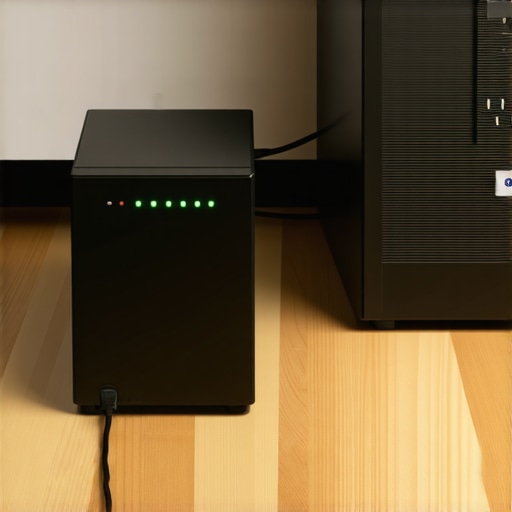
Ignore the Box and Use a Watt Meter
Don’t guess. Get a cheap “Kill-A-Watt” meter or look up the peak power draw of your components. If you’re running a business, this kind of granular detail is exactly why managed IT is a game changer for growing companies—they do these calculations for you so your servers don’t choke during a brownout.
Demand a Pure Sine Wave Output
This is where I see most people trip up. Cheaper UPS units use “simulated” or “stepped” sine waves. Think of it like a staircase versus a smooth slide. Modern power supplies, especially those with Active PFC (Power Factor Correction), hate the staircase. I once helped a client who complained their laptop screen that is suddenly too dark to read was just the start of their problems; their desktop would actually vibrate when the power went out. The simulated wave was literally shaking the electronics.
Stop the High-Pitched Coil Whine
If you hear a buzzing sound when your UPS kicks in, you’re damaging your components. Spending the extra thirty bucks for a “Pure Sine Wave” unit is the move that protects your data when a hard drive head crashes because it keeps the electricity “clean.” It’s the difference between drinking filtered water and pond water; both might keep you alive, but one is going to make your system sick over time.
Plug in the Data Cable or It’s Just a Heavy Brick
A UPS is useless if it runs out of juice while you’re asleep or away from your desk. Every decent unit comes with a USB or Ethernet cable. Plug it in. This allows the UPS to talk to your computer. I’ve seen countless people ignore this step, only for the battery to die ten minutes into an hour-long outage, causing the very “hard shutdown” they were trying to avoid. When that happens, you’re looking at data recovery secrets every business should know today just to get your files back.
Configure Your OS for Auto-Shutdown
Windows and macOS have built-in settings to recognize a UPS as a battery. Set it to hibernate your PC when the battery hits 20%. This ensures your work is saved and the hardware powers down gracefully. It’s a simple part of troubleshooting common computer repair issues effectively before they even happen. If you’re managing a larger office, ensure your managed IT solutions include monitoring these battery health levels quarterly.
Stop Treating Your Cloud Sync Like a Holy Grail
Common wisdom suggests that as long as your files are in the ‘cloud,’ you are immune to hardware failure. I am here to tell you that this is a dangerous myth. In my years of troubleshooting, I’ve seen dozens of people lose everything because they confused synchronization with a true backup. If a power surge hits your local drive and corrupts a file, your sync software will faithfully copy that corruption to the cloud in seconds. This is the mistake that makes your backups completely useless. A real backup is a point-in-time snapshot that doesn’t change just because the original file was destroyed. If you’re not using versioning or off-site archives, you’re just one electrical pop away from a disaster that requires data recovery secrets expert techniques to save your files fast.
Is Your Modern Power Supply Rejecting That Cheap Battery?
Most users buy the most affordable UPS they can find, but modern high-efficiency power supplies—especially those with Active Power Factor Correction (PFC)—can actually be damaged by cheap, square-wave batteries. When the power cuts, the ‘stepped’ wave produced by a budget unit creates an electrical mismatch. According to research by the IEEE (Institute of Electrical and Electronics Engineers), transient voltages and harmonic distortions from non-sinusoidal power sources can degrade delicate semiconductor components over time. This leads to those ‘ghost’ issues where your computer crashes for no reason, or you start noticing the hidden reason your laptop screen brightness keeps flickering when the AC cycles. 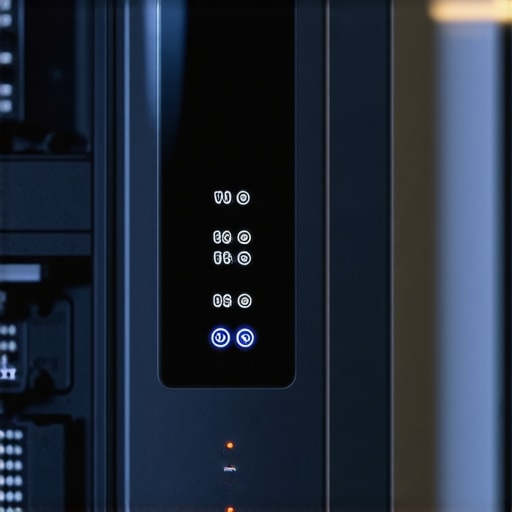
The Trap of the Hidden Laser Printer
Here is the ‘oops’ factor that kills more UPS units than anything else: the laser printer. I once had a client who spent five hundred dollars on a high-end battery backup, only to have it melt—literally melt—three days later. They had plugged their office laser printer into the ‘battery protected’ side. Laser printers use a massive amount of current to heat up their fuser rollers. This sudden draw is like hitting a brick wall for a small battery. Always keep your heavy appliances on the ‘surge only’ side of the strip, or you’ll be looking for computer repair for beginners advice after you’ve fried your new gear.
Why the Lowest Price on Managed IT Often Costs the Most
When businesses look at their budget, they often go for the ‘break-fix’ guy because it seems cheaper than a monthly retainer. However, why choosing the cheapest managed IT plan always leads to more downtime becomes obvious the moment a server goes down. A dedicated service provider isn’t just a help desk; they are performing the proactive maintenance—like testing UPS batteries and verifying backup integrity—that prevents the crisis in the first place. If you’re waiting for things to break before you pay for help, you’re paying for the downtime, the repair, and the lost productivity all at once. Have you ever fallen into this trap? Let me know in the comments.
Moving from a crisis-management mindset to a maintenance mindset is the single biggest shift you can make in your professional life. I used to wait for the blue screen of death before I even thought about my hardware health, but that is a recipe for high-stress weekends and expensive bills. If you want your workstation to last, you need to know how to extend the life of your office pcs by three years through simple thermal management and power discipline.
Clean your fans or pay the price later
Heat is the silent killer of every component in your chassis. Every six months, I take my laptop apart—not just to look at the shiny bits, but to clear the felt-like layer of dust that builds up on the exhaust fins. This isn’t just about noise; it’s about preventing the kind of thermal throttling that makes you think you need a new computer. When the heat builds up, the delicate ribbon cables inside are the first to suffer. If you start seeing weird artifacts, you should check how to tell if your screen flicker is software or a dying ribbon cable before you go out and buy a whole new display assembly. A little bit of isopropyl alcohol and a soft brush can save you hundreds of dollars in parts.
The specific software I use to predict a crash
I don’t leave my data to chance anymore. I use a tool called CrystalDiskInfo for Windows (or Smartmontools for Linux) to keep a constant eye on the S.M.A.R.T. data of my drives. According to the annual Backblaze Drive Stats report, while SSDs are generally more reliable than spinning platters, they have a tendency to fail without the warning ‘clicks’ or ‘grinds’ we used to rely on. Checking the sign your ssd is reaching its write limit is a monthly habit of mine. If that ‘Health’ percentage drops below 90%, I am already ordering its replacement. This proactive approach is a cornerstone of effective managed IT solutions for growing companies, where the goal is to swap hardware on a Tuesday at 10 AM rather than recovering it at midnight on a Friday.

How do I keep my laptop screen looking brand new?
Your screen is your window into your work, yet most people treat it like a whiteboard. I’ve seen people use window cleaner on high-end Retina displays, which literally eats through the anti-reflective coating. For the best results, use a high-density microfiber cloth and a tiny bit of distilled water. These laptop screen repair diy tips for clearer displays aren’t just about vanity; they prevent micro-scratches that eventually cause permanent hazing. If your screen is already showing its age, you might want to look into laptop screen repair how to fix common issues at home before the damage becomes structural.
Audit your tech before you scale
As your business grows, you cannot keep managing every laptop by hand. This is where you need to learn how to audit your business it spending without hiring an expert. Look at your refresh cycles. If you are replacing machines every two years because they ‘slow down,’ you are likely suffering from a lack of maintenance rather than a lack of power. Establishing managed IT strategies to keep your business secure in 2025 means moving toward centralized monitoring. In the near future, I predict we will see AI-integrated BIOS that can predict fan failure weeks before it happens, but until then, we have to do the legwork. My challenge for you tonight: Download a drive health utility and check your ‘Media Wearout Indicator.’ If it is under 80%, start your backup process immediately.
The Lessons I Learned After Losing Three Days of Productivity
In my decade of dealing with hardware, I’ve realized that the most expensive repairs are the ones you didn’t see coming. Avoiding computer repair for beginners mistakes means realizing that “good enough” usually isn’t when it comes to power delivery and thermal management. I used to think I could handle everything myself, but eventually, I saw that choosing the cheapest managed IT plan always leads to more downtime because you’re paying for reactive fixes rather than proactive prevention.
- Visibility is safety: If you can’t see your drive’s health or your UPS load, you’re flying blind.
- Maintenance is cheaper than recovery: A thirty-dollar UPS battery or a ten-dollar cleaning kit saves thousands in professional services.
- Software can’t fix hardware: No amount of driver updates will fix a failing ribbon cable or a bulging battery.
Tools I Keep in My Desk to Keep the Lights On
I don’t trust my data to luck anymore. To stay ahead of the curve, I rely on a few specific tools. First, CrystalDiskInfo is non-negotiable for monitoring the sign your ssd is reaching its write limit before it turns into a paperweight. Second, a high-quality Pure Sine Wave UPS is the only thing standing between my workstation and a catastrophic voltage spike. Finally, for my display, I skip the harsh chemicals and use a specialized high-density cloth, following laptop screen repair diy tips for clearer displays to ensure I don’t strip the protective coatings. These aren’t just gadgets; they are the foundation of a professional workflow.
#IMAGE_PLACEHOLDER_E#
Take Control of Your Digital Destiny Today
The transition from “tech victim” to “tech master” starts the moment you decide to respect your hardware. You don’t need to be an engineer to implement managed IT strategies to keep your business secure in 2025; you just need to be consistent. Whether it is cleaning your fans every six months or auditing your power load today, these small actions compound into years of reliable service. Don’t wait for the next “pop” or purple sky to take action. Invest in your setup, learn the basics of computer repair, and give yourself the peace of mind that comes with a truly resilient system.
Have you ever had a power flicker or a sudden crash wipe out an entire afternoon of work? Let me know in the comments below!