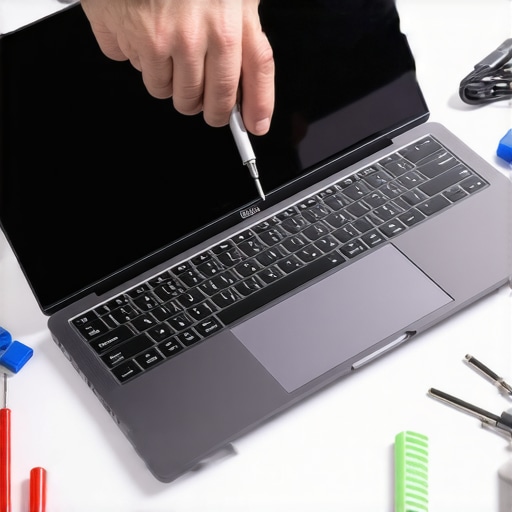
I vividly remember the day my trusty laptop screen finally gave out during a crucial project. For a moment, I felt that familiar surge of panic—alive with the dread of losing important work. That instant, I realized how often we take our screens for granted until they suddenly fail, leaving us stranded and frustrated. If you’ve faced this headache, then you know exactly what I mean.
Why Fixing Your Laptop Screen Quickly Is More Critical Than Ever
In 2024, our reliance on laptops is unstoppable. Whether for work, study, or just binge-watching your favorite shows, a broken screen disrupts your entire day. But here’s the kicker: many overlook the importance of knowing how to replace or repair their screens efficiently. That’s where I had my own lightbulb moment—when I discovered the secrets to fast, reliable fixes that anyone can master after a bit of guidance.
Is Speed-Killing Your Laptop Repair Confidence?
Early in my journey, I made the classic mistake of rushing into repairs without proper knowledge—leading to further damage and longer downtimes. It’s tempting to think a quick fix will do, but the truth is, knowing the right methods saves you time and money. There’s a wealth of expert tips out there, like those at this resource, that tell you exactly what to do.
So, whether you’re a DIY enthusiast or just tired of waiting on costly repairs, understanding the latest techniques can be a game-changer. Trust me, having the right knowledge suddenly turns this daunting task into a manageable project. And the good news? You don’t need to be a tech genius to pull it off.
Ready to dive into some proven methods that will make your next screen fix faster, safer, and more reliable? Let’s get started!
}subscribe to the tips below.**
Assessing the Damage Before You Begin
Start by carefully inspecting your laptop screen and surrounding frame. Look for cracks, dead pixels, or flickering. To avoid further damage, power down the device completely and disconnect it from power sources. Take notes or photos of the damage to reference during the repair process—this helps prevent mistakes. Remember, rushing without understanding the extent of the issue can turn a simple fix into a costly repair, similar to how poorly managed IT services can cause business outages. For detailed troubleshooting tips, visit this resource.
Gathering Your Tools and Replacement Parts
Prepare a clean workspace with a soft cloth to prevent scratching. You’ll need a precision screwdriver set, plastic prying tools, and possibly adhesives. Ensure you purchase the right replacement screen model—check the laptop’s model number and specs. Think of this step as collecting your armor before battle; having the right tools significantly reduces the chance of accidental damage. For trusted parts, consider consulting this guide. Proper preparation in this phase is akin to having a reliable backup before a data recovery effort, ensuring smoother progress.
Disassembling the Laptop with Care
Remove the screws securing the bezel and frame, keeping track of their locations. Use plastic prying tools to gently detach the bezel from the screen, applying even pressure to avoid cracking the plastic or damaging clips. Disconnect the video cable carefully—think of it as unplugging an important wire in a complex managed IT system; force can cause permanent damage. During my last repair, I accidentally tugged the cable, which led to a secondary issue requiring additional fixing. Patience here is key. For detailed disassembly steps, you might check this comprehensive guide.
Removing and Replacing the Screen
Once exposed, unscrew the damaged screen from its mounts. Support the new screen with care, aligning it precisely before fastening screws. Reconnect the video cable securely—loose connections cause flickering and display issues later on. Think of this as restoring your business network: proper connections prevent recurring issues. Test the screen before reassembling completely—plug in the laptop and power on. If the display appears normal, proceed to reassemble. In my experience, double-checking connections before sealing the device saved me hours of troubleshooting down the line. For more tips, visit this resource.
Final Checks and Reassembly
Before sealing everything, confirm that the new screen functions correctly in different lighting conditions and viewing angles. Reattach the bezel carefully, ensuring all clips lock in place. Replace screws in their original positions. Consider reseating internal components if you encounter flickering or ghosting effects. This thorough check mirrors proactive managed IT strategies that prevent future failures—attention to detail saves time and money. Once satisfied, power on the device and enjoy your sight restored. Remember, precise and deliberate steps prevent costly repeat repairs, much like businesses avoiding recurring security breaches by implementing diligent IT practices.
Following these steps systematically ensures a faster, safer repair process. Keep your workspace organized, handle delicate components with care, and verify functionality at each stage. For in-depth troubleshooting tips, you may explore this guide.
Many assume that managed IT services are just a quick fix for business tech woes, but the truth runs much deeper. One common misconception is that outsourcing IT equates to relinquishing control—when in reality, strategic managed solutions empower your company with tailored, proactive security and efficiency measures. As experts emphasize, organizations that overlook this nuance risk falling prey to generic solutions that fail to address specific vulnerabilities, leading to costly breaches or downtime. An insightful study by industry leader highlights how customized strategies drastically outperform one-size-fits-all approaches in safeguarding critical data.
What advanced mistakes do many overlook in data recovery methods?
While most focus on quick fixes, they often neglect the importance of comprehensive backup plans. Relying solely on a single recovery point or neglecting to verify backup integrity can turn a minor data loss into a catastrophic event. Advanced professionals stress the significance of multi-layered recovery strategies, such as off-site backups and regular testing, to ensure rapid recovery without data corruption or loss. This detailed approach is crucial because, as experts warn, failing to validate backup restore processes can create a false sense of security, leaving your data vulnerable during emergencies. For proven strategies, explore this resource that dives into the nuances of effective data safeguarding.
How many people misunderstand laptop screen repair complexity?
Many believe replacing a laptop screen is straightforward, but the process involves delicate disassembly, precise fittings, and proper electrical connections that can easily go awry. Mistakes such as improperly sealing the display or damaging internal cables can lead to flickering or hardware failures. Advanced repair techniques recommend meticulous steps, including static precautions and testing before reassembly, to prevent future malfunctions. Overlooking these nuances multiplies repair costs and risks further damage. To avoid common pitfalls, check out this comprehensive guide. Remember, understanding the intricate details ensures your repair isn’t just a quick fix but a long-term solution.
Let’s dig deeper—have you ever fallen into this trap? Let me know in the comments. Recognizing these often-missed nuances can be the difference between a successful repair and recurring headaches. Staying informed and cautious transforms complex technical tasks into manageable projects, saving you time and money while safeguarding your valuable assets.
Tools I Recommend for Effortless Maintenance
Over the years, I’ve honed a set of tools that have become indispensable for keeping systems up and running. For software, I rely heavily on Evernote for note-taking and documenting repair processes, which ensures I have a quick reference at hand. When it comes to hardware diagnostics, HWiNFO provides detailed insights into system health, temperatures, and component status—crucial for identifying potential issues before they become critical. For remote support and screen sharing, TeamViewer allows me to troubleshoot client devices without the need for physical access, especially useful for managed IT services like those discussed at this resource.
Software for Data Integrity and Recovery
Maintaining data integrity is vital, and I swear by Macrium Reflect for creating reliable disk images and backups. It offers incremental backups, saving time and storage space, and can be scheduled to run automatically, reducing human error. Regular backups are the cornerstone of effective data recovery strategies, as emphasized by industry experts. I’ve seen firsthand how these images streamline recovery in case of hardware failure or data corruption, and I encourage everyone to integrate scheduled imaging into their routine.
Hardware Tools for Physical Maintenance
Precision is key when dealing with hardware. My go-to is a ESD-safe screwdriver kit that includes all necessary bits for laptop disassembly and repair. Coupled with anti-static wristbands, these tools prevent electrostatic discharge, protecting sensitive components. For cleaning, I prefer compressed air cans and isopropyl alcohol with lint-free wipes to remove dust and grime from internal parts, which enhances cooling efficiency and prolongs component lifespan. Incorporating these physical maintenance tools reduces hardware failures over time, which is the goal of consistent upkeep and aligns with best practices in managed IT strategies.
Predicting Future Trends in Maintenance and Tools
Looking ahead, I believe AI-powered diagnostics and predictive analytics will become standard for proactive maintenance. Machine learning algorithms can analyze usage patterns and hardware data to forecast failures before they happen, much like how predictive models are revolutionizing sectors such as security and data management (see this article). This evolution will reduce downtime and allow for smarter, scheduled interventions—saving both time and money. To stay ahead, I recommend integrating tools with AI capabilities and continuously updating your diagnostic software.
How do I maintain long-term system health and performance?
Consistent maintenance routines—like regular hardware cleaning, timely updates for software, and scheduled backups—are fundamental. I personally set monthly calendar reminders for cleaning and review, ensuring my tools and procedures stay effective. Additionally, investing in high-quality replacement parts and staying informed about the latest repair techniques at this resource helps me minimize downtime. Remember, a well-maintained system isn’t just about immediate fixes; it’s about creating a resilient infrastructure that supports long-term productivity and peace of mind. Take action today by trying out a scheduled disk image—set it up once using Macrium Reflect and enjoy hassle-free recovery when disaster strikes.
The Hardest Lesson I Learned About Managed IT and Laptop Repairs
One of the biggest surprises I encountered was how crucial attention to detail is during a laptop screen repair. Rushing through disassembly might save time initially, but it leads to long-term issues like flickering or ghosting. Patience and meticulousness are your best allies whenever you’re tinkering with delicate components. Realizing this transformed my approach—not just to repairs but to managed IT strategies as well, where thoroughness prevents costly breakdowns later on.
Tools and Techniques That Changed My Repair Game
Over the years, I discovered that high-quality tools like an ESD-safe screwdriver kit and anti-static wristbands are game changers. They reduce the risk of damage during disassembly, especially when handling sensitive parts. Likewise, leveraging diagnostic software like HWiNFO helps me catch hardware issues before they escalate. These resources have become staples in my toolkit—trusting them has saved me countless hours and headaches on the repair floor and in managing IT environments.
Don’t Walk the Path Alone: Knowledge That Empowers
One insight that truly shifted my perspective is how crucial continuous learning is. Staying updated with guides like those at this resource ensures I’m aware of the latest techniques and potential pitfalls. It’s easy to underestimate how complex a seemingly straightforward repair can be, but armed with knowledge, I’ve avoided many common mistakes. This lesson isn’t just about repairs—it’s a reminder that ongoing education is key in the ever-evolving realm of managed IT and device maintenance.
My Digital Arsenal: Recommendations That Keep Me Ahead
To streamline operations, I lean on tools like Macrium Reflect for reliable backups, which are essential before any hardware work. For remote diagnostics, TeamViewer provides quick access to client systems, saving both time and travel. For hardware maintenance, a good set of precision screwdrivers and compressed air cans are my go-to. These tools have fortified my ability to provide swift, safe, and professional repairs — and I always recommend keeping your toolkit sharp and updated.
Step Into Your Next Repair with Confidence
The future of managed IT and device repairs is bright, especially with the advent of AI-driven diagnostics and predictive maintenance. Embracing these advancements means fewer surprises and more proactive care. Today is the perfect day to start enhancing your skills—whether it’s practicing disassembly or updating your backup routines. Remember, every successful repair not only restores a device but also boosts your confidence and expertise.
What’s your biggest challenge when fixing laptop screens or managing IT? Share your story below, and let’s learn from each other’s experiences!
,