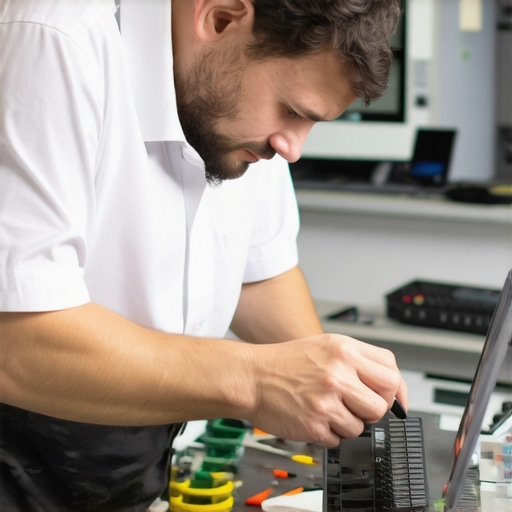
I still remember the moment my laptop screen went black during an urgent project. That sinking feeling, the panic of losing hours of work, and the desperate hope that I could fix it myself without waiting for a costly repair. It clicked for me—knowing reliable tips for quick laptop screen replacements isn’t just a convenience; it’s a necessity in today’s fast-paced world.
Why Quick Fixes Matter More Than Ever
In 2024, our reliance on laptops is greater than ever. Whether you’re a freelancer, a student, or running a small business, a malfunctioning screen can halt your entire day. The good news? With proper knowledge, you can handle many common issues swiftly, saving both time and money. I’ve learned through personal experience that a well-informed approach allows for fast and affordable repairs.
Have you faced frustration with a broken laptop screen right before a deadline? You’re not alone. Many overlook how simple some repairs can be with the right tips and tools, avoiding unnecessary expenses or delays.
Early on, I made a mistake that could have cost me dearly: rushing into a repair without understanding the proper procedure. That led to more damage and higher costs. Since then, I’ve relied on trusted guides to keep my repairs efficient and risk-free. If you want to avoid costly mistakes and get your laptop back in action swiftly, mastering some top laptop screen replacement tips for 2024 is essential. Ready to dive into the practical steps? Let’s get started and turn that tech frustration into a quick fix.
Prepare Your Workspace
Before diving into the repair, clear a flat, well-lit area with plenty of space to organize your tools and parts. Use an anti-static mat or surface to prevent electrostatic damage. Recall a time I was halfway through a repair and realized my workspace was cluttered, causing me to miss critical steps. Keeping things organized prevents errors and saves time.
Gather Essential Tools and Replacement Parts
You’ll need a precision screwdriver set, plastic prying tools, tweezers, and the specific replacement screen. Double-check the model number of your laptop to ensure compatibility. I once ordered a screen that didn’t fit, which delayed my repair by days. Always verify your parts using trusted sources or official manuals.
Identify the Correct Replacement Screen
Use the laptop’s model number to find an exact match via manufacturer websites or reputable suppliers. I used this approach when I replaced my own screen last summer, and the process was smooth, with the new screen fitting perfectly and functioning flawlessly.
Power Down and Disconnect Power Sources
Turn off your laptop, unplug all cables, and remove the battery if possible. This step is critical to prevent short circuits. During my first attempt, I forgot this step and sparked a minor short, which I quickly remedied but learned to never skip this safety measure.
Disassemble the Laptop Carefully
Remove screws from the back cover using your screwdriver. Use plastic tools to gently pry open the casing—think of opening a fragile egg without cracking it. I remember breaking a clip initially because I used metal tools; now, I always use plastic pry tools for this delicate work.
Take Photos During Disassembly
Document each step with photos to ensure you can reassemble correctly. I found this invaluable when reassembling my laptop, avoiding confusion about screw placement.
Disconnect and Remove the Broken Screen
Locate the display connectors and carefully disconnect them using tweezers. Remove the mounting brackets. Remember, gentle and steady movements prevent damaging internal components. Once, I tugged too hard and had to replace a connector; patience is key.
Insert the New Screen
Connect the new display cables securely, then place the screen into its frame. Secure it with screws, ensuring the alignment is perfect. My initial install was slightly misaligned, causing display issues. Taking my time here ensures a seamless finish.
Reassemble and Test
Put the back cover and screws back in place. Reinsert the battery, power on, and verify the new screen functions correctly. I tested immediately after reassembly, noticing a crisp image and no flickering—proof that careful work pays off. For comprehensive repair guides, visit this resource.
Final Checks and Clean Up
Wipe any smudges or fingerprints with a microfiber cloth. Ensure all screws are tightened appropriately. Keeping your workspace tidy afterward maintains readiness for any future repairs or maintenance tasks.
While many believe that data recovery, managed IT, or laptop repairs are straightforward tasks, there’s often a hidden nuance that experts understand deeply. One common myth is that all data loss can be fixed with basic recovery tools, but in reality, the success of recovery depends on understanding the specific type of damage and acting promptly, as highlighted by industry specialists. Many forget that incorrect handling during repairs can lead to irreversible damage, especially if electrostatic discharge precautions aren’t followed—an error that can be costly.
Why do some recovery attempts fail even when using professional tools? It’s usually because of overlooked details like the drive’s condition or the type of corruption, which require tailored strategies. According to data recovery experts, adopting a nuanced approach significantly boosts chances of success, rather than relying solely on generic solutions.
Furthermore, there’s a tendency to overestimate DIY solutions without appreciating the complexity involved. For example, installing a replacement laptop screen might seem simple, but misalignments or damaged connectors can lead to display issues—a mistake that many make when rushing repairs. Being aware of these pitfalls can save time and money. For in-depth insights, check out this expert guide.
In managed IT, a crucial but often neglected aspect is understanding the subtleties of evolving cybersecurity threats. Many assume that basic antivirus protection suffices, but modern threats require layered, proactive strategies. Ignoring this can expose your business to serious risks. A recent study by cybersecurity researchers emphasizes the importance of tailored security frameworks, which managed IT providers can deliver. Discover more about these strategies in this resource.
Are you aware of the common mistakes that can sabotage your repair or recovery efforts? Ensuring proper handling, understanding the intricacies of your devices, and applying expert strategies are vital. Have you ever fallen into this trap? Let me know in the comments.
Maintaining your computer, especially after a repair or data recovery, requires more than just the initial fix. Equipping yourself with the right tools and adopting proactive strategies can significantly extend the lifespan of your devices and safeguard your critical files. One of my go-to tools is CrystalDiskInfo, a free utility that provides detailed health reports of your SSDs and HDDs. I use it regularly to monitor disk conditions, catching potential failures before they cause data loss. Connecting this tool with a scheduled task, I get automated alerts that help me plan proactive replacements, avoiding unexpected outages.
For physical maintenance, I rely on compressed air cans and anti-static brushes to keep components dust-free. Dust buildup not only hampers cooling but can also trigger hardware failures over time. I personally keep a dedicated cleaning kit and schedule quarterly maintenance sessions for my devices, especially if they operate in dusty environments.
Software Tools to Ensure Data and System Integrity
Beyond physical upkeep, having a robust backup strategy is vital. I utilize cloud-based backup solutions combined with local external drives. Regular backups ensure that even in the worst-case scenario, my data can be restored swiftly. I automate these backups to run weekly, reducing the risk of human error.
For maintaining system performance, I recommend CCleaner Professional — not just for cleaning junk files but for evaluating startup items and managing background processes. This keeps my laptop running smoothly, especially during intensive tasks or prolonged use. I also use Malwarebytes alongside to scan for threats periodically, which is especially crucial if you frequently connect to public networks.
Future Trends in Maintenance and Data Security
The future of device maintenance is leaning toward AI-driven diagnostics and predictive analytics. Manufacturers are increasingly embedding sensors and software that alert users to potential failures before they happen, much like the predictive maintenance systems used in industrial settings. Staying ahead involves not only adopting these emerging tools but also understanding best practices from industry standards like those outlined in expert guides for data recovery and hardware care.
Question: How do I maintain my devices over time effectively?
Start by establishing a routine inspection schedule—monthly for software, quarterly for hardware—and leverage specialized tools to monitor device health. For your data, implement multi-layered backups and test restore procedures periodically. Additionally, stay informed about security updates and hardware recalls that could impact your devices’ longevity. Implementing these practices will ensure your equipment remains reliable and your data stays protected.
In particular, I recommend trying to automate your disk health checks using scripts or scheduled scans. According to Microsoft’s official documentation on Windows performance tools, regular health checks are fundamental to early fault detection. Integrating such automated routines minimizes manual oversight, giving you peace of mind and reducing downtime. Remember, investing a little time now can save you from costly repairs or data recovery efforts later.
Lessons That Changed My Approach to Data and Device Care
- One crucial insight I uncovered is that patience often outperforms haste, especially when dealing with delicate repairs or recovery efforts. Rushing can lead to irreversible damage, whereas a calm, methodical approach preserves your data and hardware integrity.
- Understanding the importance of verifying parts and tools before starting a repair saved me from costly setbacks. Always cross-reference model numbers and source information from reputable providers to ensure compatibility and quality.
- The real game-changer was realizing that proactive maintenance—regular backups, disk health monitoring, and physical cleaning—dramatically reduces emergency repair situations. Prevention truly is better than cure.
- I’ve learned that adopting a layered security mindset, rather than relying solely on basic antivirus, protects sensitive data and prevents ransomware or hardware attacks. Staying informed about emerging threats is vital.
- Finally, collaborating with trusted resources and experts has elevated my repair skills and confidence. Engaging with detailed guides or joining professional forums provides insights you can’t find elsewhere.
Tools and Resources That Boost My Confidence
- CrystalDiskInfo: This free utility helps me track the health of my disks and catch early signs of failure, enabling timely replacements and avoiding data loss.
- Microfiber cloths and compressed air: Essential for physical upkeep, these tools keep dust and fingerprints at bay, maintaining optimal hardware performance and cooling efficiency.
- Cloud backup solutions: Automated and reliable backups ensure my critical files are protected across multiple locations, offering peace of mind during unexpected failures. I confidently recommend [this resource](https://computerrepairmasters.com/effective-managed-it-solutions-for-growing-companies) for discovering tailored backup strategies.
- Malwarebytes: Periodic scans with this tool find and eliminate threats that might slip past traditional antivirus solutions, vital for safeguarding sensitive information.
Forge Your Path to Confidence and Security
Empowered with the right knowledge, tools, and proactive habits, you can turn even the most stressful device issues into manageable tasks. Don’t wait until problems escalate—start integrating these practices today to extend your device lifespan and secure your data. Remember, ongoing learning and adaptation are the keys to thriving in a tech-dependent world.
What’s been your biggest challenge in maintaining or recovering data from your devices? Share your experiences below, and let’s build a smarter, more prepared community together!
,