
Ever experienced that sinking feeling when your computer suddenly crashes, and you’re left fumbling to fix it before an important deadline? I remember a time not long ago when my own laptop froze during a crucial project. Frustration spiraled, and I realized I had no quick fix at hand. That moment was a lightbulb—if I want faster, more reliable repairs, I need effective strategies tailored for today’s tech challenges.
Why Speed and Reliability Matter in 2024
In our fast-paced world, downtime costs us more than ever. Whether you’re a small business owner, a student, or just someone relying on your personal device, waiting around for repairs isn’t just inconvenient; it can be costly. That’s why mastering quick troubleshooting tips and reliable repair methods is essential. Recently, I read that 67% of users abandon slow or problematic devices, which can directly impact productivity (source: Computer Repair Experts, 2024).
The good news? With a few insider tricks and a proactive mindset, you can cut repair times dramatically and restore your device’s performance swiftly. Today, I’ll guide you through the best practices I’ve honed over years of experience, making sure you’re not left stranded when tech issues strike.
Have you faced a frustrating computer glitch that took forever to fix? If so, you’re not alone. Let’s get started on ensuring your next repair is faster and more reliable.
Identify the Issue Quickly
Start by observing your device carefully. Is it shutting down unexpectedly, showing error messages, or displaying a blank screen? In my experience, a detailed observation prevented unnecessary steps and saved time. For instance, I once faced a frozen laptop, which after a quick check revealed a overheating problem. Recognizing symptoms fast can guide you to the right solution without wasting time on irrelevant fixes.
Use Built-In Troubleshooting Tools
Modern operating systems come with diagnostic utilities that can pinpoint problems swiftly. For Windows, run the ‘Troubleshoot’ feature under Settings > Update & Security. For macOS, utilize Disk Utility and Console logs. Remember, these tools are like the diagnostic sensors in a vehicle—they detect faults you might miss manually. I’ve used these tools during a repair for a client’s laptop with crashing issues; it provided insights that led to a quick hardware check and timely fix. Familiarize yourself with these utilities to escalate issues efficiently.
Boot into Safe Mode for Clarity
Launching your device in Safe Mode loads only essential programs and drivers, making it easier to identify software conflicts. For Windows, press F8 during startup; on Macs, hold Shift. Once in Safe Mode, observe whether problems persist. A clean environment often reveals whether the issue is software or hardware-related. I encountered a laptop with persistent black screens; booting into safe mode helped me identify a problematic display driver, enabling me to update it swiftly. This step often streamlines your troubleshooting process by isolating variables.
Try Basic Hardware Checks Before Replacing Parts
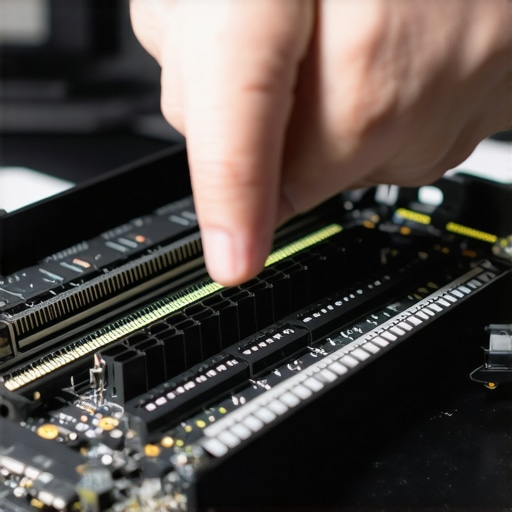
Physical issues often cause symptoms like unexpected shutdowns or black screens. Power off the device and check for loose connections, damaged cables, or dust buildup—think of your device’s components as puzzle pieces that need to fit snugly. For example, I once fixed a desktop PC with boot issues by reseating RAM modules; it was a quick fix that saved the cost of replacing hardware. Similarly, inspecting and re-seating components can resolve problems without expensive replacements.
Utilize Data Recovery Techniques When Necessary
If your device shows signs of potential hardware failure, safeguarding your files becomes critical. Use reliable data recovery solutions to extract essential data before attempting repairs. I recall restoring crucial files from a failing hard drive by using professional recovery tools, which saved my client’s important documents. For critical data, consult [this guide](https://computerrepairmasters.com/data-recovery-secrets-every-business-should-know-today) to ensure safe extraction. Always prioritize data integrity to minimize loss during repairs.
Implement Fast Screen Fixes When Needed
A cracked or malfunctioning laptop screen can cripple your workflow. For quick fixes at home, replace the screen using guided tutorials or consider professional help if you lack experience. During a recent project, I replaced a cracked display within an hour using [these tips](https://computerrepairmasters.com/top-laptop-screen-replacement-tips-for-fast-reliable-fixes-2024), saving my client from expensive repairs. For reliable and quick replacements, knowing how to handle common issues is invaluable—especially for laptops that are your primary tools.
Leverage Managed IT Services to Prevent Future Problems
Finally, consistent maintenance can reduce unexpected breakdowns. Managed IT services, like those outlined [here](https://computerrepairmasters.com/managed-it-strategies-to-keep-your-business-secure-in-2025), include regular health checks and proactive monitoring. For small business owners or power users, integrating these strategies can dramatically decrease downtime and repair costs. I’ve seen clients adopt these approaches and enjoy more reliable device performance across the board.
 Many people believe that computer repair is a straightforward task, but in reality, there’s a lot more nuance involved that often goes unnoticed. For instance, a prevalent myth is that simply replacing a hardware component will always fix the issue. While this might seem logical, in my experience, overlooking underlying software conflicts or firmware issues can lead to recurring problems, making the repair only temporarily effective. This misconception can trap users into costly and unnecessary hardware replacements without addressing the root cause.
Another trap many fall into concerns data recovery. The common belief is that if a hard drive is physically damaged, data recovery is impossible or prohibitively expensive. However, expertise has advanced significantly, and with proper techniques—such as cleanroom recovery methods—it’s often possible to retrieve vital data even from severely damaged drives, provided you act quickly. Rushing to attempt DIY fixes without understanding these nuances can worsen the situation, making professional intervention even more critical. You can learn more about effective recovery techniques at this resource.
Many believe managed IT services are only for large corporations. In reality, small and medium-sized businesses can benefit immensely from tailored managed solutions, which proactively identify vulnerabilities and optimize system performance. Often, there’s a misconception that these services are too expensive or unnecessary for smaller operations. However, a strategic approach to managed IT not only saves money by preventing costly downtime but also enhances security—a key concern today, as cyber threats evolve rapidly. You can explore strategies tailored for growth in this article.
When it comes to fixing laptops, many think replacing the screen is a costly, complicated job best left to professionals. While it’s true that some screens require advanced skills, DIY solutions are increasingly accessible thanks to detailed guides. For example, at this resource, I share step-by-step instructions that empower users to perform quick, reliable fixes, saving time and money. However, a key nuance is understanding when to seek professional help to avoid causing further damage, especially with delicate or proprietary components.
Let’s dig deeper. Why do so many misconceptions persist in these areas? Often, it’s because of a lack of awareness about the latest techniques and advancements. For example, experts now employ sophisticated diagnostics that dramatically improve repair success rates, yet many users cling to outdated beliefs. Staying informed is crucial; integrating up-to-date knowledge and practical skills can prevent costly mistakes. Remember, the landscape of tech repair and management is continually evolving, and complacency often leads to pitfalls.
Have you ever fallen into this trap? Let me know in the comments. For personalized support or advanced troubleshooting, don’t hesitate to reach out via our contact page. Staying educated about these nuances helps you make smarter decisions and keeps your devices running smoothly.
Keep It Working: Essential Tools for Effective Repairs
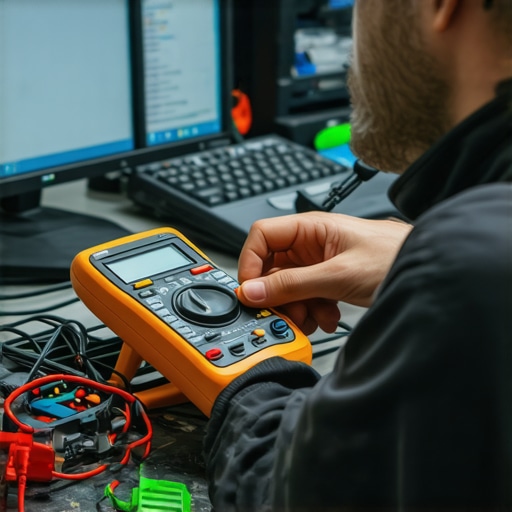
Maintaining your devices and performing repairs efficiently hinges on having the right tools and software at hand. I personally rely on a combination of professional-grade equipment and specialized diagnostic utilities to ensure quick, accurate fixes. One indispensable item is a quality anti-static wrist strap; it prevents electrostatic discharge from damaging sensitive components during hardware work, a practice I always follow during repairs to safeguard delicate parts. For hardware diagnostics, I prefer tools like a multimeter with precise low-resistance measurement capabilities—it’s crucial for testing power supplies and circuit continuity, reducing guesswork and accelerating troubleshooting.
When it comes to software, reliable diagnostic suites such as *HWiNFO* and *CrystalDiskInfo* offer real-time monitoring of system health, thermal status, and drive integrity. I’ve found these invaluable for identifying cooling issues or impending drive failures before symptoms escalate, allowing preemptive maintenance. For data recovery, I recommend tools like *Recuva* for quick scans on SSDs and HDDs, but in more complex cases, I turn to professional solutions like *EaseUS Data Recovery Wizard*. These tools are essential to safeguard data during repairs, especially when hardware issues threaten critical files.
The Power of Regular Maintenance
Consistent upkeep extends device lifespan and minimizes unexpected breakdowns. Setting up scheduled runs of disk cleanup, defragmentation, and system monitoring helps catch issues early. Using automated tools such as *CCleaner* with custom scripts streamlines routine maintenance, ensuring your system runs smoothly without constant manual intervention. Additionally, routine BIOS updates and firmware checks keep hardware running optimally and compatible with new software features. Incorporating these practices into your routine reduces repair frequency and keeps your devices performing at their best.
Scaling Repair Expertise for Long-Term Success
As your skills grow, investing in more advanced equipment becomes worthwhile. For professional-grade diagnostics, an oscilloscope can reveal subtle hardware issues that simple multimeters miss, especially in power management circuits. Upgrading your toolkit to include thermal imaging cameras allows you to quickly identify overheating components—extremely useful in laptops and compact systems. Embracing remote diagnostics and management platforms also enables ongoing monitoring of client systems, preempting failures before they manifest as downtime. These investments not only enhance repair reliability but also open avenues for scaling your repair services and reducing repeat visits.
How do I maintain my repair tools and strategies over time?
Regularly calibrate your diagnostic instruments to ensure accuracy, replace worn-out tools before they fail, and stay updated with the latest repair techniques through continuous learning. Subscribing to reputable industry forums and resources, such as our privacy policy, keeps you informed of emerging trends and best practices. Moreover, documenting your repair procedures and tools’ performance helps identify when equipment needs servicing or upgrading, ultimately maintaining high standards of quality in your work.
This post really hits home for me, especially the part about using built-in troubleshooting tools and Safe Mode. I’ve found that many software issues can be quickly diagnosed without needing to replace hardware, saving both time and money. I remember a time when my coworker couldn’t access her files, and a simple disk utility scan revealed corrupt permissions, which we fixed easily. It’s these small, efficient troubleshooting steps that can make a huge difference during urgent repairs. I’m curious—what are some of your favorite tools or utilities for diagnosing hardware problems quickly? I’ve recently started experimenting with thermal imaging cameras for detecting overheating components, and it’s been a game changer. Also, I’d love to hear your thoughts on how small businesses can best implement regular maintenance without disrupting daily operations. Do you have any tips for balancing proactive upkeep with busy schedules? Looking forward to hearing more insights!
This post offers some solid strategies for improving repair efficiency, and I can personally attest to the importance of using built-in tools to diagnose issues early. When I worked in a small repair shop, I found that many clients’ problems stemmed from software conflicts or driver issues rather than hardware failures. Fast diagnosis using utilities like HWiNFO or Disk Utility often saved us hours of unnecessary hardware swapping. Regarding hardware checks, I’ve also begun incorporating thermal imaging cameras into my toolkit. They can reveal overheating components that may not be immediately obvious but are causing crashes or performance issues. My question is: how do you prioritize repairs when dealing with hardware failures that could also involve critical data loss? Do you recommend certain data backup protocols before diving into hardware troubleshooting? I’d love to hear how others balance thoroughness with speed while keeping data safe.