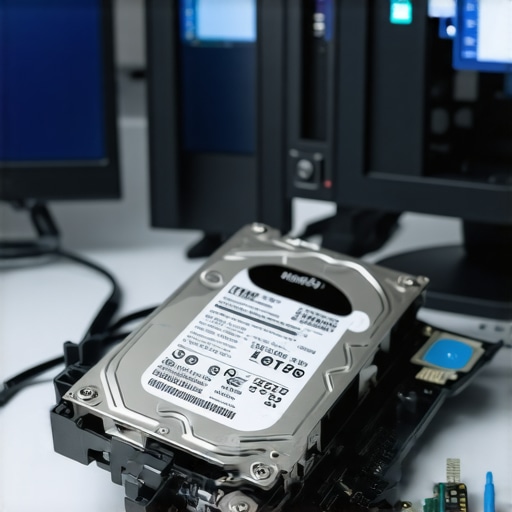
I vividly remember a moment when my heart sank—my laptop screen went dark, and I realized I hadn’t backed up my essential files. Panic set in. It was a seemingly minor glitch, but it threatened to wipe out months of work, precious memories, and vital business data. That experience was a wake-up call. Since then, I’ve learned the hard way how devastating data loss can be and how crucial it is to have reliable recovery strategies in place.
The Urgency of Data Recovery in the Modern World
In today’s digital landscape, our lives are intertwined with data—whether it’s personal photos, work documents, or client information. Losing these files isn’t just inconvenient; it can severely impact your productivity, reputation, and peace of mind. According to a recent survey, over 60% of small businesses face data loss incidents annually, often due to hardware failures or human errors. And the truth is, most of us aren’t prepared for such crises.
As someone who’s been through the frustration of a failed hard drive, I want to share a proven approach to safeguard your critical files and restore access swiftly. The goal isn’t just about avoiding disaster but about empowering yourself with knowledge and tools that make recovery a manageable, even routine, task.
Is Data Recovery Actually Worth the Effort? Some Still Think It’s Hackneyed
If you’ve ever hesitated, thinking data recovery sounds overly complicated or expensive, I get it. Early on, I made the mistake of ignoring regular backups and trusting that hardware failures wouldn’t happen to me. That was a costly oversight. The fact is, technology will fail—sooner or later. Investing in reliable data recovery solutions is like insuring your digital life. In the long run, it saves you time, money, and the headache of lost information. For proven strategies, you might want to check out [this expert guide](https://computerrepairmasters.com/data-recovery-secrets-every-business-should-know-today) that demystifies critical data rescue techniques.
Up next, I’ll walk you through practical steps to prevent data disaster and ensure rapid recovery when it strikes. Because, trust me, being prepared makes all the difference.
Implement Regular Backups to Prevent Data Loss
The first line of defense against data disasters is a robust backup strategy. When I experienced a hard drive failure, I realized my mistake in neglecting recent backups. To avoid such panic, schedule automatic backups using tools like Time Machine for Mac or built-in Windows backup utilities. Store copies in multiple locations: cloud services and external drives. This redundancy ensures that if your primary device fails, your precious data remains accessible. For detailed guidance on effective backup practices, visit this resource. Immediate action can save you hours of recovery work later.
Diagnose the Issue Clearly Before Acting
When your device shows signs of failure—like a computer not starting or a corrupted file—don’t jump to conclusions. Think of your PC as a patient: diagnose the symptoms accurately. Use boot diagnostics or safe mode to pinpoint whether it’s hardware or software. Running a hardware check—similar to a doctor ordering tests—can reveal failing parts, like a damaged motherboard or bad sectors on your hard drive. If you notice unusual noises or error codes, document them. Quick, accurate diagnosis informs your recovery approach, saving time and avoiding unnecessary expenses. For step-by-step troubleshooting, check out troubleshooting tips here.
Use Reliable Data Recovery Tools Professionally
When files are inaccessible or corrupted, specialized recovery software is invaluable. I once used a tool like EaseUS Data Recovery Wizard after accidental deletion, and it restored files that seemed lost forever. Choose reputable solutions—like expert-recommended recovery tools—to increase your chances of success. These programs scan your drives for recoverable data, often recovering files in their original format. Remember, avoid writing new data to the affected drive to prevent overwriting the files you want to save. Think of recovery software as a digital detective: thorough searches, keen analysis, and proper handling make all the difference.
Separate Hardware Failures from Software Glitches
Hardware issues—like a failed hard drive or corrupted memory—require different approaches than software errors. If your laptop refuses to power on or makes clicking noises, it’s time to consider hardware repair. For quick fixes, check out laptop screen and hardware repair guides. In my experience, swapping out a failing drive or reseating RAM modules can restore operation without extensive downtime. When hardware damage is suspected, consult professionals to avoid further damage or data loss. Think of hardware failures as broken locks: sometimes, a simple replacement or repair unlocks everything again.
Seek Professional Help When Needed
While DIY methods work in many cases, some situations demand expert intervention. If your drive is physically damaged or recovery attempts fail, professional data recovery services are your safest bet. They use clean-room environments and advanced tools to retrieve data from severely compromised drives. Trustworthy services, like those recommended in professional recovery guides, can salvage critical files without risking further harm. It’s like taking your vehicle to a certified mechanic—despite the inconvenience and cost, it’s often the fastest route to safe, reliable recovery.
Maintain Your System for Consistent Data Safety
Prevention remains the best cure. Regularly updating your system, using strong security software, and performing scheduled maintenance can prevent many issues that lead to data loss. Managed IT services, such as managed IT solutions, offer continuous monitoring and protection. I adopted routine system checks, which caught a failing drive early, allowing me to replace it before total failure. Think of maintenance like a regular health checkup—proactive measures keep your system fit and your data safe.
Many professionals and DIY enthusiasts operate under misconceptions that can sabotage their efforts to maintain reliable digital systems. While it’s common to assume that managed IT services automatically cover every cybersecurity threat or that DIY laptop repairs are straightforward, the reality is far more nuanced. Let’s explore some overlooked truths and advanced pitfalls that often trip even seasoned users.
Why Managed IT Isn’t a Silver Bullet
Everyone advocates for managed IT services, but many underestimate their limitations. A frequent myth is that outsourcing IT entirely removes the need for internal oversight or security protocols. In truth, an effective managed IT strategy requires active collaboration and clear communication; otherwise, vulnerabilities can slip through. A study by Gartner indicates that 70% of security breaches happen due to misconfigurations or lack of oversight, emphasizing that managed solutions complement but do not replace vigilant internal policies. Relying solely on external providers can create a false sense of security—trust but verify remains vital.
What Are the Hidden Risks in DIY Laptop Repairs?
The appeal of fixing a laptop screen or resolving performance issues at home is undeniable, especially with abundant online tutorials. However, many don’t realize that attempting complex repairs without proper tools or expertise can lead to further damage. For instance, applying excessive pressure to replace a cracked screen might damage underlying components or cause misalignment, which often results in more costly repairs down the line. Additionally, handling internal hardware without antistatic precautions risks electrostatic discharge, jeopardizing sensitive circuitry. Purchasing cheap replacement parts may seem cost-effective, but inferior quality components often fail prematurely, leading to repeated repairs. Exploring comprehensive guides, such as this detailed laptop screen replacement guide, can help you avoid these traps.
Handling Data Recovery: When DIY Turns into a Nightmare
Many believe that data recovery software guarantees retrieval from any corrupted drive, but this isn’t always true—especially if you’re unaware of advanced issues like firmware corruption or physical damage. A common mistake is using recovery tools that overwrite data during attempts, or worse, trying to recover data from a drive that’s physically compromised without professional assistance. In some cases, aggressive DIY methods may inadvertently make data unrecoverable. The key is recognizing when to escalate to specialists—professional recovery services employ clean-room environments and specialized equipment to extract critical files safely. Remember, according to this resource, early consultation can save invaluable data assets.
Ask yourself: Have you ever fallen into this trap? Let me know in the comments.
Understanding these nuances ensures you don’t just follow the popular advice blindly but develop a resilient approach to managing IT, repairs, and data security. Successful mitigation requires awareness of these myths and pitfalls—arming yourself with knowledge is your best defense. For more advanced insights into building effective managed IT strategies or protecting critical data assets, continue exploring trusted guidance.
Maintaining your computer setup efficiently requires the right combination of tools and routines. Over the years, I’ve discovered that investing in high-quality equipment and adopting disciplined maintenance habits significantly prolongs device lifespan and reduces downtime. Tools like precision screwdrivers, ESD-safe mats, and diagnostic software are indispensable for me when performing repairs or routine checks. For software, I rely on lightweight yet powerful utilities such as CrystalDiskInfo for monitoring HDD health and HWMonitor for thermal management. These programs provide real-time data, enabling me to catch issues before they escalate, which is crucial for long-term reliability.
How do I keep my systems running smoothly over time?
Preventive maintenance is the foundation. Regularly updating firmware and drivers ensures compatibility and security, and setting up automated backup solutions—like cloud syncs combined with external drives—gives me peace of mind. I personally schedule monthly health checks using diagnostic tools recommended by this trusted resource. These checks help identify early signs of hardware degradation or performance bottlenecks. In the coming years, I predict that AI-powered monitoring tools will become more accessible, providing real-time suggestions for optimizations and preventative actions, further simplifying maintenance for everyday users.
If you’re serious about keeping your devices in top shape, try implementing a routine that incorporates these diagnostic tools and scheduled inspections. Small proactive steps now can save you substantial headaches later.

The Hardest Lessons I Learned About Data Recovery and Maintenance
- I once underestimated how often hardware can fail suddenly, catching me off guard until my critical files were inaccessible. Now, I prioritize regular backups to cloudy and physical drives, knowing that proactive steps save hours of recovery.
- Thinking DIY repairs were straightforward almost cost me my laptop. The experience taught me that complex issues often require professional tools and expertise, especially when sensitive data is involved. Trusting specialists like those in expert data recovery services can be a game-changer.
- I used to believe that software could fix all data corruption, but I learned the hard way that physical damage or firmware issues need specialized recovery methods. Recognizing my limits and consulting pros early on made all the difference.
My Trusted Arsenal for Safeguarding Digital Assets
- EaseUS Data Recovery Wizard — I depend on this to recover accidentally deleted files without corruption, especially when time is short.
- CrystalDiskInfo — Monitoring drive health helps me catch early signs of failure before data loss occurs.
- Secure Cloud Backup Solutions — Automating backups via services I trust ensures my data stays protected without manual effort, aligning with strategies found here.