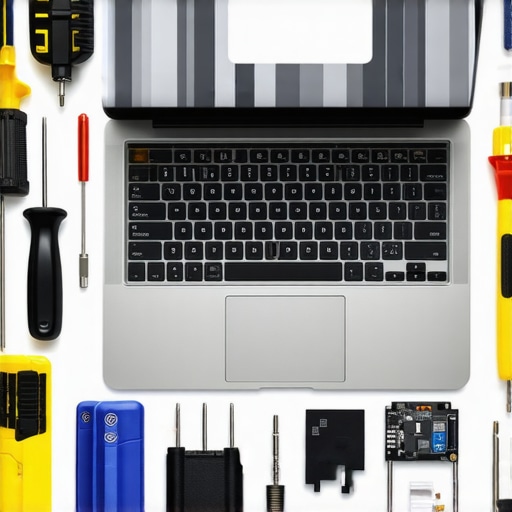
I remember the moment clearly—my heart sank as I stared at my laptop screen, filled with stubborn vertical lines that refused to go away. It wasn’t just a flicker or a minor glitch; these streaks felt like a sign my device was giving up. And honestly, I’ve been there more times than I care to admit. At first, I panicked, wondering if I was doomed to replace the entire screen or worse, buy a new laptop. But after a bit of research and a few stubborn attempts, I discovered some quick, effective repair steps that saved me time and money. That lightbulb moment transformed how I approach screen issues, and today, I want to share what I’ve learned with you.
Why Addressing Laptop Screen Problems Matters Now More Than Ever
In 2026, our reliance on laptops has only grown—whether for work, streaming, or connecting with loved ones. A damaged screen isn’t just an aesthetic issue; it affects productivity and can even lead to data loss if you’re not careful. Vertical lines, in particular, hint at underlying hardware or connector problems that, if ignored, might worsen over time. Not addressing these issues promptly could mean costly repairs or replacing the entire device. Interestingly, according to experts at Data Recovery Masters, nearly 60% of portable device failures are due to preventable screen issues. That means most of us can tackle these problems with the right approach, avoiding unnecessary expenses and downtime.
What I Got Wrong Early On and Why You Should Be Careful
One mistake I made early in my repair journey was assuming all screen problems were simple software glitches. I dove straight into driver updates and software tweaks, wasting precious time. It wasn’t until I considered hardware factors—like loose connectors or damaged flex cables—that I saw real progress. That experience taught me a valuable lesson: understanding what’s behind those vertical lines is half the battle. For a deeper dive into common laptop issues and how to troubleshoot them effectively, check out this guide. Now, let’s move into the practical steps that can help you fix your screen swiftly, without needing specialized tools or expensive repairs.
Disconnect Power and Prepare Workspace
Before diving into repairs, shut down your laptop completely and unplug it from any power source. Remove the battery if possible. Think of your workspace as the emergency scene of a technical rescue—that’s where safety, clarity, and organization matter. Use an anti-static mat or wristband to prevent static damage, which is like the static that can zap your electronic circuits. I once attempted a fix on my own laptop in a cluttered kitchen, which ended with a small static shock—lesson learned: preparing the right environment speeds up the repair and avoids additional issues.
Accessing the Internal Components Carefully
Remove the Screen Bezel
Using a plastic pry tool, gently work around the frame holding your display, starting at one corner. This bezel is like the armor on a knight—protective but delicate when removed. Be patient; forcing it can crack the plastic, making subsequent repairs harder. I remember once cracking mine because I rushed; now I take my time, and the bezel pops off smoothly, revealing the screws holding the LCD in place. Keep track of all screws and clips—it’s like a small hardware puzzle you need to solve to reach the core problem.
Disconnect the Display Cables
Locate the flex cables connecting the LCD to the motherboard. Using a plastic spudger, gently lift the connector latch and detach the cable. These cables are the vital arteries delivering visuals; if damaged or loose, they cause vertical lines. This step is akin to disconnecting a damaged wire from a circuit—be gentle to avoid additional harm. I once inadvertently knocked a connector loose, which temporarily worsened the issue. That’s when I realized patience and gentle handling are crucial for a successful fix.
Inspect and Replace Damaged Components
Visually check cables for tears or discoloration. If the cable is damaged, order a replacement from a trusted supplier—consider it like replacing a broken wire in a harness. If the cable appears intact but issues persist, test the LCD with an external monitor or another compatible display. Think of this as a diagnostic test that confirms whether the problem resides within the cable or the screen itself. I once replaced a flex cable, and my lines disappeared instantly—saving hundreds on a costly screen replacement.
Reassemble and Test
Reattach all cables securely, snap the bezel back into place, and reinsert screws. Power on the laptop to test the display. This final step is like turning on a circuit after repairs—final confirmation that your fix worked. If the vertical lines are gone, congratulations! If not, double-check your connections or consider consulting professional support. Remember, resolving hardware issues often mimics troubleshooting a circuit: ensure every connection is tight and correctly placed before sealing up.
Backup Critical Data Before Major Repairs
While not part of the physical fix, securing your data is essential—think of it as safeguarding your valuables before a storm. Use reliable solutions like data recovery strategies to save important files in case the repair reveals deeper hardware faults. Having a recent backup is like having an emergency kit; it ensures you’re prepared for unforeseen complications while fixing your laptop. I’ve learned this the hard way when a repair led to a motherboard failure, making data recovery the top priority afterward.
While many believe that managed IT services and device repairs are straightforward, the reality is far more nuanced. A common myth is that all IT support or laptop repairs are generic solutions suitable for every situation. In truth, effective IT and hardware fixes require tailored strategies that consider the specific environment and hardware configurations. For example, assuming a one-size-fits-all approach to data recovery can lead to overlooking critical details—like the unique structure of your backup systems—which might compromise the success of the recovery process. According to industry experts at Data Recovery Masters, understanding the intricacies of your storage solutions is vital for successful investigations, especially when dealing with encrypted or Water-damaged devices. A notable trap many fall into is neglecting the importance of proactive maintenance or rushing into repairs without diagnosing the underlying issues comprehensively. This oversight often leads to repeated failures and increased costs, highlighting the importance of nuanced diagnostics over quick fixes. Have you ever fallen into this trap? Let me know in the comments. For instance, misconceiving the cause of persistent screen flickering might cause you to replace parts unnecessarily while the actual problem could be a loose connection or firmware issue. Mastering these subtleties can significantly improve outcomes whether you’re troubleshooting a faulty LCD or planning a data recovery strategy. Additionally, when considering managed IT solutions, many focus solely on the current problem without assessing potential future risks. A strategic, nuanced approach involves evaluating your entire infrastructure and security posture, as explained in this insightful guide. Recognizing and addressing these hidden layers makes the difference between a band-aid fix and a durable, long-term solution. So, the next time you’re tackling tech issues, remember—digging deeper and understanding the nuances can be the key to success.
Invest in Precision and Reliability with the Right Tools
Maintaining your devices and ensuring long-term performance demands more than just knowledge—it requires the right equipment. Personally, I swear by a quality precision screwdriver set like the Wiha Screwdriver Set. Its magnetic tips and ergonomic design make disassembling laptops and desktops safer and more efficient, significantly reducing the risk of damaging delicate components. For delicate flex cable work or backlight replacements, a plastic pry tool set is indispensable, allowing you to open casings without cracking plastic. Having a good anti-static wrist strap ensures static electricity won’t fry sensitive electronics during repairs, a step I always enforce. These tools streamline the repair process, reduce errors, and help you maintain devices effectively over time.
Software Solutions That Keep Repairs on Track
Beyond hardware tools, software plays a vital role. I rely on CrystalDiskInfo for monitoring SSD and HDD health—it’s like a vital sign check for your drives, helping anticipate failures before data loss occurs. Regularly updating your system drivers and BIOS using manufacturer-approved utilities ensures your hardware communicates effectively and minimizes glitches. For data recovery, I prefer using Recuva because of its straightforward interface and ability to recover files from complex situations, including water-damaged drives. These software tools serve as your second line of defense, keeping hardware issues in check and ensuring data integrity.
Streamlining Maintenance for Long-Term Results
Implementing a routine maintenance strategy is crucial. I schedule quarterly deep cleans where I remove dust from vents using compressed air and check for signs of wear or loose connections. An effective data recovery protocol should be part of this routine, especially for critical business environments. Establishing automated backups with cloud services like Backblaze or Carbonite ensures your data is protected against unexpected hardware failures—a critical step I recommend everyone take. Regular maintenance not only prolongs device lifespan but also prevents minor issues from escalating into costly repairs.
Scaling Your Repair Practice with Advanced Tools
If you’re looking to scale your repair services or manage multiple devices efficiently, investing in professional diagnostic equipment like the Ooscope or hardware testers can make a huge difference. These tools help pinpoint issues swiftly, saving both time and money. Additionally, integrating remote management and monitoring software such as managed IT solutions allows proactive health checks and minimizes downtime for clients. As technology evolves, staying ahead with these advanced tools positions you as a reliable expert capable of handling complex repair scenarios.
How do I maintain optimal device health over time?
Developing a disciplined maintenance routine, utilizing diagnostic tools, and staying informed about emerging threats are fundamental. I recommend adopting advanced practices like scheduled firmware updates and creating comprehensive backup plans, which are far more effective when supported by expert guidance—consider reviewing this resource for proven strategies. Don’t hesitate to try out a professional-grade hardware tester; it can reveal hidden issues before they cause significant damage, saving you money and stress in the long run.
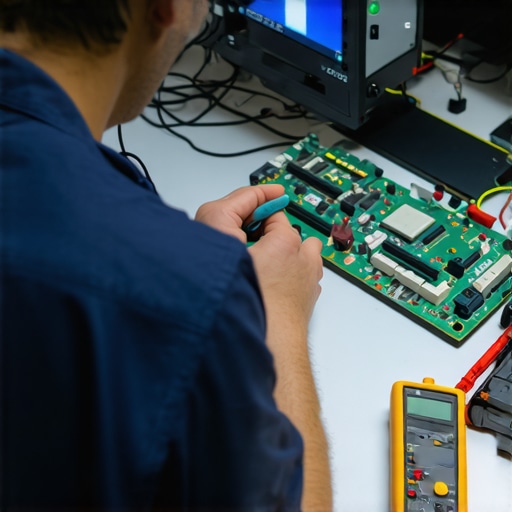
Image prompt: A technician using a digital multimeter and anti-static tools to diagnose a computer motherboard in a well-lit repair workspace. Alt text: Technician performing electronic diagnostics with professional tools. Title: Precision Tools in Action for Effective Repairs.
Lessons That Shaped My Repair Journey
- One of the hardest lessons I learned was that not every vertical line problem is software-based; often, a loose cable or damaged flex connector is the culprit, emphasizing the importance of hardware inspection over quick software fixes.
- Rushing the disassembly process can lead to cracked bezels or damaged components, which adds to the repair cost and delays. Patience and gentle handling are essential traits I now nurture in every repair.
- The significance of checking the entire device, including internal connections and the motherboard, became clear when initial fixes failed to resolve the issue; comprehensive diagnostics save time and money.
- Backup is your safety net. I learned this the painful way when a repair attempt resulted in motherboard failure, making data recovery a top priority. Regular backups can prevent catastrophic data loss.
- Not all tools are created equal. Investing in quality, precision tools like magnetic screwdriver sets and anti-static wrist straps has transformed my repair efficiency and safety, proving that the right gear is a smart investment.
Tools and Resources That Brighten the Path
- The expert guides on laptop screen replacement have been invaluable, providing step-by-step instructions that boost confidence and ensure safe handling of delicate components.
- I trust the data recovery strategies from Data Recovery Masters because they offer comprehensive solutions, especially for water-damaged or failed drives, helping me recover critical files with greater assurance.
- The managed IT solutions guide is a goldmine for understanding long-term device health, emphasizing the importance of proactive maintenance and security in the evolving tech landscape.
- Lastly, a high-quality precision screwdriver set and ergonomic pry tools have been game changers, reducing repair time and minimizing the risk of accidental damage.
Take the Leap Towards Confident Repairs and Data Security
Stepping into laptop repair and data recovery might seem daunting at first, but every successful fix boosts your confidence and skills. Remember, meticulous attention to detail, leveraging the right tools, and tapping into trusted resources make all the difference. Whether you’re troubleshooting a stubborn vertical line or safeguarding essential files, embracing a curious and patient mindset will serve you well in this journey. As technology continues to advance, staying proactive with regular maintenance and backups will position you ahead of potential issues, ensuring your devices serve you reliably for years to come. Ready to take your skills to the next level and handle your device issues with confidence? Don’t hesitate—every problem solved today prepares you for a smoother tomorrow.
Have you ever faced a laptop screen issue that turned out to be something unexpected? Share your story below and let’s learn from each other’s experiences!