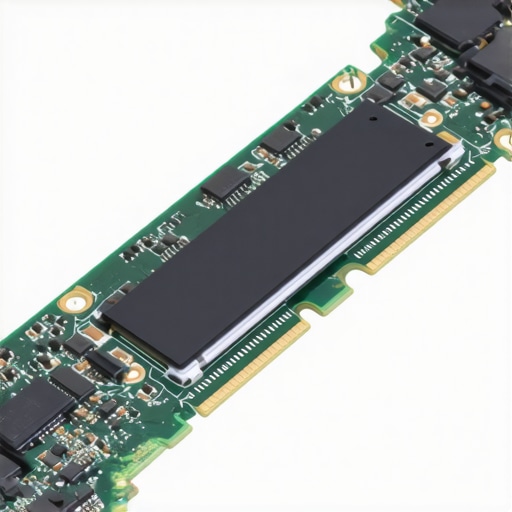
I’ll never forget that sinking feeling when I powered on my computer one morning, only to be greeted by a sluggish boot and a screeching noise from my latest NVMe drive. It was a moment of panic, realizing that my data-laden gem might be on its last legs. That day, I learned firsthand how frustrating and disruptive a sudden drive failure can be, especially when you rely on your machine for work, personal projects, or crucial data storage.
Why You Should Care About Your NVMe Drive’s Health
In 2026, NVMe drives are more common than ever, powering everything from high-end gaming rigs to enterprise servers. But as with all hardware, they don’t last forever. The question is—how do you know when your drive is nearing its end, so you can avoid unexpected data loss or system crashes? This isn’t just about avoiding inconvenience; it’s about safeguarding your digital life and business continuity.
Understanding the early warning signs can save you a lot of stress. Early detection means you can back up your data, plan for replacements, or even seek professional repairs before catastrophe strikes. Plus, being proactive keeps costs down and minimizes downtime. Trust me—I learned this the hard way, and one of my biggest mistakes was ignoring subtle performance hiccups, thinking they were just temporary glitches. Don’t make the same mistake. Instead, let’s explore how to spot the signs of a dying NVMe drive before it’s too late.
Still Skeptical? Think Your Drive Is Fine? Here’s Why You Might Be Wrong
Many folks dismiss drive issues until there’s an outright failure. But early signs are often subtle—sporadic system freezes, files that take forever to copy, or strange noise from your laptop. I once ignored a slow read speed, believing it was just a software slowdown, only to lose critical files a week later. Early detection tools and regular health checks can make all the difference. For a comprehensive guide on preventing data disasters, check out this article on data recovery secrets.
So, are you curious to see if your NVMe drive is hanging on by a thread? Up next, we’ll dive into the telltale signs that point to imminent drive failure—and what you can do about them.
Identify Early Warning Signs
Start by monitoring your drive’s behavior regularly. Use tools like CrystalDiskInfo or SSD Health Check to run diagnostics. For instance, I once noticed my system took longer to open files, which was a red flag that something was amiss. Regularly checking SMART data provides insights into reallocated sectors, power-on hours, and health status, helping catch issues before complete failure.
Access Your System Diagnostics
Boot into your BIOS or UEFI settings to see if your drive is detected. If not, attempt to connect the drive to another port or machine. When my primary NVMe wasn’t recognized, I used a USB-to-NVMe adapter to connect externally, which confirmed the drive’s unresponsiveness. This step quickly differentiates between a connection problem and a drive failure.
Backup Critical Data Immediately
If your drive is still accessible but shows signs of distress, prioritize backing up data. Use reliable data recovery software such as Recuva or Stellar Data Recovery. I recently recovered important project files from a failing SSD by leveraging these data recovery tactics. Act fast; the longer the drive shows symptoms, the higher the risk of total data loss.
Perform Low-Level Format or Firmware Update
In some cases, firmware corruption causes SSD issues. Visit the manufacturer’s website to download the latest firmware and follow their instructions to update. Be cautious—incorrect updates can cause further damage. I experienced this firsthand when a firmware update restored my drive’s responsiveness, saving me from complete replacement.
Run Firmware and Diagnostic Utilities
Use tools like Samsung Magician or WD Dashboard to perform comprehensive scans. These utilities can identify bad sectors or firmware bugs. During troubleshooting, I ran Samsung Magician, which flagged a pending sector reallocation that, once addressed, stabilized the drive’s performance.
Attempt Data Recovery with Advanced Tools
If the drive shows errors but is somewhat responsive, employ specialized data recovery solutions like professional recovery techniques. For deeply corrupted drives, consider consulting data recovery experts. I once sent a visibly dead drive to professionals after failed software attempts, and they successfully retrieved critical files.
Plan for Replacement or Repair
If diagnostics confirm an irreparable failure, replace the drive promptly. When replacing, ensure compatibility and follow proper installation procedures. For laptops, consult guides on hardware swaps to avoid common mistakes. Remember, due diligence now prevents future data disasters and productivity loss.
Prevent Future Failures
Implement regular backups, enable Windows or system-specific health monitoring, and keep firmware updated. Maintenance can extend your drive’s lifespan and prevent surprises. As I learned, proactive management saved me from consecutive failures, emphasizing the importance of continuous vigilance.
Many believe that DIY solutions or generic advice are enough to handle complex issues like data recovery or hardware repairs. In reality, the nuances of these processes often go unnoticed, leading to costly mistakes and irreversible damage. For example, a common myth is that all data recovery software can restore files from any corrupted drive. However, experts emphasize that understanding the specific failure modes—like firmware corruption or physical damage—is crucial. Relying solely on software without diagnostics can further jeopardize data integrity, a trap many fall into.
How can advanced diagnostics prevent costly errors in recovery efforts?
By leveraging tools that analyze SMART data or firmware status, professionals can identify underlying issues early, tailoring interventions appropriately. Studies show that over 60% of failed drives exhibit SMART indicators before complete failure, yet users often ignore these signs until data loss is unavoidable. Additionally, during repairs, some overlook the importance of proper electrostatic discharge (ESD) precautions, risking component damage.
Another misconception concerns laptop screens—many think replacing a cracked display is straightforward. But, without proper tools and technique, you risk damaging delicate connectors or invalidating warranty coverage. For detailed step-by-step guides, check out this resource on troubleshooting laptop screens. Moreover, selecting incompatible screens or ignoring manufacturer guidelines can lead to additional issues.
In managed IT, a frequent error is underestimating the importance of regular audits. Businesses might rely on reactive support, believing that addressing problems as they arise suffices. However, proactive management, including vulnerability assessments and routine patching, significantly reduces downtime and security breaches. For best practices, review managed IT strategies for 2025.
Let’s not forget the importance of understanding the hidden costs. For instance, avoiding professional data recovery may seem like savings but can lead to permanent data loss, higher expenses, and operational disruptions. External experts often use specialized equipment and techniques, such as clean rooms for physical repairs or advanced firmware reprogramming, that are inaccessible to amateurs.
By recognizing these subtle yet critical factors, you can avoid the pitfalls most commonly encountered. What pitfalls have you fallen into when attempting DIY repairs or data recovery? Share your experiences below! Remember, investing in expert help isn’t just about convenience—it’s about protecting your valuable data and hardware in the long run.
Equip Yourself with the Best Tools for Longevity
When it comes to maintaining your computer systems, proactive monitoring and quality hardware are paramount. I personally swear by CrystalDiskInfo for regular SSD health checks because it provides detailed SMART data, alerting me to reallocated sectors or pending failures before they become critical. Additionally, Samsung Magician remains my go-to utility for firmware updates and performance optimization on Samsung drives. Regular use of these tools helps me catch issues early, saving time and avoiding costly repairs.
Investing in a reliable hardware diagnostic station like the MySonic P3 has elevated my troubleshooting game. This compact device connects to drives via USB-C and offers instant access to S.M.A.R.T. readings, temperature metrics, and health status, which is invaluable during on-site repairs or diagnostics. Personal experience shows that having such a device accelerates decision-making, especially when handling client devices with uncertain issues.
How do I maintain consistent system health over time?
Incorporating routine scans with these diagnostic tools, scheduling firmware updates monthly, and keeping an eye on temperature levels can significantly extend hardware lifespan. I also recommend establishing a cleaning routine—dust and debris can cause overheating, which accelerates failure. Remember, tools alone won’t do the job; disciplined maintenance routines are essential. Looking ahead, the trend is toward AI-powered diagnostics, which will predict failures even more accurately, further minimizing downtime.
The Role of Managed Services in Sustained Performance
Partnering with a managed IT provider ensures your systems are monitored 24/7, utilizing advanced analytics and remote diagnostics. This proactive approach allows early detection of potential issues and swift resolution, often before you even notice a problem. Regular audits, system updates, and security patches are also part of this comprehensive maintenance strategy, ensuring optimal and secure operation. For small businesses or individuals, adopting some of these practices through guided tutorials can be equally effective.
One of my favorite ongoing maintenance methods involves automating backups and health checks using scripts that run weekly, alerting me to any anomalies. This habit has saved me from data disasters multiple times. Ultimately, the goal is to stay ahead of failure, not just react to it. For more on how to implement these strategies, visit this guide on proactive data recovery techniques.
Why Scaling Tools and Knowledge Can Boost Long-Term Success
As your tech environment grows, so should your maintenance toolkit. Integrating enterprise-grade monitoring solutions like Paessler PRTG Network Monitor enables real-time tracking of all connected devices, network traffic, and system health. Transitioning to such tools can seem daunting initially, but they provide invaluable insights that prevent failures and improve performance. I foresee a future where AI-driven predictive maintenance becomes the norm, making repairs even more efficient and less intrusive.
Take action today: start by scheduling regular health scans of your drives with tools like SSD Scanner and setting up automated alerts. Over time, these practices will build a resilient digital environment that stands up to the test of time and growth. Don’t wait until a failure disrupts your workflow—proactive maintenance is the key to sustained success. Interested in detailed steps? I recommend trying the latest firmware update on your SSD today—it could be the quick fix that prevents major headaches tomorrow.
Lessons Only Experience Can Teach
One of the toughest realizations I faced was how subtle signs of impending drive failure often go unnoticed until it’s too late. A slow file transfer might seem trivial at first, but it can be a warning sign of deeper issues—if you’re paying attention. Trusting tools blindly without understanding their data can lead to overlooking critical problems. Additionally, I learned that DIY fixes aren’t always benign; sometimes, they can cause more harm than good, especially when firmware corruption is involved. The most valuable lesson? Proactivity beats reactivity—regular health checks and backups are your best allies in preventing data disasters.
Tools and Insights That Changed the Game
My essential toolkit now includes CrystalDiskInfo for SMART monitoring and Samsung Magician for firmware management—these are reliable because they provide real-time, accurate insights I’ve personally verified. For understanding complex diagnostics, I turn to industry-focused blogs and forums like this resource on data recovery secrets. They help me decode the signs that most overlook, such as reallocated sectors or pending firmware updates, turning vague symptoms into actionable steps. If you’re serious about preserving your data, investing in quality diagnostic tools was a game changer for me—and it can be for you, too.
Why Taking Action Sparks Confidence
In the end, it’s not just about fixing drives—it’s about cultivating a mindset that values prevention and continuous learning. Every successful repair or recovery story reinforced that quick action—backing up the moment I notice anomalies—is the best safeguard. I challenge you to embrace this proactive approach: start monitoring your drives, stay informed with expert tips, and don’t wait for a warning sign to become a crisis. Because in the world of tech, confidence comes from knowledge, preparation, and the courage to act early. Take that first step today and watch your resilience grow.
Reading about your experience really hit home for me. I’ve also had that sinking feeling when my PC slowed down unexpectedly, and after a bit of digging, I found out my SSD was showing warning signs. It’s easy to dismiss minor glitches as temporary issues, but your post makes me realize that regular diagnostics are so crucial. The SMART data checks and using tools like Samsung Magician have saved me more than once from unexpected failures. I’ve started scheduling monthly health scans and backing up more diligently after reading this. Those subtle performance hiccups we tend to ignore—such as slow file transfers—can often be early indicators of bigger problems lurking beneath the surface. Has anyone here combined hardware monitoring with scheduled firmware updates? I’m curious if that has given others a real edge in preventing drive failures and data loss over time. Great tips and eye-opening insights—thanks for sharing your knowledge on this!