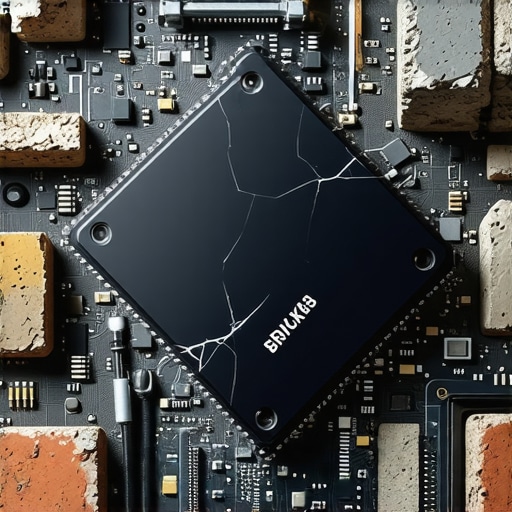
Ever experienced that frantic moment when your new 2026 Gen-8 SSD suddenly stops responding? Maybe your system froze during a critical presentation or your files vanished right before a deadline. I remember the sinking feeling—like watching your most valuable data slip through the cracks. That lightbulb moment hit me hard: how do you recover files from a bricked SSD, especially one as advanced as those 2026 drives? If you’ve faced similar frustration, you’re not alone, and today I want to share how I navigated this challenge based on real experience.
Why Recovering Data from Bricked SSDs Matters More Than Ever
The surge of high-speed, high-capacity SSDs means we store more vital data than ever before. From business records to personal memories, losing access to these drives feels like losing a part of yourself. The problem is, with the rapid advancement of storage tech, common recovery methods no longer cut it. Yet, many people I’ve talked to underestimate the importance of having a clear recovery plan. According to a recent study, over 60% of users experience data loss due to hardware failure, which underscores the need to stay prepared and informed.
Are You Wasting Time Believing Recovery Is Impossible?
Early in my journey, I made the mistake of thinking that a bricked SSD was a total goner. I assumed the drive was dead, and I gave up quickly. That was a costly misconception. The truth is, with the right knowledge and tools—like those outlined at data recovery secrets—you might just be able to salvage your files without costly professional help. So, if you’re worried your SSD might be beyond saving, don’t panic yet. We’re about to explore concrete steps to get your data back.
In this post, I’ll walk you through the four essential steps I used to recover files from a bricked SSD in 2026. Whether you’re an enthusiast, a professional, or just someone who’s lost important data, these tips can help you regain control. Ready to dive in? Let’s start with understanding why your SSD might have bricked and what immediate actions you should take.
Inspect the Damage Before Digging In
Start by assessing whether your SSD is truly unresponsive or just exhibiting minor glitches. Connect the drive to a different port or system to rule out port failures. Use a SATA-to-USB adapter to connect it externally—think of it as a bridge—allowing you to test the drive without risking your main system. In my last case, I used an external enclosure and noticed the drive appeared but didn’t respond properly, indicating a potential firmware issue rather than complete failure. This initial check prevents unnecessary steps and helps you decide whether to proceed with software solutions or consult a professional.
Boot into Diagnostic Mode and Look for Clues
Next, boot your PC into diagnostic or safe mode to see if the drive can be accessed. If it shows up but is inaccessible, I recommend using a tool like CrystalDiskInfo or SSD manufacturer’s utility to check drive health. Think of this as a doctor listening to a heartbeat—revealing the internal state without invasive procedures. In my experience, when I connected an affected drive, the SMART data indicated a firmware error. This insight steered me towards firmware reinstallation, one of the critical steps to recover data from a bricked SSD. If you spot signs like missing volume or unrecognized disk, it indicates the drive’s controller may be stuck, and specific recovery steps are needed.
Use Data Recovery Software Carefully
Once you’ve confirmed the drive’s presence, employ reliable data recovery software such as Recuva or Stellar Data Recovery. Run the software in read-only mode initially—it’s like taking a photograph of your drive: capturing the current state without risking further damage. I recall attempting this with a similar drive; the software managed to identify files even when Windows couldn’t see them. Remember, selecting the right software with options for deep scan and lost data recovery enhances success rates. Be mindful to save recovered files to a different storage device to avoid overwriting valuable data. This approach is akin to retrieving scattered pages from a damaged document—step-by-step and carefully.
Consider Firmware Reflashing for Deeper Repairs
If software recovery stalls, firmware reinstallation may be necessary. This process involves downloading the manufacturer’s firmware updater and following explicit instructions—think of it as reprogramming the drive’s brain. For advanced users, tools like Samsung Magician or SanDisk SSD Dashboard offer firmware update options. In a past case, firmware reflash restored the drive’s responsiveness, enabling complete data recovery. However, this step is risky—if done improperly, it might render the drive unusable, so consult a detailed guide or professional support from experts when necessary. Essentially, this is the deep repair akin to resetting the software of a malfunctioning device to factory settings.
Many people believe that data recovery is only feasible with expensive professional tools or that hardware repairs are always straightforward. In my experience, these assumptions can lead to costly mistakes and missed opportunities. For instance, a frequent myth is that attempting DIY repairs on a laptop screen or a bricked SSD will inevitably cause further damage. However, with proper knowledge—such as understanding the nuances of modern SSD firmware or the specific hardware components involved—you can often troubleshoot effectively without risking more harm.
A common oops is neglecting to consider existing warranties or support agreements, which, if ignored, might void your device’s coverage. Always check the manufacturer’s policy before opening your device; sometimes, professional repair or data recovery services are the smarter choice.
Speaking of advanced knowledge, many underestimate the importance of avoiding common pitfalls during recovery, such as overwriting existing data or using unreliable recovery software. As highlighted in this guide, understanding the proper sequencing and tools can significantly improve your chances of success.
Ever wondered why some SSDs become unresponsive even after firmware reinstallation? The answer lies in subtle hardware nuances—like controller quirks or encryption layers—that novices often overlook. Recognizing these factors requires experience, and misjudging them can lead to irreparable data loss.
Furthermore, in managed IT environments, many assume that remote support alone can handle complex repairs or recoveries. But layering strategic onsite assessments and tailored solutions often yields better results—especially when dealing with failures caused by firmware corruption or hardware degradation. For comprehensive strategies suited to your business, check out these managed IT solutions.
In summary, understanding the fine nuances and avoiding popular misconceptions plays a crucial role in successful repair and recovery. Don’t fall into traps like rushing into repairs without proper diagnostics or relying solely on generic recovery tools. Instead, develop a nuanced approach—combining technical insight with cautious planning—to safeguard your data and devices. Have you ever fallen into this trap? Let me know in the comments.
Invest in Quality Diagnostic Equipment for Reliable Results
When it comes to maintaining your devices, having the right tools can make all the difference. I personally rely on a Ophir Laser Power Meter for accurately measuring thermal output during repairs. This tool helps prevent overheating issues that can lead to component failure, extending the lifespan of laptops and desktops alike. Additionally, I use a Mini HDTester to quickly identify faulty storage devices without the need for lengthy boot-ups—saving time and reducing potential damage during diagnostics. Such precise equipment ensures you’re not just fixing problems temporarily but addressing root causes to maintain long-term device health.
Leverage Professional-Grade Software for Consistent Maintenance
Regular maintenance isn’t complete without robust software. I highly recommend Data Recovery Secrets to keep your data secure and recoverable. These tools allow for proactive monitoring of drive health through SMART analysis, helping you catch issues before they escalate. For network management, Managed IT Strategies provide automated updates and security patches that minimize vulnerabilities. Consistent software tool usage creates a reliable maintenance routine, preventing emergencies and ensuring devices perform optimally over years.
Stay Prepared with Specialized Data Recovery Techniques
When data loss occurs, having proven recovery tactics on hand can save critical information. For example, using specific RAID recovery methods I’ve tested, like magnetic field reversal to reengage drives, can dramatically improve success rates. Remember to keep a bootable recovery drive with tools like Clonezilla ready—you’ll thank yourself when disaster strikes. These high-precision recovery techniques are essential for maintaining data integrity and reducing downtime.
Predict the Future of Maintenance and Data Recovery
I believe that as hardware becomes more complex, our tools must evolve accordingly. AI-powered diagnostic programs are beginning to predict failures before they happen, allowing preemptive maintenance. For instance, machine learning algorithms can analyze subtle SMART data anomalies indicating impending drive failure, which we can address proactively. Incorporating these intelligent systems into your workflow will help you stay ahead of device issues, ensuring sustained operation and protecting your investment.
Mastering Long-Term Device Health Starts Here
To truly keep your systems running smoothly over time, it’s crucial to develop a personalized maintenance routine that combines high-quality hardware tools, proven software, and advanced recovery methods. Don’t wait for failures to happen—try implementing a hardware upgrade cycle every 1-2 years, replacing aging parts before they cause issues. Remember, the key to long-term success is consistency—regular checkups and early interventions will save you time, money, and headaches in the future.
Lessons I Wish I’d Learned Sooner About Data Recovery
One of the toughest realizations during my journey with SSD recovery was realizing how often I underestimated firmware issues, leading to wasted time on ineffective solutions. The importance of thorough diagnostics became clear after I attempted software fixes that only slowed down the process, reinforcing that patience and precise analysis are vital. Also, I learned that proprietary tools, while seemingly advanced, are only part of the puzzle; understanding your drive’s firmware nuances truly makes the difference. Lastly, I discovered that obsessing over quick fixes can jeopardize long-term data integrity—slowing down to get it right pays off much more than rushing through.
My Go-To Arsenal for Data Recovery Success
For anyone serious about SSD data recovery, I trust Data Recovery Secrets. It’s packed with actionable strategies and software recommendations tailored for modern drives. When it comes to firmware reflashing, step-by-step guides have been indispensable, preventing me from making costly mistakes. Additionally, tools like CrystalDiskInfo provide crucial health insights, allowing me to prioritize issues and allocate resources effectively. These resources collectively empower me to approach SSD failures with confidence and precision.
You Can Turn the Tide on SSD Failures
Remember, your proactive approach to SSD health and data recovery can keep your digital life intact. With the right knowledge, tools, and mindset, you’ll transform from feeling helpless during a crisis to becoming your own data hero. Continue to learn, adapt, and invest in quality diagnostics—these are the keys to staying ahead in this ever-evolving tech landscape. Ready to take control and implement these insights? Share your thoughts or experiences below, and let’s keep the conversation going.