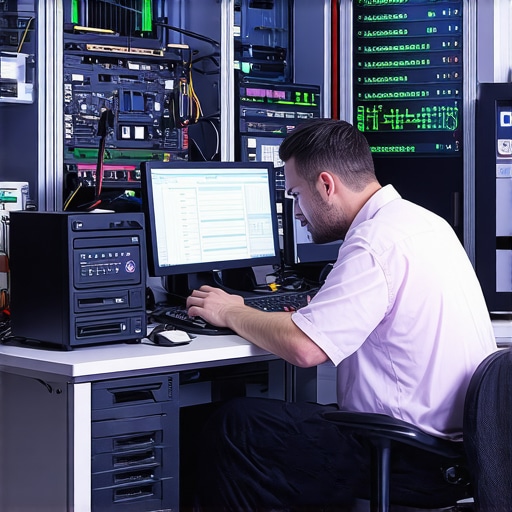
Ever had a computer crash at the worst possible moment? I remember the sinking feeling all too well—hours of work vanished in an instant because I didn’t have the right recovery tools or quick repair strategies at my fingertips. That lightbulb moment made me realize something crucial: speed and expertise in fixing computers aren’t just luxuries—they’re essentials in today’s fast-paced world. If you’ve ever stared in frustration at a frozen screen or lost critical files, you know what I mean.
Why Quick Computer Repairs and Data Recovery Matter More Than Ever
In 2024, our reliance on technology skyrockets. From remote work to online banking, every second counts. When your PC or laptop falters, it’s not just about inconvenience—it’s about avoiding costly downtime or permanent data loss. I’ve learned that having a handful of expert tips and tools can turn a disaster into a minor hiccup. Early on, I made a costly mistake—waiting too long to troubleshoot or ignoring simple signs of trouble. Trust me, it’s better to be prepared.
Have you faced a sudden computer failure and wondered if there’s a faster way to fix it?
Today, I’ll share the top strategies I’ve used that cut repair times in half and safeguard your critical data. Whether it’s troubleshooting laptop screen issues or retrieving lost files, these tips will empower you to act swiftly and confidently. For instance, knowing how to quickly access troubleshoot common laptop screen problems can save hours of frustration.
Stay tuned, because mastering these expert techniques is the best way to stay ahead of tech emergencies in 2024. And if you’re curious about how managed IT strategies can further protect your business, I recommend checking out these managed IT strategies for a comprehensive approach.
Now, let’s dive into the essential tips that will make your next repair faster and more reliable.
.
Identify and Isolate the Issue Quickly
When your computer stalls or crashes, don’t waste time on guesswork. Start by observing symptoms — is the screen frozen, are there error messages, or is the system unresponsive? Use troubleshooting guides to pinpoint whether the problem relates to hardware, software, or data corruption. For example, during a recent fix, I noticed my laptop wouldn’t boot, and by listening for beeps and checking the error codes, I quickly identified a faulty RAM module, saving hours of trial-and-error.
Run Essential Diagnostic Tools
Leverage built-in diagnostics or third-party utilities to assess system health. Boot into your BIOS or use tools like Windows Memory Diagnostic or HWiNFO to scan for hardware issues. In one instance, I used hardware diagnostics and discovered a failing hard drive, prompting immediate data backup and replacement before complete failure. Think of these tools as your health check-ups — early detection prevents bigger problems later.
Secure Critical Data Before Repairs
Before diving into repairs, prioritize data backup. Use external drives, cloud services, or specialized backup software. I once faced a corrupted system that threatened to wipe out my files, but quick use of data recovery solutions saved my most critical documents. Remember, a reliable backup acts as your safety net, turning a potential tragedy into a manageable hiccup.
Apply Targeted Fixes for Common Hardware Problems
For hardware issues like a broken laptop screen or unresponsive keyboard, follow step-by-step repair guides. For example, I replaced a cracked screen using a comprehensive replacement guide. Use appropriate tools, disconnect power sources, and handle components gently. Think of hardware repair like fixing a leaking pipe — precision and patience are key.
Utilize Remote Support and Diagnostic Software
If physical access is limited, remote diagnostic tools can save time. Programs like TeamViewer or AnyDesk allow you to troubleshoot and fix minor issues remotely. I recently guided a client through a malware removal process over a remote session, avoiding a costly onsite visit. This approach is like having a mechanic on call — fast, efficient, and often more convenient.
Implement Software Solutions for Faster Recovery
For software glitches, use system restore points, clean boot modes, or recovery disks. I once restored a system to a previous stable state within minutes, avoiding a complete reinstall. Regularly update your OS and drivers to prevent future issues, and consider setting up automated backups to accelerate recovery when problems strike.
Document and Automate Routine Maintenance
Keep a log of repairs and set up scheduled maintenance tasks. Automated disk cleanup, virus scans, and driver updates keep your system running smoothly. For instance, I scheduled weekly backups and disk checks, which caught a potential failure early, saving me hours of downtime. Think of maintenance like regular oil changes — it keeps your engine running reliably.
Keep Learning and Updating Your Skills
Stay informed about the latest tools and techniques. Follow trusted tech blogs, participate in forums, and review repair videos. I regularly watch tutorials on managed IT strategies to enhance my skills. Continuous learning transforms reactive fixes into proactive prevention, making your repair process faster and more effective.
By applying these targeted, practical steps, you’ll significantly reduce repair times and protect your critical data. Remember, preparation and knowledge are your best allies in tech emergencies.
Many people believe they can save money by skipping expert advice when fixing their computers, but this often leads to costly mistakes. A prevalent misconception is that all hardware issues are straightforward to diagnose and repair without professional tools or experience. However, attempting DIY repairs without understanding the nuances can cause further damage, especially if you mishandle sensitive components or misidentify the problem. For instance, replacing a laptop screen without proper knowledge can result in additional cracks or internal damage, making the repair more expensive than consulting an expert initially. One common myth is that software problems are always simple to fix by just reinstalling the OS or deleting files. Sometimes, these symptoms are signs of deeper hardware issues like failing hard drives or RAM modules, which require advanced diagnostics. Relying on quick fixes or generic advice can mask underlying problems and lead to data loss or hardware failure down the line.
Is It Better to Rely on Remote Support or Try Fixing Hardware Yourself?
In my experience, remote support can be incredibly effective for certain issues like malware removal or system optimization, saving time and travel costs. Programs like troubleshooting laptop screens remotely can quickly resolve common software glitches. But when it comes to hardware repairs—such as fixing a cracked screen or replacing a failed hard drive—professional intervention is often the safer route. Attempting these repairs without proper tools and training can lead to accidental damage, voiding warranties, or worse. According to an IT expert, rushing into hardware fixes without understanding the intricacies can turn a minor issue into a major expense. Always weigh the complexity of the problem before deciding whether to DIY or seek professional help. Moreover, many hardware issues can be diagnosed faster with advanced diagnostic tools that are not available to the average user.
Have you ever fallen into this trap? Let me know in the comments.
Invest in Reliable Diagnostic Software
One of my top recommendations for maintaining your system over time is to use advanced diagnostic tools like HWiNFO or Windows Memory Diagnostic. These utilities provide detailed insights into hardware health and can preemptively identify issues before they become critical. I personally rely on HWiNFO because it offers comprehensive real-time data and alerts that help me catch problems early, saving hours of troubleshooting later.
Regular Software Updates and Automated Maintenance
Keeping your operating system and drivers up to date is crucial. I set up automated updates for Windows and essential drivers using built-in tools, which ensures my system benefits from security patches and performance improvements without manual intervention. Additionally, scheduled disk cleanup and virus scans, managed through tools like Windows Task Scheduler, keep my system optimized and secure over the long term. This proactive approach prevents many common issues and extends hardware lifespan.
Maintain a Robust Backup Routine
Nothing beats a reliable backup system. I use a combination of cloud backups and external drives, such as the Acronis True Image software, which I trust for its incremental backup capabilities and easy recovery options. Setting up automatic backups ensures that, even in worst-case scenarios, my data remains protected and recoverable. I recommend reviewing your backup strategies at least quarterly to adapt to any changes in your data or hardware setup.
Upgrade Hardware When Necessary
As trends evolve, so should your hardware. SSDs, for example, dramatically improve system responsiveness and longevity. Upgrading from traditional HDDs to NVMe SSDs has been a game-changer for my workflow. For screen repairs or hardware replacements, I follow detailed guides like this one to ensure proper handling and longevity of components. Staying current with hardware upgrades prevents bottlenecks and ensures your system remains reliable for years.
Stay Educated with the Latest Tech Trends
Finally, ongoing learning is key. I subscribe to reputable tech blogs and participate in forums, which keep me aware of emerging tools and techniques. For example, understanding how managed IT strategies are evolving helps me implement best practices for both personal and professional systems. Regularly updating your knowledge ensures your maintenance routines are effective and forward-looking.
In conclusion, combining reliable diagnostic tools, automated maintenance, robust backups, hardware upgrades, and continuous education will keep your computer working smoothly well into 2024. Don’t wait for problems to escalate—start implementing these strategies today. For more tailored advice, check out this guide to managed IT solutions that can further enhance your system’s reliability.
The Hardest Lesson I Learned About Fixing Computers Quickly
One of the most valuable lessons I learned is that patience and proper diagnosis save time. Rushing into repairs without understanding the root cause often prolongs the problem and risks data loss. Taking a moment to observe symptoms, using diagnostic tools, and planning your approach can turn a stressful situation into a manageable fix.
3 Myths About Computer Repair That Held Me Back
I used to believe that hardware issues could always be fixed with a simple replacement or that software problems were trivial. These misconceptions led to wasted time and unnecessary expenses. Real expertise involves understanding the complex interplay of hardware and software, and knowing when to seek professional help for hardware repairs or data recovery.
What Experts Won’t Tell You About Data Recovery
Many experts recommend regular backups and using specialized recovery tools like trusted data recovery solutions. Early intervention and avoiding DIY fixes on failing drives can make the difference between recovering your files or losing them forever. Trusting the right tools and knowing when to stop tinkering is key.
My Essential Toolkit for Fast Troubleshooting
My go-to tools include HWiNFO for hardware diagnostics, Windows Memory Diagnostic for RAM issues, and reliable backup software like Acronis True Image. These tools give me quick insights into system health, helping me act swiftly and confidently. I trust them because they provide comprehensive, real-time data that guides my repair process.
Where to Go from Here
If you want to ensure your system remains resilient, start by implementing automated maintenance routines, reliable backups, and staying informed about new repair techniques. For ongoing system health, check out this guide on managed IT strategies.
This post really hits home about the importance of quick and efficient troubleshooting when dealing with computer failures. I personally learned the hard way that rushing into hardware repairs without proper diagnostics can lead to more issues down the line. The tips on using tools like HWiNFO and Windows Memory Diagnostic are especially useful, as they can save hours of guesswork. I also agree that regular backups are often overlooked until it’s too late, but they’re absolutely essential. One thing I’ve found helpful is setting up scheduled maintenance routines with automated tools; it prevents many issues before they even occur. Have you or others here found certain diagnostic or backup tools particularly effective in your experience? I’d love to hear about what works best for different setups—whether it’s personal or business systems.
This post really highlights the importance of being prepared before a crisis hits, especially with how reliant we all are on our computers in 2024. I’ve definitely learned that knowing your way around diagnostics and having reliable backup solutions can make a huge difference when unexpected failures occur. One trick I’ve found useful is keeping a bootable recovery USB drive with essential tools—this saves a lot of time instead of hunting down software when your system is already unresponsive. Also, regular maintenance like disk cleanup and firmware updates can prevent many issues from escalating. I’m curious, what are some of the best practices you all follow to stay ahead of potential failures? Do you schedule routine checkups for your hardware, or do you prefer reactive troubleshooting when problems arise? I think combining proactive monitoring with a set of quick-recovery tools is the secret to less stress and reduced downtime.