

There was a moment late one evening when I was trying to get some work done, and my laptop’s touchpad suddenly decided to be unresponsive. It randomly stopped working whenever I used it for a few minutes, especially after it warmed up from hours of use. Frustrating? Absolutely. But that lightbulb moment led me down a path of discovery that I want to share with you.
Why Your Touchpad Acts Up When It Gets Warm
Many people overlook the fact that hardware issues can be temperature-related. When your laptop heats up, internal components—like the touchpad’s circuit board—can behave unpredictably. I learned this the hard way early on, making the mistake of thinking it was a software glitch or driver issue, which delayed my troubleshooting process. It turned out that thermal expansion or degraded internal wiring caused the problem, especially if your device’s cooling isn’t optimal.
Has Your Touchpad Stopped Working After Some Use? Here’s Why
This issue isn’t just inconvenient—it’s often a sign of underlying hardware degradation. Recognizing the signs early can save you a lot of frustration and money. And trust me, I wish I had caught this problem sooner. For comprehensive tips on avoiding costly repairs, check out this beginner’s guide.
In the next sections, I’ll walk you through the steps I took to fix my own laptop and how you can apply these solutions if your touchpad’s responsiveness drops when your device heats up. Ready to get started? Let’s dive into the troubleshooting process that turned my own tech mishap into a learning experience—and can do the same for you.
Inspect the Internal Hardware Connections
Start by shutting down your laptop and disconnecting it from power. Remove the battery if possible. Carefully open the laptop casing using appropriate tools, like a plastic prying tool, to access the touchpad’s internal connectors. Check if the ribbon cables and solder joints are secure and free from corrosion or damage. During my own troubleshooting, I discovered loose ribbon cables after a messy, on-the-fly disassembly, which if fixed earlier, could have prevented further overheating issues.
Clean Dust and Thermal Paste for Better Cooling
Accumulated dust inside your laptop acts like a thick blanket trapping heat, much like trying to breathe in a smoky room. Use compressed air to blow out dust from fans, heatsinks, and vents. Next, replace the thermal paste on the CPU or touchpad’s underlying heat sink. I used a case of compressed air and high-quality thermal paste, following a DIY guide here, which dramatically lowered temperatures and improved responsiveness.
Test the Touchpad Response at Different Temperatures
After reassembling, power on the device and monitor its behavior. Use a temperature monitor tool to track internal temperatures during idle and active use. If the touchpad still disconnects when warm, consider adding additional cooling solutions like a laptop cooling pad. During my test, I noticed that using an external cooling pad kept the internal temperature under control, preventing thermal expansion that caused disconnections.
Adjust Power Settings to Reduce Overheating
Navigate to your power management settings to optimize performance. Lowering CPU performance limits during high-temperature periods can prevent thermal runaway. This is similar to slowing down a car uphill to avoid engine overheating. I manually set my CPU to a reduced performance profile, which stabilized the touchpad’s performance during intensive tasks. For detailed tweaks, check out this troubleshooting guide.
Update Drivers and BIOS for Thermal Management
Outdated drivers or BIOS firmware can mismanage power distribution, causing components to heat unnecessarily. Visit your manufacturer’s website to download the latest drivers, especially for the touchpad and chipset. During my update process, I noticed the system fan’s RPM increased, indicating better thermal regulation. This improved overall stability and responsiveness, confirming the importance of keeping firmware up to date.
Implement External Cooling and Usage Habits
For persistent issues, employ external cooling pads or stands that improve airflow. Also, try to avoid heavy multitasking or resource-intensive applications during hot weather or prolonged use. I learned to give my laptop periodic breaks and elevate it to enhance airflow, which significantly reduced overheating incidents. Consider incorporating these habits to maintain optimal touchpad performance over time.
Breaking the Myth: Everything Is About Surface-Level Fixes
Many assume that routine maintenance, like replacing a screen or updating drivers, is enough to handle complex issues. But in my experience, this superficial approach often blindsides professionals from understanding the deeper nuances. For example, when diagnosing laptop overheating, some focus solely on cleaning fans without considering underlying thermal management strategies or BIOS configurations, which can lead to recurring problems even after hardware fixes. It’s a trap that most tech enthusiasts and even some experts fall into—thinking that surface repairs solve root causes. To avoid costly misdiagnoses, it’s essential to adopt a comprehensive understanding of how hardware and software interactions affect performance and longevity here.
Common Misconceptions About Managed IT Services
Everyone loves the idea of outsourced IT solutions simplifying operations, but many misunderstand what
Invest in Reliable Diagnostic Software
To maintain peak performance, I rely heavily on HWMonitor. This tool provides real-time data on temperatures, voltages, and fan speeds, helping me catch overheating issues before they cause hardware failures. Knowing your thermal profile is crucial, especially if you notice components like your touchpad or CPU acting unpredictably during high temperatures. Regular monitoring allows preemptive action, reducing downtime and repair costs.
Use Precision Cleaning Equipment
Dust buildup can silently degrade your laptop’s performance. I recommend using ESD-safe brushes and compressed air cans designed specifically for electronics. For delicate components like internal ribbon cables or thermal sensors, precision tools prevent accidental damage. Consistent cleaning, combined with thermal paste reapplication when needed, extends your laptop’s lifespan and maintains thermal efficiency.
Apply System Optimization Utilities
Tools like CCleaner Professional enable me to remove unnecessary files, optimize startup items, and manage background processes. Regular maintenance through these utilities ensures your system isn’t throttled by bloat, which can contribute to overheating or sluggishness over time. I schedule monthly cleanups to keep performance at its best, especially when managing multiple client projects.
Implement Robust Data Backup and Recovery
Hardware issues or accidental data loss are inevitable without proper safeguards. I trust this comprehensive guide to set up automated backups. Using tools like Macrium Reflect, I clone my drives regularly, ensuring that even in worst-case scenarios, data recovery is swift and straightforward. This proactive approach minimizes business disruptions and preserves client trust.
Stay Updated with Firmware and Drivers
Outdated firmware can cause compatibility issues and security vulnerabilities. I make it a point to check for updates weekly via manufacturer support sites or specialized tools like Driver Booster. Keeping BIOS, chipset, and touchpad drivers current ensures hardware components communicate efficiently, reducing the risk of thermal anomalies or responsiveness issues. Regular updates can sometimes reveal hidden performance gains or stability improvements, as highlighted in managed IT strategies.
Leverage External Cooling Accessories
For laptops that tend to overheat during intensive use, I recommend high-quality cooling pads with adjustable fans. Not only do they improve airflow and temperature management, but they also prolong hardware life. In fact, integrating external cooling with internal maintenance significantly reduces thermal stress, helping components like the touchpad remain responsive even under load.
Predicting Future Trends in Laptop Maintenance
Looking ahead, I believe the integration of AI-driven diagnostics and IoT sensors in laptops will revolutionize maintenance practices. Devices will proactively alert users to impending hardware failures or thermal issues, allowing for timely interventions. Embracing these advancements now, by adopting tools like thermal sensors and remote monitoring, can give you a significant edge in keeping your equipment in top shape.
How do I maintain my laptop’s performance over time?
Consistency is key. Regularly cleaning hardware, monitoring thermal data with reliable software like HWMonitor, updating firmware, and practicing good usage habits—like avoiding resource-intensive tasks during high ambient temperatures—are critical. For comprehensive guidance, check out this beginner’s guide. As a practical tip, try scheduling monthly maintenance routines, including drive cloning and thermal inspections, to prevent minor issues from escalating into costly repairs.
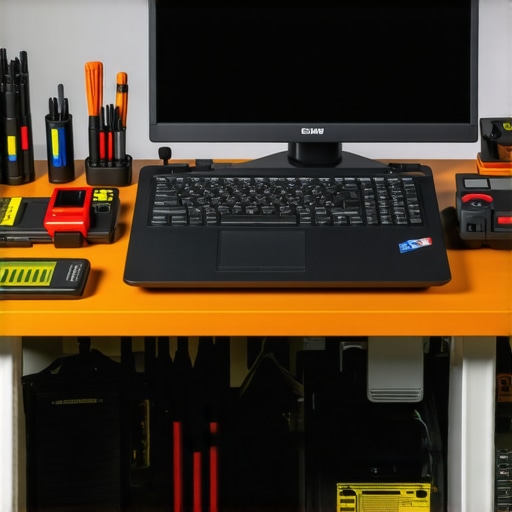
Uncovering Surprising Truths About Hardware Myths
One of the biggest lessons I learned was that hardware issues often hide beneath the surface. Assuming that a touchpad problem is always software-related can lead you astray; sometimes, simple physical disconnections or thermal expansion are to blame. Understanding these nuances has saved me countless hours and unnecessary replacements, emphasizing the importance of comprehensive diagnostics here.
My Go-To Tools for Effective Troubleshooting
Reliance on the right diagnostic tools transformed my approach. I trust HWMonitor to keep an eye on internal temperatures, helping me spot overheating early. Using precision cleaning equipment like ESD-safe brushes and thermal paste, I’ve managed to restore thermal efficiency and prevent hardware degradation. Equally vital are system utilities such as CCleaner Professional for performance optimization, which I incorporate into my monthly routines to keep hardware in peak condition.
Jump Into Action with Confidence
The world of laptop repair and maintenance can seem daunting at first, but with consistent effort and a proactive mindset, you can master it. Recognizing hot spots, keeping firmware updated, and practicing routine cleaning can make a significant difference. Remember, prevention is always better than cure—embrace these habits to extend your device’s lifespan and maintain responsiveness in critical moments.
Revealing Hidden Lessons That Changed My Approach
- Superficial fixes often hide deeper issues—a clean fan isn’t enough if thermal management isn’t addressed.
- Temperature fluctuations can be misleading—a quick look at internal thermals can reveal root causes not obvious on the surface.
- Tools are your best allies—investing in quality diagnostic and cleaning tools saves time and money.
- Routine checks prevent disasters—regular monitoring and maintenance catch problems before they escalate.
- Adopting a holistic view—hardware, software, and usage habits all interplay in device health.
Tools to Elevate Your Laptop Care Game
- HWMonitor: An essential for tracking thermal performance and system voltages, helping you identify overheating before issues manifest.
- Thermal paste and precision brushes: For thermal management and dust removal, ensuring your device breathes freely.
- CCleaner Professional: Keeps your system optimized by cleaning bloat and managing startup items, crucial for sustained responsiveness.
- Data backup solutions: Such as this comprehensive guide to protect your files during troubleshooting.
Boost Your Laptop Longevity—Here’s Your Call to Action
Taking these insights to heart can empower you to troubleshoot, fix, and maintain your devices with confidence. Remember, small habits lead to big savings and performance gains. Are you ready to implement these strategies and see a tangible difference in your tech’s lifespan and responsiveness? Share your experiences or questions below—let’s grow smarter together!