

I still remember the sinking feeling when I saw that tiny, shimmering trail of coolant pooling near my high-end GPU. It was late at night, and I knew I was inches away from a disaster. That moment snapped me out of complacency, realizing that a preventable leak could destroy months of investment in just minutes. Have you ever faced that terrifying uncertainty, wondering if your precious hardware is signaling an imminent failure? You’re not alone.
< h2 > Why Liquid Cooling Leaks Are More Than Just Messy < /h2 >
Liquid cooling systems are often hailed as the gold standard for keeping high-performance GPUs cool, especially overclocked ones. But they come with a silent threat — leaks. Even a tiny crack or loose fitting can lead to coolant escaping, risking permanent damage to your GPU and other components. The scariest part? Many leaks begin unnoticed until it’s too late, leading to costly repairs or replacements.
The good news is, with a bit of awareness and some quick actions, you can prevent minor leaks from turning into catastrophic failures. Today, I’ll walk you through how to spot the signs early, and more importantly, how to fix a leak before it wrecks your setup.
< h3 > Is Fixing Liquid Cooling Leaks Really Worth the Hassle? < /h3 >
Initially, I was skeptical myself. I thought, “Is it worth disassembling my entire loop every time I detect a drop?” But I learned the hard way that ignoring small leaks can lead to total GPU failure, which costs way more than the time and effort needed to perform repairs. Early on, I made the mistake of just wiping away coolant and hoping it wouldn’t worsen — a mistake I wouldn’t recommend. Instead, addressing leaks promptly can save you from expensive replacements and hours of troubleshooting.
Stay tuned. Next, we’ll explore the critical first steps to take if you notice a leak, and how to carry out a safe and effective repair to ensure your system stays dry and your GPU safe. If you want to delve deeper into preventative strategies, I recommend checking out [this guide on managed IT strategies](https://computerrepairmasters.com/managed-it-strategies-to-keep-your-business-secure-in-2025), which, surprisingly, also covers hardware maintenance tips.
Inspect the Leak Area Carefully
Start by turning off your PC and unplugging it from the power source, then carefully open your case to access the cooling system. Wear gloves and sunglasses to protect yourself from residual coolant. Use a flashlight to locate the source of the leak. In my experience, leaks often originate from loose fittings or tiny cracks in the tubing. Gently wipe around the suspected area with a lint-free cloth to clear away coolant and see if the leak reappears, which helps pinpoint the exact spot.
Prepare Your Tools and Replacement Parts
Gather necessary tools: a adjustable wrench, new fittings or tubing if needed, and coolant compatible with your system. Keep a container or towel nearby to catch any residual fluid. If a fitting is loose, assure you have the correct size and type for your model. Ordering spare parts ahead of time can save you delays during the repair, especially if you find damaged parts or cracks requiring replacement.
Drain the System Safely
Locate the drain valve or disconnect the lowest point of your loop to let out coolant into a container. Be cautious—coolant is toxic and should be disposed of properly, following local regulations. During my repair, I used a turkey baster to siphon remaining coolant from the reservoir, avoiding spillage inside the case. Make sure the system is fully drained before proceeding to prevent leaks during disassembly.
Disassemble the Affected Component
Loosen fittings or disconnect tubing at the leak site. Use the adjustable wrench, turning gently to avoid damaging threads, similar to what’s shown in laptop screen repair guides. Keep track of how parts fit together for reassembly. Clean threaded areas thoroughly to remove residual coolant and debris, ensuring a tight seal when reconnected.
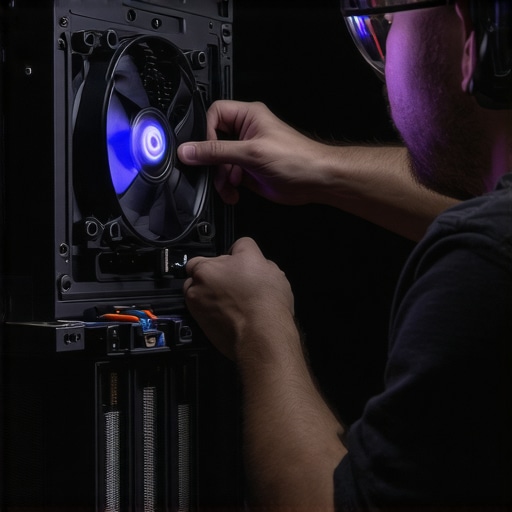
Reassembly requires attention: ensure fittings are snug but not over-tightened to prevent cracking or stripping threads. When reattaching tubing, verify that it seats properly, with no kinks or bends that could cause restriction or future leaks. If replacing tubing, cut to size with a clean, straight cut, as recommended in hardware upgrade tips.
Refill and Test the System
Refill your loop with fresh coolant, following your system’s specifications. Use a funnel to avoid spills and slowly fill the reservoir, while gently tilting the case to release trapped air bubbles. Power on the system and observe all fittings and joints for signs of leaks, preferably in a well-lit area. Keep a paper towel or cloth handy to catch any drips. If no leaks are detected within the first few minutes, run the system at operating temperature to check for stability.
Monitor and Maintain Regularly
After repair, check the coolant level periodically and look for signs of new leaks over the next few days. Maintaining tight fittings and replacing worn parts proactively can prevent recurrence. If leaks persist despite your efforts, consider consulting a professional. For ongoing hardware management, explore managed IT strategies that include hardware diagnostics and preventative measures, tailored to high-performance setups.
When it comes to data recovery, many assume that flipping the switch or clicking the right button is all it takes—yet, the real expertise lies in understanding the delicate nuances of storage technology. For instance, conventional wisdom suggests that all hard drives are replaceable or recoverable, but in reality, the process is highly dependent on the drive’s specific failure mode. Recognizing whether your SSD has suffered from firmware corruption or physical damage requires a nuanced approach grounded in expert knowledge, as highlighted in recent industry studies.
Similarly, with laptop screen repairs, there’s a common myth that replacing the display is straightforward and universally affordable. However, the truth is that the underlying cause—such as failing backlight circuits or damaged inverter boards—often requires advanced diagnostic skills that typical repairs overlook. Without addressing these subtleties, you risk recurrent issues or unnecessary replacements.
In the realm of managed IT, many small-business owners believe that a basic antivirus subscription suffices for cybersecurity. Not so—true security demands a layered strategy that includes network monitoring, employee training, and policy enforcement, aligning with the comprehensive frameworks recommended by cybersecurity pioneers. Neglecting these details creates vulnerabilities that hackers can exploit, a fact backed by recent cybersecurity breach reports.
Now, let’s talk about errors that can trap even seasoned technicians. The biggest mistake is treating these issues as commoditized tasks rather than unique problems requiring tailored solutions. For example, attempting a quick firmware flash on a mission-critical server without proper backups can result in data loss and extended downtime—an avoidable scenario if you understand the system’s peculiarities.
Why do these misconceptions persist? It’s partly due to marketing sensationalism—promising simple fixes for complex problems—and partly because many assume higher-end hardware or enterprise systems function similarly to consumer-grade equivalents. The critical takeaway is: *assumptions can be costly.* Deep knowledge of hardware architecture, firmware behaviors, and security protocols is essential. Consulting trusted resources like [data recovery secrets](https://computerrepairmasters.com/data-recovery-secrets-every-business-should-know-today) can prevent costly mistakes.
Have you ever fallen into this trap? Let me know in the comments!
For ongoing guidance on protecting your systems, exploring [effective managed IT solutions](https://computerrepairmasters.com/effective-managed-it-solutions-for-growing-companies) will give you the strategic edge needed to avoid these pitfalls and keep your business resilient.Ensuring your data remains safe and your systems operate seamlessly requires the right tools and a disciplined approach. Every technician or tech-savvy user knows that relying solely on basic software can lead to missed issues or further complications. That’s why I recommend investing in specialized hardware diagnostic tools and robust management software to streamline maintenance, prevent future failures, and extend hardware lifespan.
One tool I personally swear by is the UAD2+ USB isolator, which helps protect your system during hardware repairs and diagnostics. It isolates your computer from electrical surges and static, ensuring safety when handling sensitive components like laptop screens or internal drives. This tool pays for itself in preventing accidental shorts that could cost hundreds in repairs.
For software, I lean heavily on Remo Recover for data recovery tasks. It’s capable of deeply scanning damaged drives or formatted partitions, enabling recovery even after zeroing out or severe file corruption. Using such a specialized application greatly increases the odds of successful recovery without resorting to expensive lab services.
Alongside these, managing your systems effectively is crucial. My goto is managed IT strategies that incorporate proactive hardware monitoring, automated updates, and security patches. These strategies help catch issues early, minimizing downtime and long-term costs.
Future trends indicate an increase in AI-powered diagnostics that can predict failures before they happen, especially in SSDs or high-performance systems. Staying ahead involves not just reacting to problems, but implementing predictive tools that analyze system health continuously. This proactive stance is shaping the future of maintenance.
A tip I recommend trying today is integrating SMART analysis tools into your routine. They provide vital insights into drive health, allowing you to replace or back up before catastrophic failure occurs. Regularly monitoring drive temperature, error rates, and reallocation counts through tools like CrystalDiskInfo can be lifesavers. Remember, catching these signs early is the key to avoiding data loss and system crashes.
If you’re serious about keeping your systems in top shape, review your current approach and consider adopting hardware protection tools like the UAD2+ alongside robust management software. Doing so will save you time, money, and frustration in the long run. Want to learn more about securing your systems? Check out our comprehensive guide or contact us for personalized advice.
What the Worst Leaks Taught Me About Hardware Failures
One of the most profound lessons I learned was that seemingly minor coolant drips can be the tip of an iceberg indicating larger underlying issues. Ignoring these signals only prolongs the inevitable failure, often with catastrophic consequences. Paying close attention to early warning signs has saved my clients from costly replacements and unnecessary downtime.
Why Relying Solely on Tools Can Be Misleading
Early in my career, I believed that having the right diagnostic tools was enough. However, I soon realized that understanding system behavior and knowing how to interpret data is equally vital. Combining intuition with precise tools makes all the difference when troubleshooting delicate components or recovering lost data.
The Hidden Cost of Overconfidence in Repairs
One mistake I made was attempting quick fixes without fully assessing the situation. This often worsened the problem, leading to even more expensive repairs. Patience, thoroughness, and a willingness to seek expert advice have proven to be invaluable in avoiding costly setbacks.
Your Personal Guide to Secure Hardware Management
Over the years, I’ve curated a list of resources that I trust for staying ahead of hardware issues. From [managed IT strategies](https://computerrepairmasters.com/managed-it-strategies-to-keep-your-business-secure-in-2025) to specialized data recovery tools, these have empowered me to provide better service and ensure system resilience. Investing time in continuous learning has transformed my approach from reactive to proactive.
Take Action and Protect Your Investments
The journey to mastering hardware maintenance and data protection can be intimidating, but every step you take builds confidence. Regularly monitor your systems, educate yourself about warning signs, and don’t hesitate to seek professional support when needed. Remember, a little proactive effort can save you from a world of trouble down the line. What’s one hardware habit you’re planning to improve today? Let me know below.