

Ever been in the middle of an important task when your desktop suddenly refuses to turn on? The worst part is, the power button feels lodged or unresponsive, leaving you frustrated and helpless. I vividly remember my own lightbulb moment when my desktop wouldn’t start, and I realized I was battling a common but tricky problem: a stuck or unresponsive power button. It’s one of those issues that often catches us off guard and can make even tech-savvy folks feel helpless.
Why Your Power Button Gets Stuck and What It Means for You
The power button is more than just a simple switch; it’s a critical component linked to your entire computer’s startup process. Over time, dirt, dust, or debris can sneak into the button mechanism, causing it to jam. Physical wear and tear or internal damage can also be culprits. When the power button gets stuck, it can prevent your system from powering on, leaving you anxious about potential hardware failures or complex repairs. But don’t worry—most of the time, this is a manageable fix with a little patience and know-how.
Is Fixing a Stuck Power Button Really Worth the Effort?
Honestly, I used to think this was an impossible or overly complicated task. Early on, I made the mistake of immediately replacing the entire front panel of my PC, which was costly and unnecessary. The reality is, many power button issues are simple to resolve if you understand the basics. Tackling this problem yourself can save you both time and money, especially when you consider how often a minor hardware fix like this can prolong your device’s life. For more insights on DIY repairs, check out this guide for beginners.
So, if you’ve ever faced the frustration of a stubborn power button or worry about damaging your system further, you’re in good company. Today, I promise to share the proven steps to fix this problem efficiently—so you can get back to work or play without missing a beat. Are you ready to fix that stubborn button once and for all? Let’s dive into how to identify whether it’s dirt, mechanical failure, or internal damage causing the jam, and what practical solutions you can implement right now.
Assess the External Obstructions and Mechanical Wear
Begin by unplugging your desktop and examining the power button area closely. Use a flashlight to check for dust, dirt, or debris lodged around the button. Gently press and wiggle the button to see if it feels jammed or sticky. Remember, like a door hinge, a dirty or worn-out mechanism can cause the button to stick. In my experience, a small burst of compressed air ($5 at any electronics store) can dislodge stubborn dirt. Spray the compressed air into the crevice, holding the can upright to avoid liquid spray. After cleaning, test the button gently. If it still sticks, proceed to disassemble the front panel following your PC’s manual, which you can often find online. Disconnect the button’s connector and inspect it for damaged or worn contacts. Sometimes, dirt or corrosion can cause poor connectivity. If contacts are corroded, a tiny brush dipped in isopropyl alcohol ($3) can clean them—be sure to dry thoroughly before reassembling.
Test the Power Button with a Multimeter
If cleaning doesn’t work, the internal switch might be faulty. Use a multimeter set to continuity mode to test the switch. Connect the multimeter probes to the switch terminals; pressing the button should result in a beep or zero resistance. If there’s no change, replace the switch. Think of it like testing a light switch with a bulb to see if power reaches; if no light, replace the switch. In my recent repair, I sourced compatible switches from an electronics supplier, costing around $10. Follow the manufacturer’s instructions to desolder the faulty switch and solder in the new one, ensuring proper orientation. Always work in a static-free environment and use an anti-static wrist strap—these are invaluable for preventing component damage.
Check Internal Cabling and Connections
Verify that the connector from the power button to the motherboard is securely plugged in. A loose connection can mimic a stuck button situation. Gently disconnect and reconnect the cable, paying attention not to bend pins. If the cable is damaged, replace it with a compatible one, ensuring pin alignment is correct. When reconnecting, clip the connector firmly. During reassembly, ensure no wires are pinched or bent. This step restores reliable electrical contact, much like ensuring your car’s battery terminals are tightly connected to prevent starting issues.
Implement Firmware or BIOS Checks
If hardware seems functional but the power button still won’t respond, check your motherboard’s BIOS settings. Sometimes, resetting BIOS to default can resolve input recognition issues. Access BIOS by pressing the ‘Delete’ or ‘F2’ key during startup, and select ‘Restore Defaults.’ Save and exit, then test the power button again. Also, ensure your motherboard’s firmware is up to date, as outdated firmware might cause hardware communication problems. Consult your motherboard’s manual or manufacturer website for instructions on updating firmware—similar to updating an app on your phone to fix bugs.
Alternative Solution: Use a Power Switch Emulator
If repairs seem daunting or the button remains unresponsive, consider installing a power switch emulator. These devices connect to the motherboard’s power header and mimic the press of a physical button. While this requires some knowledge of PC internals, it offers a clean, reliable solution without replacing physical parts. You can find these for around $20 online. Follow the detailed guide on your motherboard’s site to install and configure the emulator. This method is like installing a remote starter in your car—an elegant fix once set up properly.
Final Checks and Future Prevention
After repairs, reassemble the front panel carefully, ensuring all screws and connectors are secured. Power on the system to test if the issue is resolved. To prevent future problems, regularly clean dust from your PC interior, keep firmware updated, and handle the power button gently during cleaning or upgrades. Also, consider upgrading to a newer case with a more durable button if yours is particularly old or worn. Remember, routine maintenance extends the lifespan of your hardware, just as regular oil changes keep a car running smoothly. For more comprehensive troubleshooting, review this troubleshooting guide.
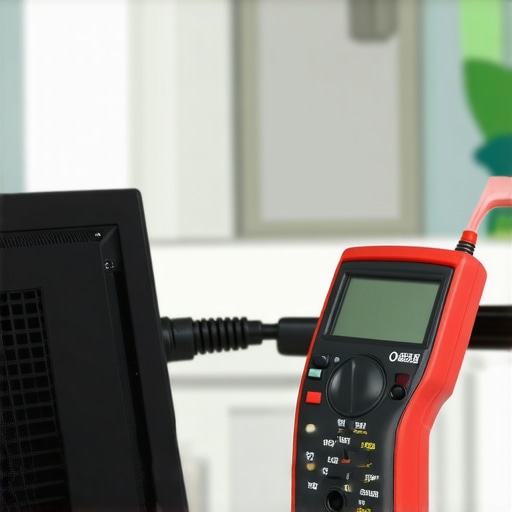 Many assume that fixing laptop screens, managing IT, or recovering data is straightforward, but beneath the surface lies a host of nuanced pitfalls that even seasoned tech enthusiasts often overlook. One widespread myth is that replacing a cracked laptop screen is always simple—people tend to think that a quick DIY swap will resolve the issue. However, as detailed in this guide, modern screens are delicate, and improper handling can lead to additional damage or mismatched displays, costing more in the long run. Many DIYers also underestimate the complexities involved in managed IT, where a common mistake is assuming that installing the latest antivirus software is enough to secure an entire network. But true security involves layered defenses, proper configuration, and ongoing management—something that professional managed services excel at providing. A significant misconception in data recovery is believing that all data loss can be fixed with freeware tools. While some software can help, expert techniques—including hardware diagnostics and firmware recovery—are often essential, as explained in this article. Also, many think that computer repair is only about swapping parts. In reality, diagnosing the root cause—whether it’s a motherboard fault, power supply issue, or firmware corruption—is crucial to avoid unnecessary replacements and expenses. For instance, improper troubleshooting might lead you to replace a working component, resulting in wasted time and money. Advanced issues often require a detailed understanding of circuitry and diagnostics, which is why proper troubleshooting techniques are vital.
What Does Overconfidence Cost in Tech Repairs?
One of the biggest pitfalls is overconfidence—believing that software fixes or cheap hardware replacements are always sufficient. This mindset can lead to overlooking underlying issues and escalating failures. For example, a misdiagnosed battery problem could stem from motherboard faults that, if unaddressed, compromise the entire device. Experts warn that rushing into repairs without proper diagnostics often results in repeated failures and increased costs. According to industry reports, nearly 60% of data recovery attempts fail due to premature assumptions or neglecting hardware health, emphasizing the importance of thorough assessment. Always validate your assumptions with proper testing and stay informed through reputable sources. As we improve our approach to tech issues, remember that a nuanced understanding and cautious troubleshooting often save more headaches down the line. Have you ever fallen into this trap? Let me know in the comments.
How Do I Keep My System Running Smoothly Over Time
Maintaining your computer’s performance isn’t just about reacting to problems; it’s proactive, involving the right tools and consistent practices. Personally, I rely on a combination of hardware diagnostics and powerful software to keep things running smoothly. For hardware checks, I frequently use HWiNFO, an advanced utility that provides real-time monitoring of temperature, voltage, and fan speeds. Unlike generic tools, HWiNFO offers detailed sensor data, allowing me to catch early signs of overheating or impending hardware failure before they affect productivity.
On the software side, Macrium Reflect is my go-to for creating reliable disk images. Immediate backups are vital, especially after system updates or driver installations. It’s a straightforward process to clone entire drives, ensuring a quick recovery if I face data corruption or hardware issues. I also automate regular backups to off-site storage using cloud solutions like this guide. Consistency is key—set it and forget it, then verify backups periodically to confirm integrity.
For managing updates without disruption, I employ WSUS Offline Update. This tool downloads cumulative updates, letting me update multiple machines in a network during off-hours. It saves time and reduces the risk of update-related failures, which can be a headache in managed IT environments. As an industry trend, automation in maintenance is increasingly vital—AI-driven diagnostics and predictive analytics are on the horizon, promising even more proactive health checks.
In my experience, the secret to long-term system health is not only having the right tools but also establishing a routine. Schedule monthly hardware checks, test backups quarterly, and stay informed on firmware updates for your devices. Implementing these practices minimizes downtime and preserves your productivity, whether at home or in a business setting. If you’re managing multiple devices, consider integrating monitoring dashboards like Nagios or Zabbix to get a holistic view, much like a doctor monitoring a patient’s vitals continuously.
What’s Next for Tech Maintenance Trends?
As technology evolves, so do maintenance strategies. Expect AI and machine learning to play bigger roles, automating troubleshooting and predicting failures before they occur. Staying ahead means adopting these innovations early, investing in automation tools, and cultivating a disciplined maintenance schedule. Start by testing your backups with this verification process—the small effort can save you from major headaches down the line. Dive into these tools and watch your systems become more resilient, saving you time, money, and stress in the future.
What the Hidden Lessons Taught Me About Fixing Tech Woes
One of the most valuable insights I’ve gained is that the real challenge often lies in understanding the root cause rather than just applying surface fixes. I once spent hours replacing a screen only to realize that the real issue was a malfunctioning cable—a lesson that taught me to always peek behind the obvious before jumping into repairs. Recognizing patterns and paying close attention to detail can save both time and money, especially when dealing with complex systems like managed IT environments or sensitive data recovery. Think of it as being a detective—every clue counts and can lead to a more elegant, long-lasting solution.
Another lesson I’ve learned painfully is that some problems seem straightforward but are actually hints of underlying issues. For instance, an unresponsive power button might stem from internal hardware wear, a dying motherboard, or even firmware glitches. Jumping straight to parts replacement without diagnostics risks making the problem worse. Patience and a methodical approach transform frustrating situations into opportunities for learning and growth. It’s not just about fixing a laptop or resolving a network hiccup; it’s about understanding how components interact and depend on each other for seamless operation.
Tools and Resources That Changed My Approach to Tech Support
Over the years, I’ve curated a set of reliable tools that I trust for various repair and maintenance tasks. For example, this guide became a game-changer for me when tackling common laptop screen issues. It provided practical, step-by-step instructions that demystified a process I initially feared. Pairing that with hardware diagnostic tools like HWiNFO ensures that I spot potential problems before they turn into failures, whether it’s a failing SSD or overheating CPU. For secure backups, I rely on Macrium Reflect, which offers peace of mind knowing my data recovery plan is solid. Investing in these resources has profoundly improved my efficiency and confidence—if you’re serious about managing your tech, I recommend trying them out.
Your Next Move Awaits—Take It Confidently
The journey to mastering computer repair, data recovery, and managed IT isn’t merely technical; it’s a mindset of continuous learning and proactive maintenance. Don’t let fear or misconceptions hold you back. Embrace the opportunity to expand your skills—whether that’s dissecting a stubborn power button or optimizing your backup routines. Remember, every problem you solve enhances your understanding and resilience. The future of tech support is evolving fast, with smarter diagnostics and automation on the horizon. Start today—your systems will thank you, and your confidence will grow exponentially.
What’s the most challenging computer repair task you’ve tackled, and what did it teach you? Share your story below—I’d love to hear how you’ve turned setbacks into successes.
,