

The sound was like a tiny rock tumbler spinning inside my laptop. My heart sank immediately. It was my niece’s graduation video—the only physical copy—and my old DVD drive had decided it was hungry and simply wasn’t giving it back. I hit the eject button. Nothing. I clicked the software ‘eject’ icon until my finger went numb. Still nothing. If you have ever stared at a mechanical slot with sweat on your forehead, you know that specific brand of tech-panic. We often think these issues require an expensive trip to a technician, but I have learned the hard way that most of the time, the solution is much simpler and doesn’t require a single screwdriver. Today, I am going to show you how to trick your drive into letting go of your precious media using nothing but items you probably have on your desk right now. When you are first learning computer repair for beginners, it is easy to assume the worst, but we are going to start with the safest, non-invasive methods first.
Why Optical Drives Give Up the Ghost at the Worst Time
Most of us have moved on to streaming, but those old drives are still holding onto our precious archives and old software. When a drive gets stuck, it is usually a failure of the tiny rubber belt or a simple mechanical misalignment. Before you assume you need a complete hardware overhaul, take a deep breath. I used to be the guy who would start unscrewing the entire chassis at the first sign of trouble. Once, early in my career, I actually tried to ‘assist’ a disc out with a butter knife and ended up scratching the internals of a high-end workstation. It was a costly mistake that taught me that patience and a paperclip are often more powerful than brute force. Whether you are troubleshooting common computer repair issues or just trying to get your favorite wedding DVD back, there are manual overrides built into these machines that most people never notice. Have you ever been in the middle of a project when your hardware suddenly decided to hold your data hostage? Let me know in the comments because I have definitely been there.
Will This DIY Method Actually Ruin My Hardware?
It is a totally valid fear. Modern hardware feels fragile, and the last thing you want is to turn a minor inconvenience into a failing motherboard scenario. However, almost every optical drive manufactured in the last thirty years includes a manual override mechanism designed specifically for power failures or mechanical jams. According to the ISO/IEC 10149 physical standards for optical media, the discs themselves are designed to withstand specific levels of mechanical pressure. As long as you aren’t using sharp metal objects or excessive force, the manual eject process is a standard safety feature, not a hack. We are going to use the same logic I suggest for laptop screen repair: be gentle, be deliberate, and never force a component that is fighting back. Now, let’s look for that secret ‘panic button’ that the manufacturers hid in plain sight.First, ensure the drive isn’t just “software locked.” Sometimes the operating system thinks it’s still writing data and refuses to let go. In Windows, go to ‘This PC,’ right-click the drive, and select ‘Eject.’ If that fails, we go manual.
Look for the tiny hole that saves your media
Almost every tray-loading drive has a manual eject pinhole. It’s usually no larger than the tip of a paperclip. I learned this the hard way at a law firm at 3 AM. A server was being decommissioned and a disc with sensitive client data was stuck. I didn’t have my toolkit, but I found a paperclip on the floor. I straightened it out, gave a firm push into that little hole, and the tray popped open like a miracle. It felt like winning a championship. If you are troubleshooting common computer repair issues effectively, this is your first real physical intervention.
How to use the paperclip without causing damage
Think of the manual eject hole as a physical lever. When you push the paperclip in, you aren’t hitting a button; you are manually moving the gears that hold the tray closed. Insert the clip slowly. You should feel a distinct “click” or a mechanical resistance about an inch in. Give it a firm, steady push. The tray should pop out just a few millimeters—enough for you to hook it with your fingernail and pull it the rest of the way. If the tray feels “stuck” even after the click, don’t yank it. Sometimes the disc has hopped off the spindle and is physically wedged. This is where the power of data recovery tools isn’t about software, but about steady hands and a pair of tweezers. 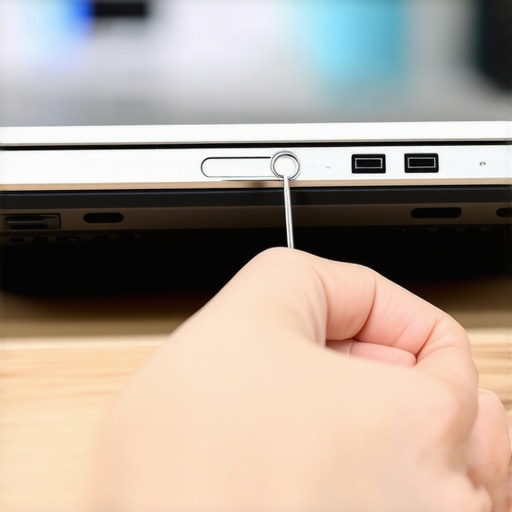
Dealing with slot-loading drives and Macs
If your laptop doesn’t have a tray and just sucks the disc into a slot, the paperclip trick might not work because there is often no hole. For these, try the “Force Eject” trick: restart your computer and hold down the left mouse button (or trackpad) continuously from the moment the screen turns back on until the desktop appears. This tells the firmware to eject whatever is in the drive before the OS even loads. This is a classic move when you are trying to learn how to spot a hardware failure masquerading as a software bug. If it still doesn’t budge, the motor might be dead.
When to stop and seek professional help
There is a fine line between a DIY fix and a total hardware disaster. If you hear a grinding metal-on-metal sound when you try to pull the tray, stop immediately. You might have a broken drive arm that could scratch the data layer of your disc. Much like when you are performing a laptop screen repair, if you feel like you are using more than two fingers of force, you are probably doing it wrong. The mechanism is designed to move smoothly; if it fights you, the jam is more than just a tired rubber belt. If you are worried about losing files during a hardware failure, check out these data recovery secrets for more advanced retrieval methods.While that paperclip trick is a lifesaver, it is just the tip of the iceberg when it comes to maintaining a healthy digital life. One of the biggest mistakes I see—even among tech-savvy business owners—is the belief that having files in the cloud means they are safe. It is a dangerous assumption. In reality, your business backup plan is actually just a sync plan if it does not include versioning and off-site isolation. If you delete a file on your laptop, the sync deletes it from the cloud instantly. True data recovery requires more than just a mirrored folder. According to a study by the Ponemon Institute, the average cost of a data loss event continues to climb because users confuse availability with durability.
Your cloud sync is not a real backup plan
If you are managing a small office, you need to look at managed IT strategies to keep your business secure in 2025. A sync is for convenience; a backup is for survival. When you are deep in the trenches of troubleshooting common computer repair issues effectively, the first thing you should do is verify that your ‘safety net’ actually exists. I once worked with a client who thought their Google Drive was a backup, only for a ransomware attack to encrypt the local files and sync those encrypted versions to the cloud, wiping out years of work.
Don’t panic when the drive starts clicking
We have all heard that a clicking hard drive is a ‘click of death.’ While it is often a sign of mechanical failure, it is not always the end. I have seen cases where a simple power supply issue causes the drive head to reset repeatedly, mimicking the sound of a total crash. Before you assume the worst, you need to know how to tell if your clicking hard drive is a mechanical or electrical issue. If it is electrical, your data is much easier to save and does not require a clean-room environment. 
Is it a software glitch or a failing motherboard?
This is the ultimate question that separates the amateurs from the pros. A laptop that will not turn on might just be stuck in a deep sleep state or have a static buildup. I have watched people spend hundreds on a laptop screen replacement when the issue was actually a loose ribbon cable or a driver conflict. Knowing the difference between a software glitch and a failing motherboard will save you thousands over your lifetime. One final warning for the over-eager cleaners: stop using canned air on your motherboard until you read this warning. If you hold the can at the wrong angle, you can spray liquid refrigerant onto sensitive components, causing thermal shock that cracks the circuit traces. Have you ever accidentally made a tech problem worse while trying to fix it? Let me know in the comments.
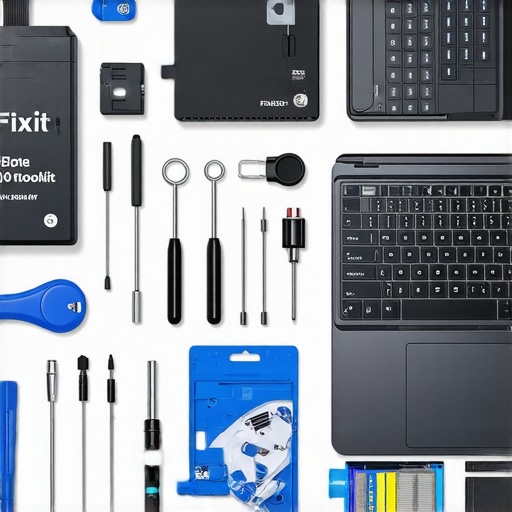
If you want to move beyond just surviving a tech crisis and start preventing them, you need to upgrade your arsenal. I used to think a multi-tool and a prayer were enough, but after stripping my third screw on a delicate chassis, I realized that the right tools are non-negotiable. For anyone serious about computer repair for beginners, I cannot recommend the iFixit Pro Tech Toolkit enough. The bits are precision-engineered to prevent the exact kind of stripping that leads to a permanent hardware headache. But tools aren’t just physical. On the software side, having a dedicated imaging tool is your ultimate safety net. Whenever I see a drive starting to stutter, I don’t wait for it to fail. I use the easiest way to clone a failing hard drive to a new SSD before the mechanical parts give out entirely.
The Gear That Separates Enthusiasts From Pro Technicians
In my daily work, I rely heavily on hardware write-blockers. When you are performing sensitive data recovery, the last thing you want is the operating system ‘helpfully’ trying to repair the file system and overwriting your deleted files in the process. According to the Backblaze 2023 Drive Stats report, while SSDs are generally more reliable than HDDs, their failure rates begin to climb significantly after the four-year mark. This is why I advocate for proactive hardware rotations. If your business is growing, you shouldn’t be playing whack-a-mole with individual repairs. You need managed IT solutions streamlining operations for small businesses to handle these cycles at scale. It turns a chaotic reactive culture into a predictable, manageable expense.
How do I keep my workstation running smoothly for years?
The secret isn’t just cleaning out the dust; it’s about thermal management and power stability. I’ve seen high-end rigs die early because of cheap power strips. Invest in a true Sine Wave UPS. It cleans the ‘dirty’ power coming from your wall and protects the sensitive voltage regulators on your board. This is how you how to extend the life of your office PCs by three years without spending a fortune on new CPUs. If you are already dealing with screen issues, don’t just settle for a fix; look at laptop screen repair DIY tips for clearer displays to ensure you aren’t straining your eyes on a poorly calibrated panel. Looking ahead, I predict we will see more AI-driven predictive maintenance tools integrated directly into BIOS, which will warn you about a failing capacitor months before it actually pops.
Stop buying consumer drives for your business server
It’s tempting to grab a cheap SSD from a big-box store, but those drives lack the power-loss protection (PLP) necessary for high-stakes environments. If the power blips during a write, a consumer drive might lose everything in its cache, leading to a corrupted OS. For businesses, implementing effective managed IT solutions for growing companies ensures you are using enterprise-grade components that can survive these minor glitches. If you suspect your current setup is on thin ice, I want you to try this one advanced tip: download a SMART utility like CrystalDiskInfo and check your ‘Reallocated Sectors Count.’ If that number is anything other than zero, stop what you are doing and back up your data immediately. Have you checked your drive’s health recently, or are you waiting for the clicking sound to start?
Hard Truths I Learned While Kneeling Under Server Racks
The 30-second power cycle is not a myth; it is a necessity. Many components that appear to be failing are actually just suffering from a temporary logic hang or static buildup. When you are just starting with computer repair for beginners, the most important lesson is to never rush the diagnosis. Always document your steps as you go. I have seen seasoned pros lose track of tiny proprietary screws that cost twenty dollars to replace. Taking a quick photo of the internal layout before you touch a single cable will save you hours of frustration later. Most importantly, remember that a mechanical jam is usually a warning shot. If a drive or fan struggles once, it is signaling that the hardware is reaching its end of life. Don’t wait for a total blackout to take action.
My Personal Tech Survival Kit
To move beyond the paperclip trick, you need tools that respect the hardware. I always keep a set of non-conductive nylon spudgers handy; they allow you to pry open laptop cases without marring the plastic or shorting out components. For software health, I rely on Macrium Reflect for creating fail-safe disk images and CrystalDiskInfo for early warning signs. If your health report shows even a few reallocated sectors, you need to verify your data strategy immediately, or you might fall victim to the mistake that makes your backups completely useless. For those managing more than just a home PC, I suggest you audit your business IT spending to ensure you are investing in hardware with high MTBF (Mean Time Between Failures) ratings rather than just the cheapest consumer-grade options.
Step Into Your New Role as the Family Tech Pro
Opening up a device for the first time is a rite of passage. It transforms you from a passive consumer into an empowered owner who isn’t afraid to troubleshoot. Whether you are successfully performing a tray eject or safely removing a bulging laptop battery, every small win builds the confidence needed for bigger repairs. Technology is less ‘magic’ and more a series of logical mechanical puzzles waiting for you to solve them. Keep your tools sharp, your hands steady, and your data backed up. You’ve got this. Did the paperclip trick save your data today, or did you have to resort to a force-eject restart? Let me know in the comments below!