

I was three hours deep into a complex video edit when my PC just… quit. It didn’t blue screen. It didn’t stutter. It just died like someone had pulled the rug out from under it. I sat there in the dark, staring at my own reflection in the glossy monitor, feeling that pit in my stomach. I’d ignored the signs for weeks. The occasional USB port that didn’t work, the slight smell of ozone, and those weird “phantom” reboots I blamed on Windows updates. I was wrong. My motherboard was screaming for help, and I was wearing noise-canceling headphones.
The Stealthy Death of a Motherboard
If you think your computer is just “acting up” or “getting old,” you might be missing the red flags of a total hardware collapse. Identifying these issues early is the difference between a controlled upgrade and a frantic 2 AM search for data recovery tools. Trust me, I’ve been there, and the “frantic search” version is much more expensive. We’re going to dive into the subtle glitches that scream motherboard failure so you can take action before your screen goes dark for good. Whether you’re trying to test if your motherboard is dead or just sleeping or you’re just suspicious of a new noise, I’ve got your back. It starts with small things, but it always ends the same way if you don’t pay attention.
Is my motherboard actually dying or am I just paranoid?
It’s easy to get spooked. You see one glitch and suddenly you’re ready to buy a whole new rig. But here’s the thing: motherboards are the central nervous system of your PC. When they fail, the symptoms are often weird and inconsistent. One of the biggest mistakes I made early on was replacing a perfectly good power supply because I thought the random shutdowns were power-related. It turned out to be a leaking capacitor on the board itself—a classic sign I should have spotted if I’d just looked closer. According to tech industry reports from hardware specialists, environmental factors like humidity and dust account for nearly 25% of premature component failures, often causing “dendrites” or tiny metallic bridges to grow on the board and cause shorts. It’s a slow, invisible process that mimics software bugs. This is why it’s so important to learn how to spot a hardware failure masquerading as a software bug. Have you ever noticed your computer behaving like it has a mind of its own, only to have the problem disappear the next day? I want to know—have you ever experienced a random shutdown that you just couldn’t explain? If you’ve noticed that your computer smells like burnt plastic, you need to stop what you’re doing immediately. That’s not just a glitch; that’s a physical failure in progress. For the rest of us dealing with “ghost” issues, let’s look at the specific physical and performance-based signs that mean your board is on its way out. It’s time to stop guessing and start diagnosing, especially if you’re trying to avoid costly mistakes that most beginners fall for.
Search for Physical Scars on the Circuitry
First, you need to perform what I call a ‘Crime Scene Investigation’ on your hardware. Pop the side panel off your case or carefully open your laptop and grab a high-powered flashlight. You are looking for ‘blown’ or leaking capacitors—those small cylindrical components that should be perfectly flat on top. If they look like they are bulging or have a crusty brown residue, that is your smoking gun. Think of a motherboard like a busy city’s power grid; one blown transformer can darken an entire neighborhood. I remember a specific case where a client’s PC kept freezing during video calls. I opened it up and found three capacitors that looked like they were about to pop. Replacing them early saved his entire project, preventing him from needing to use data recovery tools later. If you spot any charred marks or smell that distinct metallic tang, you are likely dealing with a short circuit. This is often why your computer smells like burnt plastic, and it is a signal to cut the power immediately. 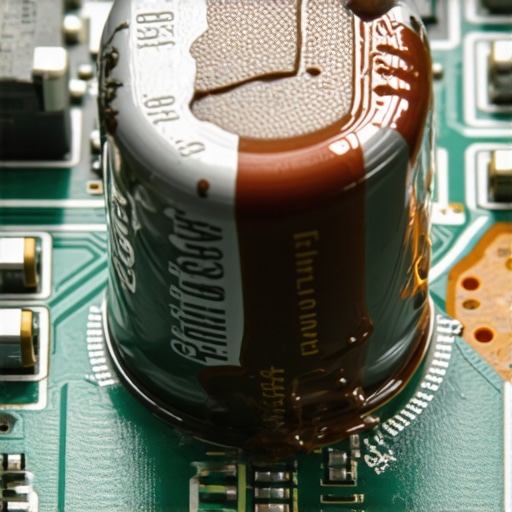
Strip the System to its Bare Essentials
When the visual cues are subtle, you have to use the ‘Breadboarding’ method. This means removing everything that isn’t strictly necessary for the computer to turn on. Unplug your GPU, take out all but one stick of RAM, and disconnect your hard drives. If the system suddenly boots to BIOS, you know the motherboard is likely fine and one of your peripherals was causing a short. For a business, skipping this type of granular diagnostic is a recipe for disaster, which is why managed IT solutions for growing companies focus so heavily on proactive hardware monitoring. I once spent four hours troubleshooting a ‘dead’ rig only to realize a single $15 USB expansion card was shorting the entire board. I almost recommended a full system replacement, a mistake you can avoid if you learn how to avoid costly mistakes by testing components individually.
Check the Power Path and the Tiny Battery
Don’t overlook the simple things. A failing CMOS battery—the little silver coin on the board—can cause boot failures that look exactly like a dead motherboard. If your system clock keeps resetting or you’re stuck at the startup screen, you should identify a failing CMOS battery before you go out and buy a new board. Similarly, if you are on a laptop, a faulty charging port can mimic a motherboard failure. I’ve seen people assume their board fried when they really just needed to fix a loose laptop charging port at home. If your screen is showing weird artifacts, don’t automatically blame the board either. You might need to determine if your screen flicker is software or a dying ribbon cable. When you are dealing with integrated graphics, a motherboard issue can often manifest as visual glitches, such as horizontal bars of color on the display. Always verify the power delivery first; if the board isn’t getting clean, consistent voltage, it will behave like it’s haunted. This is the exact point where you need to test if your motherboard is dead or just sleeping by checking the standby power lights on the PCB itself.Let’s dig deeper into the nuances that separate the casual users from the professionals. One of the biggest traps I see tech-savvy users fall into is the ‘Cloud Sync’ delusion. Everyone tells you that if your files are in OneDrive or Dropbox, they’re ‘backed up.’ That is a dangerous myth. If a virus or a simple user error corrupts your local files, those corrupted versions sync straight to the cloud, overwriting your good data. This is why your business backup plan is actually just a sync plan if you aren’t using versioned repositories. Real data recovery starts with immutable, offline backups. I’ve seen small businesses lose years of work because they thought a green checkmark on their desktop meant they were safe. According to research by the Ponemon Institute, the cost of data loss is often more about the downtime than the hardware itself, yet businesses still prioritize the cheapest fixes over resilience. 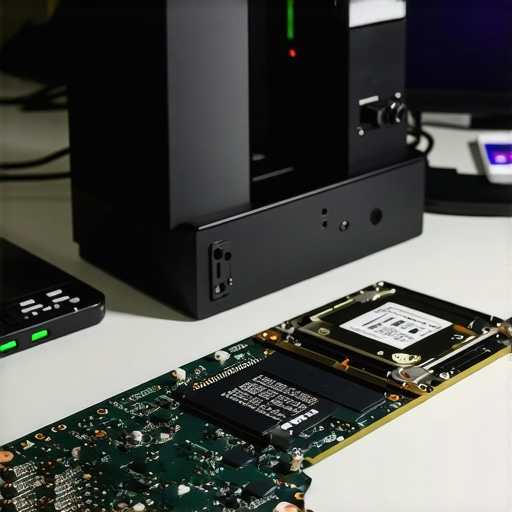
How do you know if your screen flicker is a physical break or a software bug?
Distinguishing between a dying panel and a simple driver conflict is a skill that saves thousands of dollars. Most people see horizontal bars of color or a display that looks purple or green and immediately order a new screen. But before you pull out the screwdriver, you need to check if your screen flicker is software or a dying ribbon cable. I have personally handled cases where a $10 cable replacement fixed what looked like a catastrophic failure. Even a laptop screen showing static like an old television can often be a software-level refresh rate error rather than a physical crack. This is the ‘oops’ factor of modern repair—throwing away good hardware because of a bad signal. Another nuance involves the modern SSD. Most users think SSDs are invincible because they have no moving parts, but you need to watch for the sign your SSD is reaching its write limit and about to die. Once those cells wear out, the drive often switches to ‘read-only’ mode without warning, making the secret to pulling data from an encrypted drive that crashed a very expensive necessity. In the business world, this lack of foresight is why managed IT is a game-changer when compared to the reactive model. Why choosing the cheapest managed IT plan always leads to more downtime is a lesson many learn too late; you want a partner who knows how to audit your business IT spending and catch hardware limits before they halt your production. Have you ever fallen into this trap of replacing a part only to find it wasn’t the problem? Let me know in the comments.
The first thing I grab when a machine starts acting up isn’t a screwdriver; it’s my diagnostic software. If you’re still relying on the ‘wait and see’ method, you’re essentially playing Russian Roulette with your data. I personally swear by HWiNFO64 for real-time sensor monitoring. It allows me to see voltage fluctuations in the motherboard’s VRM (Voltage Regulator Modules) that the human eye could never detect. If I see a 12V rail dipping to 11.4V under load, I know the power delivery is failing before I even see a single pixel flicker. This level of detail is how you troubleshoot common computer repair issues effectively without wasting hundreds on parts you don’t need.
Stop Waiting for Smoke and Start Monitoring Heat
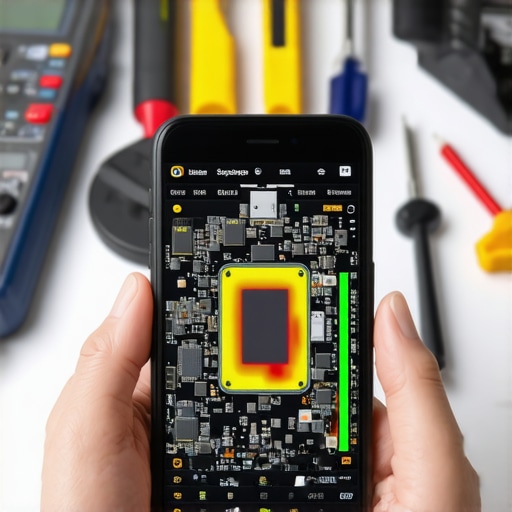
One tool that changed my entire workflow is the thermal imaging camera. By looking at a live board under a thermal lens, a shorted capacitor glows like a tiny sun against a sea of blue. It’s the ultimate shortcut. Instead of desoldering half the board, I can pinpoint the failure in seconds. For most of you, buying a $400 FLIR camera isn’t practical, but you can achieve similar results by learning the nuances of software-based thermal thresholds. If your CPU is hitting 95°C while just browsing Chrome, your thermal paste has likely crystallized. According to technical documentation from Arctic Silver, high-performance thermal compounds can lose their effectiveness after 3-5 years due to ‘pump-out’ effects where thermal cycling physically pushes the paste out from between the chip and the cooler. Ignoring this leads to permanent silicon degradation. If you’re running a business, this is where managed IT solutions for growing companies become vital; they use automated agents to catch these thermal spikes across your entire fleet before a workstation dies mid-presentation.
How do I maintain my hardware performance over time?
Maintenance isn’t just about blowing out dust with canned air once a year. It’s about a tiered strategy of hardware and software audits. First, you need to check your drive health. I use CrystalDiskInfo to monitor the S.M.A.R.T. attributes of every drive I own. If the ‘Reallocated Sectors Count’ is anything other than zero, I’m already moving data. This is the difference between a simple clone and a desperate need for data recovery tools. Second, you must audit your power environment. I’ve seen more motherboards killed by ‘dirty’ wall power than by actual age. Using a Sine-Wave UPS (Uninterruptible Power Supply) is the single best investment you can make to extend the life of your office PCs by years. Looking ahead, I predict we will see AI-integrated BIOS that can predict component failure with 99% accuracy by analyzing micro-fluctuations in electrical resistance. Until then, you need to be the one paying attention. If you aren’t sure where your money is going, you should audit your business IT spending to see if you’re overpaying for reactive repairs when you could be investing in stability. If you’re hiring outside help, make sure you use a checklist for vetting a new IT consultant to ensure they actually use these proactive tools. My challenge to you: download a sensor monitor today and check your CPU temperatures under load. If you’re over 85°C, it’s time to act before you have to learn how to avoid costly mistakes the hard way.
Hard Lessons Learned from 500 Dead Motherboards
After years of repairing rigs, I’ve realized that the ‘Wait and See’ method is the most expensive mistake you can make. If you hear a click or see a flicker, the clock is already ticking. I’ve seen users lose months of work because they didn’t realize that troubleshooting common computer repair issues effectively starts with identifying the very first symptom. Another hard truth: Clean power matters more than a fast CPU. I’ve seen $3,000 workstations fried because of a $10 power strip. Invest in a Sine-Wave UPS if you value your motherboard’s life. Finally, remember that physical damage isn’t always the end; even if you think it’s over, data recovery secrets and expert techniques can often pull a miracle out of a dead drive.
The Hardware Recovery Kit I Keep in My Bag
#IMAGE_PLACEHOLDER_E#
You don’t need a professional lab to be proactive. I personally rely on HWiNFO64 for checking those critical motherboard voltages in real-time. For storage, CrystalDiskInfo is my go-to for predicting drive death before it results in a total loss of access. If you’re dealing with display issues, knowing how to fix common laptop screen issues at home can save you a trip to the shop. For business owners, the ultimate tool isn’t software—it’s having a resilient strategy, which is why how managed IT can elevate your business security in 2025 involves taking the guesswork out of hardware life cycles.
Build a Setup That Doesn’t Fail You
Hardware is temporary, but your data shouldn’t be. By paying attention to the small signs and keeping your system cool and clean, you can dodge the ‘death’ I experienced that dark night in my office. Whether you are performing a simple computer repair or setting up a full office network, being proactive is the only way to stay ahead of the silicon. Have you ever had a computer die right in the middle of an important project? Let me know in the comments below.